
Skip to content
ProVideo Coalition
  • Latest
  • News
  • Production
  • Post Production
  • Podcasts
  • Reviews
  • Experts
  • More
    • About Us
      About Us MM Image
    • Meet the Experts
      Meet the Experts MM Image
    • Advertise
      Advertise MM Image
    • Contact Us
      Contact Us MM Image
  • Subscribe
  • Search
    • Search MM Image
      • FOLLOW US
      • TOP LINKS
      • TIPS
      • TOPICS
      • WEBINARS
Post Production

How to move your Adobe Premiere Pro keyboard shortcuts and user settings, most all of them

How to move your Adobe Premiere Pro keyboard shortcuts and user settings, most all of them 1
  • twitter
  • facebook
  • pinterest
Support ProVideo Coalition
Shop with Filmtools Logo

Filmtools

Filmmakers go-to destination for pre-production, production & post production equipment!

Shop Now

Premiere has many places to save custom presets. All of those can be moved

Profile Picture
Scott Simmons
January 4, 2024
Comment

Have you ever wanted to move your Adobe Premiere Pro Adobe Premiere Pro keyboard shortcuts and user settings from one system to another? No? Congratulations, you’ve learned something new if you didn’t know that is possible. If you do move your keyboard shortcuts (and other Premiere Pro settings) around, then you’re probably in the minority of Premiere users out there. If you move even more settings than just your keyboard shortcuts then you’re in even more rarifed air as there are a lot of custom Adobe Premiere Pro settings that and be moved from one system to another. 

If you don’t customize Premiere, then what are you waiting for? Premiere’s deep customization is my very favorite thing about Premiere and an advantage that I think it has over the competition.

In this article, I’ll answer some burning questions about not just Premere’s Sync Settings feature but also take a look at a lot of other custom settings in Premiere that can be set up, saved and then moved to other systems.

Did you know that you can sync custom Premiere keyboard mapping and a few other settings via the Creative Cloud but that feature is going away?

Premiere’s Sync Settings option would let you push custom settings up to the cloud and/or pull custom settings down from the cloud onto a new system.  These traveled in your Above Creative Cloud account.
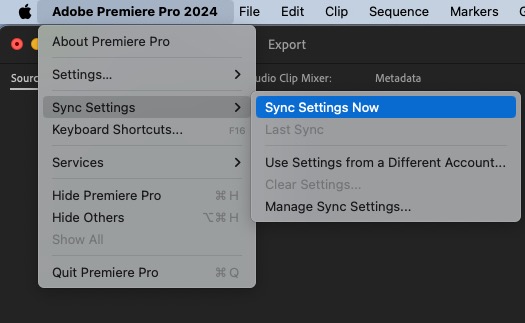
How to move your Adobe Premiere Pro keyboard shortcuts and user settings, most all of them 2
Sync Settings … a great idea in theory.

You would decide exactly which settings to sync via the Sync Settings… preference.
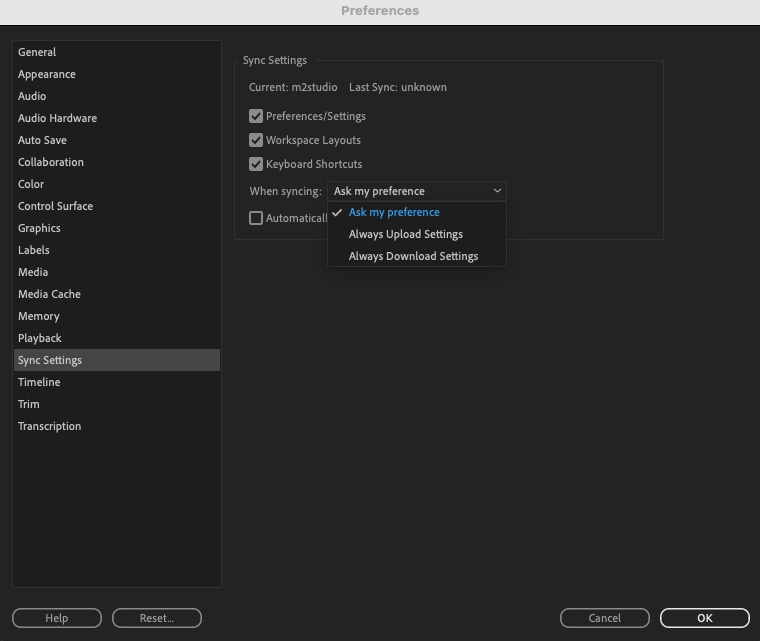
How to move your Adobe Premiere Pro keyboard shortcuts and user settings, most all of them 3
To this day, I don’t know exactly what is contained within the Preferences/Settings check box. I always move my settings manually.

If you notice, my Last Sync is set to “unknown,” as I haven’t used this feature in a long time.

So, the Adobe Premiere Pro sync settings feature is going away?

Yes, in early 2024, Premiere’s cloud-based option to automatically “sync settings” from one system to another will be removed. If you have yet to use it, don’t start now; we’ll tell you how to move some settings other ways. 

Adobe has talked about this in Premiere’s online help documents. Starting with Premiere 24.3 the option will be gone.

Why are Adobe Premiere Pro sync settings going away?

Adobe is discontinuing Creative Could Synced files as part of the Creative Cloud subscription and PPro’s Sync Settings is a casualty of removing this feature. There’s a whole document from Adobe about this specifically for Premiere Pro.

Why have I never heard of Premiere’s Sync Settings?

Honestly, it didn’t work all that well. While a fantastic idea, it was never really updated after being introduced and was a bit clunky in execution. Often, it just didn’t work, and I stopped trying to use it a long time ago. 

Is Premiere’s Team Projects also going away since it is a “cloud-based” service?

No, Team Projects will continue as Team Projects is a separate service that does not rely on Creative Cloud Synced Files. 

How will I move my keyboard shortcuts from one system to another?

Custom keyboard mappings are, perhaps, an editor’s most important setting to move from one system to another. And that can be done manually in Adobe Premiere Pro.

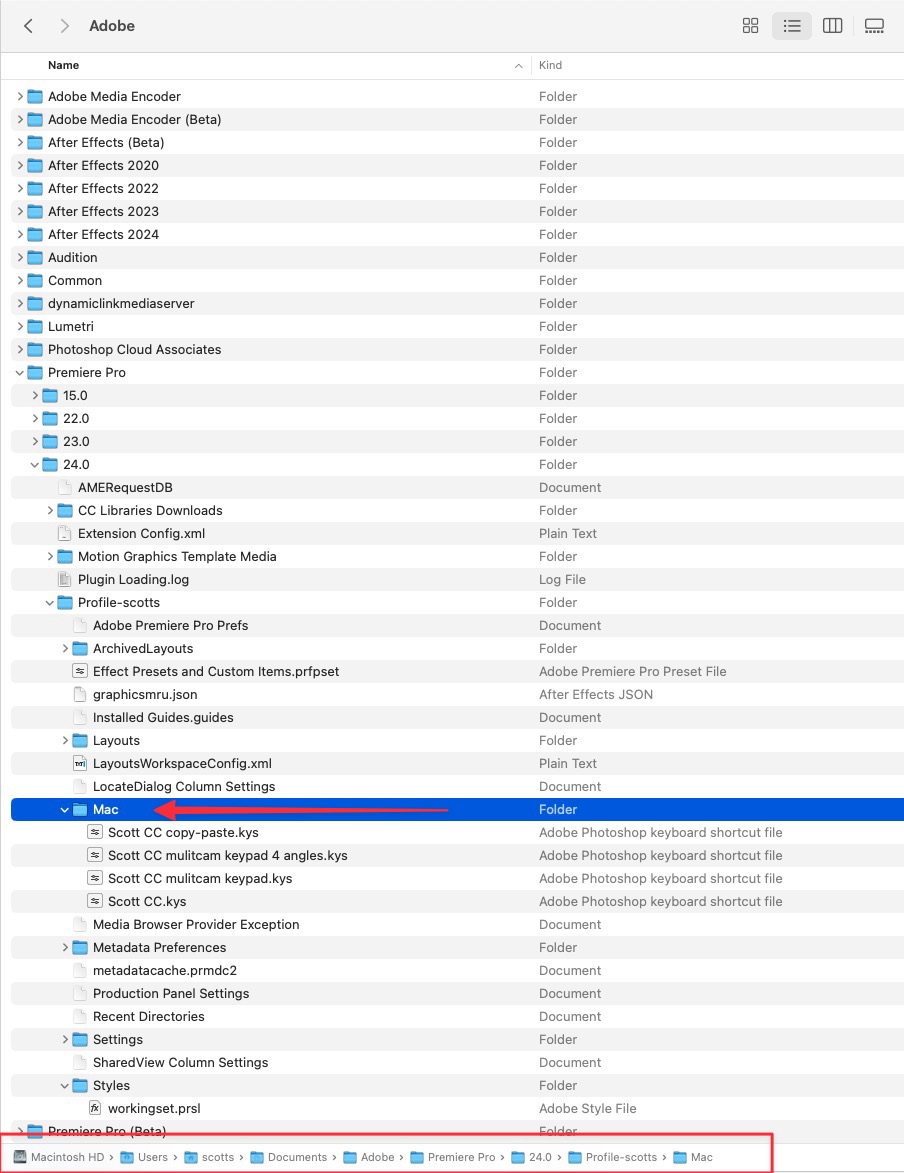
Custom keyboard mappings are saved in a .kys file located deep in a folder on your system. That file can be moved from system to system by copying the .kys file into the correct folder.
How to move your Adobe Premiere Pro keyboard shortcuts and user settings, most all of them 4
Yes, that is a big image, and those keyboard settings are buried quite deep. But the .kys file is the key.

This is the file path copied directly from the MacOS:

/Users/scott14/Documents/Adobe/Premiere Pro/24.0/Profile-scott14/Mac

Yours will differ slightly as your home folder will have a different name.

The entire Profile-<profilename> is a very important folder for Premiere settings so get to know it well. These are the file paths for both Mac and Windows, pulled from Adobe’s reset and restore preferences online documentation:

Windows: C:\Users\<username>\Documents\Adobe\Premiere Pro\<version>\Profile-<profilename>

macOS: /Users/<username>/Documents/Adobe/Premiere Pro/<version>

I have to move my Premiere keyboard shortcuts between Mac and PC. Is that possible?

Yes, it is possible, and as luck would have it, I have an article on how to do that right here on ProVideo Coalition!

Or just hit this link to our friends at Knights of the Editing Table, as the .kys converter is their handy work. 

But what about all those other custom settings all over Premiere Pro? Do you have a list of those and how to move them?

Many custom settings can be created and saved in Adobe Premiere Pro. It’s that customization that is my single most loved feature in Premiere as I mentioned above. Part of that is those presets. 

Here is a list of all the different presets that I use and save, in pretty much the order of what I find useful:

  • Bin Column “Project View” Metadata presets
  • Sequence Presets
  • Track Height presets
  • Source Patching presets
  • Timecode Overlay presets
  • Timecode Panel presets
  • Metadata Panel presets
  • Essential Sound Panel presets
  • Export Destination presets

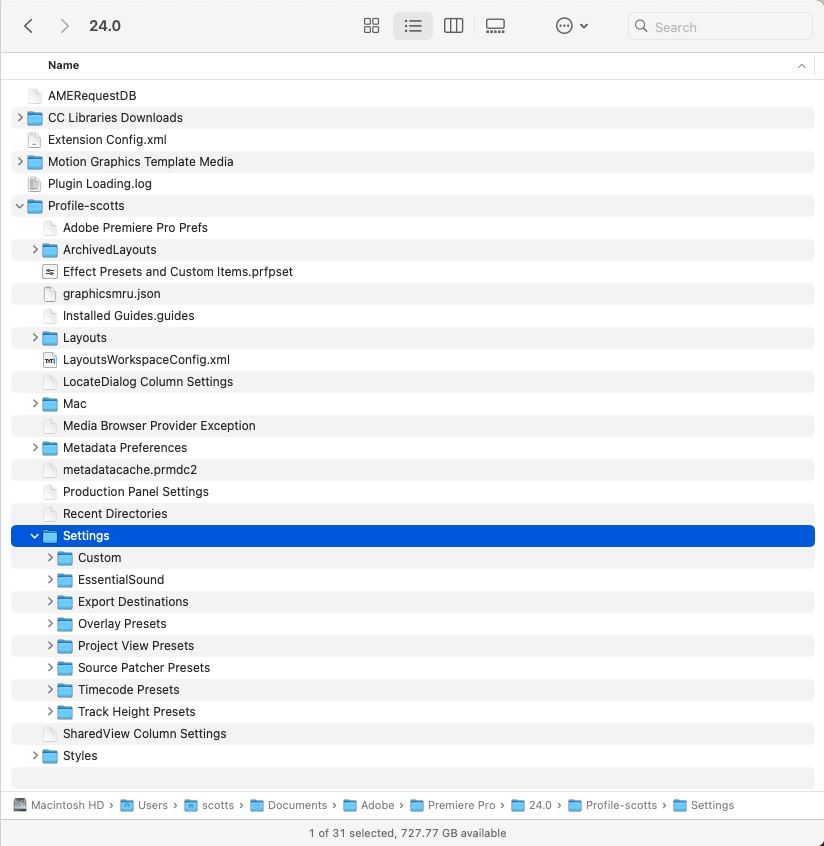
Most of these above presets live under a Settings folder buried in that Profile folder above.
How to move your Adobe Premiere Pro keyboard shortcuts and user settings, most all of them 5
Check out that file path at the bottom of the window.

But I can’t find these folders you’re talking about.

If you aren’t seeing any of the numerous settings folders mentioned above, it might be because you’ve never saved any of those presets. But while you can manually create them, when I move settings, I prefer Premiere to make them. To create a specific settings folder, you can save a dummy preset in any place where a preset or setting can be saved. That will create the needed folder, and you can just delete the dummy setting created and copy in your custom setting.

I have never heard of half of these settings. Can you explain them a bit more?

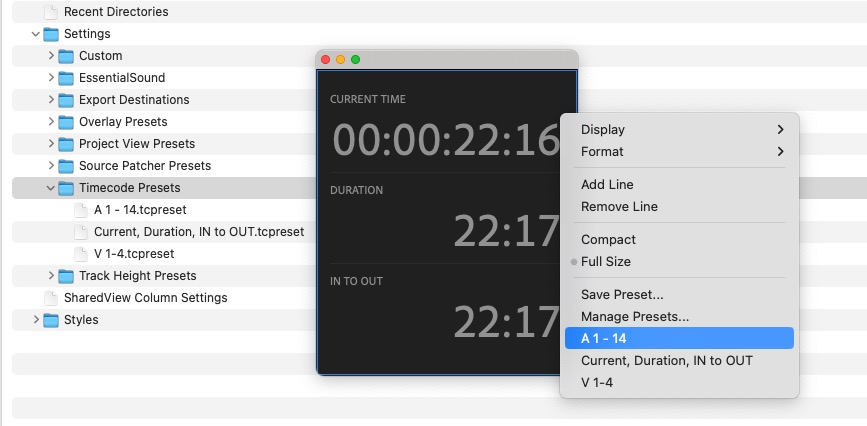
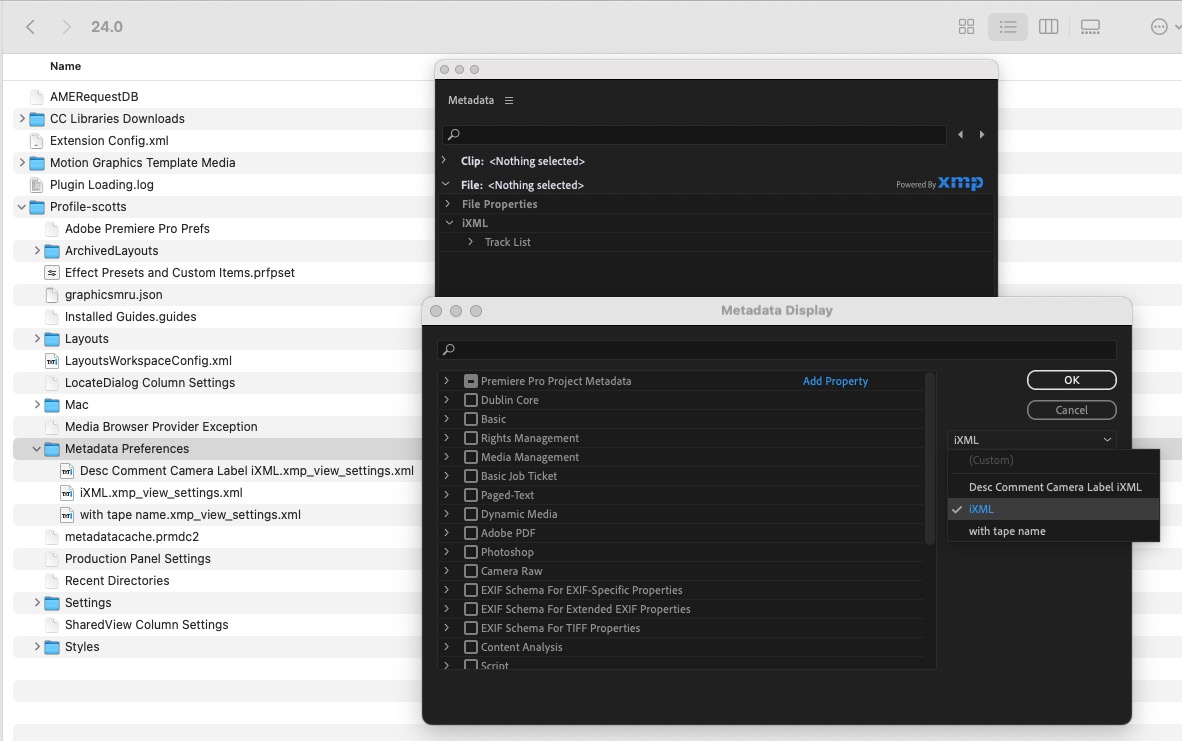
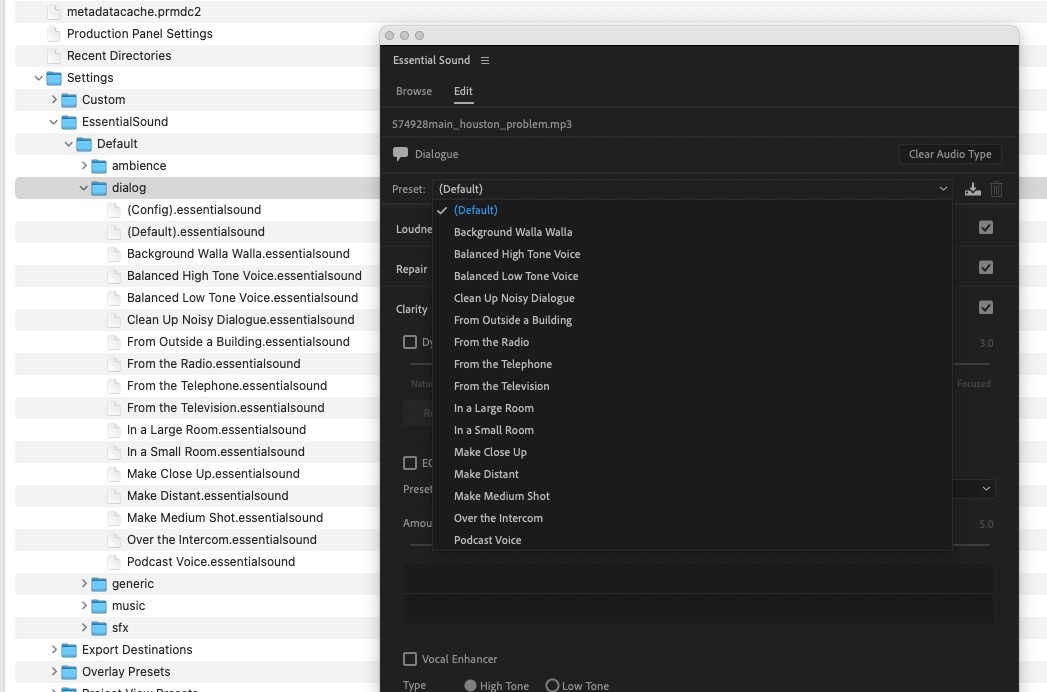
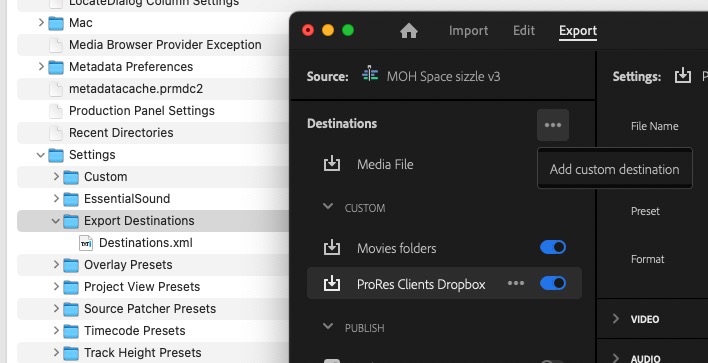
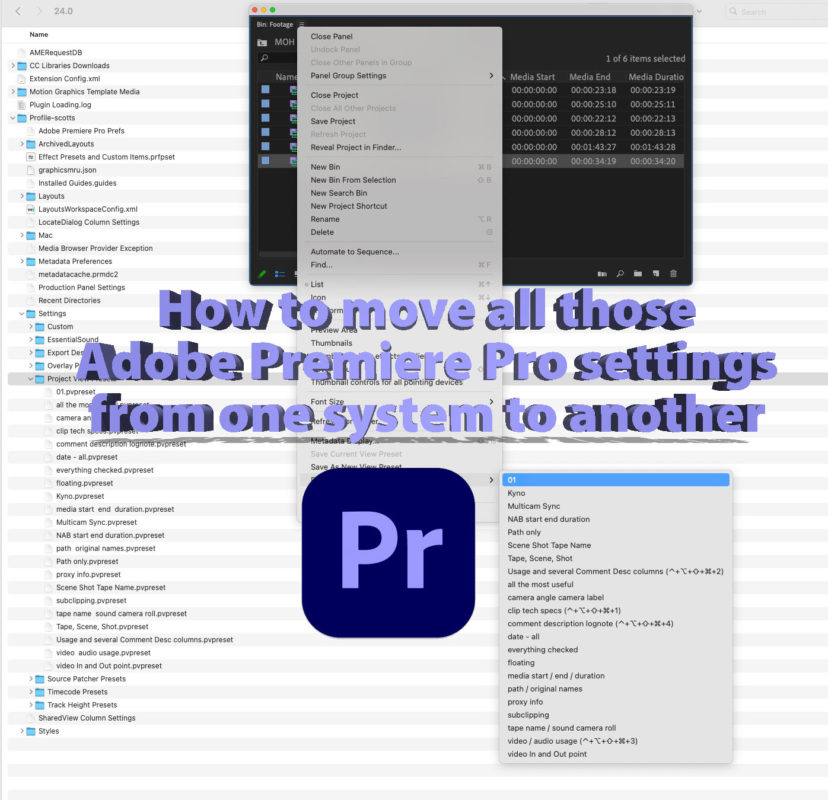
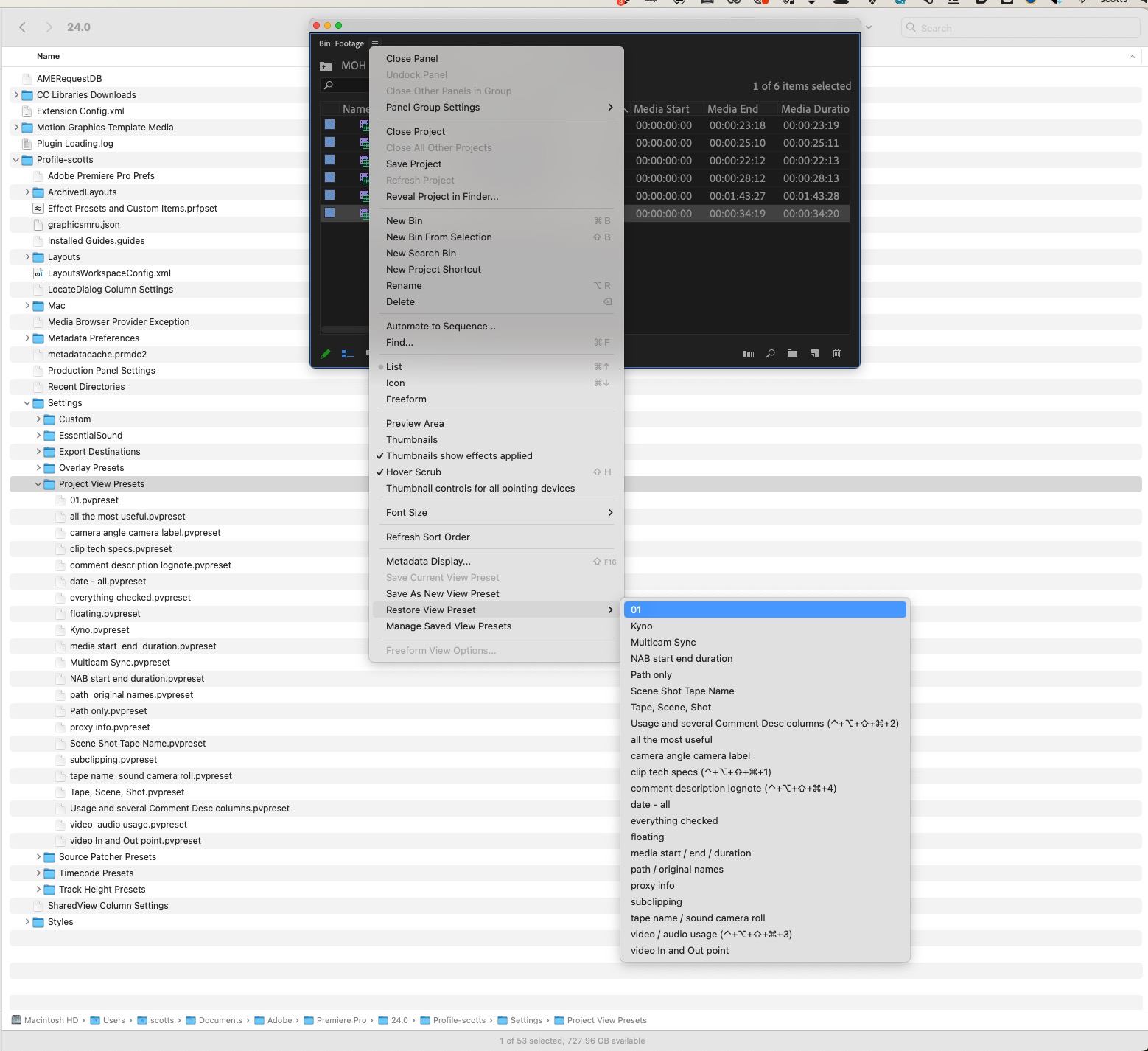
Okay, here goes. I’ve taken a screen grab of the actual Premiere panel settings from the Premiere interface with the Mac Finder settings folder twirled down on the left. In most of them, you’ll notice that the names of my saved presets are the same as the file names in the settings folder. Right-click and open a new window for a closer view.

  • Bin Column “Project View” Metadata presets ⬇️
How to move your Adobe Premiere Pro keyboard shortcuts and user settings, most all of them 6
Bin column metadata views are vitally important to an editor and can hold a lot of power. But that’s another article for another time. I have many of them saved.
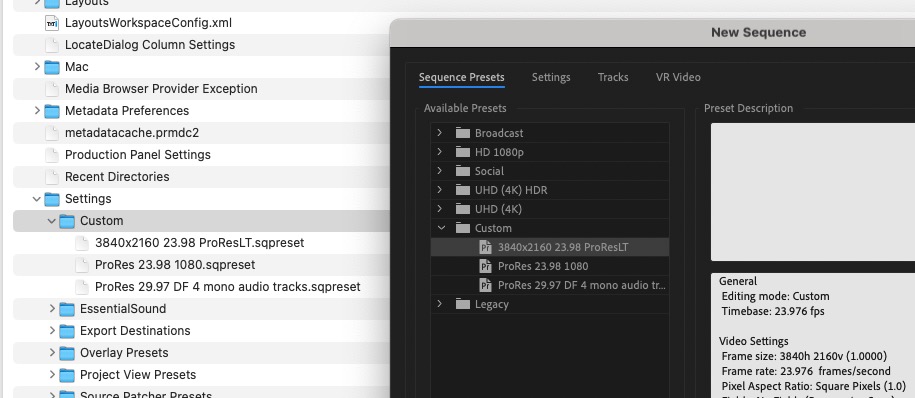
  • Sequence Presets ⬇️
How to move your Adobe Premiere Pro keyboard shortcuts and user settings, most all of them 7
I’m doing this on my laptop, so my office system has a lot more Sequence Presets than this.
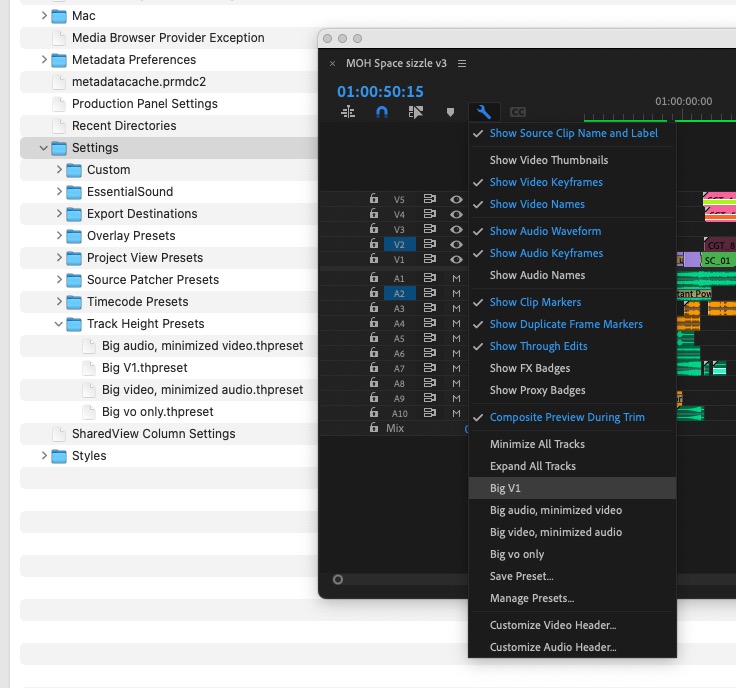
  • Track Height presets ⬇️
How to move your Adobe Premiere Pro keyboard shortcuts and user settings, most all of them 8
Depending on your screen real estate you might have more or less track height presets. The bigger the screen, the more I have and save.
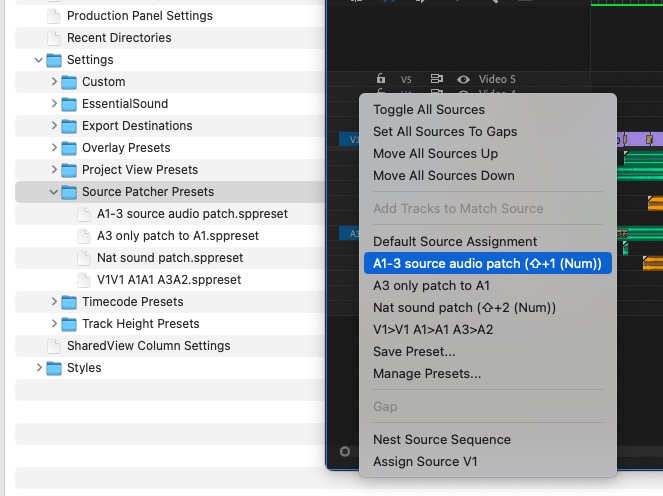
  • Source Patching presets ⬇️
How to move your Adobe Premiere Pro keyboard shortcuts and user settings, most all of them 9
Source patching presets are unique to Adobe Premiere Pro. They are so useful when working with many different sources. But I still desperately wish we could toggle the auto-creation of new tracks, though.
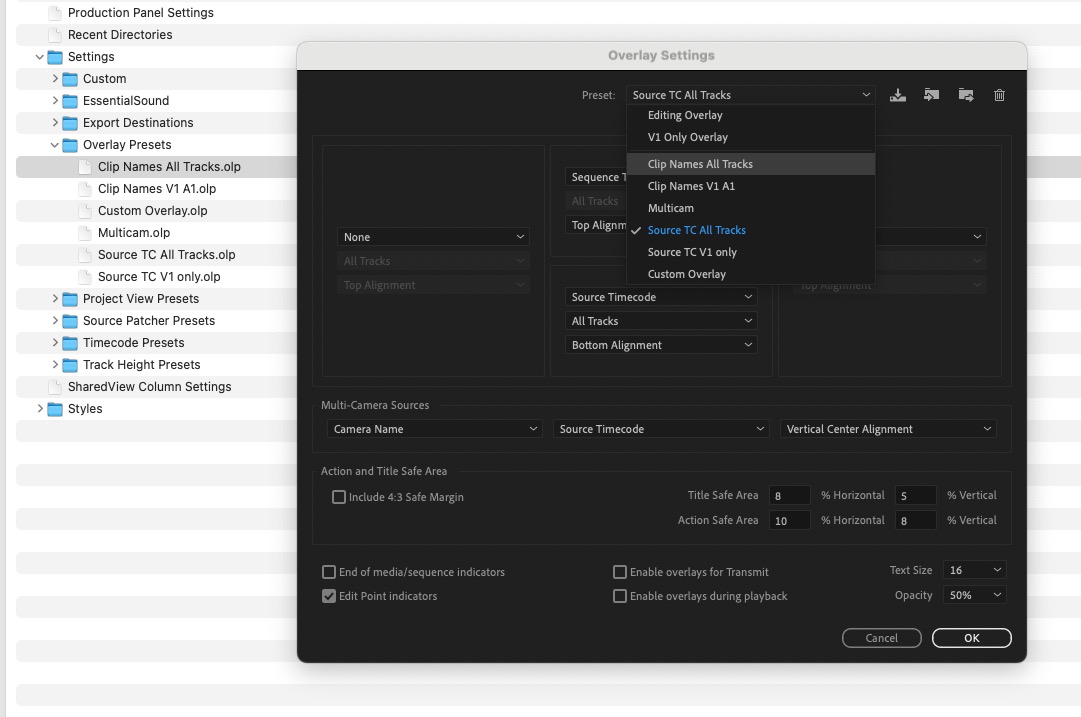
  • Timecode Overlay presets ⬇️
How to move your Adobe Premiere Pro keyboard shortcuts and user settings, most all of them 10
Timecode overlays are very helpful for quickly displaying all kinds of metadata in the Program viewer.
  • Timecode Panel presets ⬇️
How to move your Adobe Premiere Pro keyboard shortcuts and user settings, most all of them 11
The Timecode panel can provide a running list of useful metadata in a dockable panel.
  • Metadata Panel presets ⬇️
How to move your Adobe Premiere Pro keyboard shortcuts and user settings, most all of them 12
The Metadata panel is separate and for some reason, the saved presets for the Metadata panel aren’t the same as the column metadata presets you save in a bin. I mainly use this panel for iXML viewing of audio metadata.
  • Essential Sound Panel presets ⬇️
How to move your Adobe Premiere Pro keyboard shortcuts and user settings, most all of them 13
I’ve never saved my own custom Essential Sound presets, but here they are if you want to save your own.
  • Export Destination presets ⬇️
How to move your Adobe Premiere Pro keyboard shortcuts and user settings, most all of them 14
I’ve never really saved many custom export destinations, so this is something I need to explore.

You haven’t mentioned my most important preset, Workspaces. Why not?

Honestly, I’ve never tried to move a custom workspace preset. I don’t work on any two systems that have exactly the same screen size options, so my workspaces always change from system to system. Sometimes Premiere just has a mind of its own when it comes to saving custom workspaces, so trying to move them from one system to another feels futile. If you have a solid suggestion for how to move workspace presets from system to system, let us know in the comments below. 

And Effects presets? I have tons of those.

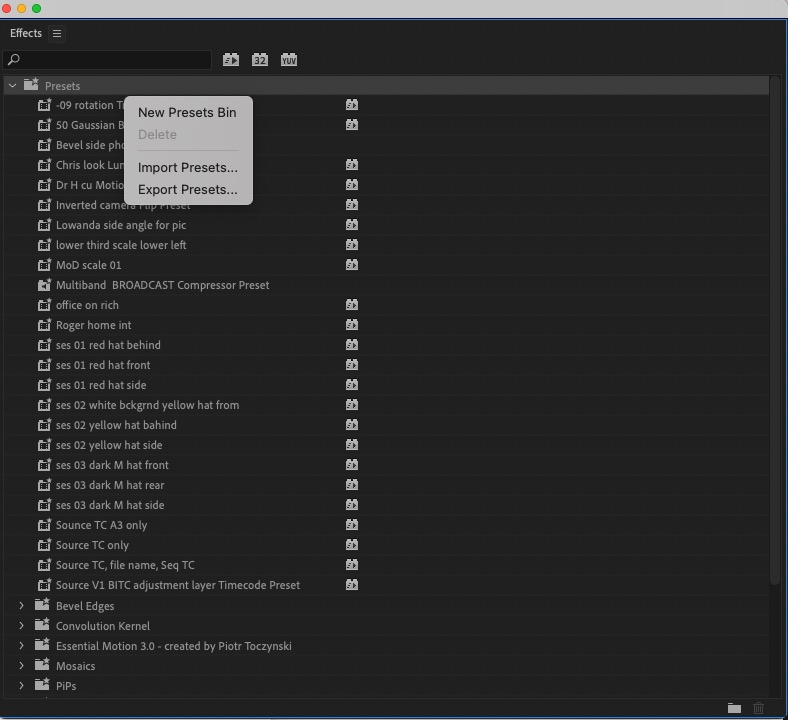
Effects presets are an important part of Adobe Premiere Pro, for sure. Those can be exported and imported right from the Effects panel.
How to move your Adobe Premiere Pro keyboard shortcuts and user settings, most all of them 15
You know you have a lot of effects presets, so take care of them as well.

What about import and export presets? You didn’t mention those, either. 

Import and Export presets have their own method for saving all your custom settings work. See the Export Preset Manager where you can import and export your carefully crafted presets. I’m betting these presets are stored somewhere in all those files in the folder path mentioned above, but I’ve never explored how to move them outside of the Export Preset Manager.

Wouldn’t it be much easier if there was a way just to export all of these custom settings and import them on another system?

Yes, yes, it would. We can only dream that this will be possible one day. Technically, it should be possible, but most other NLEs don’t do this well either. Avid Media Composer has the best mechanism to move settings from one system to another, but it could be better. 

You keep mentioning moving presets but can you just backup these folders as a way to backup the presets?

Yes, you can. I keep all of my many Premiere settings and presets on both a thumb drive to carry in my bag as well as keeping a copy of them on Dropbox. I seem to constantly update my settings, so every now and then, I’ll back them up, creating a fresh version.

Couldn’t an enterprising third-party developer create a tool that could extract Premiere’s settings folders and settings files and then deposit them into the correct place on a different system?

I would think such a tool should be possible without all that much difficulty. Since these Premiere settings just live in some very specific directories … how hard could it be?

If you’re a developer and want to tackle this with me, gimme a shout!

adobe premiere pro premiere pro Settings User Settings

What Do You Think? Let Us Know.

Subscribe
Login
Notify of
guest
guest
4 Comments
Oldest
Newest Most Voted
Ross Martin
Ross Martin
2 years ago

Great article Scott but I can’t tell you how many times a Premiere update has added spurious, new and unwanted shortcuts to my custom keys. Very annoying!

0
Reply
Scott Simmons
Scott Simmons
Author
Reply to  Ross Martin
2 years ago

Interesting. I don’t think I’ve noticed this. That is not desirable! Were they new functions added when new features came out in an update?

0
Reply
John Knowles
John Knowles
2 years ago

Quick way to move a custom Workspace to another system: create a project (blank or with one clip or sequence), switch to your custom Workspace and save it. Then move the project over to the other system. Make sure you turn on the option in the Workspace menu to “inherit Workspaces from project” (paraphrasing but it’s something like that). Then open the moved project and the Workspace should appear in the menu.

1
Reply
Scott Simmons
Scott Simmons
Author
Reply to  John Knowles
2 years ago

That’s a great tip! Thanks for that.

0
Reply

PVC Favorites

4 weeks ago

Adobe Premiere is adding a Generative Media Tool

Adobe Premiere is adding a Generative Media Tool 16
Review: Insta360 Luna Ultra 17
Production

Review: Insta360 Luna Ultra

KSUN ZL35
Business

Review: KSUN ZL35 network walkie talkie radio with wifi/4G & Zello

Pentacon lens with zebra-striped barrel on a desk next to a drinking glass.
Production

Finding more classic stills lenses

Latest

1 day ago

Tool Tip Tuesday for Adobe Premiere Pro: Getting your Mask/Key to look real

Tool Tip Tuesday for Adobe Premiere Pro: Getting your Mask/Key to look real 18
Review: DJI Mic Mini 2S 19
Production

Review: DJI Mic Mini 2S

After Effects Portal July 2026 20
Post Production

After Effects Portal July 2026

GoPro Mission 1 Pro Update: Slow Motion, Time-Lapse & Wireless Mic Tests 21
Post Production

GoPro Mission 1 Pro Update: Slow Motion, Time-Lapse & Wireless Mic Tests

You Might Also Like

Tool Tip Tuesday for Adobe Premiere Pro: Getting your Mask/Key to look real 22

Tool Tip Tuesday for Adobe Premiere Pro: Getting your Mask/Key to look real

Written by Jeff Greenberg
August 4, 2026
Welcome to Tool Tip Tuesday for Adobe Premiere on ProVideo Coalition. Between green screen, chroma keying and the new...
GoPro Mission 1 Pro Update: Slow Motion, Time-Lapse & Wireless Mic Tests 32

GoPro Mission 1 Pro Update: Slow Motion, Time-Lapse & Wireless Mic Tests

Written by Jeff Foster
July 31, 2026
GoPro Updates: I’m following up on my last update with more hands-on tests and info on the Mission 1...
Tool Tip Tuesday for Adobe Premiere: Getting your Computer Volume calibrated 42

Tool Tip Tuesday for Adobe Premiere: Getting your Computer Volume calibrated

Written by Jeff Greenberg
July 28, 2026
Welcome to Tool Tip Tuesday for Adobe Premiere on ProVideo Coalition How do you know if your computer’s volume...
Tool Tip Tuesday for Adobe Premiere: Hover Scrub 47

Tool Tip Tuesday for Adobe Premiere: Hover Scrub

Written by Scott Simmons
July 21, 2026
Welcome to Tool Tip Tuesday for Adobe Premiere on ProVideo Coalition Hover Scrub is one of my favorite features that have ever...
ProVideo Coalition

Contact

  • +1-747-444-1870
  • [email protected]

Useful Links

  • Advertise With Us
  • Mobile App
  • Topics
  • Meet the Experts
  • Webinars
  • Contact Us

Our Websites

  • Filmtools
  • PacRad
  • Tour Supply
  • Moviola.com
  • Moviola Digital

Sign up for the ProVideo Coalition weekly e-newsletter and get the most popular articles, blogs, and reviews right to your inbox.

By entering your email, you agree to our Terms & Conditions and Privacy Policy

© 2026 ProVideo Coalition, a Filmtools Company. All Rights Reserved.
Terms of Service Privacy Policy Cookie Policy Sitemap
Manage Cookie Consent
We use cookies to optimize our website and our service.
Functional Always active
The technical storage or access is strictly necessary for the legitimate purpose of enabling the use of a specific service explicitly requested by the subscriber or user, or for the sole purpose of carrying out the transmission of a communication over an electronic communications network.
Preferences
The technical storage or access is necessary for the legitimate purpose of storing preferences that are not requested by the subscriber or user.
Statistics
The technical storage or access that is used exclusively for statistical purposes. The technical storage or access that is used exclusively for anonymous statistical purposes. Without a subpoena, voluntary compliance on the part of your Internet Service Provider, or additional records from a third party, information stored or retrieved for this purpose alone cannot usually be used to identify you.
Marketing
The technical storage or access is required to create user profiles to send advertising, or to track the user on a website or across several websites for similar marketing purposes.
Manage options Manage services Manage vendors Read more about these purposes
View Preferences
{title} {title} {title}
Manage Cookie Consent
We use cookies to optimize our website and our service.
Functional Always active
The technical storage or access is strictly necessary for the legitimate purpose of enabling the use of a specific service explicitly requested by the subscriber or user, or for the sole purpose of carrying out the transmission of a communication over an electronic communications network.
Preferences
The technical storage or access is necessary for the legitimate purpose of storing preferences that are not requested by the subscriber or user.
Statistics
The technical storage or access that is used exclusively for statistical purposes. The technical storage or access that is used exclusively for anonymous statistical purposes. Without a subpoena, voluntary compliance on the part of your Internet Service Provider, or additional records from a third party, information stored or retrieved for this purpose alone cannot usually be used to identify you.
Marketing
The technical storage or access is required to create user profiles to send advertising, or to track the user on a website or across several websites for similar marketing purposes.
Manage options Manage services Manage vendors Read more about these purposes
View Preferences
{title} {title} {title}

Newsletter Sign Up

Sign up for the ProVideo Coalition weekly e-newsletter and get the most popular articles, blogs, and reviews right to your inbox.

×
wpDiscuz