Skip to content
ProVideo Coalition
  • Latest
  • News
  • Production
  • Post Production
  • Podcasts
  • Reviews
  • Experts
  • More
    • About Us
      About Us MM Image
    • Meet the Experts
      Meet the Experts MM Image
    • Advertise
      Advertise MM Image
    • Contact Us
      Contact Us MM Image
  • Subscribe
  • Search
    • Search MM Image
      • FOLLOW US
      • TOP LINKS
      • TIPS
      • TOPICS
      • WEBINARS
Adobe Insights

Adobe Premiere Pro Quicktip: Add a Comment column for Bins

Adobe Premiere Pro Quicktip: Add a Comment column for Bins 15
  • twitter
  • facebook
  • pinterest
Support ProVideo Coalition
Shop with Filmtools Logo

Filmtools

Filmmakers go-to destination for pre-production, production & post production equipment!

Shop Now

For some strange reason, you can’t add text data for bin to any of the basic text metadata columns while in Premiere Pro’s bin list view. But that is easily fixed with this workaround.

Profile Picture
Scott Simmons
July 30, 2021
Comment

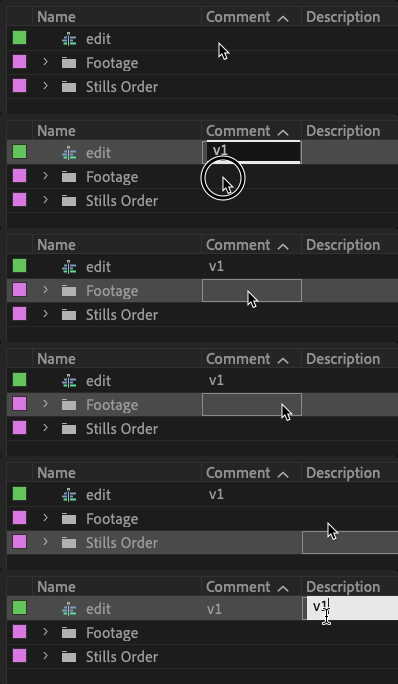
Have you ever been in list view while working in an Adobe Premiere Pro bin and wished you could enter Comment or Description metadata about the Bin itself?

Of course, you have. And despite the fact that you can customize Premiere metadata columns to your liking (or just download mine) and enter data for things like Comment and Description (among other things), for some reason you just can’t do that with Bins/Folders. (Yes they’re bins but they look like folders 🤷‍♂️).

Adobe Premiere Pro Quicktip: Add a Comment column for Bins 16

No matter how much you click on a bin metadata column you can’t enter any data.

I know Twitter often gets a bad rap these days but for the post-production community, it can be very useful. I casually mentioned this the other day and was reminded of something in Premiere Pro that I had forgotten about: the ability to add custom metadata columns.

Agree, the field should be open to text. You can make your own custom text field and add text next to the folder. pic.twitter.com/xBW0UdwBtm

— Andy Edwards (@aedigitaltv) July 28, 2021

Premiere has a lot of pre-defined metadata columns so I haven’t really found the need to do this in PPro nearly as much as I do in Media Composer for some reason. Maybe that’s because it’s so much easier in Avid to do this.

But here’s how it is done in Premiere:
Adobe Premiere Pro Quicktip: Add a Comment column for Bins 17

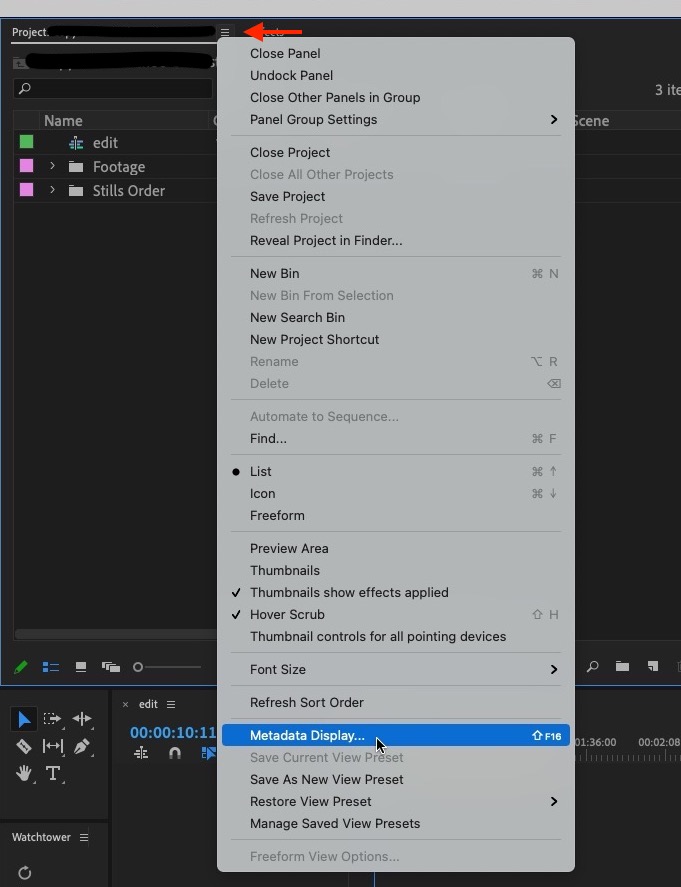
First, head under the Bin “hamburger” menu in the tab of your bin. I have that mapped to shift+F16 on my keyboard as you can see above.
Adobe Premiere Pro Quicktip: Add a Comment column for Bins 18

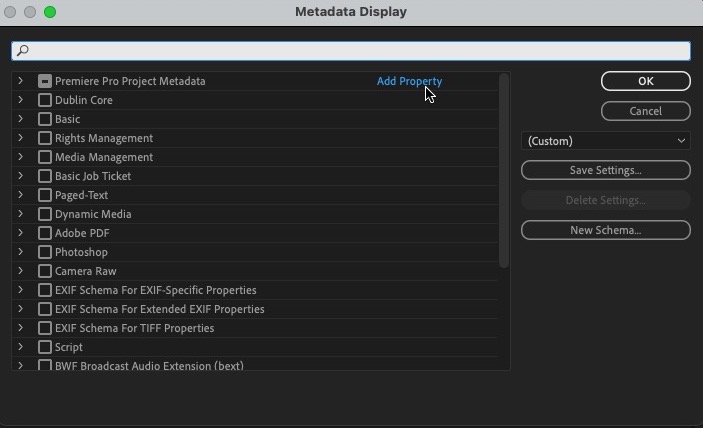
The answer to this problem is staring you (and me) right in the face. It’s Add Property that lets you add a custom property as a metadata option. Click Add Property.
Adobe Premiere Pro Quicktip: Add a Comment column for Bins 19

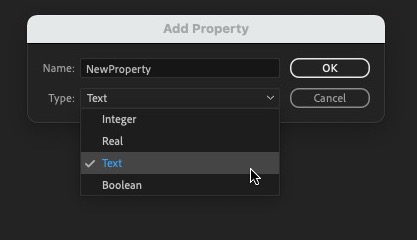
You then have to choose the kind of property. In this case, it’s Text. There’s a whole other article about all the many different kinds of custom metadata properties that can be created. Also, give it a name.
Adobe Premiere Pro Quicktip: Add a Comment column for Bins 20

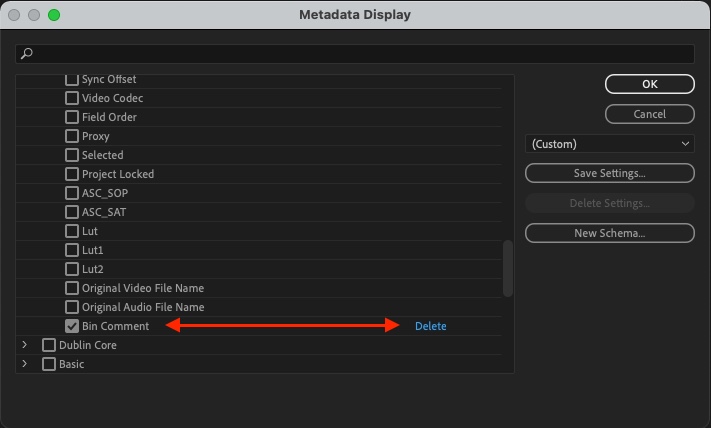
Once created the new property will appear under the Premiere Pro Project Metadata category, at the bottom. Custom-created metadata properties can be deleted. Make sure the check-box is checked on and you should get a new metadata column.
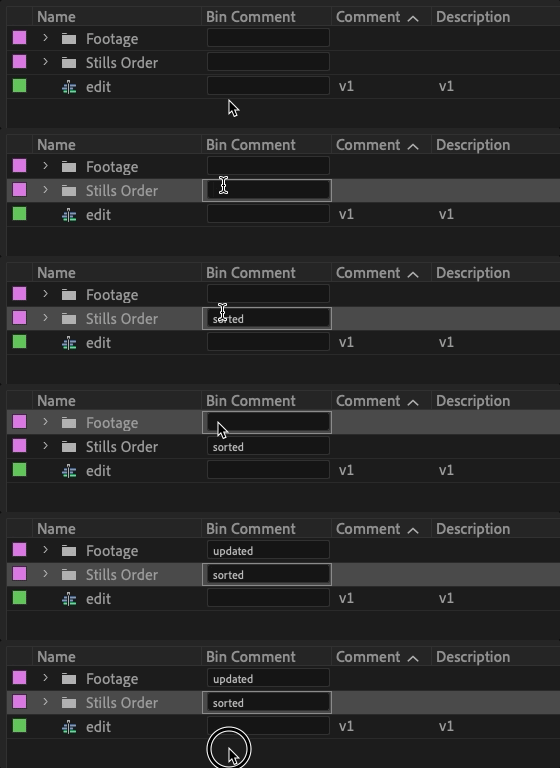
Adobe Premiere Pro Quicktip: Add a Comment column for Bins 21

If you can’t see your newly created column you might have to scroll the bin column to the right as it might just be out of view. You can drag bin columns by the heading to rearrange them. With that new text field created, you can add list view text data for a bin which is very useful when working in list view.
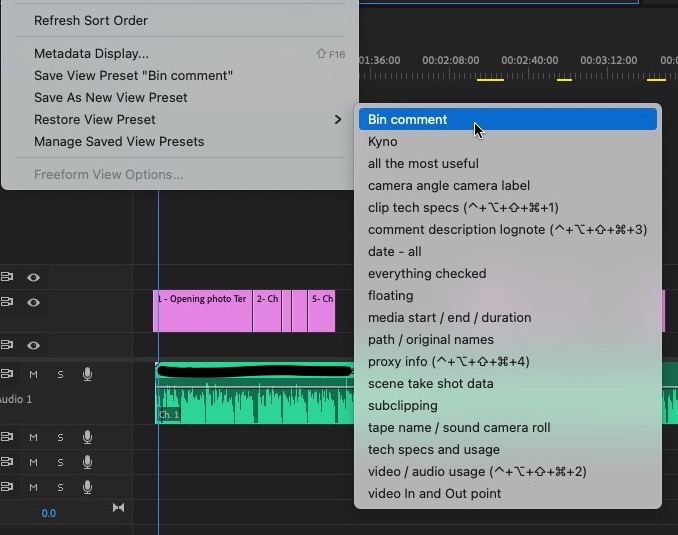
Adobe Premiere Pro Quicktip: Add a Comment column for Bins 22

Don’t forget to save your new custom bin columns as a preset. If by some chance the new custom columns don’t save or don’t show up upon a fresh boot of Adobe Premiere Pro (I’ve seen this happen) the metadata you’ve entered should still be there, you just have to turn that custom column back on in the Metadata Display.

Have any other ideas or have you had a different experience? Please comment below.
 

adobe premiere pro metadata premiere pro quicktips tips

What Do You Think? Let Us Know.

Subscribe
Login
Notify of
guest
guest
2 Comments
Oldest
Newest Most Voted
jay
jay
5 years ago

very good! thank you

1
Reply
catonfire
catonfire
1 year ago

Great help. Thanks!

0
Reply

PVC Favorites

3 weeks ago

Adobe Premiere is adding a Generative Media Tool

Adobe Premiere is adding a Generative Media Tool 23
Review: Insta360 Luna Ultra 24
Production

Review: Insta360 Luna Ultra

KSUN ZL35
Business

Review: KSUN ZL35 network walkie talkie radio with wifi/4G & Zello

Pentacon lens with zebra-striped barrel on a desk next to a drinking glass.
Production

Finding more classic stills lenses

Latest

3 days ago

After Effects Portal July 2026

After Effects Portal July 2026 25
GoPro Mission 1 Pro Update: Slow Motion, Time-Lapse & Wireless Mic Tests 26
Post Production

GoPro Mission 1 Pro Update: Slow Motion, Time-Lapse & Wireless Mic Tests

Laowa Aksen series: first ever commercial 5-10x macro
Pro Photo

Laowa Aksen series: first ever commercial 5-10x macro

Brompton Technology powers VP workflow for ITV’s Believe Me
Post Production

Brompton Technology powers VP workflow for ITV’s Believe Me

You Might Also Like

After Effects Portal July 2026 27

After Effects Portal July 2026

Written by Rich Young
July 31, 2026
The first half of the year was action-packed for After Effects, with months of big features, AI and freemium...
GoPro Mission 1 Pro Update: Slow Motion, Time-Lapse & Wireless Mic Tests 32

GoPro Mission 1 Pro Update: Slow Motion, Time-Lapse & Wireless Mic Tests

Written by Jeff Foster
July 31, 2026
GoPro Updates: I’m following up on my last update with more hands-on tests and info on the Mission 1...
Tool Tip Tuesday for Adobe Premiere: Getting your Computer Volume calibrated 42

Tool Tip Tuesday for Adobe Premiere: Getting your Computer Volume calibrated

Written by Jeff Greenberg
July 28, 2026
Welcome to Tool Tip Tuesday for Adobe Premiere on ProVideo Coalition How do you know if your computer’s volume...
Tool Tip Tuesday for Adobe Premiere: Hover Scrub 47

Tool Tip Tuesday for Adobe Premiere: Hover Scrub

Written by Scott Simmons
July 21, 2026
Welcome to Tool Tip Tuesday for Adobe Premiere on ProVideo Coalition Hover Scrub is one of my favorite features that have ever...
ProVideo Coalition

Contact

  • +1-747-444-1870
  • [email protected]

Useful Links

  • Advertise With Us
  • Mobile App
  • Topics
  • Meet the Experts
  • Webinars
  • Contact Us

Our Websites

  • Filmtools
  • PacRad
  • Tour Supply
  • Moviola.com
  • Moviola Digital

Sign up for the ProVideo Coalition weekly e-newsletter and get the most popular articles, blogs, and reviews right to your inbox.

By entering your email, you agree to our Terms & Conditions and Privacy Policy

© 2026 ProVideo Coalition, a Filmtools Company. All Rights Reserved.
Terms of Service Privacy Policy Cookie Policy Sitemap
Manage Cookie Consent
We use cookies to optimize our website and our service.
Functional Always active
The technical storage or access is strictly necessary for the legitimate purpose of enabling the use of a specific service explicitly requested by the subscriber or user, or for the sole purpose of carrying out the transmission of a communication over an electronic communications network.
Preferences
The technical storage or access is necessary for the legitimate purpose of storing preferences that are not requested by the subscriber or user.
Statistics
The technical storage or access that is used exclusively for statistical purposes. The technical storage or access that is used exclusively for anonymous statistical purposes. Without a subpoena, voluntary compliance on the part of your Internet Service Provider, or additional records from a third party, information stored or retrieved for this purpose alone cannot usually be used to identify you.
Marketing
The technical storage or access is required to create user profiles to send advertising, or to track the user on a website or across several websites for similar marketing purposes.
Manage options Manage services Manage vendors Read more about these purposes
View Preferences
{title} {title} {title}
Manage Cookie Consent
We use cookies to optimize our website and our service.
Functional Always active
The technical storage or access is strictly necessary for the legitimate purpose of enabling the use of a specific service explicitly requested by the subscriber or user, or for the sole purpose of carrying out the transmission of a communication over an electronic communications network.
Preferences
The technical storage or access is necessary for the legitimate purpose of storing preferences that are not requested by the subscriber or user.
Statistics
The technical storage or access that is used exclusively for statistical purposes. The technical storage or access that is used exclusively for anonymous statistical purposes. Without a subpoena, voluntary compliance on the part of your Internet Service Provider, or additional records from a third party, information stored or retrieved for this purpose alone cannot usually be used to identify you.
Marketing
The technical storage or access is required to create user profiles to send advertising, or to track the user on a website or across several websites for similar marketing purposes.
Manage options Manage services Manage vendors Read more about these purposes
View Preferences
{title} {title} {title}

Newsletter Sign Up

Sign up for the ProVideo Coalition weekly e-newsletter and get the most popular articles, blogs, and reviews right to your inbox.

×
wpDiscuz