Filmtools
Filmmakers go-to destination for pre-production, production & post production equipment!
Shop NowFive tips from Jeff’s Tool Tip Tuesday for Adobe Premiere Pro on ProVideo Coalition’s 2025 column that I really liked

Welcome to Tool Tip Tuesday for Adobe Premiere Pro on ProVideo Coalition

Whether or not you’re a frequent reader, what got you here is finding a gem you didn’t know. Hopefully, it keeps you coming back week after week.
Jeff and I thought it’d be valuable to review each other’s tips from the past year and pick a handful we wish everybody knew.
Here are my picks from Jeff’s column.
Slipping clips without the Slip tool
The Slip Tool is incredibly useful, but if you don’t know any better, you would think the only way to slip a clip is to click the tool, click the clip, and then use your mouse. That’s incredibly inefficient and incredibly imprecise.
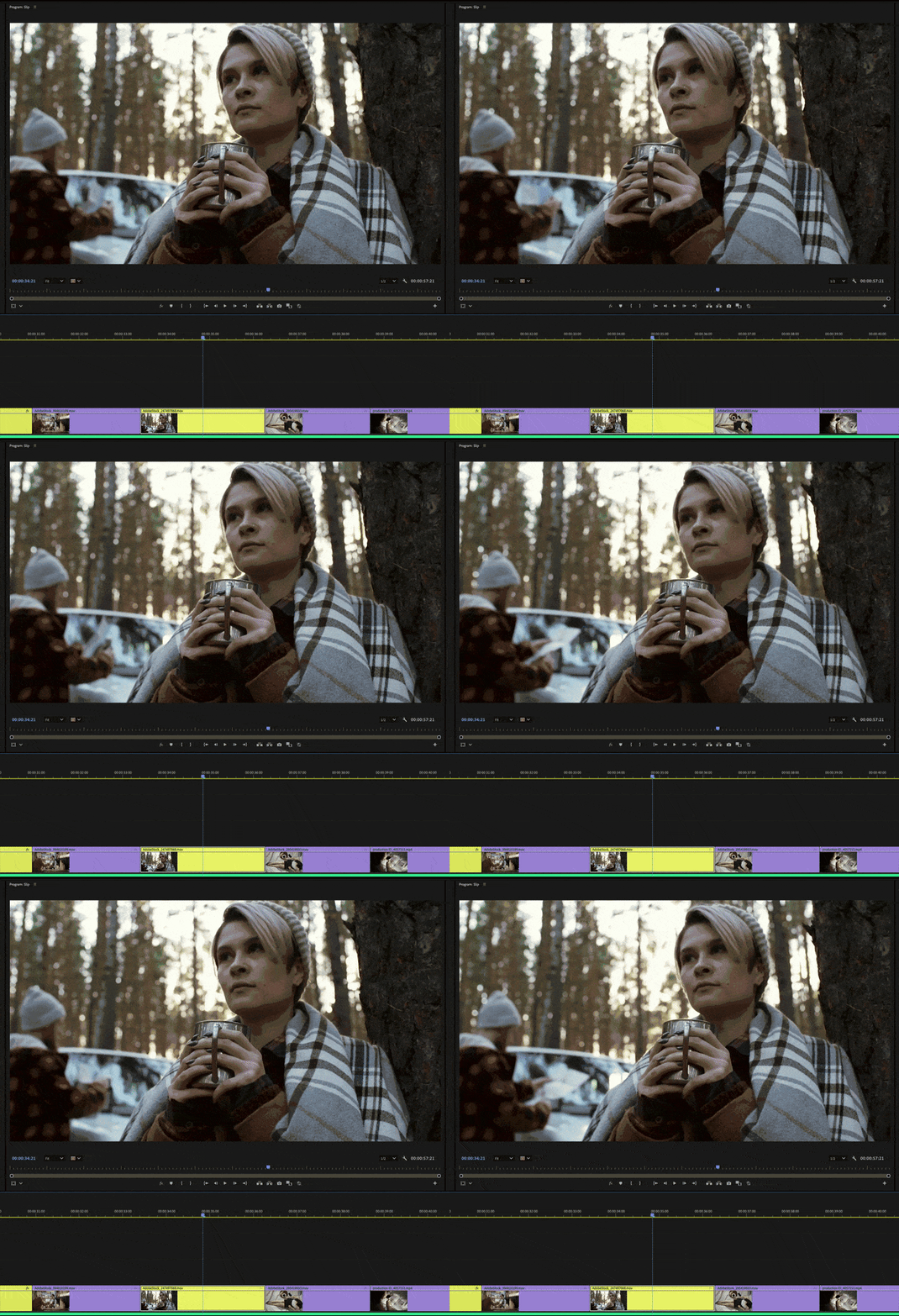
Fast and efficient editors use the keyboard and here’s how you split right from the keyboard, per Jeff’s tip:
- Press D to select the clip
- Now, CMD-Opt L/R arrows will slip the clip. On Windows it’s Ctrl+Alt + L/R arrows.
Don’t Bury Projects
If you didn’t see this tip in March of 2025, you probably saw the title above and wondered, “What… what… what?”

This tip pertains to media offline and re-linking media, which could potentially save a lot of re-linking headaches. But depending on your workflow (concerning things like shared storage and collaboration), you might not be able to use this tip. But many of us work alone, which could potentially save a lot of re-linking headaches.
Ooops…I imported off my Desktop/Downloads/Documents folder
Even the most diligent editor sometimes imports media from a location that they didn’t intend to import from. And yes, that might be your Downloads folder.
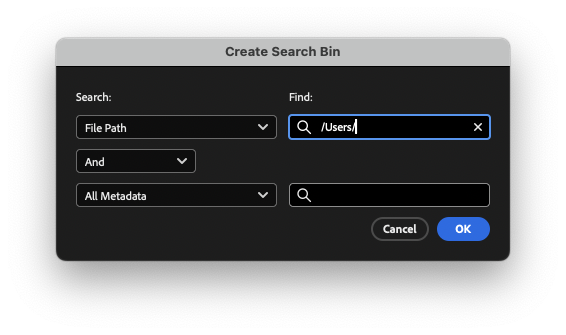
This tip uses the underutilized Search Bin feature of Premiere to help you track down that stubborn media that might not live where you want it to live.
Timeline Hack: Find Offline in One Step
Have you ever gone to output your timeline and got a message that there might be offline media in the timeline?

Then use the Find box and search for “offline” and hit the Find All button to select all the offline clips at once.
Stop Fighting with Audio Channels on the timeline
Multi-channel audio is incredibly common, and best practices say you need to know what the format of the multi-channel audio is before you begin editing those clips into the timeline.

But there are times when you may need to adjust the channels in the timeline. You can do that without re-editing the clip from the source or the bin back into the timeline, utilizing Jeff’s tip.
Final thoughts
Next week we resume our regularly scheduled tipping. Come May, we will have been running this series for two years. I hope some of these tips have saved you time and money.
This series is courtesy of Adobe.