

Filmtools
Filmmakers go-to destination for pre-production, production & post production equipment!
Shop NowThe entire Apple Creator Studio is getting updates, both of the AI age and for subscriptions

Final Cut Pro 13 is one of the biggest updates ever to Final Cut Pro, as this is the update where the MotionVFX acquisition comes to life.Apple’s acquisition of MotionVFX happened back in March of this year, and it was a bit of a surprise to the Final Cut Pro community. While software acquisitions aren’t terribly uncommon these days, MotionVFX had branched out in recent years to create tools for software other than Final Cut Pro. But FCP made up the bread and butter of what MotionVFX had, and FCP is definitely the platform that people most associate with MotionVFX. So honestly, perhaps it shouldn’t have been a surprise that the acquisition happened. But it has paid off bigly.
It also shouldn’t be a surprise that the MotionVFX tools are coming to Apple Creator Studio, since that’s what the MotionVFX website has been telling us.

That is happening with Final Cut Pro 13. And the MotionVFX tools are only a part of the Apple Creator Studio version of Final Cut Pro, not the standalone version. That shouldn’t surprise anyone, since MotionVFX said that on their website as well. But at $129 per year, that is a bargain compared to MotionVFX was on its own, which was $29 per month. There will be those very upset that this MotionVFX integration isn’t part of the FCP they have already paid for, but that’s the way it is.
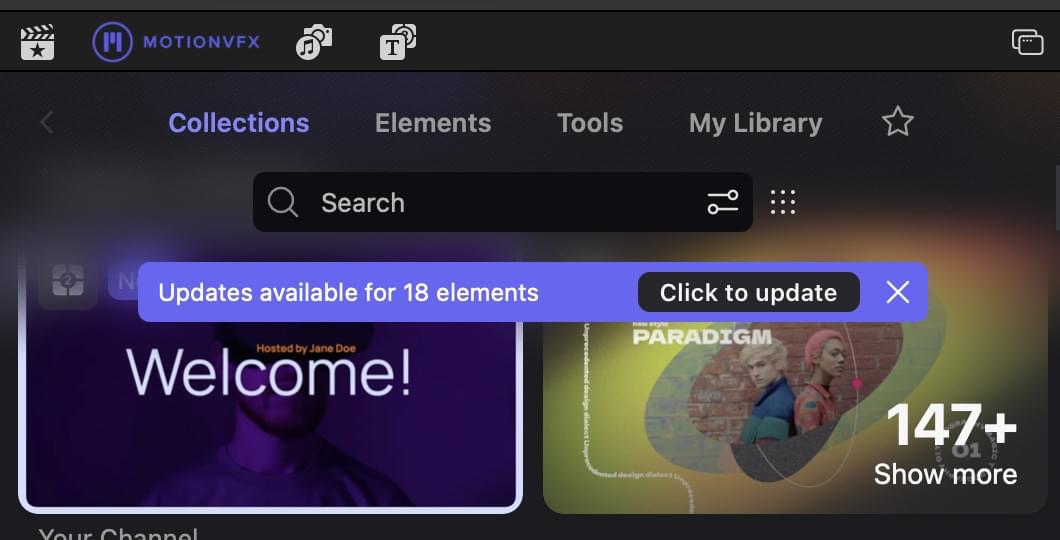
And it looks like MotionVFX will be getting regular updates within FCP itself.
MotionVFX is the big win
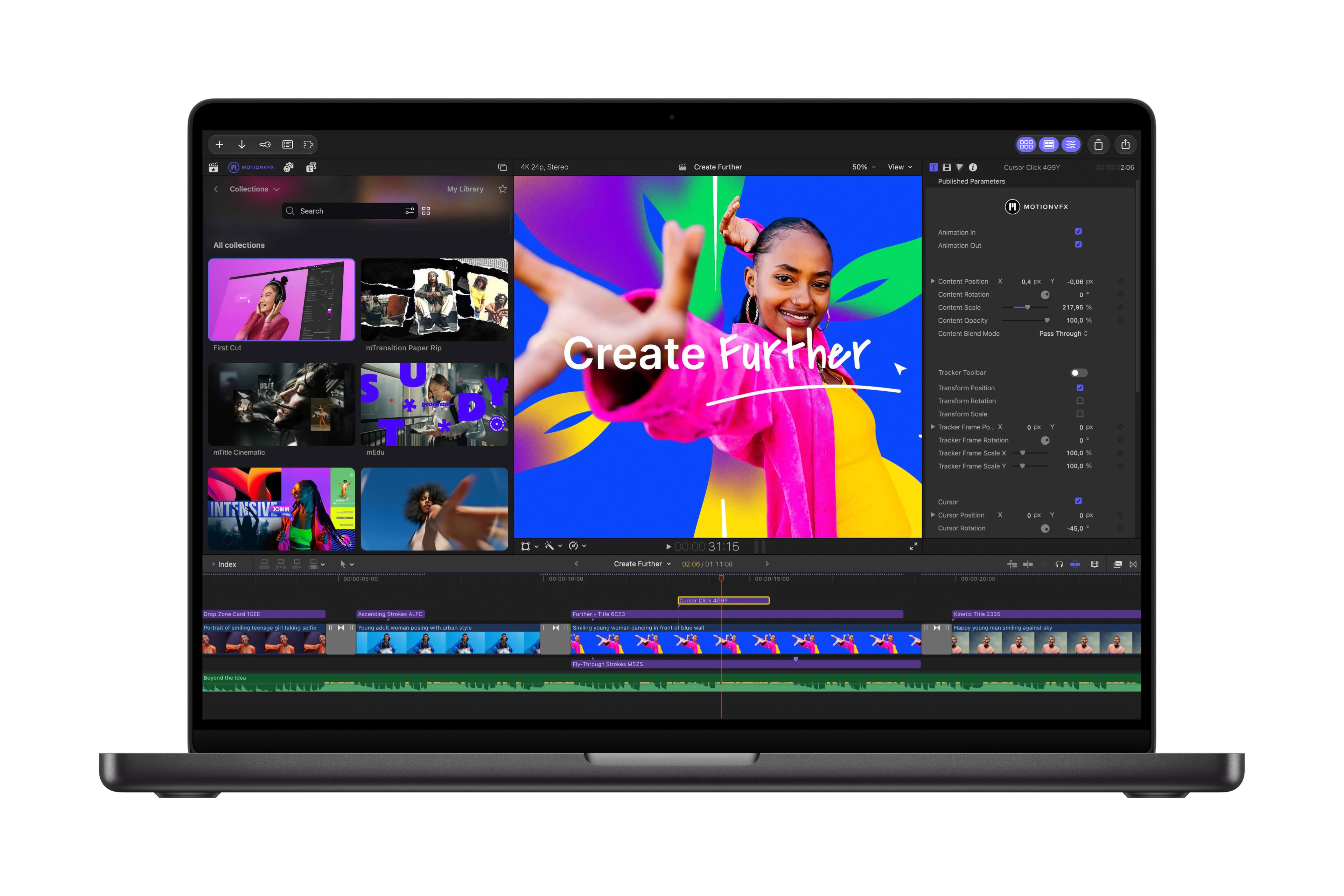
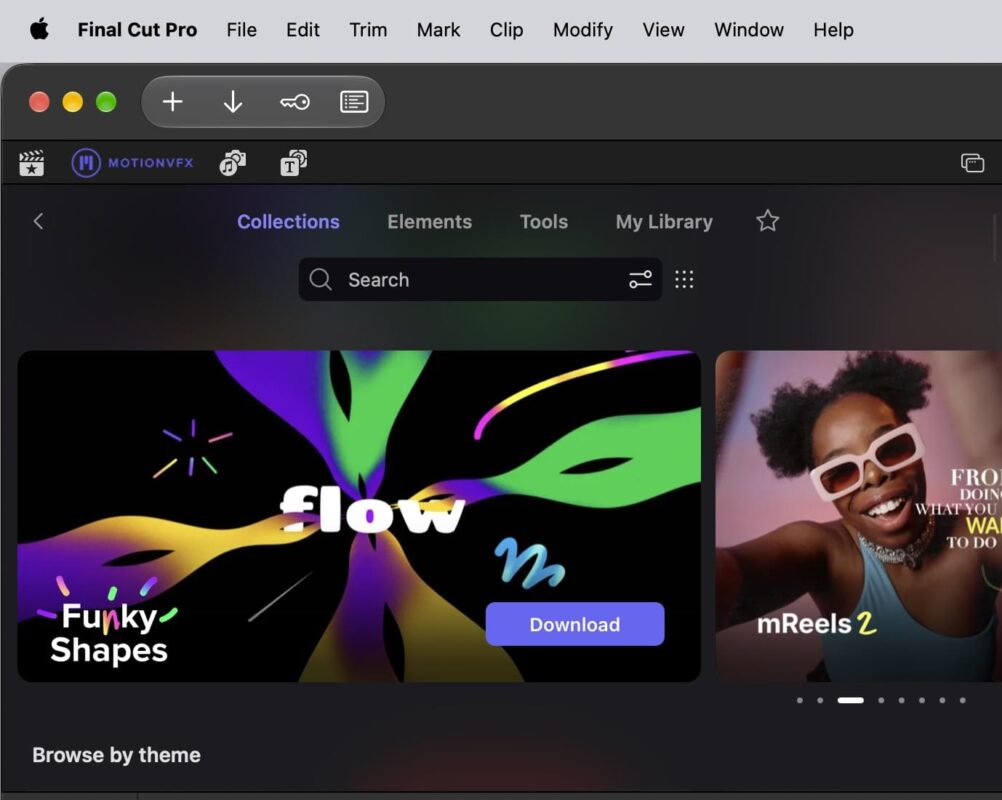
But it may be a surprise as to how it’s implemented. It looks like the entire MotionVFX catalog is now part of Final Cut Pro. And there is a lot in that catalog. So much so that Final Cut Pro’s capabilities have taken a big step forward. This new integration is front and center, with a brand-new MotionVFX browser.
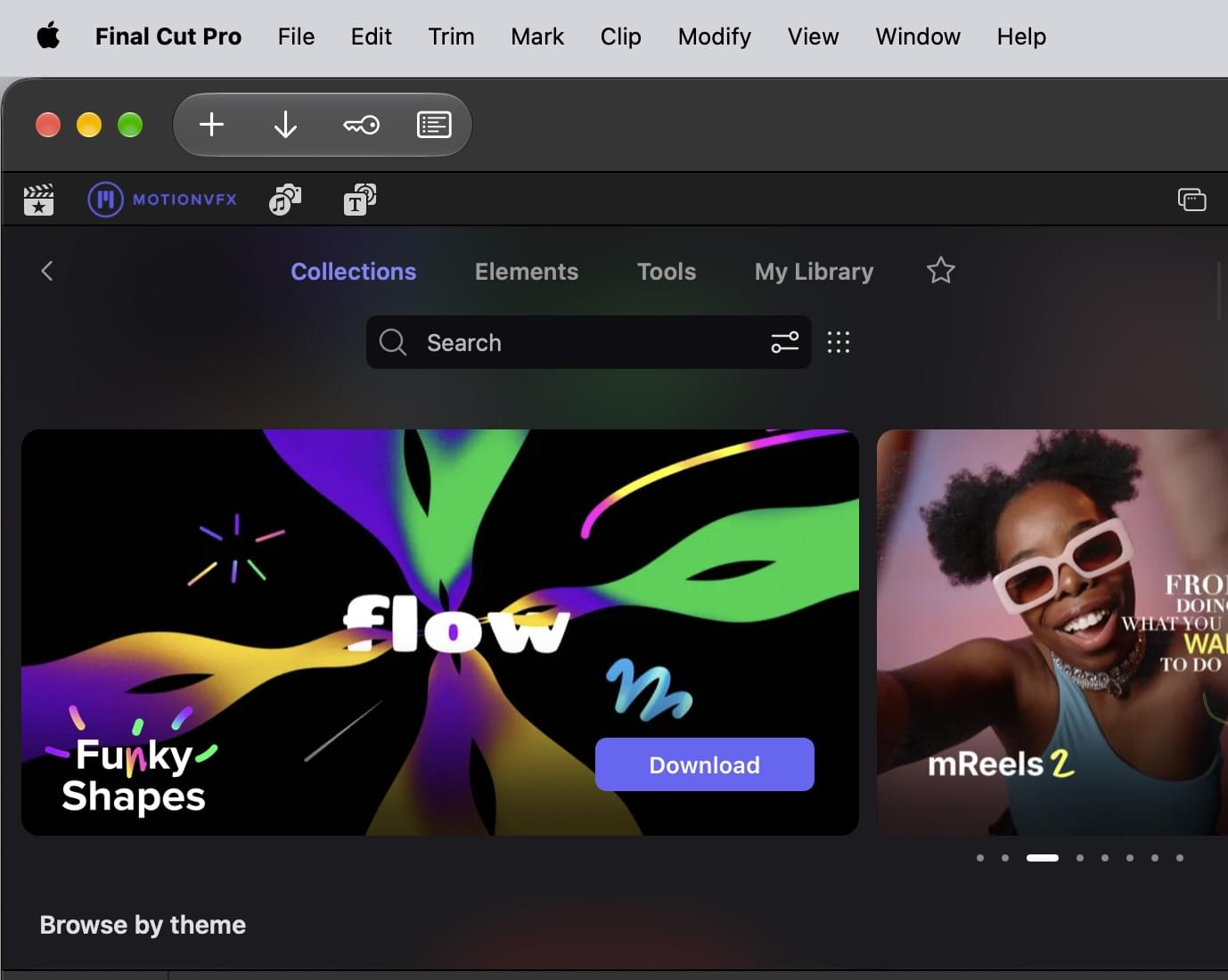
This new MotionVFX browser is divided into four categories. Where you’ll most likely spend most of your time is in Elements and Tools. That said, if you’re new to this effects package, spending time in Collections can show you how many of the different effects are grouped together, and that includes explanations and tutorials on how a lot of these things work. When you find something you want to use in the Collections tab, it will often take you out into the Elements tab for specific details on an effect, title, clip or transition.
I’ll just go ahead and say this right here. Those new to MotionVFX (or even those with passing knowledge of the tools) will have to spend a lot of time learning how many tools are now available that weren’t in FCP before. And this isn’t just a sheer quantity of some of the different elements, but how to use some of these tools to their best ability. Rotoscoping, 3D tracking, and even a puppet tool are can be pretty advanced compositing and effects options that will take time to learn to use well. Rotoscoping, 3D tracking, and even a puppet tool are can be pretty advanced compositing and effects options that will take time to learn to use well. But the results will be the creation of content that just wasn’t possible before staying within Final Cut Pro.
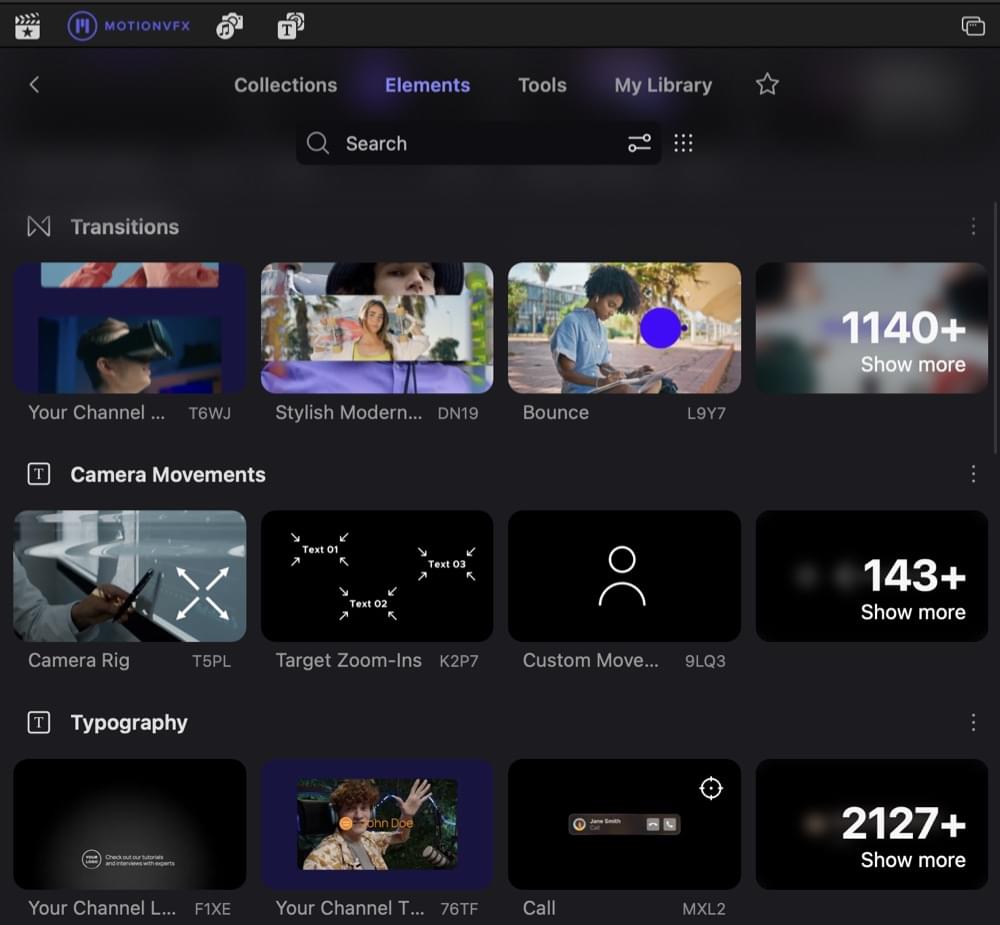
The MotionVFX material contains a lot of data, and it was probably smart not to include all of it in the initial Final Cut Pro 13 download. I’m not sure where all this data is being stored (my Library didn’t seem to grow with downloads), but anything downloaded will be marked as Downloaded, and you can remove that download by accessing the meatball menu (those three vertical dots) on an Elements page.
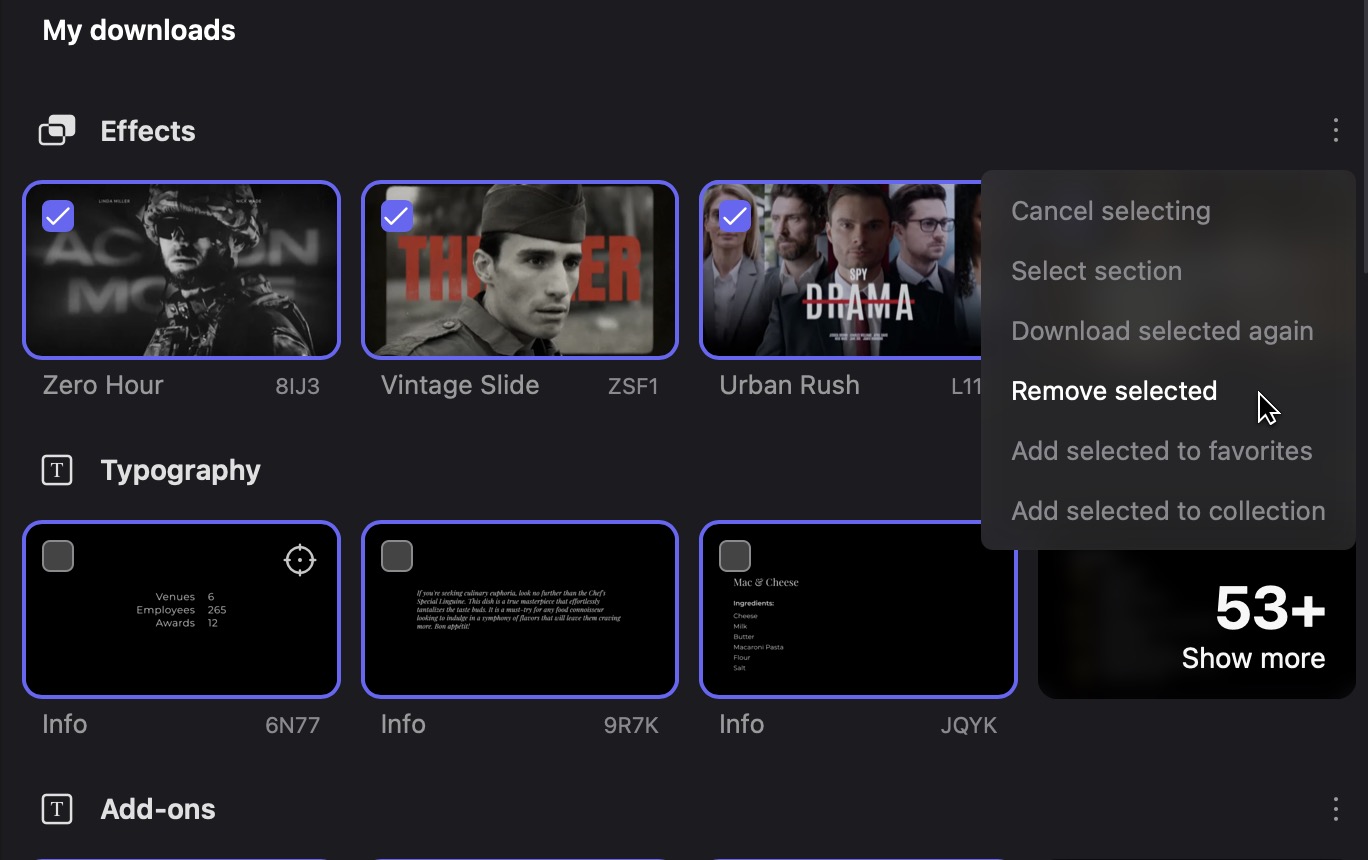
That might matter after using it for many months, since you may download a lot of content even if you use an element only once on a specific job. Most of us won’t remember to remove it after we are done. And you can always re-download something you removed later.
With the new MotionVFX tab, you can toggle between your Libraries, the Photos, Videos, and Audio sidebar, as well as the Titles and Generator sidebar. One thing I noticed while working with this update is that the sheer quantity of MotionVFX content makes it a bit of a struggle to view. It’s going to take some time to wrap your head around what’s now available, since it’s locked into the new MotionVFX tab. I wish there was a way to toggle this browser height to the full range of your screen, like there is with the Inspector, because that would help with a lot of scrolling, whether you’re in the MotionVFX tab or your project library itself.
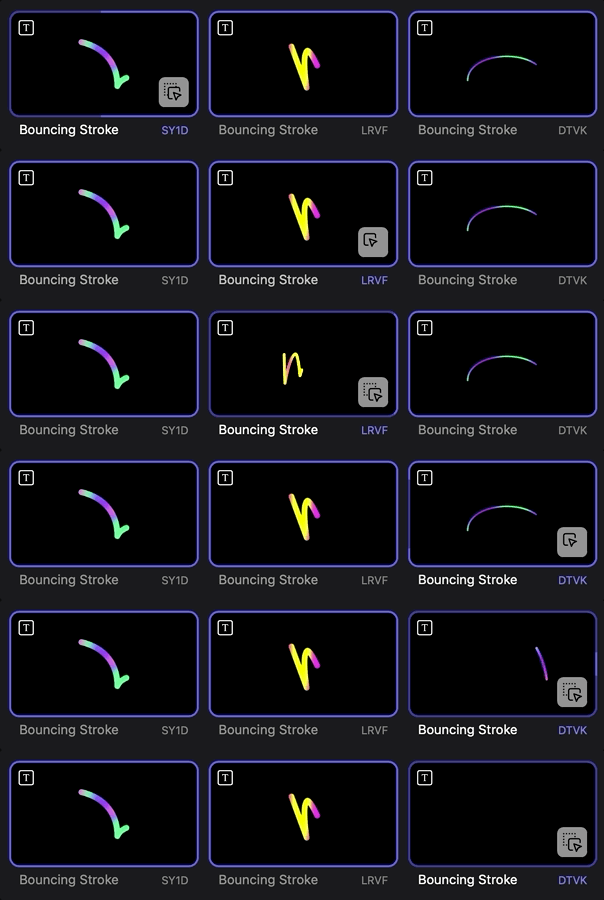
I like that you can get a preview of different effects and collections just by mousing over them. Sorry, touchscreen users, this is a place where the mouse still reigns supreme, but more on that in a bit.
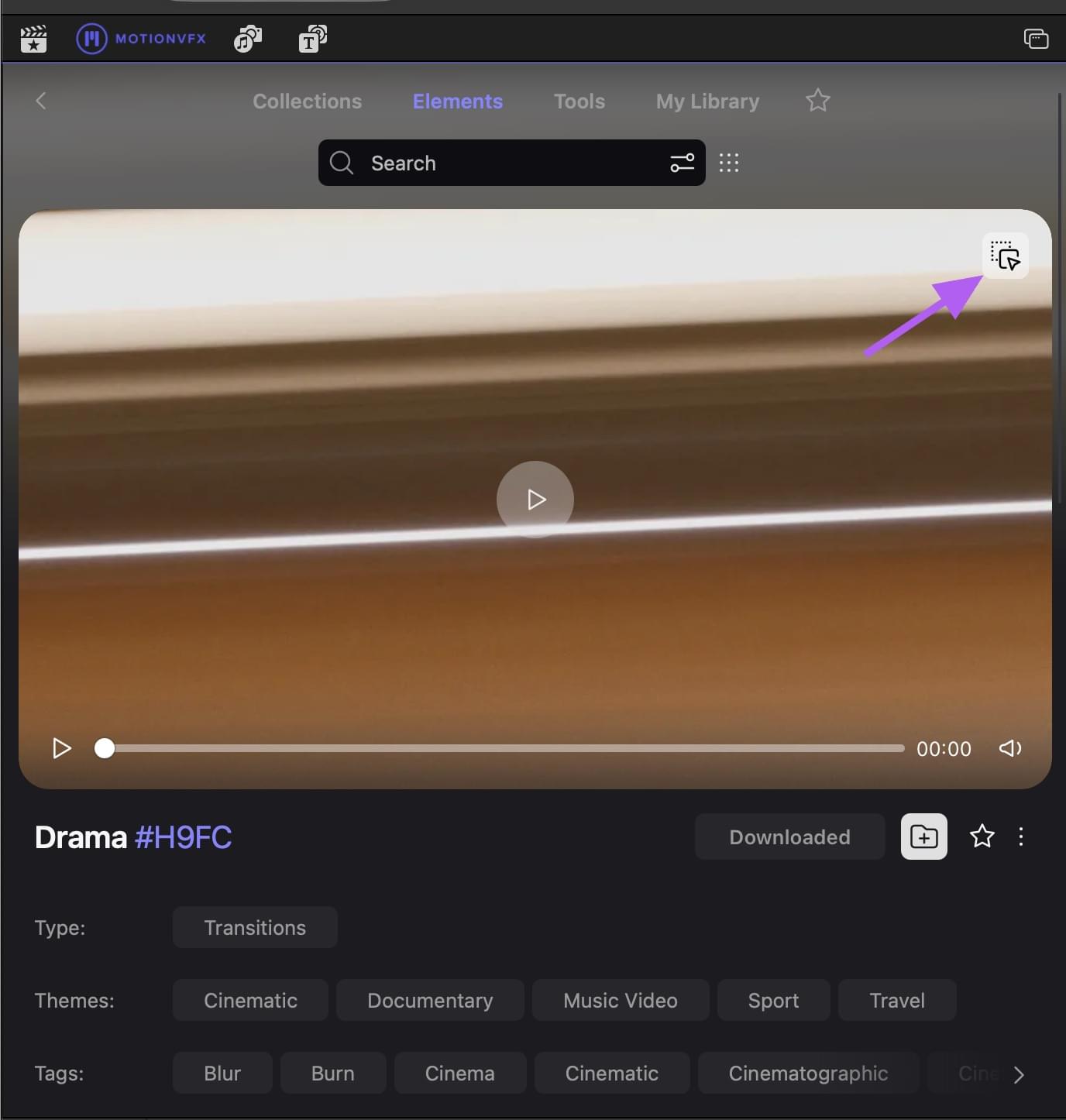
If you want more detail on an element and to get an even bigger preview, click or touch into the thumbnail, and you can get more detail. Many of these previews have video as well as an audio preview.
The MotionVFX Tools tab lets you go beyond text, titles, generators, backgrounds and things like that. The Tools are things that take time to master, but they can take your work to the next level. Things like a 3D tracker, rotoscoping and filmlook tools (to name a few) are all available under the Tools tab. Many of these elements can work together to create really sophisticated work.
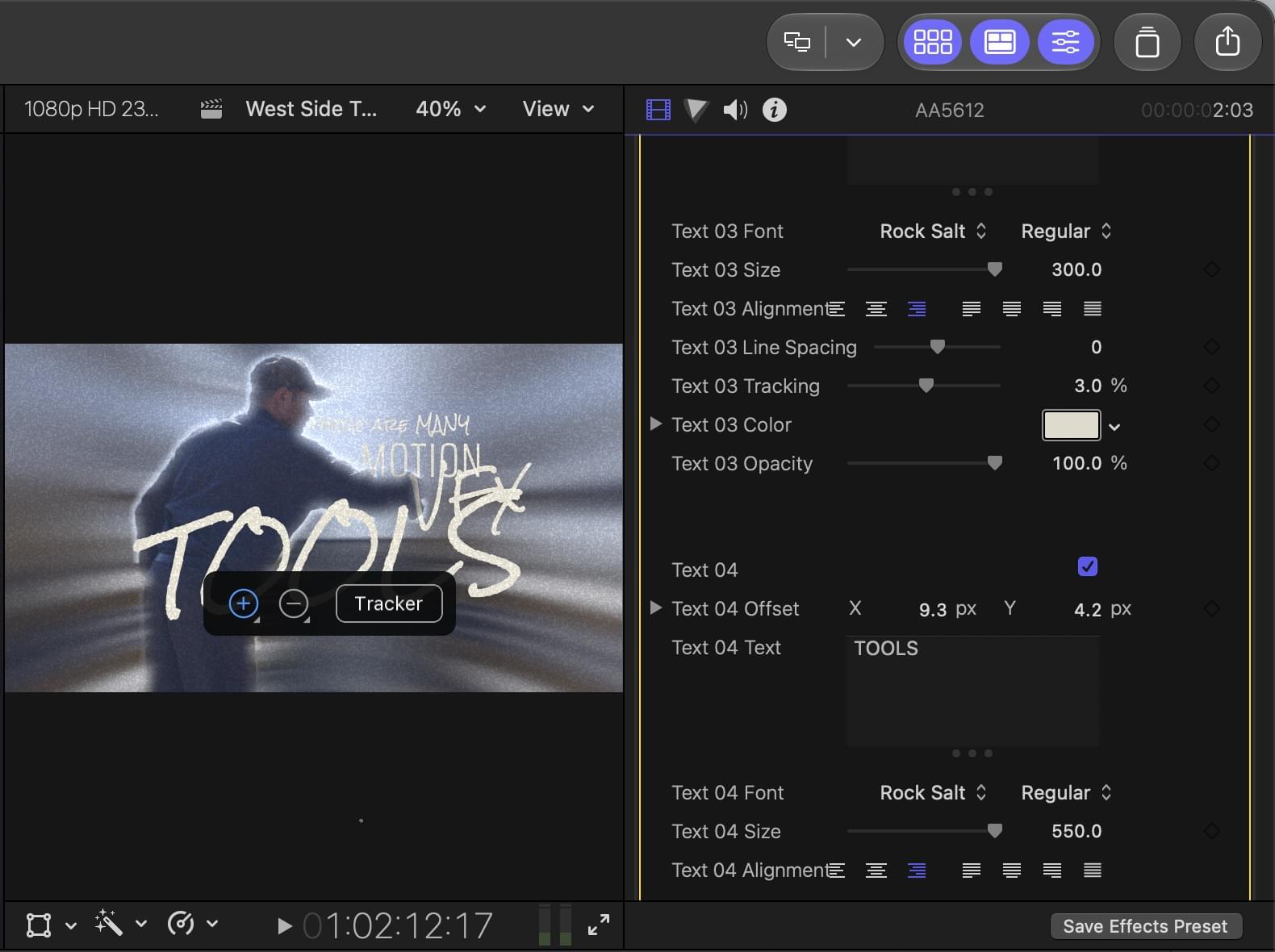
Everything you’ve downloaded appears in the My Library tab. You can also star elements to make a set of favorites. This will be an important organizational tool as there are so many different things in the MotionVFX universe.
There will be a learning curve as you dig in (this is a common theme, huh?). And learning how to use some of the more sophisticated tools (not just what they are) will take some work. Since your screen real estate might be limited (especially on a laptop), I would suggest bookmarking the MotionVFX all products webpage, as that might be a quicker way to browse all that is available when learning the scope of these new tools.
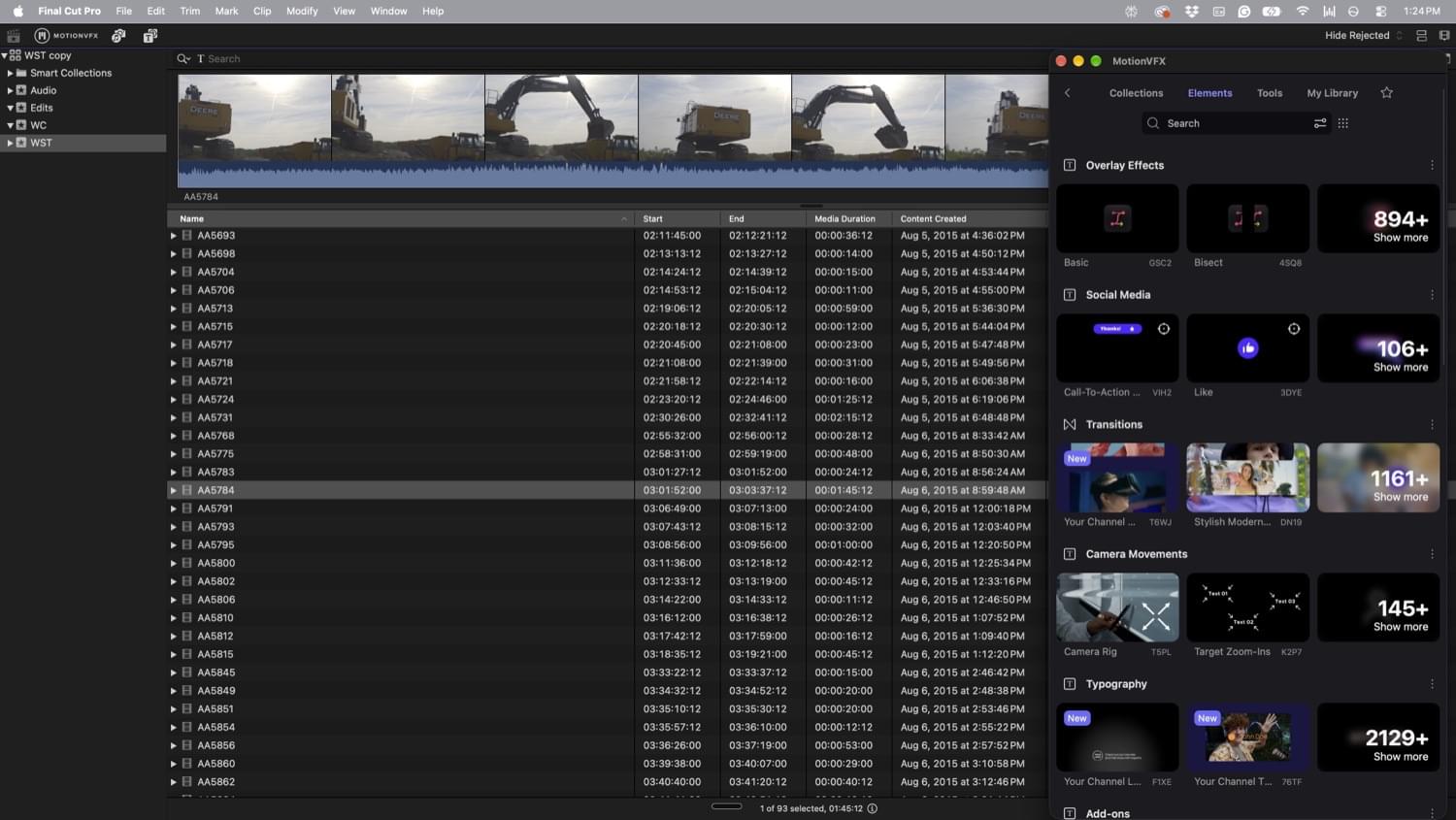
If you are working with limited screen real estate, things might start to feel cramped. You can pop the MotionVFX tab out into its own window, so that helps. This is a place where a second screen, whether you’re on your desktop or on a laptop, is going to be really helpful (Put that iPad to some good use as a second screen). What I found most useful is using the Show in Secondary Display function and putting my MotionVFX browser on that secondary display. This helps, but it’s still not quite the same as a truly customizable interface. Thankfully, saving that as a custom workspace seems to remember the exact MotionVFX window placement.
Final Cut Pro 13 and the touchscreen.
This new update comes right near the introduction of the new MacBook Pro with PROLED XDR Display. We reviewed this new touchscreen MacBook Pro here on ProVideo Coalition with a special discussion of the touchscreen interface. It must first be stated that touch in macOS is still relatively new, and software makers are just starting to update their software with touch-specific parts of the interface. Blackmagic is the first of our video editing tools to have any touch-specific tools right out of the gate. I expected this Final Cut Pro 13 update to be optimized for touch, but I haven’t found any indication or tools that have received touch-specific treatment.
To be specific, almost all elements, features and tools in Final Cut Pro work just fine with Touch. They’re just not optimized for the Touch interface yet.
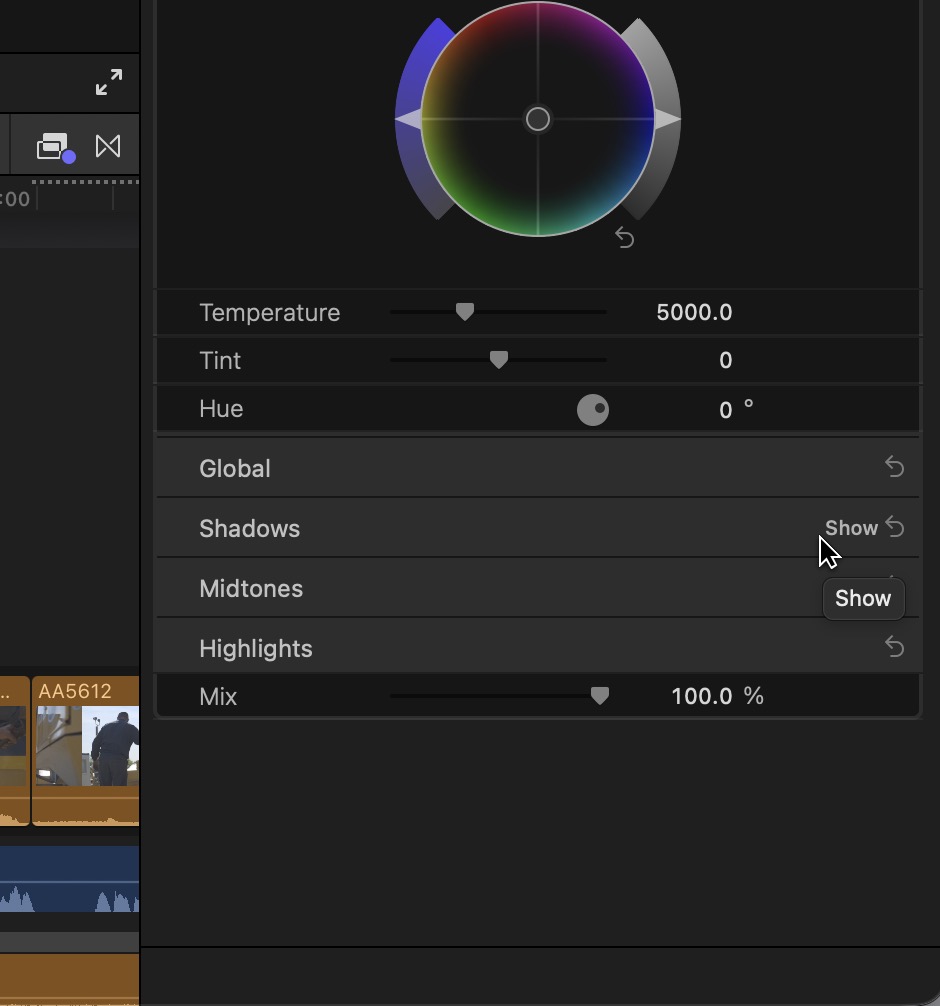
I hope Apple optimizes Final Cut Pro for touch. In some places, it just feels natural. For example, you can pinch the timeline to zoom it in and out horizontally. It would also be great if you could use touch to scale the timeline vertically as well. That becomes so useful if you’re doing a lot of detailed audio work with waveforms.
And the rest of the Apple Creator Studio has gotten big updates across the whole suite
I only spent time working with the new version of Final Cut Pro, and to be quite honest, the sheer quantity of what MotionVFX brings to Final Cut meant that there wouldn’t have been time for anything else. It’s quite impressive that the whole Motion VFX package will be in Final Cut Pro 13, and that’s notable.
But what else is new in the updated Apple Creator Studio?
Logic Pro for Mac and iPad might be the most visually transformed app in this update. It’s gotten a full Liquid Glass makeover with translucent surfaces, deeper contrast, a black and dark gray palette that feels a lot more in line with modern professional software.
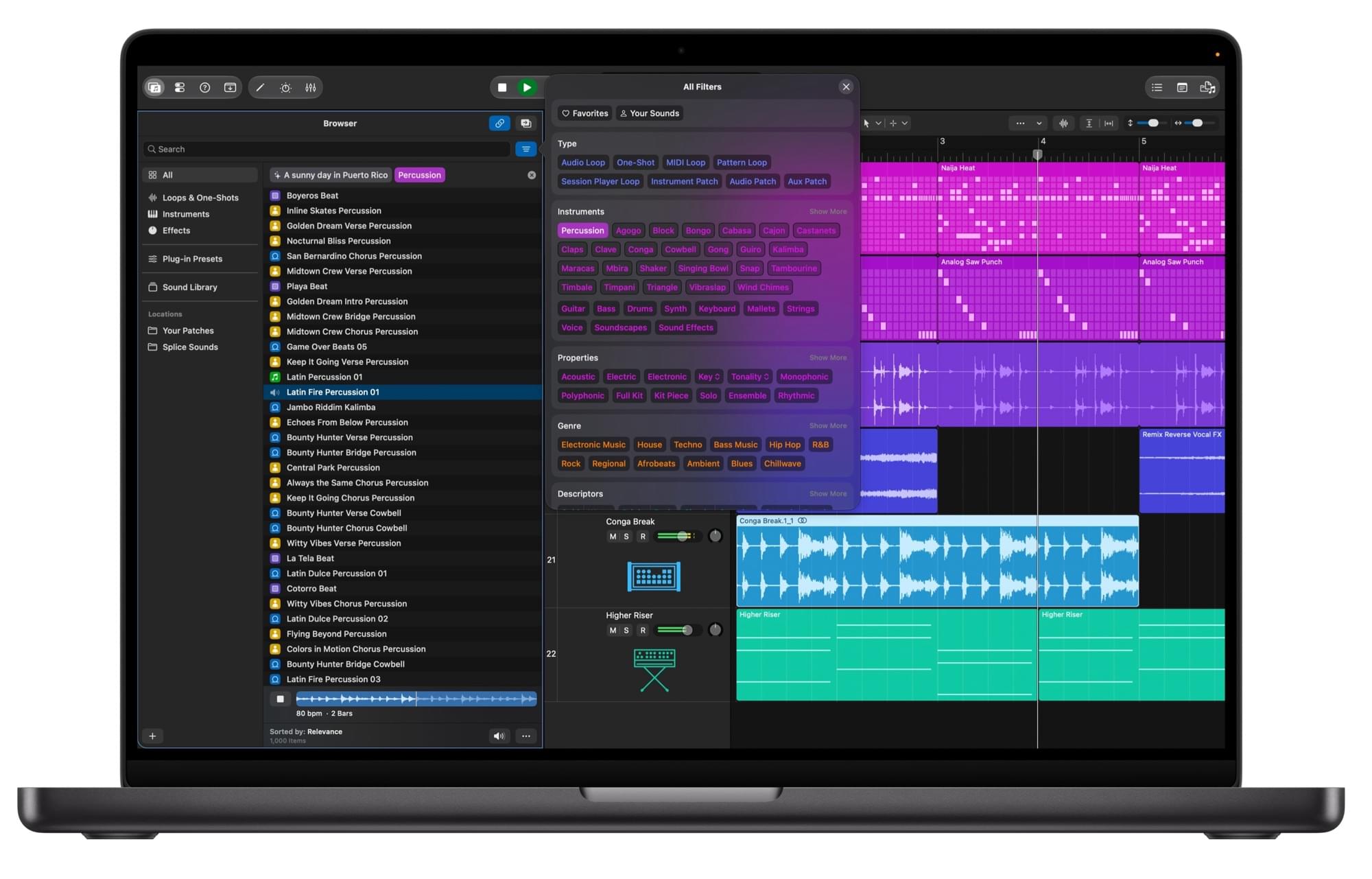
Beyond the cosmetic refresh, there’s new functionality. The Unified Browser is a significant redesign that brings loops, instruments, effect patches, and plug-in presets all into one place on the left side of the window. It’s powered by on-device music understanding, which automatically analyzes and classifies sounds you add so you can search your entire collection with natural language queries (“atmospheric pad,” “lo-fi kick”) or drag a loop into the search bar to find similar ones.
The Stem Splitter gets an upgrade. It already had the ability to separate audio into stems (vocals, bass, drums, etc.) but now it can go further and break the drum stem into individual parts: kick, snare, hi-hat, tom, cymbals, and other percussion.
Logic Pro for Mac also gains an Intelligent Assistant (in beta) that combines Apple and OpenAI models to help with music production workflows. You can ask it to help set up a vocal track, start a new project from a prompt, or get answers to how-do-I questions about the app itself. It’s subscription-only (requires Apple Creator Studio) and needs macOS 27 on an Apple silicon Mac. There’s also a new Sergio George Producer Pack included, pulling in his signature piano sound along with authentic Latin jazz and salsa loops which is a cool addition. I wonder if they will be adding more similar packs with known artists? This is not unheard of for Apple.
There is new intelligence usage as part of this new Creator Studio, and some of the apps will have an Intelligence Features dashboard to monitor your usage and perhaps buy more.
Pixelmator Pro’s headline feature in this update is Generate Fill, and it’s the kind of AI image editing tool that looks useful, as generative fill often is. You select an area of an image, either by drawing around it freehand or using Pixelmator’s existing selection tools (Free Selection, Quick Selection, Magnetic Selection), describe the change you want, and it fills it in.
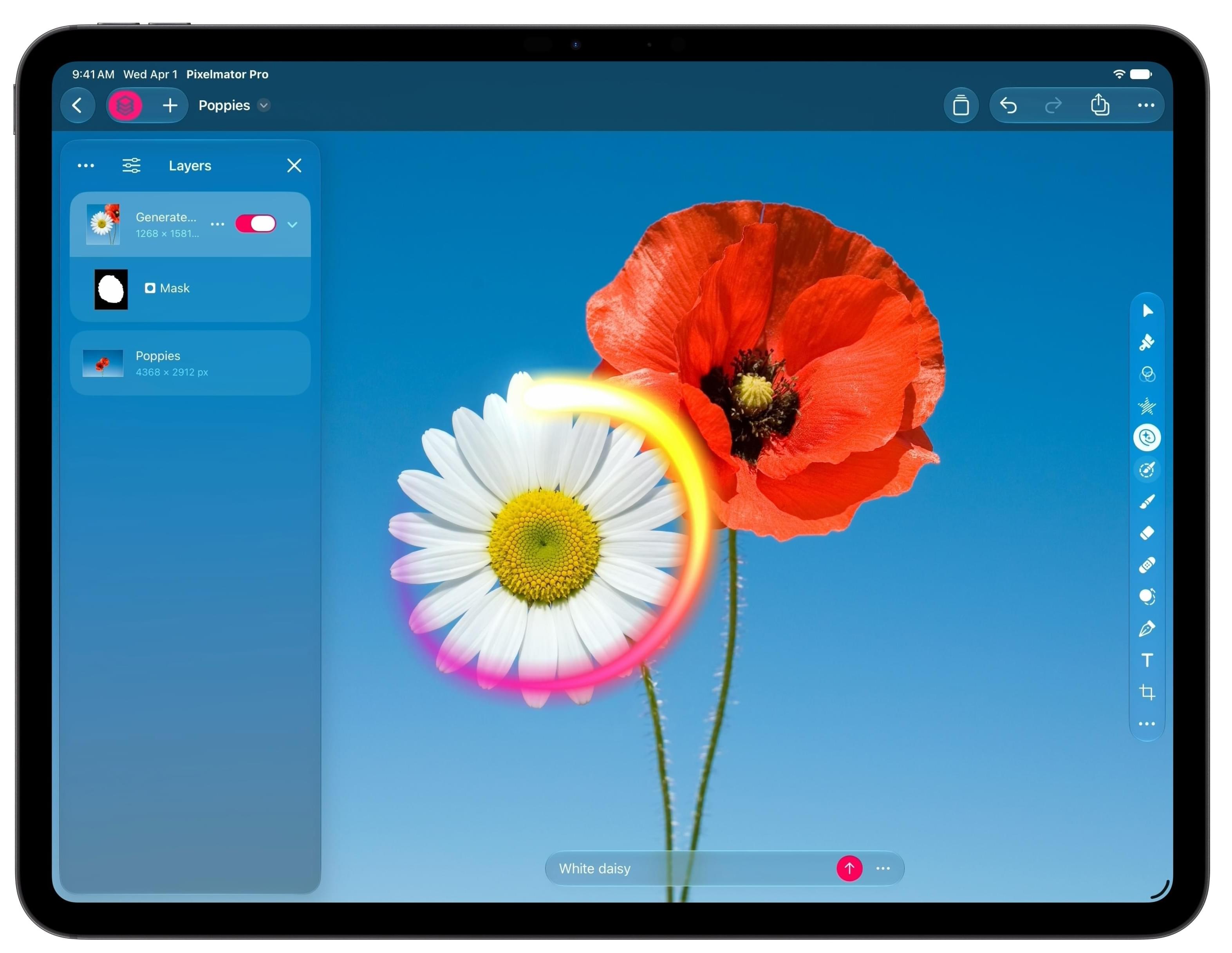
Generate Fill automatically matches the lighting, perspective, and texture of the surrounding area, so the result should blend in better. There’s built-in Super Resolution that upscales generated content to stay sharp at any size. Generated elements can come in as merged layers or as new layers with intelligent masking, which gives you room to keep refining after the initial result.
For editors who already use Pixelmator Pro, this ties directly into the Final Cut Pro side of this update, since you can now send images from your FCP timeline round-trip to Pixelmator Pro and back without reimporting. I wish we had that for Motion compositions.
Apple’s iWork suite, Keynote, Pages, and Numbers, gets a new generation of AI features in this update, though most of them are part of the Apple Creator Studio subscription.
The biggest addition is an Intelligent Assistant in each app, built on a combination of Apple’s own models and OpenAI. These assistants are context-aware, meaning they understand what’s actually in the document you’re working on rather than just operating generically. In Keynote, the assistant can help design and animate slides, generate presenter notes, or build an entire presentation from a prompt. In Pages, it drafts, restructures, and rewrites content. In Numbers, it builds formulas, recommends chart types (with a one-tap preview), and can generate tables using outside knowledge. All three can also search the web for up-to-date information and pull it into your document. The assistants are in beta and limited to U.S. English for now.
The other major addition is Model Context Protocol (MCP) support in Keynote, Pages, and Numbers on macOS 27. This protocol lets external AI agents and tools connect directly to apps so you can automate workflows across all three apps using something like Claude or ChatGPT. I wonder if Apple will bring MCP support to Final Cut Pro? That would be cool.
And the rest …
Freeform picks up text styles (for consistent one-step formatting across boards), custom and preset board background colors, and in December will add the ability to edit images directly in Pixelmator Pro and generate editable shapes from text descriptions. These are useful for anyone who relies on Freeform for creative planning and storyboarding.
Motion gets a built-in set of MotionVFX plug-ins for cinematic color grading, 3D camera tracking, and one-click visual effects selection. It’s the same MotionVFX integration coming to Final Cut Pro, just for Motion’s side of the workflow. Users can generate and edit images from text descriptions, send images round-trip to Pixelmator Pro, and apply an all-new Displacement filter.
Compressor adds support for encoding Cinematic mode video recorded on iPhone 18 Pro and iPhone Duo, a straightforward but useful addition for anyone who shoots on the latest iPhones and needs to deliver in various formats.
This is a big update for Final Cut Pro and the Apple Creator Studio overall. For $129 per year, it’s a great deal.