Welcome to Tool Tip Tuesday for Adobe Premiere Pro on ProVideo Coalition

Strong editors are made by their ability to work and decipher their timeline.
When you’re fighting your timeline, you’re not working in sync with the software. We are visual people, clip labels across the board are important and, have two layers of depth.
Last week, I covered a hidden timeline feature called “Select Label Group,” where you can right-click any clip on the timeline and select everything sharing that label color.

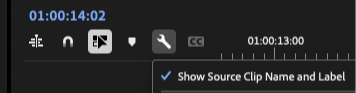
The other half of that organizational strategy lives under the Wrench menu: “Show Source Clip Name and Label.”
Two Different Label Systems
When “Show Source Clip Name and Label” is enabled, you see the clip names and label colors from your actual project bins. They’re set both upon import (based on your preferences) and however you organize.
For example, I group/label items for After Effects projects, music tracks, and ADR work so they’re instantly recognizable on the timeline.
The extra layer: Timeline clip labels
Sometimes I need timeline-specific labels. These are for calling attention to particular sections – areas where I’m waiting for client feedback, where I need to do heavy After Effects work, or adjust the nuanced timing of a section of the edit.

The Workflow improved
Map it. Yup. That’s it. Map it.
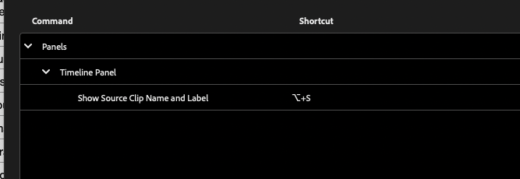
I’ve mapped this toggle to Alt+S (Option+S on Mac).
My S key handles snapping, Shift+S shifts audio Scrubbing on/off, and Alt+S shows you the alternate (or optional) way to See source/timeline labels.
(Just a little insight for you – for nitpicky people. I actually mentally speak about these exactly as they’re listed there, in terms of language. If you look at the bold and italics in the prior sentence, this is how I describe what I want Premiere to do, and that way I’m not memorizing. I’m just talking in my head about how I want the software to work. This is what I call a natural language mnemonic model.)
This gives me two organizational layers: project-level categorization and timeline-specific flagging.
Bonus Tip and Last Thoughts
An extra one. You can change the name of just the clip on the timeline – just make sure the “Source Clip Name and Label” is off.
Right-click any timeline clip to change its timeline name. These custom names are searchable, giving you extra clip finding without relying on markers.
Every software tool has beautiful subtleties to improve the way you work. The Show Source Clip Name and Label, is a great example of something easily missable but super powerful.
This series is courtesy of Adobe.