The Photo page was the big surprise as we all knew more AI was in-store

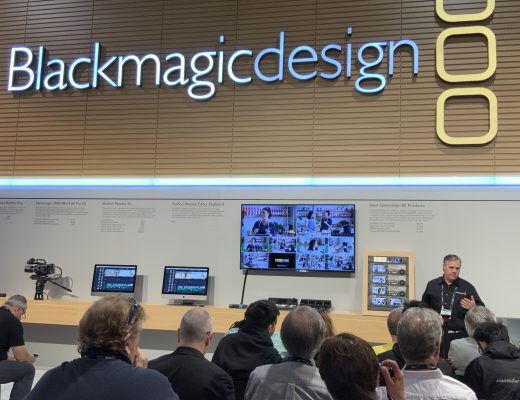
Today, Blackmagic held its annual NAB update, and there’s a slew of new products, including DaVinci Resolve 21. Grant Petty, Blackmagic CEO, always seems to remember an astonishing amount of broadcast hardware details while hooking up the gear and recalling lots of crazy product numbers. I salute him for doing this task so well, and he is probably the one CEO working in our industry who literally knows almost everything about every product they sell. 🫡
I was most interested in DaVinci Resolve 21. It’s not an entirely new tool set (except for one new page), but more about refining what we already have. The update includes new AI features, including some cool new tools on the Color page. It also adds a surprising Photo page. This is yet another shot across Adobe’s bow, as Lightroom is squarely in its Resolve 21’s sights.

Resolve 21 is already available as a public beta in both the free and the studio versions. Still no charge for an upgrade, which Grant pointed out near the end of the Resolve section. He also mentioned that the people who pay for the studio version of Resolve are helping fund its development, which has so far allowed them to avoid charging for an update. That’s rare these days, so thanks for that, Grant.
Here’s a closer look at what stood out to me.
The New Photo Page: A Surprise Addition
The introduction of the Photo Page is one of the more unexpected parts of Resolve 21, but it’s also one of the most interesting.

This is not a simple photo browser. It’s a full photo workflow built around the same color management and grading tools used for video. You can import RAW images from major camera systems (Canon, Fuji, Nikon and Sony were mentioned) and organize them into albums, apply ratings and flags, and filter large image sets efficiently.
Where there are basic photo editing tools in the Photo pages, what makes this different from traditional photo tools is the use of node-based grading in the Color. If you’re familiar with the Resolve Color page, you can now do all of your photo color correction in exactly the same way using primaries, curves, qualifiers, and Resolve’s other color tools. This allows for more complex and flexible adjustments than a typical layer-based approach. Put your photos into an album and that acts as a timeline in the Edit page or the Color page.
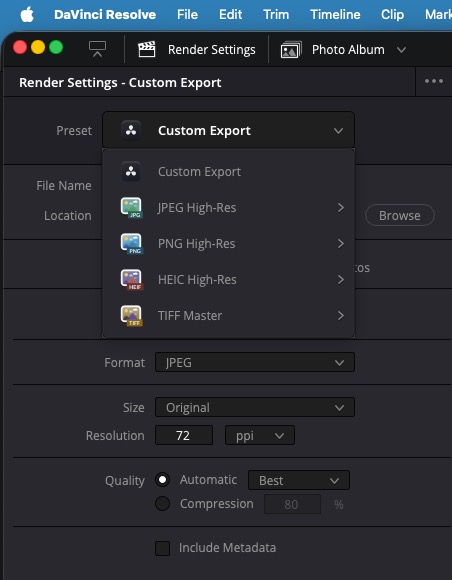
But imagine you’re working on a job that includes both video and stills … you can now apply the same gradings to both. Adjustments made in the Photo Page are retained within the media itself, so when images are brought into a timeline, they carry those grades and settings with them. Wedding videographers, rejoice!
There’s also a clear emphasis on scalability and collaboration. You can tag, rate, and filter images quickly, use AI-based search to find photos by content, and collaborate with others through Blackmagic Cloud. Think of the photo page as just another extension of the media post-production workflow.

I shot photos at a friend’s wedding over the weekend. Let me say it here: I don’t shoot photos at weddings, and I don’t shoot photos very much at all… But going through those photos in the new Resolve Photo page was quite simple, since I know the Resolve interface much better than I do Lightroom. I considered using Apple Photos, but it’s just a bit too “consumer,” so this was the perfect place to work on these photos from this wedding. I can look them over quickly, cull out the ones I don’t want, and make some basic adjustments right on the Photo page. What was crazy was that when the traditional photo adjustments didn’t work, I could jump to the color page with all the Resolve Color tools I was already familiar with.
If you had asked me whether Resolve was getting too cluttered with tools, including the Fairlight page and the Cut page, I would have said maybe. But then we get something like the Photo page, and it’s a great addition.
Edit and Cut Pages: Better Control, Less Friction
There are meaningful improvements in the Resolve 21 editing experience as well.
Keyframing and curves have been improved. There are more easing options, better control over motion, and support for looping behaviors like repeat and ping-pong. The addition of four-point Bezier curves allows for more refined retiming, especially when easing into or out of a moment. Easing is one of those little, unwritten triumphs of video editors animating. Get your easing right, and motion graphics and animations look much better. One of the most useful changes is the ability to adjust keyframes across multiple clips at once, eliminating a lot of repetitive work when applying the same motion or animation.
Subframe editing has been tweaked. Resolve now lets you place markers and adjust keyframes at the subframe level, which is especially helpful when syncing visuals tightly to music or dialogue.
There’s also better integration with Fusion. You can now view and adjust Fusion effects directly from the Edit and Cut pages, including some keyframing. The more I can stay out of the Fusion interface, the better.
Text and graphics workflows additions include a new font browser with live preview, built-in spell checking, and support for emojis. Resolve also now supports OGraf (.json) and Lottie (.lottie) HTML-based animation, which makes it easier to integrate assets coming from design or web-based workflows. And you can import Canva Affinity .af files, which was a bit of a surprise.

I also like the new built-in picture-in-picture effect that simplifies creating and adjusting inset-style videos. The reaction video creators are rejoicing with this one.
AI Tools: Of course, there are more
Resolve 21 includes several AI-driven features, but a few stand out as genuinely useful in day-to-day work. Let’s pull these out individually (even though we’ve already talked about some of them).
1. AI IntelliSearch
Search your media based on actual content—objects, people, locations, colors, or faces. It analyzes clips and lets you instantly find what you need without relying on manual metadata. This is cool and now standard feature in your editing tools
2. AI Slate ID
Automatically detects slates in footage and reads the metadata (scene, take, angle, shoot day, etc.), then populates that information into your clip metadata. Get a slate and use it any time you shoot if you are editing in Resolve. This could be a huge time saver.
3. AI Speech Generator
Creates realistic voiceovers from text. You can use built-in voice models or generate a custom voice from a short sample of your own voice, with controls for pitch, speed, and variation. I’m sure there’ll still be a place for ElevenLabs, but it’s nice to have this built in.
4. AI Cine Focus
Lets you adjust focus after the shot is captured. It simulates depth of field, lens blur, and bokeh, allowing you to guide viewer attention in post. No longer do we have to fake this with a blur filter and keyframes.
5. AI Blemish Removal
Detects and reduces skin imperfections like acne, discoloration, and pores while preserving natural skin texture. Designed for subtle, realistic cleanup. Beauty Box has been the standard for a lot of years, so we’ll see how this compares because Beauty Box is really good.
6. AI Age Transformer
Ages or de-ages a subject’s face. You set a base age and adjust from there, with tracking applied so the effect follows movement in the shot. It’s kind of crazy to get this built into Resolve, and we’ll see who all starts to ask for it.
7. AI Face Shaper
Allows you to subtly (or dramatically) reshape facial features—eyes, nose, mouth, and overall proportions. Can be used for corrective work or stylized effects. This is even crazier to get built into Resolve. I don’t even know what to think about this one.
8. AI Ultra Sharpen
An advanced sharpening tool designed to enhance clarity while minimizing artifacts. Especially useful for upscaling footage or improving soft-focus shots. Better sharpening is always welcome.
9. AI Motion Deblur
Removes motion blur and restores sharpness by generating a cleaner version of your clip. Useful for salvaging footage that would otherwise be unusable. In the demo, it looks like you apply this at the clip level, and this is an intriguing little feature. It’ll have to be used before I pass judgment.
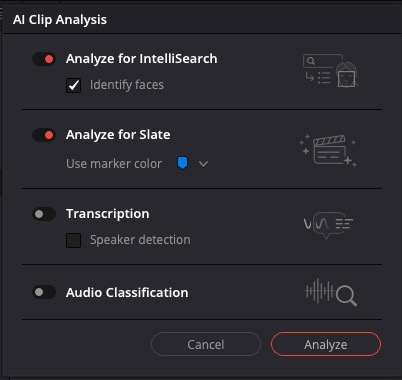
I’m most excited about the IntelliSearch feature, which lets you search for clips by content, including objects, locations, and faces. This will significantly reduce the time spent digging through footage and give Adobe Premiere’s Visual Search and Jumper some new competition. But honestly, didn’t we all expect this?
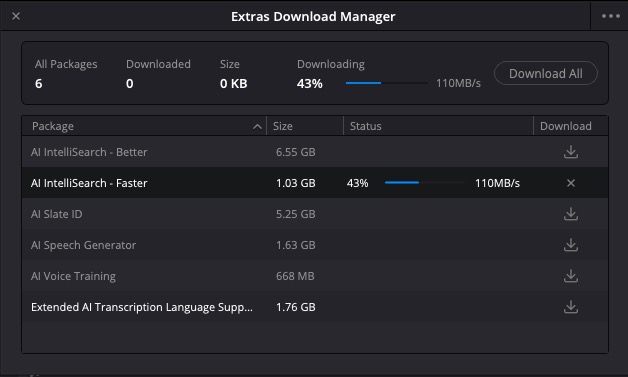
You’ll have to download a faster or better library to check the download manager, as well as your drive space.
Once clips have been analyzed, you can now perform a visual search on selected clips or all clips. Results can be saved in Smart bins and search terms are saved for easy recall. If I remember correctly, Resolve has long had face detection, but there is a new Manage Faces option that will make facial recognition and face management much easier.

Another big new addition is AI Slate detection. And all I can say is, “What took so long to get this in one our editing tools?” I dreamed about slate detection nearly 20 years ago in a software from the future and even mocked it up in a blog post.
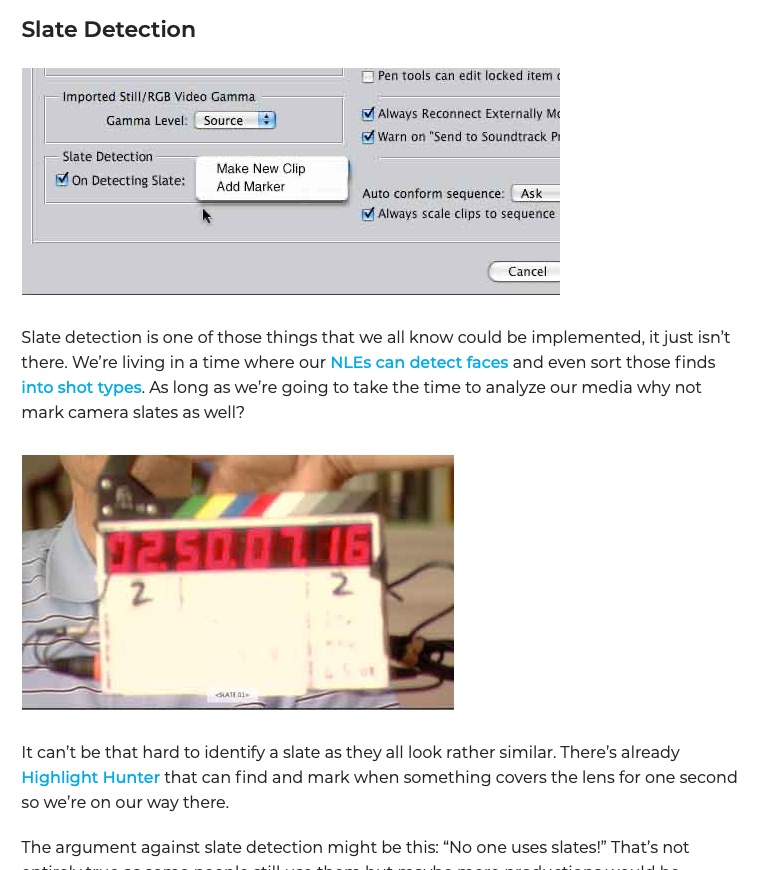
And here we finally are
AI Slate ID can automatically read and populate metadata from slates and clapperboards, which helps with organization on larger shoots. Let’s hope this leads to a revolution in people actually using slates, even when you’re not doing narrative-style scene-and-take shooting. Click over to Filmtools and buy your own slate and throw it in your gear bag.
The Speech Generator enables quick voiceover creation directly inside Resolve, and Cine Focus allows you to adjust depth of field after a shot has been captured. Tools like Motion Deblur and Ultra Sharpen can also help recover footage that would otherwise be difficult to use.
Color and Fairlight: Focused Improvements
The Color page continues to evolve. The most notable addition is the MultiMaster Trim system, which allows you to create multiple output versions from a single base grade. This is particularly useful for delivering in different formats, such as HDR and SDR, without duplicating work. The majority of editors working in Resolve will never use MultiMaster Trim, but it’s an important addition for finishing workflows
Fairlight also sees practical improvements, including the ability to organize tracks into folders. This makes large, complex audio sessions easier to manage and navigate. And I want this in the Edit page as a signature feature.
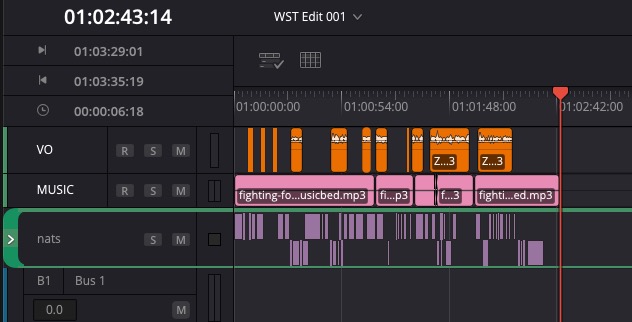
Please add audio track folders to the Edit page.
DaVinci Resolve 21 is not about dramatic changes. It’s about refinement. The improvements to the Edit and Cut pages make everyday work more efficient and precise, while the new Photo Page expands what Resolve can handle within a single application.
I do wish there was a way to install a Resolve beta alongside the shipping version of Resolve. By now, we can almost count on it like clockwork that we get this new beta the week before NAB. Many people doing mission-critical work cannot even try out these new features until well into the year, when the shipping version comes out. I would challenge the Resolve engineers to give us some way to install them side by side, even if that meant creating a beta-only database. Since Resolve doesn’t use single project files, I realize this might be a bit of a challenge but by creating a unique beta database, it should be doable.
When I installed Resolve 21 Beta, I wasn’t prompted to update the database, but I was prompted to upgrade a project. So I just exported an existing project and then re-imported it in Resolve 21.
If you download the Resolve 21 beta, check the documentation; there’s a great 150-page new features guide to DaVinci Resolve 21.
And here’s the good old bullet point list
Photo Page
- New photo image editing now fully integrated within DaVinci Resolve.
- Image library with tagging, favorites, ratings and album collections.
- Albums let you build, manage and tweak photos at source resolution.
- Native RAW support for major camera formats.
- Import media from Apple Photos on macOS.
- Import Lightroom Catalog files into the media pool.
- Use Resolve multi-user collaboration and Blackmagic Cloud syncing.
- Support for DaVinci color control toolset and grading panels.
- Looks, LUTs, ResolveFX and OpenFX for your images.
- GPU accelerated batch exports and conversions.
Cut and Edit Page
- Keyframing provides powerful retime controls with 4-point bezier.
- Keyframe and add curves for multiple selected clips.
- Keyframing ease options, loop, ping pong, reverse and stretch.
- Keyframe Fusion effects, generators and text along with edit effects.
- Subframe support for keyframing and markers.
- Native support for OGraf HTML graphics.
- Native support for Lottie animations.
- Resolve FX Picture in Picture effect.
- Font browser window for text and subtitle elements.
- Preview fonts during font selection as a preference.
- Spell checking for all text elements.
- Emoji and color fonts for Text+ and MultiText.
- Multicam angle previews in clean feed and video outputs.
- Multicams can include all audio tracks for each angle.
- Multicams can use full clip extents on creation and during sync.
- Replay control to limit view to the last 5 minutes of recorded media.
- Replay editor allows timeline selection from search dial.
- Replay now allows independent start and end stingers.
- Replay title palette allows up to 6 favorite titles.
- Mono audio now plays on left and right channels of stereo tracks.
- Improved waveforms, markers and fades for short edit tracks.
- Source timelines support auto track selectors.
- DRT timeline import supports link and conform options.
- Compare timelines with timeline backup snapshots.
- Subtitle inspector now supports search and replace.
- Edit page lets you show or hide tracks from the index.
- Support for editing EDL clip name in the edit index.
- Affinity .af file support with group and individual layer control.
- Edit page timecode options for frames, subframes or audio samples.
- Duration timecode option to show duration for clip selection.
- Improved timeline view options with presets and clip name option.
- View remote color versions in the source viewer.
- Local color grade versions use remote grades on new clip creation.
- Timeline menu action to select transitions in the cut and edit page.
- Paste and remove attributes for clip color, markers and flags.
- Paste and remove attributes to retain image position under crop.
- Switch audio channels for multi-clip selections via the context menu.
- Edit page source tape includes multicam clips.
- Match frame finds source media for nested clips and multicams.
- Resolve FX Video Collage with separate tile fill and border controls.
- Subtitle support for fade in and out.
Media Pool and Metadata
- Support for tabbed layouts.
- Thumbnail, list and metadata views can be set for each bin.
- Star rating support for clips.
- Cut page supports smart bin views.
- Export media bin thumbnails as a PDF.
- Automatic smart bin and clip filter for offline clips.
- Custom metadata for smart bins, filters, data burn and naming tags.
- Customize your project poster frames.
- Show input colorspace and gamma in metadata view.
- Transcription column support in list view.
- Custom keyboard shortcuts to set thumbnail, list or metadata views.
- Ability to reset audio clip attributes to the original configuration.
Color Page
- Clip groups now support grade versions.
- Node graphs can now be viewed as a layer list.
- Node stacks now support up to 8 layers.
- Customizable HDR and nit scopes ranges.
- ACES AMF improvements, with transform name and custom folders.
- Adobe RGB colorspace and gamma support.
- OpenFX 1.5 color management APIs for colorspace aware effects.
- Advanced panel controls for 2.39 and 2.4 safe area aspect ratios.
- Multi-user projects can bypass color management on the color page.
- Pasting tracking data between power windows retains original shape.
Fairlight Page
- Folder tracks allow a group of tracks to be folded down or expanded.
- Go to mouse pointer support using the C key.
Fusion Page
- Support for Krokodove motion graphics effects.
- Over 100 new motion graphics effects and tools.
- New Macro Editor with inspector view and publishing to edit effects.
- Fusion animation can be creatively driven by Fairlight audio.
- Native support for OGraf HTML graphics.
- Native support for Lottie animations.
- Text+ and MultiText support spell checking.
- Font improvements include emoji, color fonts and more.
- Improved MultiText for position, pivot, alignment and CSV import.
- Support for USD SDK 25.11 with Hydra 2.0 API for Storm renderer.
- USD support for 3D matte objects and textures.
- Support for USD Texture Projector and Catcher.
- Global in-out controls for USD Loader.
- Native support for creating Relief Maps.
- Change inspector properties for multi-tool selections.
- Change common inspector values in all selected multi-tool layers.
- User defined metadata variables in paths, expressions and scripts.
- Lens Distort offers checkerboard calibration and GPU acceleration.
- Guides and rulers persistence, presets and improved snapping.
- MediaIn nodes show clip name.
- Open keyframes and spline as a new window.
Codecs and I/O
- Enhanced MXF growing file support for broadcast workflows.
- MXF OP1A support for MPEG2 bitrate and other encode options.
- Canon CR3 RAW decode support.
- Fujifilm RAF RAW decode support.
- Apple ProRAW decode support.
- Support for compressed ARW from Sony A7V and newer cameras.
- Improved Nikon NEF RAW decode support.
- HDR decode support for HEIC, JPEG, PNG and TIFF images.
- HEIC encode support on macOS and Windows.
- HDR encode support for HEIC, JPEG, PNG and TIFF images.
- Improved EXIF metadata support for stills formats.
- Intel QuickSync AV1 4:4:4 decode and encode support.
- Windows ARM H.265 10-bit 4:2:2 decode support.
- Per render job option to override RCM or ACES outputs.
General Improvements
- Powerful, expanded and flexible data burn-in window.
- Preferences and project settings can now be searched.
- Multi-user projects support dynamic project switching.
- Up to 3x faster file sync performance to Blackmagic Cloud.
- General performance and stability improvements.
Note: Sony camera control on Windows needs the Sony IEDT application to be installed from the Sony website.
Minimum system requirements for Mac OS
- macOS 15 Sequoia or later.
- 8 GB of system memory or 16 GB when using Fusion.
- For monitoring, Blackmagic Design Desktop Video 12.9 or later.
- Apple Silicon based computer.
Minimum system requirements for Windows
- Windows 10 Creators Update.
- 16 GB of system memory or 32 GB when using Fusion.
- For monitoring, Blackmagic Design Desktop Video 12.9 or later.
- Integrated GPU or discrete GPU with at least 4 GB of VRAM.
- GPU which supports OpenCL 1.2 or CUDA 12.8.
- AMD/Intel official drivers from your GPU manufacturer.
- NVIDIA Studio driver 581.57 or newer.
Minimum system requirements for Windows for Arm
- Windows 11 for ARM.
- Qualcomm Snapdragon X Elite series processor.
- 16 GB of system memory or 32 GB for 4K or when using Fusion.
Minimum system requirements for Linux
- Rocky Linux 8.6.
- 32 GB of system memory.
- For monitoring, Blackmagic Design Desktop Video 12.9 or later.
- Discrete GPU with at least 4 GB of VRAM.
- GPU which supports OpenCL 1.2 or CUDA 12.8.
- AMD official drivers from your GPU manufacturer.
- NVIDIA Studio driver 580.119.02 or newer.