

Filmtools
Filmmakers go-to destination for pre-production, production & post production equipment!
Shop NowTL;DR Tell me why my media is offline.

Welcome to Tool Tip Tuesday for Adobe Premiere Pro on ProVideo Coalition.
Offline media can be a big frustration when working in Adobe Premiere. If media has been moved or file paths and folder names have been changed, you’re often greeted with an Offline Media status box when you launch Premiere. We’ve talked about this before with another Tool Tip Tuesday that an editor should certainly be familiar with: Tool Tip Tuesday for Adobe Premiere Pro: Offline vs Cancel in the Link Media dialog box.
There’s a very useful metadata column in Premiere’s List View that shows the status of media, including a clue as to why the media might be offline.
First, with a Premiere bin in list view, head under the Bin Hamburger menu, choose Metadata Display and search up “status.” From Adobe’s on Premiere documentation, Status shows “whether an asset is online or offline. If a clip is offline, Status also indicates why.”

With that column checked, you can see the status of media in a bin. If all things are well, then all that media will be shown as online.

Where this gets interesting is if you have had to selectively set some media to offline, such as in a proxy workflow, as mentioned in the above Tool Tip Tuesday about the Offline vs Cancel button. If the editor has chosen to selectively set media offline in the Link Media Dialog box, rather than hitting the cancel button, the status column will show which files have been set to offline and by which method.
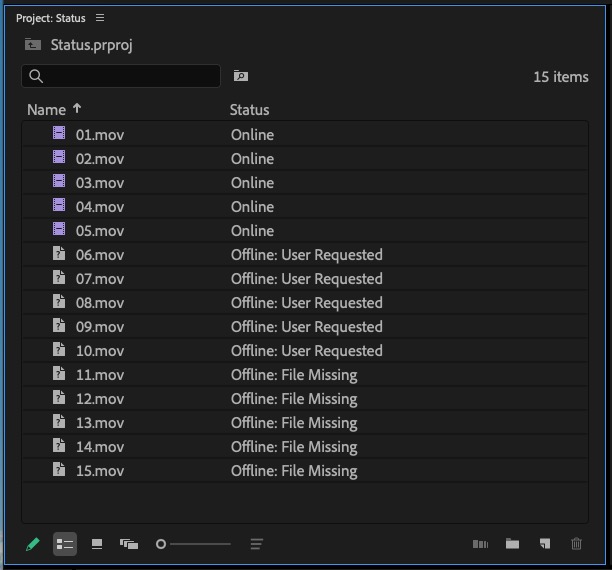
Here is what we can discern from the above image and the Status:
- Clips 01 – 05 are online.
- Clips 06 – 10 have been set offline by the editor using the Offline button in the Link Media dialog box. Premiere will not prompt the editor to relink these files when the project is launched.
- Clips 11 – 15 were not set to offline (this was done by hitting cancel in the Link Media dialog box), and Premiere will prompt the editor to relink them when the project is launched.
And a bonus tip! How do you user request and offline some clips but offline others as file missing? That’s where a recent addition to the Link Media dialog box, the Apply button, is used.
To achieve the above status, the editor would select clips 06 – 10 in the Link Media dialog box, choose Offline and then click Apply. The Apply button is a recent addition to Premiere.
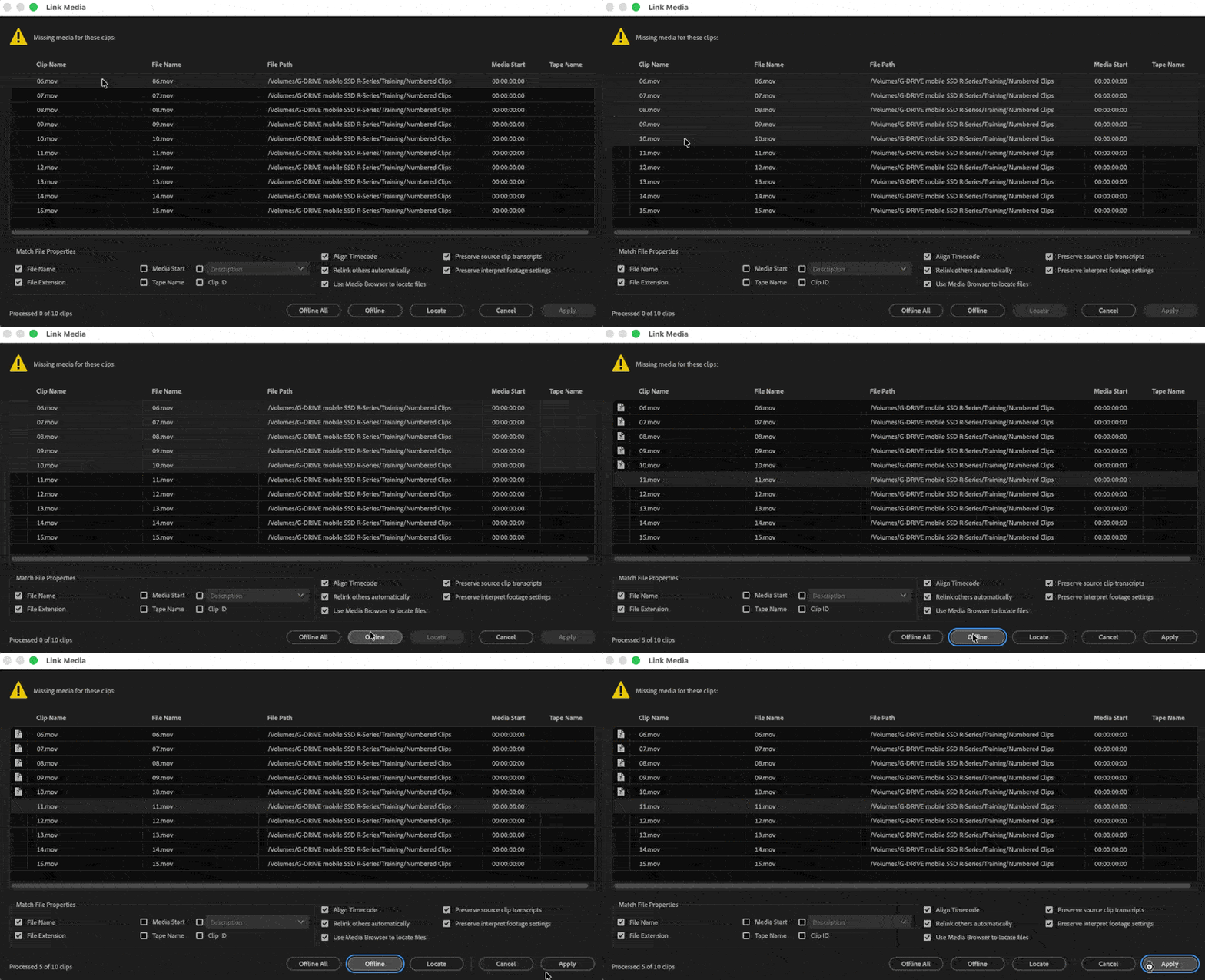
After hitting Apply, the editor would cancel the Link Media dialog box, and they would no longer be prompted to relink clips 06 – 10 when launching the project.
This series is courtesy of Adobe