

Welcome to Tool Tip Tuesday for Adobe Premiere Pro on ProVideo Coalition

Whether or not you’re a frequent reader, what got you here is finding a gem you didn’t know. And Hopefully keeps you coming back week after week.
Scott and I thought it’d be valuable to review each other’s tips from the past year and pick a handful we wish everybody knew.
Here are my picks from Scott’s column.
Offline, Offline All, and Cancel when linking media
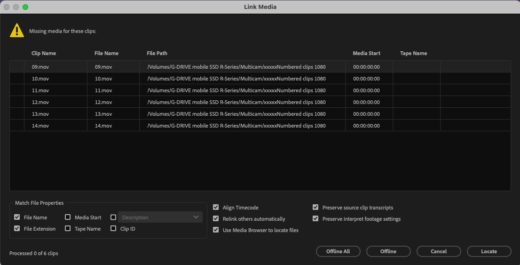

Don’t hit Offline. It’s an easy mistake.
If you do, Premiere thinks you mean that it should be offline. It’ll never prompt you again.
If you’re working with other editors, they’ll never know that file is missing.
Cancel is your friend. Seriously.
Open in Source / Open in Sequence
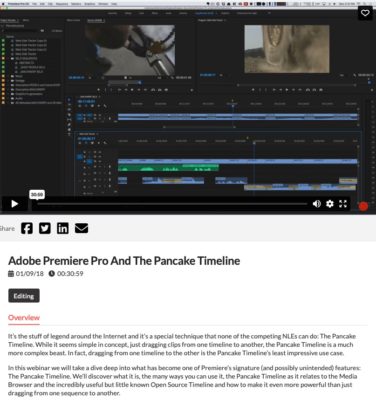

Look, if you use pancake timelines (multiple timelines open at once), this may be the best tip you’ll ever get.
“Open in Source Monitor” loads a sequence specifically for sourcing. Then “Open Sequence in Timeline” creates a separate playhead/timeline linked to that source monitor. Track different items, gang raw media, and most importantly, cut source material from one timeline into another.
Pancake people, this one’s for you.
Trim Multiple Clips at Once
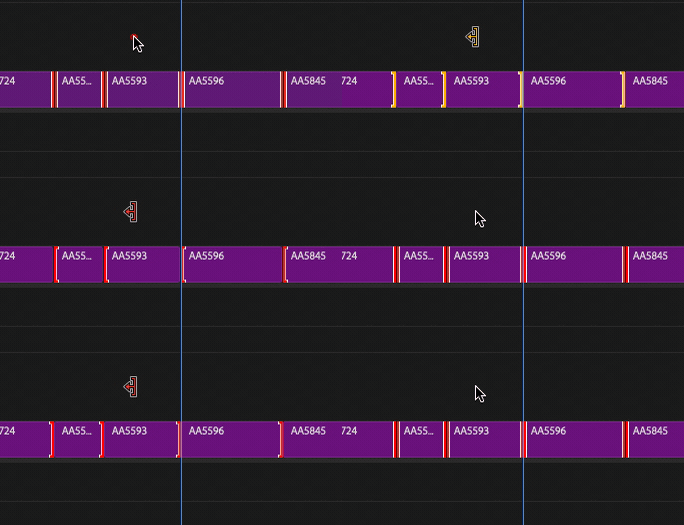

Ever needed to shave a second off a timeline? Instead of trimming one clip, why not take one frame off thirty clips?
Hold down a modifier key, lasso the edit points you want, then Ctrl+T (Cmd+T on Mac) to switch to ripple trim. Shorten or lengthen multiple clips.
Swipe the Timeline Track Controls
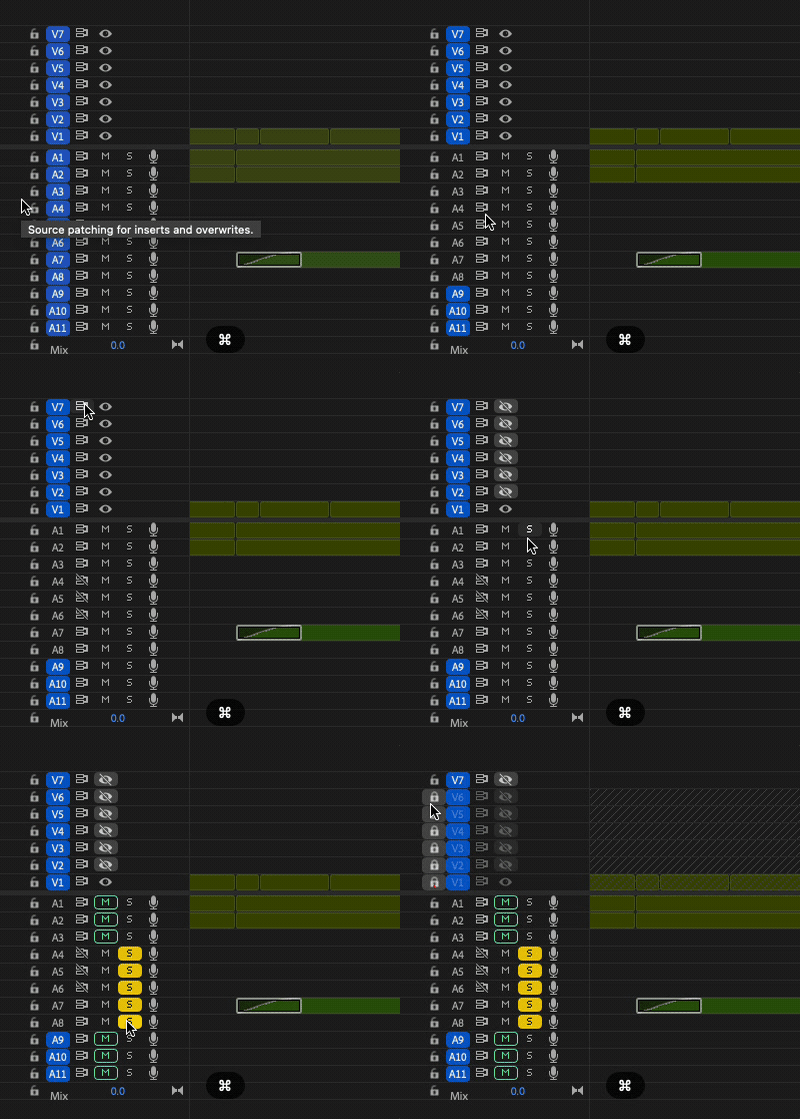

This is a quality-of-life thing. Instead of clicking individual mutes or using Shift to toggle to turn video tracks on and off, hold Command (Ctrl on Windows) and just paint. Swipe what you want on or off.
Rules, Guides, Snap, Safe
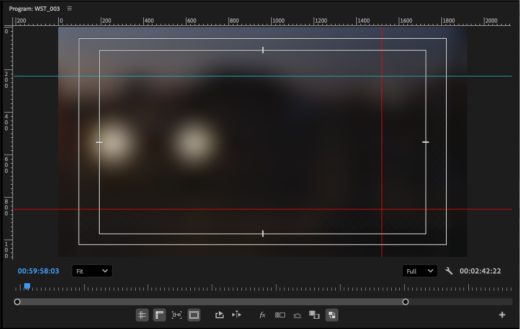

Need precision in the Program Monitor? Lining up an animation? Making sure someone’s face matches across a cut?
Rulers and snap-to-guides. It feels almost as nuanced as Photoshop. I’m always surprised when I meet editors who don’t use these.
Final thoughts
Next week, Scott shares his picks from my column. Until then, go revisit the ones you missed.
This series is courtesy of Adobe.