Filmtools
Filmmakers go-to destination for pre-production, production & post production equipment!
Shop NowTL;DR faster Pancake Editing


Welcome to Tool Tip Tuesday for Adobe Premiere Pro on ProVideo Coalition.
Every week, we will share a new tooltip to save time when working in Adobe Premiere Pro.
Are you a fan of Pancake Editing in Adobe Premiere Pro? I know I am and this tip makes it faster than ever. What we are doing is mapping a couple of keyboard shortcuts to quickly open a timeline from a bin into the Source Monitor and then opening that Source Monitor timeline into its own tab in the Timelines panel.
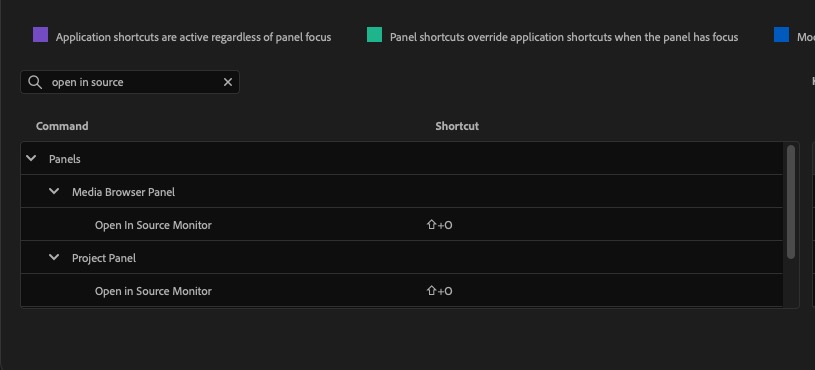
First open your Keyboard Shortcuts and search for “open in source monitor.” We’re specifically looking for Open in Source Monitor from the PROJECT panel. That is already mapped to Shift+O as the default. We just want to make note of this shortcut.
Next, search for “open sequence in timeline” and you’ll only find one umapped shortcut for that command. Notice that this is from the Source Monitor Panel. What we want to do is map “open sequence in timeline” to the same shortcut above, shift+o, so we can open a Source Monitor timeline in two quick keystrokes, the same keystroke so it’s very fast. Click into the empty space under Shortcut column to map the keyboard shortcut to that command. Click it and type shift+o on your keyboard.

What you’ll see is a warning where Premiere is telling you that the shift+o keyboard shortcut is already mapped to a system wide command for Go to Out.
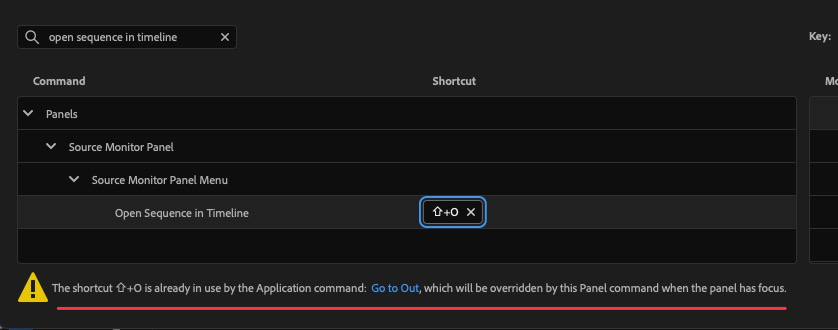
But if you read that warning closely, it tells you that the Go to Out command will only be overridden by the Source Monitor Panel when the panel has focus. Shift+o as the Go to Out function will still work in the Timeline or the Program panel. Losing Go to Out in the Source monitor is an acceptable trade off IMHO as I don’t use it much there anyway. I’m much more focused on my IN point in the Source monitor than my OUT point. You’re mileage may vary and you could adapt this whole fast opening of a Source Timeline to something like Control+o as there are many ways to adapt it because Adobe Premiere Pro is so customizable.
With those two commands mapped you can open a Source Monitor timeline incredibly quickly. And speed is good.
If you don’t know pancake editing you should get to know it. I made a video on pancake editing for Moviola back in 2018 and I believe it is the most in-depth video on the internet on this very specific workflow in Adobe Premiere Pro.

Click over and give it a watch.
This series is courtesy of Adobe.