Filmtools
Filmmakers go-to destination for pre-production, production & post production equipment!
Shop NowThis tool will enable the creation of generative video right in the timeline, without have to leave Premiere

Adobe is continuing the generative AI march forward in Premiere (beta) with the new Generative Media Tool. It’s a new tool in the Premiere toolbar that lets an editor drag across empty space on a track in the timeline or double-click empty space to bring up a new generative task bar. That task bar will allow an editor to input a prompt for new generative video or generative sound effects using a choice of models. The new Generative Media tool comes hot on the heels of the new Assistant panel, which added an AI agent to complete tasks within Premiere. I think it’s now safe to say Adobe is going all in on AI in Premiere.
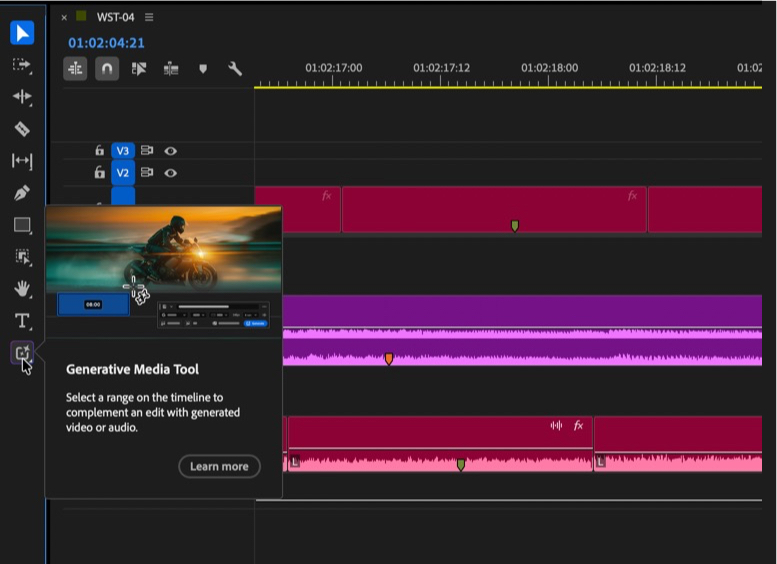
The generative media tool is an extension, it seems, of Generative Extend and sits with that particular tool in the Premiere toolbar. Long-pressing that icon lets you select which generative tool you want to use. The Generative Media Tool is the default. Adobe has an FAQ on the new Generative Media Tool, so give that a read as well.
It’s relatively simple to use. Dragging over an empty part an audio track or video track will bring up the generative task bar in context next to the area where you want to add a new generated media clip.

You’ll get different options depending on whether you want to generate a new video clip or a new audio clip.
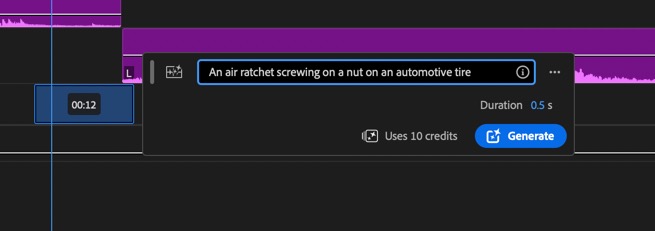
Generative audio is simple, as there are no options for the different models, as it uses Adobe’s commercially safe Firefly models, but the real choice comes when generating video.
Adobe Firefly added the ability to use different models for generative video beyond Adobe’s own Firefly models some time ago. There are different models available with the generative task bar, and I’m sure those models will be updated and changed in the future as fast-moving GenAI changes.
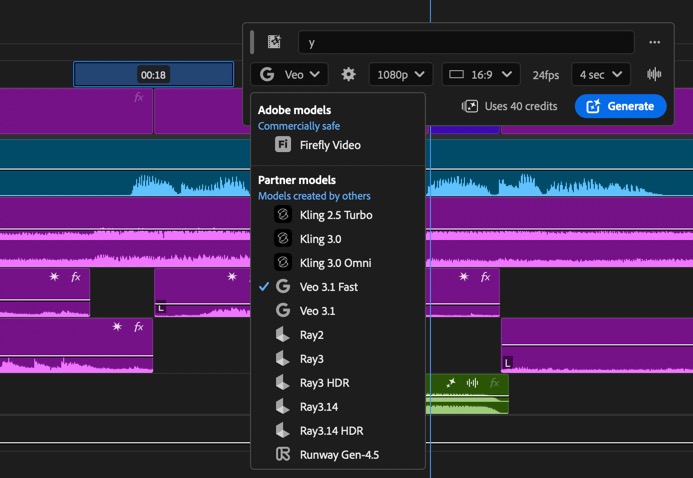
Depending on the chosen model, there are different options for the resolution, aspect ratio, frame rate, and the amount of video, in seconds, that can be generated. And of course, different models will use different amounts of credits. As with any generative video attempt, it will take time and multiple attempts to get the clip just right, as that’s just the nature of prompt-based generative video. Of course, Adobe will sell you extra Firefly credits if you use up your monthly allotment.
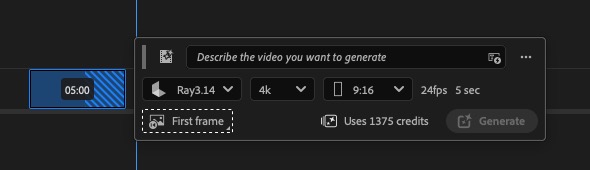
The availability of different models beyond Firefly makes the Generative Media Tool infinitely more usable. It would be nice if there was some way to know how one model might be better than another. It’s very easy to quickly burn through credits as you try to get, not the perfect gen ai video clip but a usable gen ai video clip. Of course, perfect and usable all depend on your project, use case, and “usable” tolerance level.
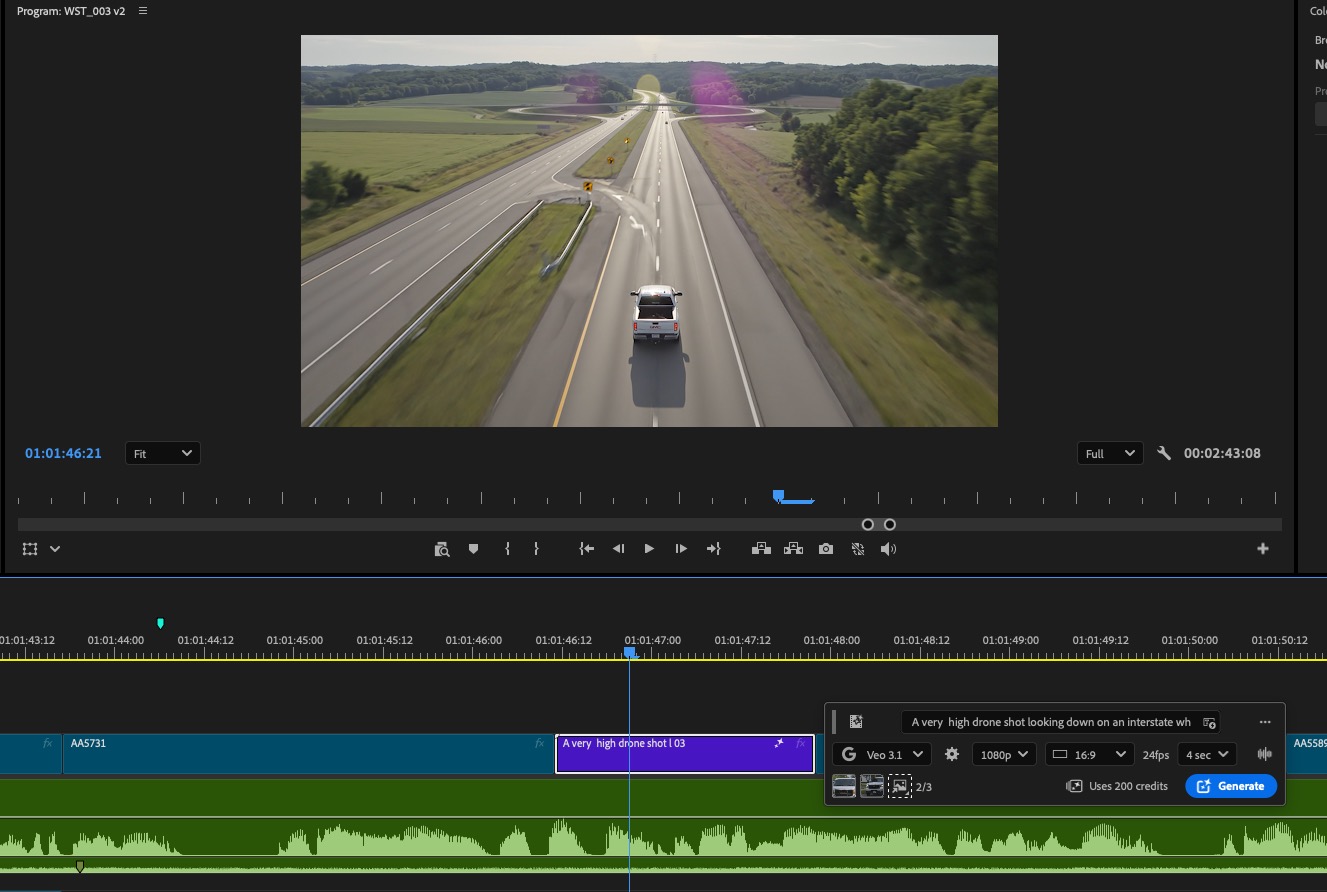
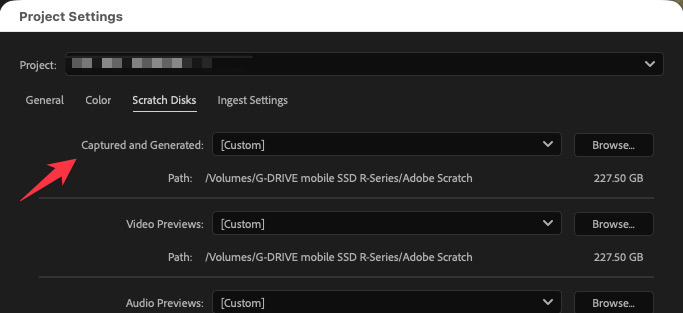
As of the Generative Media Tool launch, you’re limited in formats. All video will be an H264 mp4. Adobe knows we want more professional formats like 10-bit ProRes, but one thing I came to understand while getting a demo of the new Generative Media Tool is that a lot of what is offered is dependent on the models and may be out of Adobe’s control. And I think that’s the theme with a lot of generative AI stuff … it’s a bit out of the user’s control, so you often have to prompt and hope for the best.
How useful would the new Generative Media Tool be?
That depends a lot on what you work on and how much you currently use generative video in your daily work. It will be most useful for placeholder clips and perhaps quick supplemental B-roll shots. I’ve had mixed results getting it to generate something I might actually use in an edit, assuming I’m working on a project that allows generative video. But that happens when creating generative video in any tool. It is undoubtedly a more streamlined workflow to be able to do all this right in the Premiere timeline. I think generative sound effects will be much more useful for many editors overall.
I look at the new Generative Media Tool in the context of Generative Extend. That is a genuinely useful tool, but I’ve found that I have used Generative Extend much less than I thought I would. In fact, I try to avoid it and have ended up using it only a couple of times in real projects when there was no better option. That’s why I feel like the Generative Media Tool will be similar and very dependent on the kind of work you do. Social media content creator? You’ll use it all the time and even purposefully try to use it. Network series broadcast editor? You probably won’t use it at all and may be instructed to not touch the new tool. Every other editor? Maybe somewhere in between.
While some models will allow you to use sample reference frames, I still found it difficult to get something truly useful. That said, having this tool right there in the timeline saves a lot of headache. Going back and forth between Premiere and generative media websites and tools outside of Premiere means continually importing and exporting clips. So the new Generative Media Tool in Adobe Premiere (beta) is a workflow improvement, and all workflow improvements are welcome.