

Filmtools
Filmmakers go-to destination for pre-production, production & post production equipment!
Shop NowBecause, of course it is.

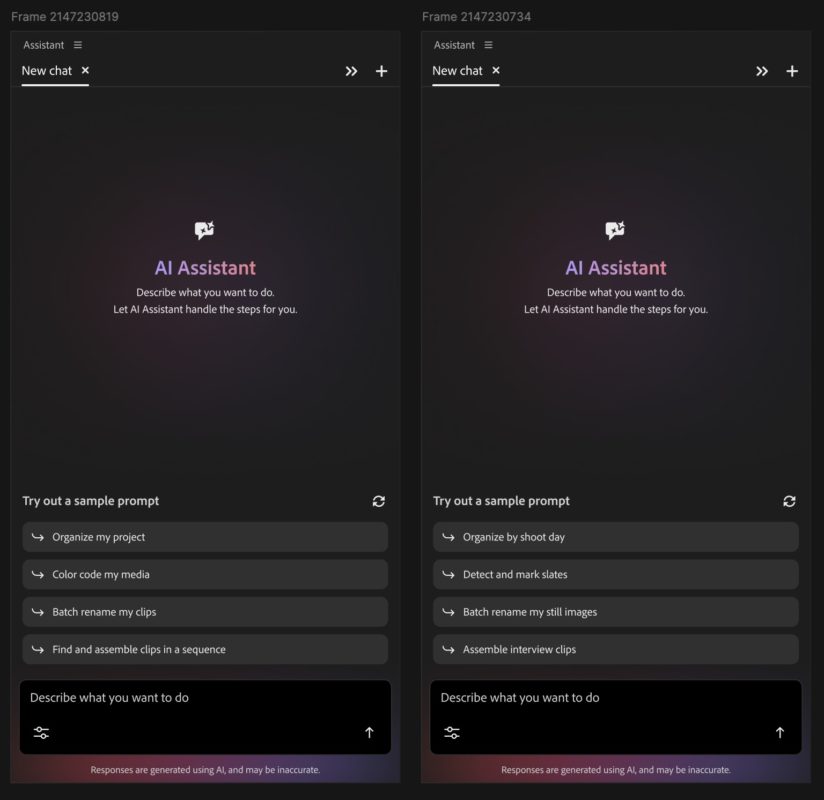
As our video editing tools have continued to evolve during the age of AI, new features seem to come along at breakneck speed. Adobe Premiere is no exception and Adobe is introducing Premiere AI Assistant as a new panel within Premiere (it’ll be in the beta first) that is a chat-based assistant to execute many different tasks within an open Premiere project file.

What you can do with Assistant might be limited only by your imagination. While Assistant certainly won’t be able to do everything you do in an editing project, it will be able to do a lot. You can ask it to do technical things like reorganizing media, syncing multicam angles into a sync map, or renaming clips. In fact, Adobe says that of this initial release: “If you can do it in the Project panel or Timeline, AI Assistant can help.”
Adobe has published an FAQ which might answer some other questions about the new AI Assistant.
You’ll also be able to ask Assistant to craft rough edits. How good will that be? That’ll be something you, dear editor, will need to determine for yourself.

You can even go so far as asking Assistant what to do next in an edit. This certainly feels like, at its most base level, it could be geared to new users, as Adobe is working hard to make Premiere easier for novice editors, but it will be able to do deeper and more powerful things as well. If you’re unsure, just ask Assistant what you want it to do, and if it can’t do something, it will tell you. Seems simple enough.
To do its assistant thing, Assistant will use media intelligence and transcription to do its work. You should assume that anything you type into the chat goes to the cloud so AI Assistant isn’t an all on device tool. It can also make a closer inspection of frames if needed. I’m sure that as this AI tech evolves (and it will evolve quickly in the beta), how the AI is able to analyze and work with footage will evolve as well. We’ve seen Adobe, as a corporation, advancing AI tools very quickly so the new Premiere AI Assistant seems like a natural next step.
Is this something editors have been asking for? Maybe. Will Premiere AI Assistant take away a job or two? Probably. Will it be useful? Definitely.
Everything Assistant does is reproducible and undoable. Since Assistant is “physically” doing things in a project, you can see what it’s doing in the History panel (so you’ll probably want to up your undos to the max with this Tool Tip Tuesday). But as it works, Assistant writes what it does to the undo stack, so if you continue to work while Assistant works, then the tasks will stack up together in the History, so undos won’t really work as you’re expecting at that point.

Using Assistant may very well count against your Firefly credits depending on what you do. During the beta period, paid Creative Cloud users will be able to use the AI Assistant without drawing on their entitled credits. Once the complimentary daily limit is reached, users can continue the next day when it resets automatically.


This is a beta, and Assistant has a feedback option as far as the thumbs-up and thumbs-down buttons. Adobe is watching this feedback, so use those buttons.

And Premiere isn’t the only Adobe tool getting this kind of AI assistant. This idea is going into many apps across the Adobe spectrum. Here’s a few examples based on Adobe provided press images.


In fact, Firefly AI studio will let you do things like this (this is from the Adobe press release):
- Brand kit creation: Describe your style, brand name and color palette; AI Assistant in Firefly generates and saves a complete logo, brand identity and color palette, ready to apply across every piece of content you create.
- Short product video creation: Turn product photos into polished, cinematic short-form videos with premium lighting, motion, audio and brand styling, ready to publish.
- Create a Quick Cut: Automatically assemble video clips into a polished first cut edited around dialogue, narration, or visual content.
- Create storyboards & generate video from storyboards: Turn an idea into a visual scene sequence, then use those storyboard frames to generate video.

And here’s where we stand today with these new AI tools across the Adobe Creative Cloud:
- Premiere: The tedious set-up work is taken care of for you: sorting assets into bins, batch renaming clips, identifying interview questions, adding markers, or even assembling a working starting point. If you can do it in the Project panel or Timeline, AI Assistant can help.
- Photoshop: Describe the desired outcome, such as swapping out a background, resizing assets for every platform, or organizing layers, and the assistant executes across the entire composite, applying intelligent adjustments that can continue to be adjusted further.
- Illustrator: Ask the AI Assistant to support multi-step production jobs such as generating 50 versioned files from a spreadsheet, reorganizing layers across a document or running a pre-flight check to flag color mode errors or missing fonts before anything goes to print.• InDesign: Drop in a new brand PDF or open an existing template, then let the assistant apply updates across every layout including copy, styling and print-readiness checks.
- Frame.io: Provide creative direction and the AI Assistant helps organize shoot assets, surface feedback across revisions, and generate B-roll, all within the project.
- AI Assistant is available in After Effects in private beta and Adobe is working to extend its agentic capabilities to other Creative Cloud apps for more photography, video and motion design workflows.