Filmtools
Filmmakers go-to destination for pre-production, production & post production equipment!
Shop NowTL;DR: The Effects Manager lets you disable problematic third-party effects without uninstalling anything. Find it under the hamburger menu in the Effects panel.

Welcome to Tool Tip Tuesday for Adobe Premiere Pro on ProVideo Coalition
Last week at a client’s facility, a couple of freelancers were using some obsolete effects. Even with a team of five, one editor kept using it because it was the first one that came up. Less performance, project compatibility issues; the usual chaos.
The knee-jerk reaction? Uninstall. You have to hunt down the uninstaller, then reinstall the current versions.
The one I used to do before a trade show/speaking in front of.a group? I’d dig into the ‘/Library/Application Support/Adobe/Common/Plug-ins/7.0/MediaCore’. Ugh.
There’s a better way.
The Effects Manager
Premiere has a built-in solution: Manage Video Effects.
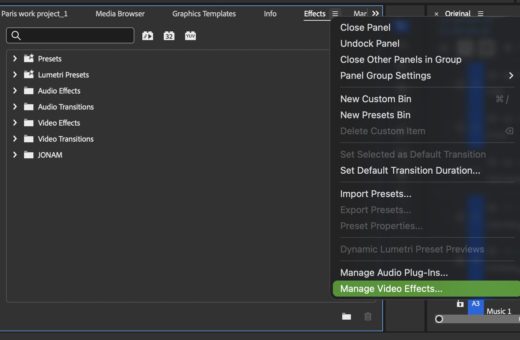
Find it under the flyout/hamburger menu in the Effects panel.
One caveat: it only works with third-party effects. Native Premiere effects aren’t listed here.
P.S. Yeah, this exists in Adobe After Effects too.
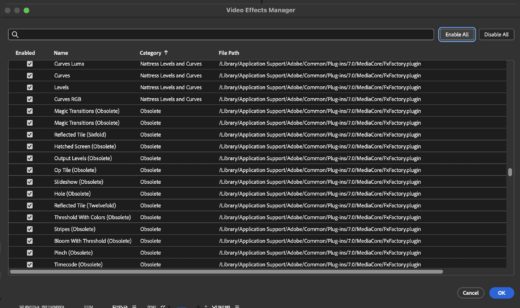
How I use it
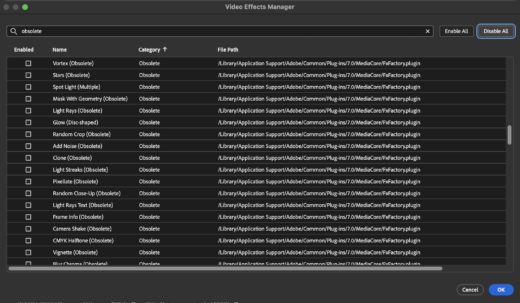
Once I opened it up, I sorted by category. Literally typed “obsolete” in the search field, then hit Disable All. This will disable only those effects visible based on the search criteria.
No uninstalling, no reinstalling. Solutions I like: elegant.
Final thoughts
This is one of those features that sits there waiting for the moment you need it. I’ve also used it as a way to figure out if an effect is crashing Premiere.
Next time you’re dealing with rogue effects, skip uninstall and just disable them.