

Filmtools
Filmmakers go-to destination for pre-production, production & post production equipment!
Shop NowTL;DR: Premiere can now hunt down visually similar shots with one click.

Welcome to Tool Tip Tuesday for Adobe Premiere on ProVideo Coalition
The dreaded question: “Where are clips just like that one?”
I get asked this every edit session. Either by someone else in the room, or by myself.
Find Similar Frames
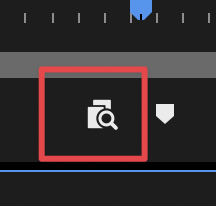
it’s a new button. I think showed up in 26.3, maybe 26.2.
I just noticed it sitting under both my Source and Program monitors. It’s part of the new Media Intelligence, and it finds shots that look like the one you’re parked on.
Make sure Visual Analysis is turned on first in the preferences.
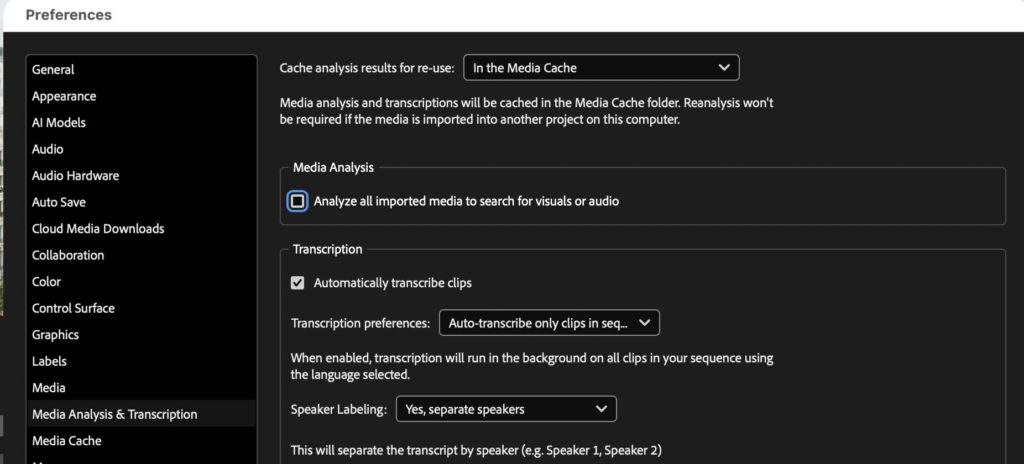
If you haven’t analyzed your media on import, it’s something I suggest you do via Adobe Media Encoder overnight or in the background. I even wrote a tip for that, which is great when you have loads of media.
Look for the Search Similar button under the monitor.
When you press the button, it opens the new Search Panel.
Sources only, for me
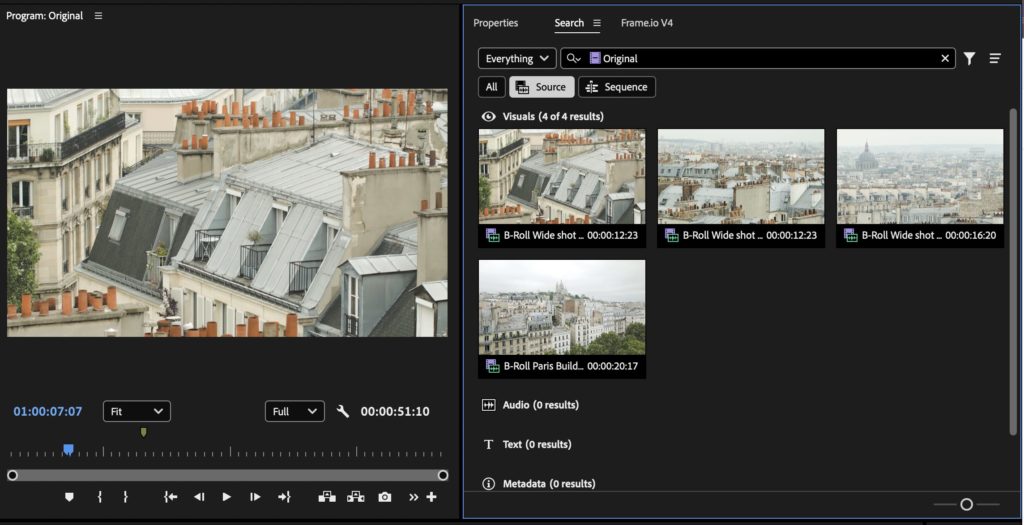
I set mine to search Sources, not Sequences. I’ve got too many sequences and string-outs floating around for that to be useful right now. Sources is where the value is.
Map it
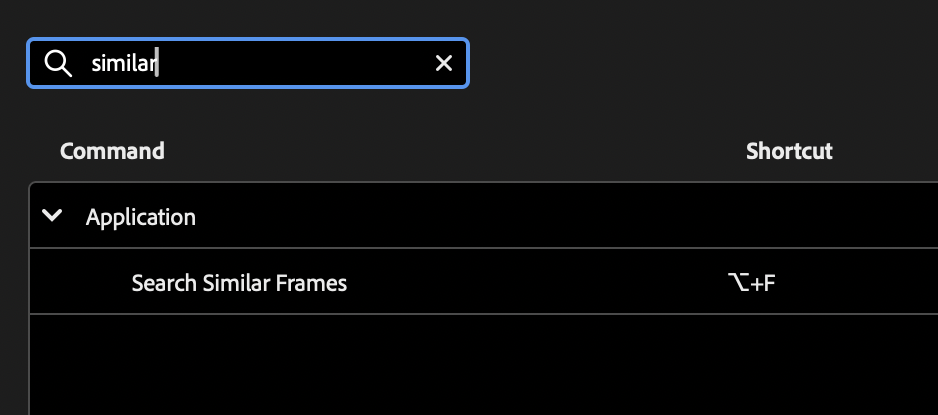
Go into your keyboard shortcuts and search “search similar.” I mapped mine to Option+F (Ctrl+Shift+F on a PC). One click, and Premiere goes and finds the look-alikes.
One note: you’re not limited to your own footage. Drag in a still from another project, or even off the web, and it’ll search this project for anything that matches.
Final thoughts
So to the answer of “where are some clips just like that?” When I’m looking for something quickly as an alternate, this is a great fast way to find media..
This series is courtesy of Adobe.