Welcome to Tool Tip Tuesday for Adobe Premiere Pro on ProVideo Coalition
The String-Out Problem
Most editors I work with have every single piece of footage in a string out – And built their sequences/stories from those string-outs.
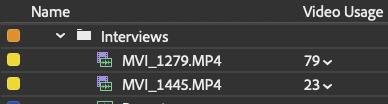
Every interview has been laid out end-to-end. Every location’s B-Roll? Yup, it’s in a string out. The video usage column shows that every clip has been used at least once.
These clips weren’t used that often – they’re just in numerous backup sequences.
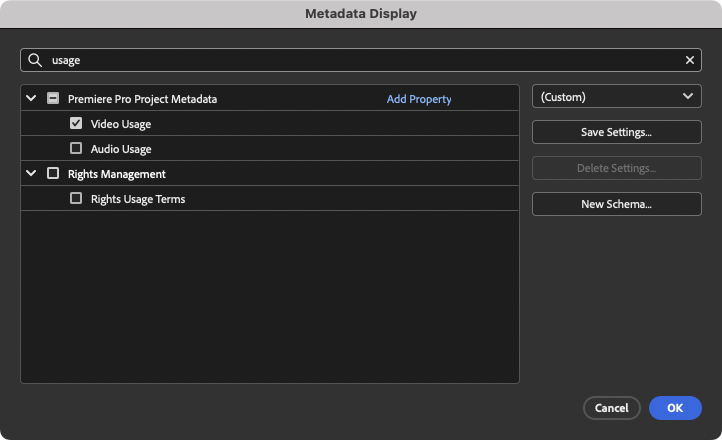
If you don’t see the Video Usage column, right-click any column headers, then type “usage” in the search field, and check the box to add it.
Right-click any column to get to the “extra” data for your projectJust search for Usage
Here’s the problem: the Video Usage column shows that every clip has been used at least once.
There was no way a clip was used 79 times!It’s just in loads of sequences!
I’m working with backups of sequences, duplicates of sequences for exports – and that doesn’t include my string outs!
String outs for every interview, every location, B-roll. I’m just exhausted thinking about it.
The usage count will never be zero, making it impossible to identify truly unused footage.
That got me thinking: we can’t limit the usage column, but we can build a search bin that does the heavy lifting for us.
The Search Bin Solution
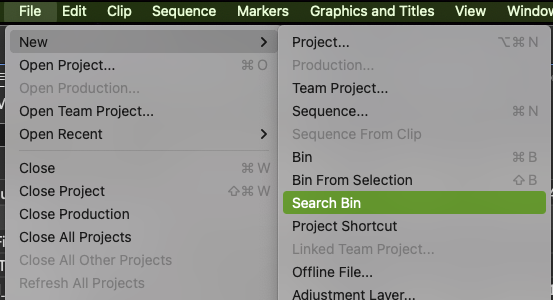
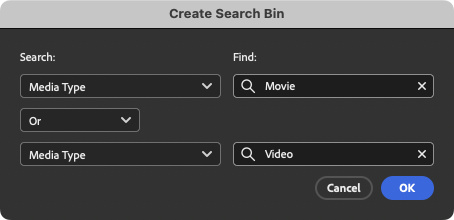
Create a New Search Bin in your Project panel.
Set the first criteria to Media Type: Movie. This grabs all clips with both video and audio tracks.
Choose “or”
Then add the a second criteria: Media Type: Video. This filters for items that have video files but no embedded audio.
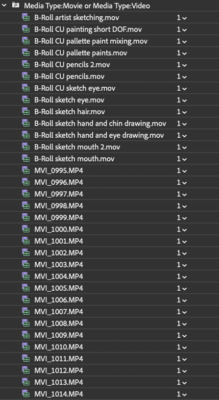
This combination gives you all your video footage!
Double-click the search bin to open it, then sort by Video Usage.
The clips with the lowest numbers are your least-used footage.
Anything used only once probably appeared in your string-out but never made it into your final sequence.
Great little used media!
Last thoughts
Search bins are one of my favorite secret weapons in Premiere.
They can be copied and pasted between projects, meaning they’ll create a live update in the new project.
Imagine what other search bins you could make, such one where the media type is set to just Sequences.
When we combine this with Usage Count, we immediately see which clips deserve another look. You can always double-click this, make it into a window, and then switch to Icon View to see them visually.
This search bin becomes your “unused footage finder.” That one-time usage probably means it’s sitting in a string-out somewhere, waiting to be discovered.
Welcome to Tool Tip Tuesday for Adobe Premiere on ProVideo Coalition Scott Simmons and I talk quite a...
Manage Cookie Consent
We use cookies to optimize our website and our service.
Functional
Always active
The technical storage or access is strictly necessary for the legitimate purpose of enabling the use of a specific service explicitly requested by the subscriber or user, or for the sole purpose of carrying out the transmission of a communication over an electronic communications network.
Preferences
The technical storage or access is necessary for the legitimate purpose of storing preferences that are not requested by the subscriber or user.
Statistics
The technical storage or access that is used exclusively for statistical purposes.The technical storage or access that is used exclusively for anonymous statistical purposes. Without a subpoena, voluntary compliance on the part of your Internet Service Provider, or additional records from a third party, information stored or retrieved for this purpose alone cannot usually be used to identify you.
Marketing
The technical storage or access is required to create user profiles to send advertising, or to track the user on a website or across several websites for similar marketing purposes.
We use cookies to optimize our website and our service.
Functional
Always active
The technical storage or access is strictly necessary for the legitimate purpose of enabling the use of a specific service explicitly requested by the subscriber or user, or for the sole purpose of carrying out the transmission of a communication over an electronic communications network.
Preferences
The technical storage or access is necessary for the legitimate purpose of storing preferences that are not requested by the subscriber or user.
Statistics
The technical storage or access that is used exclusively for statistical purposes.The technical storage or access that is used exclusively for anonymous statistical purposes. Without a subpoena, voluntary compliance on the part of your Internet Service Provider, or additional records from a third party, information stored or retrieved for this purpose alone cannot usually be used to identify you.
Marketing
The technical storage or access is required to create user profiles to send advertising, or to track the user on a website or across several websites for similar marketing purposes.