Filmtools
Filmmakers go-to destination for pre-production, production & post production equipment!
Shop Now**TL;DR:** Removing a default shortcut can speed you up as much as adding one. Help on F1, Quit, Close Project, the multicam number keys and Shift+V (the new Generative Media Tool) are the first ones to look at. Free them up, and put something you actually use there.

Welcome to Tool Tip Tuesday for Adobe Premiere on ProVideo Coalition
We’re in the week right before Adobe MAX. There are going to be a whole bunch of new features coming to Premiere. So, no tip next week.
Whether it’s about software improvements or new releases, the standard question (and why tips articles exist) is about how to work smarter/faster.
One of the real maxims about how to work faster is “to use the keyboard more.”
How do you use your keyboard for maximum speed? Every couple of weeks on Reddit, we get the question, “What’s your favorite key binding? What’s your favorite hidden key? What are the best tips you have for Premiere?” Etc., etc.
I thought it might be fun instead for you to hear about what keys I remove right away.
When I start fresh, I start by deciding which keys I want to remove bindings from first. In other words, there are a bunch of defaults that are wasted/problematic for me, so that’s today’s tip.
F1: Help
The number one key that I end up accidentally hitting is the F1 key. I never need Premiere’s help like that. It’s something I want to consciously do when it’s useful. Why is it on F1? Because the default for Windows, forever, has been that the F1 key means Help, and it doesn’t belong there.
Quit and Close Project
The one that’s contentious and right next to it is Quit (Command+Q/Ctrl+Q). I remove that too. Often at the end of the day, when I’m working quickly and tired, my hands have hit Quit before my brain has caught up, and I end up quitting the application.
I also have Close Project (Command+Shift+W/Ctrl+Shift+W) on the “I want to do that manually” list. Not everybody feels this way, but it’s something you should try.
The number keys aka the multicam keys.
The multicam keys. I only use them while working multicam. So…let’s free up a bunch of keys.
The numbers 1 through 9 on the main keyboard, and Control+1 through 9, are all dedicated to multicam (1 through 9 select a camera, 0 toggles multicam record, Control plus a number cuts to that camera).
Even when I’m doing heavy multicam work, I either switch back to the default keyboard or build my own multicam keyboard.
Shift+V: the Generative Media Tool
Finally, Shift+V is the brand-new Generative Media Tool, from 26.5. I have no judgment about whether or not you want to use generative video or generative audio. That’s on you to decide.
I just don’t like a feature such as this directly mapped to a key on my keyboard. I know there’s a credit cost connected to it, and I certainly don’t like it being a variant of my Paste keys or my Paste Attributes key. If you’re a generative fan, great. Consider putting this on a different key, because you don’t want to accidentally invoke it.
If you’re using an Adobe account that has limited generative credits, you should remove this key so you don’t accidentally trigger it. It gives you something wide open to use.
How to remove a key
Open Keyboard Shortcuts (Command+Option+K/Ctrl+Alt+K).
Click the key on the keyboard layout (F1, for example).
On the right, click the x next to the command (Premiere Help). The right side lists every modifier for that key, so clicking V also shows you Shift+V.
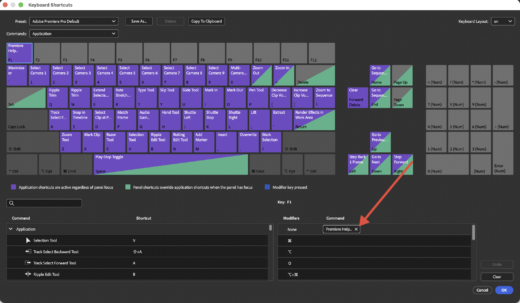
Or search for the command (Premiere Help, Quit Premiere, Close Project, Select Camera, Cut to Camera, Generative Media Tool), select it, and click Clear.
Save As, and give your set a name (or your prior name for it, to ‘replace it’).
Final thoughts
It’s worth having a manual safety copy of your keys.
Dip into your Documents/Adobe/Premiere Pro/26.0 (or whatever version you’re using)/Profile-(your name)/Mac (or Win on Windows). Inside of that you’ll find .kys files, which are your keyboard settings.
As always, whether here or over on Reddit, I’d love to hear what keys you’ve removed from your keyboard, and why.
This series is courtesy of Adobe.