

Filmtools
Filmmakers go-to destination for pre-production, production & post production equipment!
Shop NowTL;DR: Map the new feature “Toggle Track Visibility/Mute/Solo” to solo, mute, or hide only your targeted tracks.

Welcome to Tool Tip Tuesday for Adobe Premiere Pro on ProVideo Coalition
I’m always adjusting the visibility or solo of tracks.
It’s constant: I’ve got an interview embedded in a large audio soundscape. Music, ambience, and effects are scattered across a dozen tracks. I just want to hear the one person in isolation.
Adobe added this new toggle in the 25.5 release.
Open your Keyboard Shortcuts (Command+Option+K/Ctrl+Alt+K) and search for “Toggle Track.” You’ll find Toggle Track Visibility/Mute/Solo sitting there, unmapped.
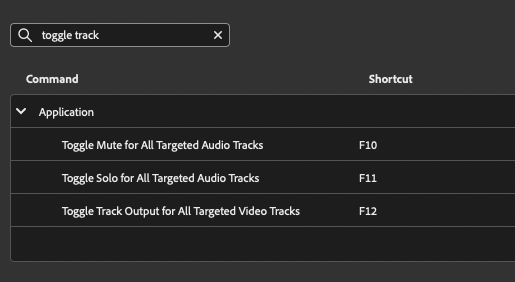
This command enables or disables visibility, muting, or solo for the targeted tracks.
Combine this with last week’s tip.
Last week, I mapped the Track Targets to Function keys. Again, this is a new 2025 feature.
I mapped Target Video F1-F10, Audio to Shift F1-F10.
Then combine it with this new Visibility for video or Solo/Mute for audio.
How I use it
Here’s the process of muting the music – and just the music.
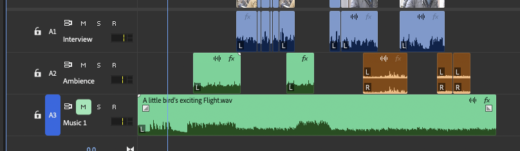
- Press Command/Ctrl+9 (turn off all audio track targets)
- Shift+F3 (my mapping for Activate Audio Target 3)
- Toggle the Track Mute F10 – where I’ve mapped it.
A3 – the music, is muted. Hit F10– again, and I’m back to the full mix.
Which works even during playback!
Where I map it
I’ve got my Mute/Solo/Visibility on F10/11/12.
That doesn’t mean those are the best keys. I think you should map keys wherever they make sense to you.
Since I’ve got F1 through F9 mapped to video, F10, F11, and F12 are the felt right today; but I’m still thinking about should Solo or Mute be F10?. You could argue that the video Visibility should be on F12 and the audio Mute/Solo on Shift 11, Shift 12.
My message is always the same: Map them where they work best for you.
Now you can go that much faster and keep your hands on the keyboard.
This series is courtesy of Adobe.