

Filmtools
Filmmakers go-to destination for pre-production, production & post production equipment!
Shop NowLots of similar footage in a bin? Swap it out with Replace from Bin

Welcome to Tool Tip Tuesday for Adobe Premiere Pro on ProVideo Coalition
I love Replace Edit. It’s one of those “if I had just known about this earlier” methods of editing.
Recap – Alt/Option-drag replaces a shot. Quick, easy, done. If you didn’t know, go try it now
Key detail: it retains any existing effects. You’re truly just replacing content—color correction, effects, whatever you’ve built stays intact.
One note: how does it decide where to start?
The replacement begins at your in-point. Be careful when you don’t have one—it’ll start at the playhead, which is fine for swapping, but you won’t have any handles at the start for transitions.
Let’s do better. This week, we’re looking at Replace from Bin.
Map it first
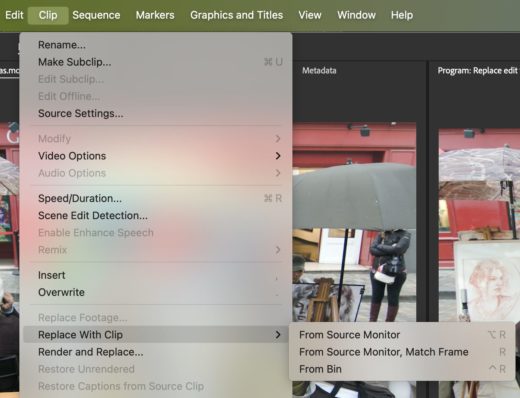
Right-click any clip in your Project panel. “Replace With Clip from Bin” is sitting there, unmapped.
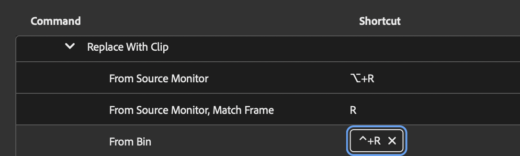
Open Keyboard Shortcuts (Command/Ctrl+Option/Alt+K), search “from Bin,” and give it a home. I map mine to Ctrl+R—something around the letter R made sense.
Basic usage
Select a clip in your bin. Select a clip in your bin. Hit your mapped key. Done.
New clip drops in with the exact same duration. All your effects stay applied.
Key detail: Your timeline clip must be selected, and the timeline has to be the active window (blue outline) when you use the keyboard shortcut (over right-clicking a clip on the timeline)
Practical usage
Now that you understand it’s use, the practical way it works feels like this:
- Shift+1 – Select a clip in the Bin.
- Shift+3 – Select a clip on your timeline. Remember, the timeline HAS to be active for the keyboard shortcut to work.
- Ctrl+R – Replace from Bin.
Up to you if you want to make a macro. I do.
Now it’s crazy fast to have a bin full of possible B-roll clips and swap them quickly for a shot on the timeline.
Final thoughts
Swapping clips from a bin of similar footage? Piece of cake.
Try some variations – for example: different takes of an interview bite—drop all your selects in a bin, cut one into the timeline, then replace your way through the options until you find the one that lands. Key is to set the in point before the same word in the different takes.
Or swapping out stills.
Next week: Replace from Source. Similar idea, but focused on the Source clip – a monitor that you’re likely not using well enough.
This series is courtesy of Adobe.