

Filmtools
Filmmakers go-to destination for pre-production, production & post production equipment!
Shop Now
Welcome to Tool Tip Tuesday for Adobe Premiere on ProVideo Coalition
I both love and dread export.
The emotional depression of when you go to export and you watch the time creep up is a real thing. I feel your pain.
What I’m about to detail is something I’ve written about before. It’s buried deep somewhere on Adobe’s site, and today is the day you should know about it. We are going to set up a pipeline to make exports that are just file copies
How fast will it be? As fast as your drive can write the frames.
Premiere defaults to using temporary preview files. That’s why they’re called preview files, not render files. With most sequence presets, you shouldn’t use these preview files for export. This is a good thing because when you export, you get the highest quality by referencing the original media.
This is time consuming – and an “unknown” based on the format of your source media, the effect pipeline you have, and loads of other factors, including After Effects comps.
What we are going to do is adjust a sequence preset and adjust the way we’re exporting so that we can use those previews safely. Then, because of a particular feature called the smart rendering codec, Premiere will be able to get super-fast exports.
The three pieces
- Set your sequence previews to a robust codec.
- Render every time you walk away from your machine.
- Export using the previews.
If your timeline is green at the top when you hit export, you’re done in seconds.
Sequence settings
Open your sequence settings. We need to make sure that any preview (renders) exist in a robust codec.
I’m going to suggest ProRes 422 if you’re coming from non-log footage and ProRes HQ if you’re coming from log-based footage. Truthfully, there’s a lot of little nuances here, but that quick rule of thumb is good enough for most of us.
- Editing Mode: Custom
- Preview File Format: QuickTime
- Codec: ProRes 422 (or 422 HQ if you’re coming from log footage)
- Maximum Bit Depth: on
- Maximum Render Quality: on
- Width and Height: match your sequence

Render every time you walk away
Phone call? Render. Checking Frame.io? Render. Lunch? Render.
Use Sequence > Render In to Out. Not Render Effects In to Out. You want the whole thing baking, not just the unrendered bits.

The goal is a fully green timeline by the time you’re ready to export. We’re shifting the actual “Render” time into quiet moments where you’re not editing.
Export to match
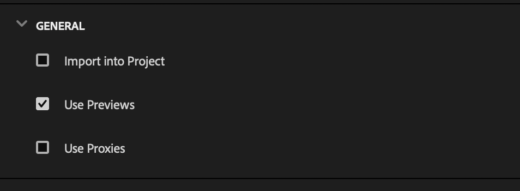
Your export settings have to match your preview settings exactly. And you have to Use Previews.
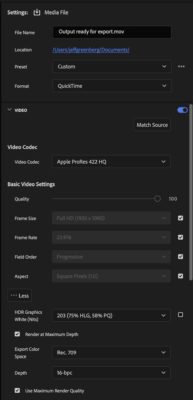
If you’re set up for ProRes 422 HQ QuickTime previews, export to ProRes 422 HQ QuickTime. Make sure you match!
I’m saying it again. USE PREVIEWS.
Hit Export
Why this works
Adobe calls it “Smart Rendering codec”. Under specific circumstances, Premiere doesn’t re-encode. It copies the rendered preview frames straight to the output.
This comes from news production pipelines where camera people would shoot out in the field, bring media into an editorial system, and do nothing else. They then get the stream back, which is just a copy of the frames that it ingested. No actual processing or rendering had to occur.
H.264 and HEVC won’t really work here. They’re too compressed to start with.
But ProRes works (so does DNx) in a MOV container. A handful of others do too.
Two notes:
If you’re heavy on After Effects comps, use Render and Replace on those before you start banking previews. You want them locked to real-time playback first.
You’re going to generate a lot of media. A lot. At 4K, ProRes preview files run several GB per minute. Budget terabytes for these renders. Delete them after the export ships.
Final thoughts
What we’ve done is shift all the necessary processing time to quiet times in your life, so when you go to export, it’s wildly fast.And for Silicon Mac users, get the extra added advantage as the systems have hardware decoders and encoders for ProRes, making this even more efficient .
Same total processing time. Just shifted out of the stressful export window and into quieter times/breaks.
This series is courtesy of Adobe.