

Filmtools
Filmmakers go-to destination for pre-production, production & post production equipment!
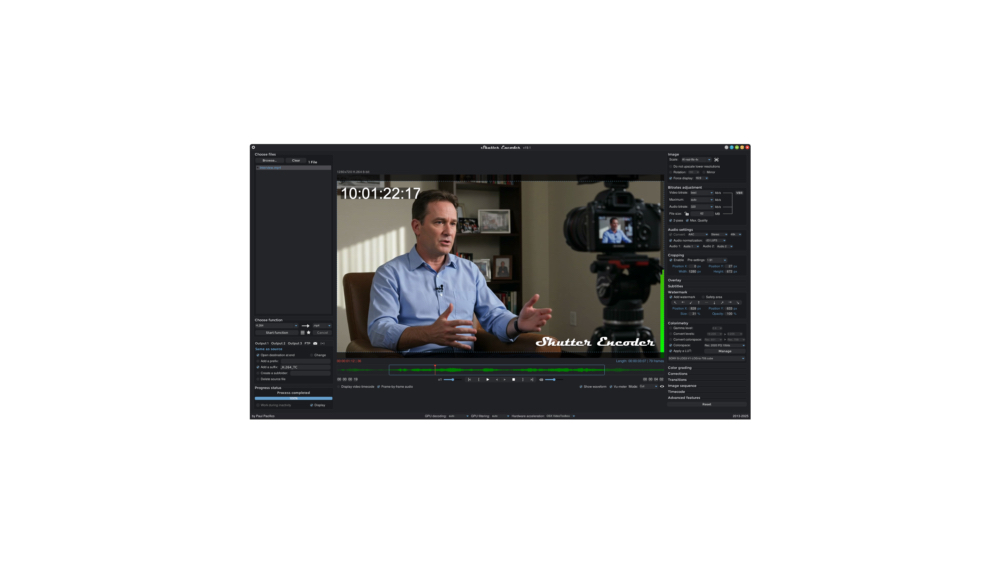
Shop NowShutter Encoder is a FOSS (free and open source) software for Linux, macOS and Windows that accomplishes what most video editors can’t.


Imagine that you had a compressed video file and you only needed to trim it, without adding any fades, dissolves, wipes, superimpositions or other fancy transitions: cuts only—when that’s all you need. Imagine you could do that simple trimming process, quickly, without suffering any generation loss (which usually happens with most other video editing software). These can include lossy compressed files like H.265, H.264, MPEG-2 and even MPEG-1 files. (When used for that process only, Shutter Encoder does not compete with full-featured editors like Avid Media Composer, DaVinci Resolve, Descript, Final Cut Pro or Premiere Pro: It complements them!) Shutter Encoder is a FOSS (free and open source) software designed to do that (and more). Shutter Encoder acts as a user-friendly GUI (graphic user interface) for FFmpeg, which would otherwise to be controlled with a command line. The focus of this article is how to do this specific task losslessly, without a any generation loss, together with my specific situation where I needed that. When I say that Shutter Encoder is «free», I mean that it is free to download and use, although it is often referred to as donationware, since we can voluntarily send donations, if desired. Shutter Encoder is cross-platform and available for Linux, macOS and Windows. Shutter Encoder is designed by video editors for professionals and enthusiasts, supporting a wide range of códecs and formats. Ahead, I’ll clarify under what specific circumstances Shutter Encoder can actually accomplish these tasks losslessly.
Understanding GOP, long GOP and i-frames
In this context, GOP stands for group of pictures, not the abbreviation for any political party in any country. To achieve better efficiency, many modern video códecs include a long GOP structure, including H.265, H.264 and the older MPEG-2 and MPEG-1. (There are indeed variants of some of those that are all i-frame, not long GOP, but those are outside of the scope of this article.) A long GOP códec includes i-frames as well as P-frames and B-frames. Since only i-frames contain the complete information, these are the only ones which we can «legally» cut without problems (without re-encoding).
How Shutter Encoder does its magic to cut long-GOP losslessly
If after importing a video file, you activate the menu command called «Cut without re-encoding» in English, a reminder will pop up warning you: «This function only cuts on keyframes», where «keyframes» is another way of saying i-frames. (When not using this function, Shutter Encoder also allows cutting on other frames, which requires re-encoding and is out of the scope of this article.)
If you have your computer system’s user interface in Castilian, the menu command is «Cortar sin recodificar». This is a perfectly valid translation and is grammatically correct. The pop up warning then says «Esta función sólo corta los fotogramas claves».
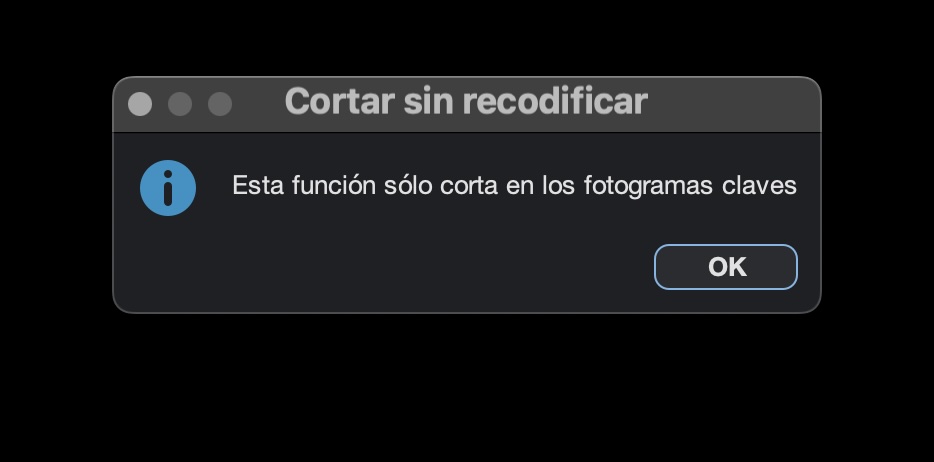
The term fotograma is a synonym to cuadros. The former is more popular among cinema purists. I applaud the translator for using the term clave (not «llave» or «tecla», which is often used by some translators (human or not) who don’t quite understand the context. This translator indeed understood it perfectly. That said, it is debatable among worldwide Castilian grammarians whether the word clave should be written in plural when it is being used as an adjective modifying a plural noun, as it is in this case. However, two distinct sources have given the translator a pass: one, a University from Perú (Universidad de Piura), and the other from Elcasetllano.org.
After you invoke that function, Shutter Encoder gives us the option to locate an in point (which must be an i-frame or keyframe) using the lesser than ( < ) and greater than ( > ) buttons on the screen or by using the left arrow and right arrow on the keyboard. The number of frames in each GOP (group of pictures) depends upon the códec and framerate used, but fortunately Shutter Encoder seems to keep this in mind for us automatically for the particular video file being trimmed, which is great. Then we can press the i key on our keyboard to select the to set the IN point and O to set the out point.
- If we are only keeping selected section, we must then choose the selection in the menu to «Cut» (Cortar in Castilian). Then, we can select the «eyes» symbol to preview the result.
- If we desire to remove the selected area, we must choose the selection to «Remove» (Eliminar). Then, we can select the «eyes» symbol to preview the result.
- The last option in the menu is «Split» (Separar) the original video into different smaller versions. This requires entering the duration of each version in settings. Then, we can select the «eyes» symbol to preview the result.
After we are happy with the preview, we can click on «Start function» (Iniciar función in Castilian). Shutter Encoder exports the file(s).
The situation that made me search for a lossless trimming tool like Shutter Encoder
I am evaluating a pair of very interesting devices that capture classic interlaced analog, de-interlaces and upscales in realtime directly to 1080p in H.264, a clean yet lossy format. Since it is not feasible to capture each videotape from beginning to end and stop the recording at the ideal second, I wanted to find a way to trim each captured H.264 video file without re-encoding it, i.e without any additional quality loss. Stand by for my upcoming review on those devices.
Image credit
The main image of this article is courtesy of the Shutter Encoder website.
Conclusions
Despite its name being contradictory for my primary use case, I love Shutter Encoder to trim lossy compressed video files quickly and easily, without re-encoding, without recompressing and without additional generation loss. I also appreciate that its user interface is translated well in other languages, including Castilian. For more information, visit ShutterEncoder.com.
Lee este artículo en buen castellano
Shutter Encoder: Cómo recortar videos comprimidos sin pérdidas, sin degenerar la calidad
(Re-)Subscribe for upcoming articles, reviews, radio shows, books and seminars/webinars
Stand by for upcoming articles, reviews, books and courses by subscribing to my bulletins.
In English:
- Email bulletins, bulletins.AllanTepper.com
- In Telegram, t.me/TecnoTurBulletins
- Twitter (bilingual), AllanLTepper
En castellano:
- Boletines por correo electrónico, boletines.AllanTepper.com
- En Telegram, t.me/boletinesdeAllan
- Twitter (bilingüe), AllanLTepper
Most of my current books are at books.AllanTepper.com, and also visit AllanTepper.com and radio.AllanTepper.com.
FTC disclosure
None of the listed individuals or companies mentioned above has paid for this article. Allan Tépper earns royalties on the sales of his own books. Some of the manufacturers listed above have contracted Tépper and/or TecnoTur LLC to carry out consulting and/or translations/localizations/transcreations. So far, none of the manufacturers listed above is/are sponsors of the TecnoTur, BeyondPodcasting, CapicúaFM or TuSaludSecreta programs, although they are welcome to do so, and some are, may be (or may have been) sponsors of ProVideo Coalition magazine. Some links to third parties listed in this article and/or on this web page may indirectly benefit TecnoTur LLC via affiliate programs. Allan Tépper’s opinions are his own. Allan Tépper is not liable for misuse or misunderstanding of information he shares.