Filmtools
Filmmakers go-to destination for pre-production, production & post production equipment!
Shop NowTL;DR Always viewable track names


Welcome to Tool Tip Tuesday for Adobe Premiere Pro on ProVideo Coalition.
Every week, we will share a new tooltip to save time when working in Adobe Premiere Pro.
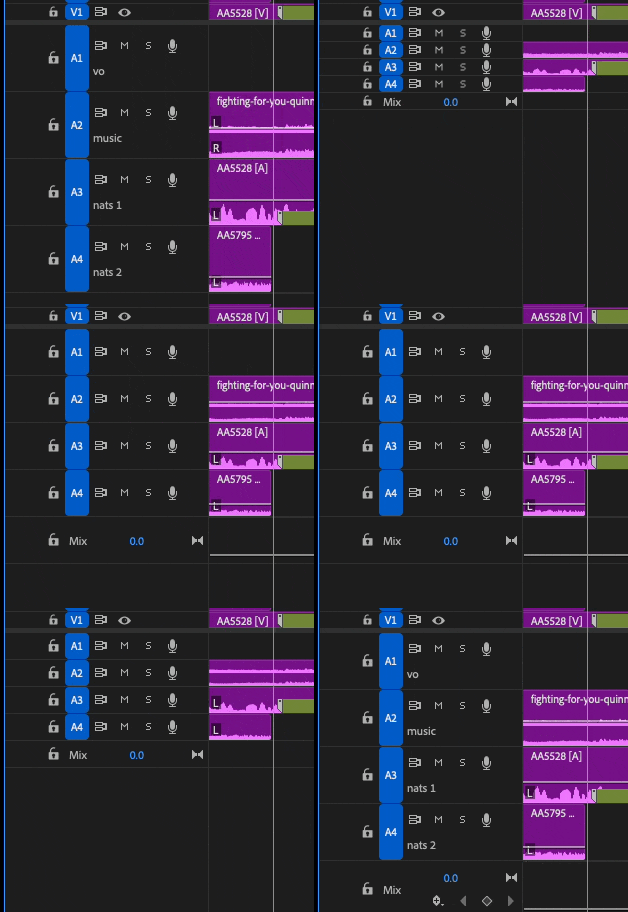
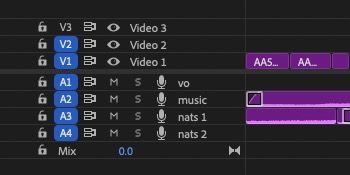
Have you ever noticed that when you minimize the track height in Adobe Premiere, you can no longer see the names of the tracks?
This can be remedied by customizing the track header and placing the name in the right position.
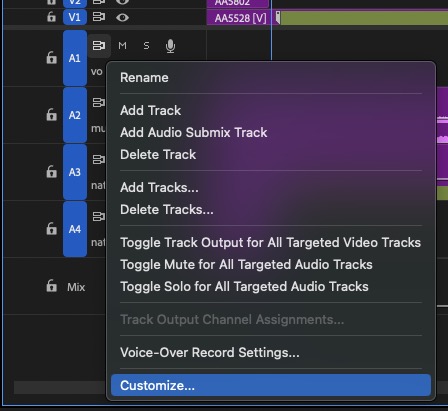
First, right click in the track header panel anywhere to the right of the A1/V1 track indicators. In the submenu, go down to the bottom and choose Customize.
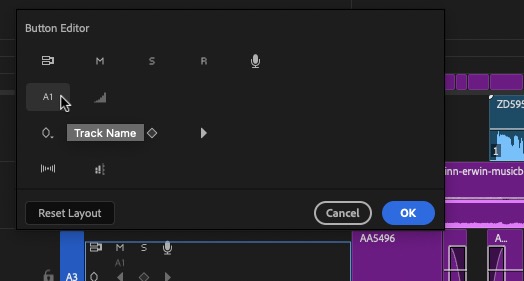
With Customize the track header button, editor will open. Then grab the track name button and drag that to the right of the top elements in the track header. In this case, that would be the mute, solo, and microphone buttons.
If you get that track name dragged into the right place, track names will be visible at the minimum track height.
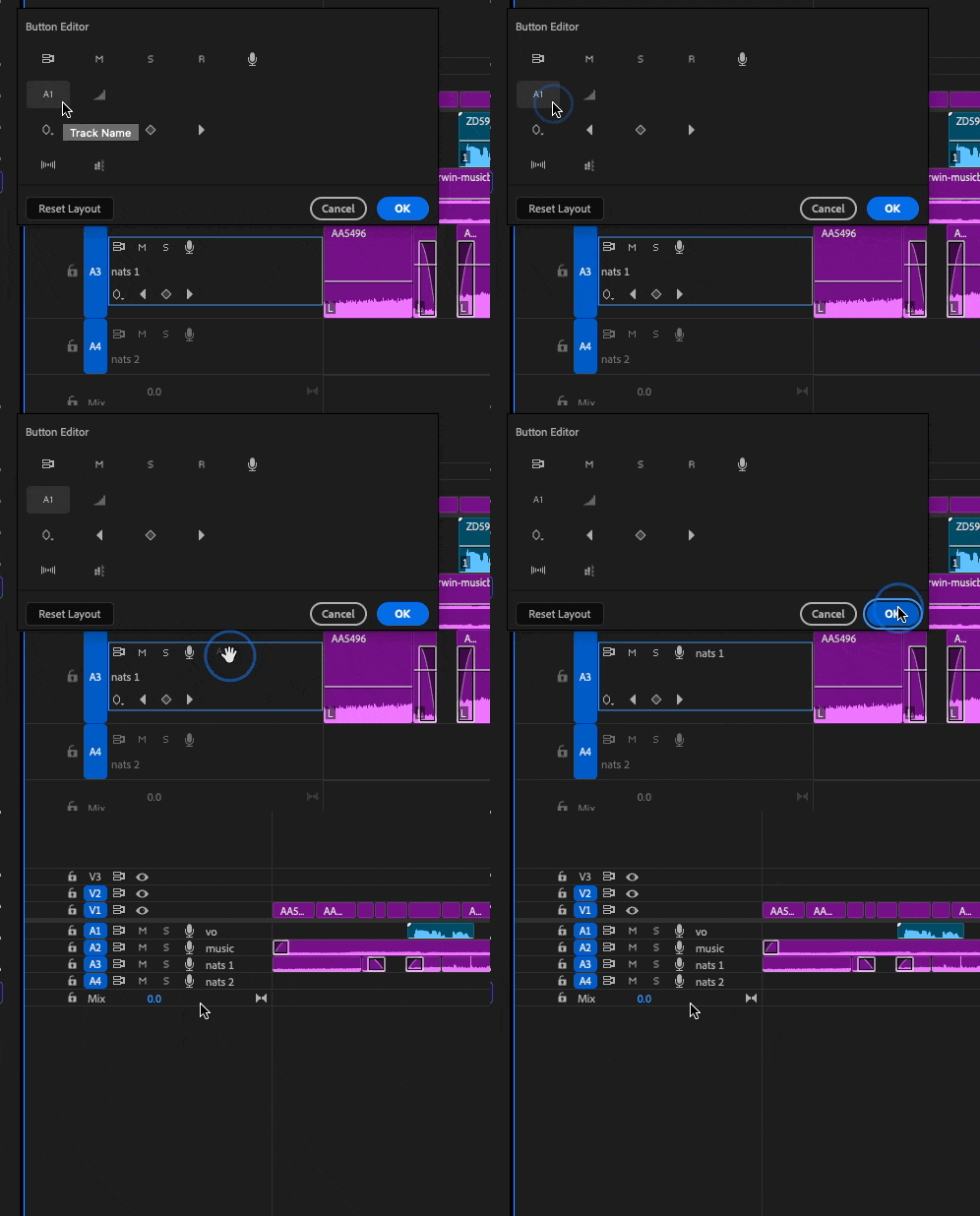
You can do this both for audio tracks and video tracks, but you have to customize them separately.
This series is courtesy of Adobe.