Filmtools
Filmmakers go-to destination for pre-production, production & post production equipment!
Shop NowTL;DR: Adobe acquired Film Impact and its GPU-driven transitions. Upgrading to Premiere 2026 didn’t update you to the new Cross Dissolve. Go update your default.

Welcome to Tool Tip Tuesday for Adobe Premiere Pro on ProVideo Coalition
When I moved to Premiere 2026, I didn’t notice my cross-dissolve had become the legacy cross-dissolve. Didn’t catch it until last month.
Last year, Adobe acquired a company called Film Impact. My guess? Beautifully animated, GPU-driven transitions that addressed exactly what Adobe needed. Easy choice. But they didn’t automatically switch existing users to the new default, which is the right thing to do. Never change defaults without telling the user.
Since upgrading to 2026, my system has the wrong default transition – and likely so does yours.
Fix it by right-clicking the new Cross Dissolve and selecting Set as Default.

But of course, there’s much more here.
Better Looking transitions
Take a look at what’s inside the new (Film Impact-powered) Cross Dissolve. There’s a gorgeous curve graph — you can change the ease in and ease out. Change the type so it’s more shadow-driven or more filmic.
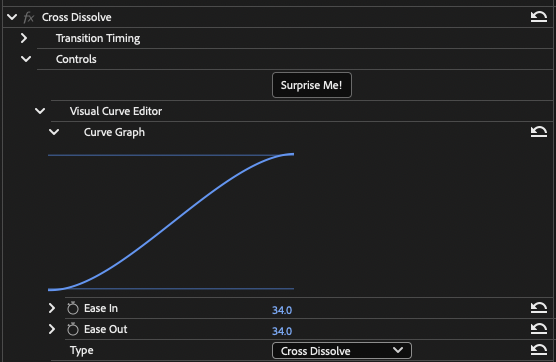
Focus Amount. Love a subtle focus shift.
My favorite hidden feature? Focus Amount.
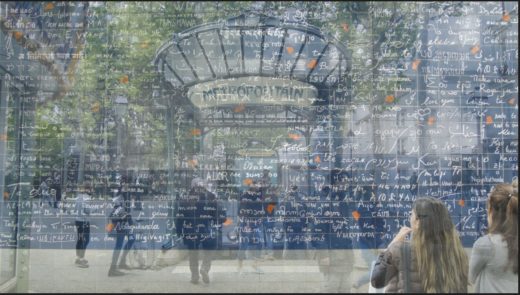
Choose a focal point during the transition, controlling what softens earlier versus what stays sharp. It’s subtle and adds just a dash of emphasis.
Before adjusting the focus amount

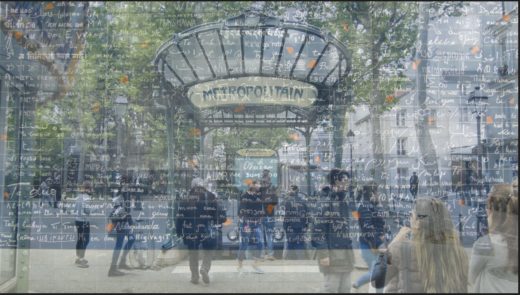
After adjusting the focus amount. Emphasis is now on the lower right corner.

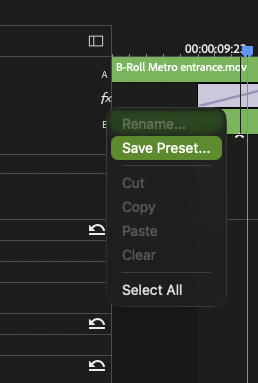
Save it as a preset.
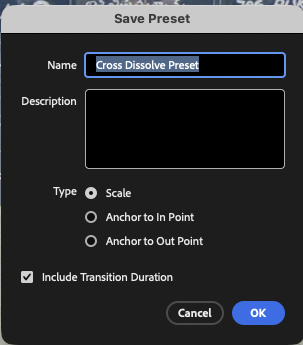
Right-click the FX badge. You can save a preset — and what’s far more important is that you can save the duration with it.
Want a dedicated 10-frame, 20-frame, or 30-frame dissolve? Build a preset for each.
Work faster from the keyboard.
There’s an unmapped shortcut to select the nearest roll edit. Since N is already my Roll Edit key, Shift+N for Select Nearest Roll Edit felt obvious.
Now: Shift+N to grab the nearest edit, Shift+D to apply the default transition. No mouse required.
Final thoughts
There’s a button called Surprise Me. You should click it.
Don’t stop at the Cross Dissolve. Dig into the new transitions and effects. I’ll keep sharing the ones I’m really enjoying. Today, it started with better dissolves, something I honestly didn’t think I’d really want to change. Turns out this is a great tiny addition that brings a bit of Film Impact magic to Premiere Pro.
This series is courtesy of Adobe.