


Scott Simmons and I talk quite a bit about editorial and the state of post-production, whether it’s directly or on spaces like Reddit. I have a lot of respect for the guy.
In fact, I think this is one of the most insightful observations about video editing tools, and I’m going to quote it from his own article, :
“…what we don’t want is the NLE doing things without our permission.”
The little Source side plus button
Developers keep software approachable to accommodate new users’ expectations. But, that’s usually not the way these tools work best. I just want to be able to make my choices, not a workaround to “Why didn’t this work as someone who has never used the tool much.”
As we’re in this age of AI and we’re being asked permission left and right, there is this silly little thing in Premiere: a little plus for video, or a plus for audio, when you load a source that has more tracks than your timeline.

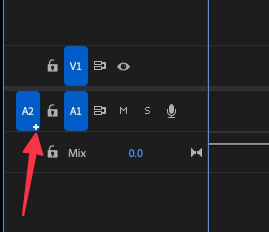
The feature is called “Add tracks automatically when editing source clips onto the Timeline.”
Up until 26.3 (June of this year), if you had a source with 8 audio tracks, you’d end up with extra tracks on your timeline whether or not you wanted them.
I was annoyed by it, but I was so used to it that I stopped thinking about it.
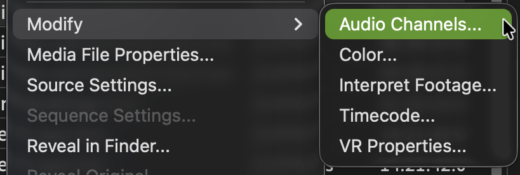
I’d do the following anyway for raw clips (last year, I used a field recorder that had 32 audio tracks!) I’d use Modify > Audio Channels and set only the audio channels I’m actually using from the source clip.

Typically, I have a timeline built with a set number of tracks. The real irritation is sources that have way more tracks:
-
a sync map
-
a multicam
-
a source timeline from last week, last month, or last year that has some complex items on it
Like Scott, I don’t want my NLE adding tracks automatically when I didn’t give it permission. I’d add them where I want. And in that old school way, I typically map them to where I want them to land on the new timeline, which is the concept of three-point editing and (not today’s tip).
If you’re an experienced editor, you should know can turn this feature of auto adding tracks off.
How to turn it off
Premiere > Settings > Timeline (Edit > Preferences > Timeline on Windows).
Uncheck “Add tracks automatically when editing source clips onto the Timeline.”


How it changes
Now, when you bring in a source that has more tracks than your timeline, it still shows you the plus. You can still hit the little plus and add the extra tracks. But whether you drag and drop or use traditional three-point editing, it won’t add the tracks all by itself.
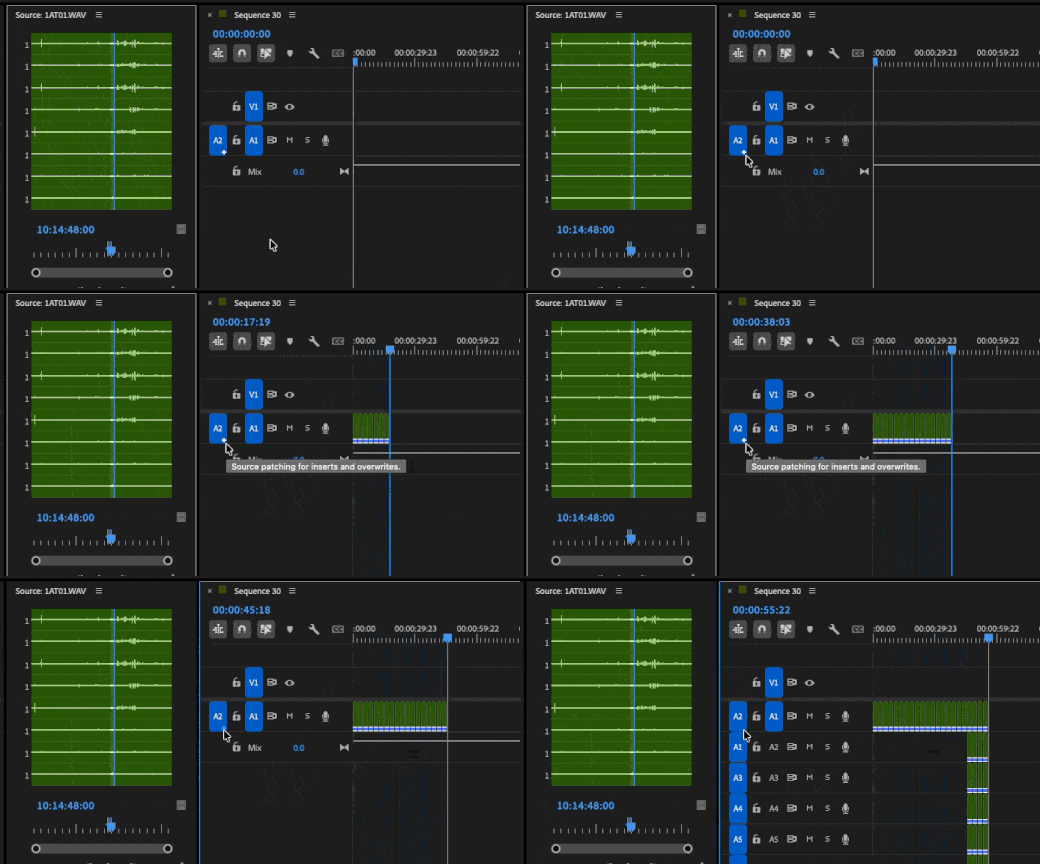

Now you’re in control; same source – choose how many tracks are added.
Final thoughts
If you’ve ever had Premiere randomly adding tracks, it’s not a random thing: it’s this feature. I’ve shown you how to turn it off, and what I’d like you to do is experiment with it and understand it.
Scott mentioned the change back in March, in his article.
But I’m calling attention to it, because even experienced editors may not know this is now something you can toggle. If you didn’t, give it a quick test and understand what this switch does, because at some point in your editorial career you may end up fighting it.