

Welcome to Tool Tip Tuesday for Adobe Premiere on ProVideo Coalition

Adobe Premiere 2027 came out last week at Adobe MAX. There’s a lot in this release, and you’ll see articles from Scott and others about some of the amazing things you can do.
I’ve been very close to the way Adobe has designed their new color tools, and I’m excited by them. I feel they strongly get past the frameworks of Lumetri.
The Lumetri Color panel came to Premiere in 2015. It was based on the SpeedGrade engine (the Lumetri Deep Color Engine), which Adobe acquired in 2011 and brought into Premiere in 2013. Part of Lumetri’s issue was that it was never really designed modern workflows. I’ve dug into the new tools hard and I’m already fast with them – dig into the keyboard shortcuts should be a mandate
Meanwhile, there’s one thing, sadly, missing from the initial release: a way to color match. It’s not in this release.
Note: Lumetri isn’t gone. It’s still available as an effect and you can still put it on clips. And the new Properties panel allows you to make adjustments directly with Lumetri. As I mentioned last week, if you’ve got a group of editors, I still would hesitate to upgrade until Adobe does their intial bugfix – a 0.01 release.
The AI Assisstant
The other big release: the AI Assistant.
When you bring it up, it’s filled in with a bunch of suggested prompts. I’d like to think, at this point, we all know what to do with a prompt.
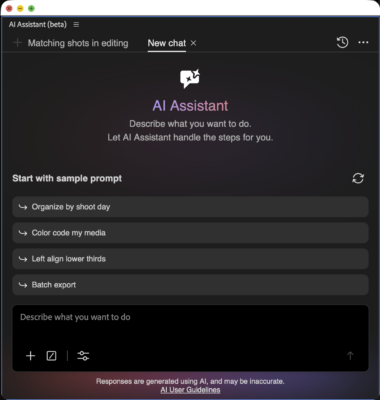

So, just playing around, I wondered if I could get it to match two shots. So that’s today’s tip.
Matching one shot to the next

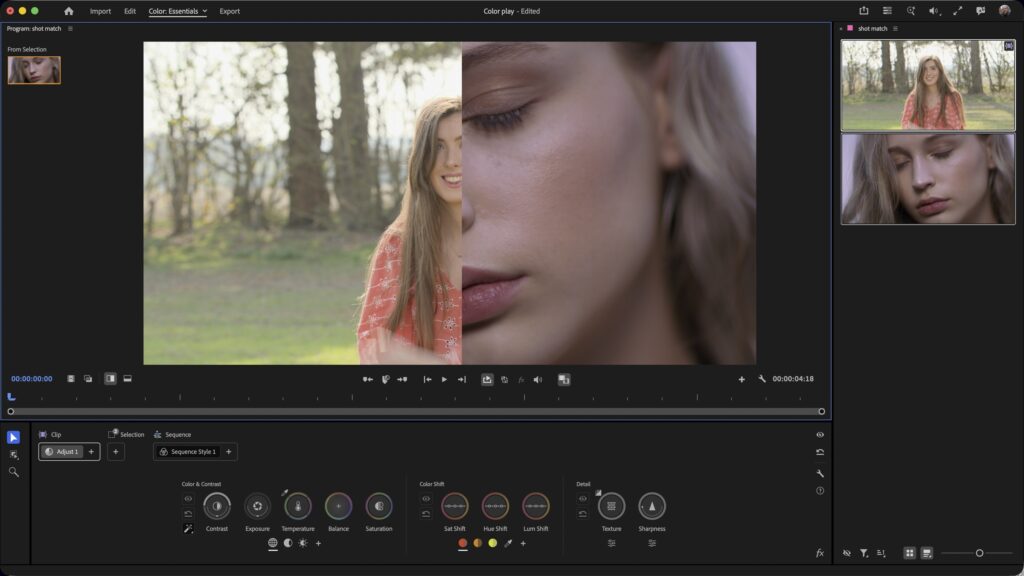
Take a look at the frames in this split screen: a wide shot of a woman and a close-up of a face. The exterior shot is warmer, and the interior shot is definitely cooler.
I asked the Assistant to “match this shot to the next shot.” Then I rolled open Thinking so you could see what it would do.
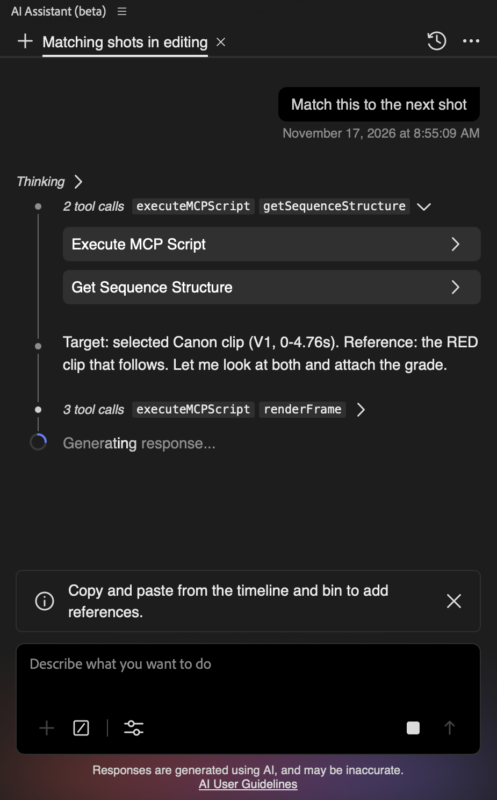

It understood the underlying structure of both shots (including the color management), rendered the frames internally, and then gave information about the adjustments it made: the exposure, the temperature .
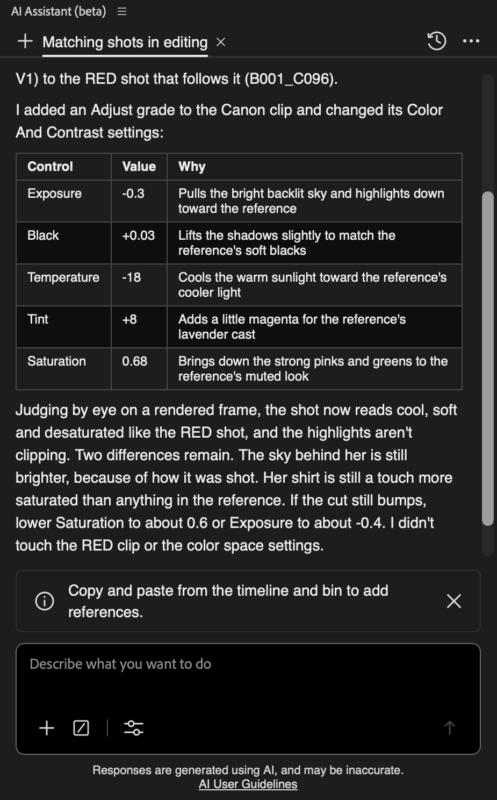
It also called out where it struggled. It was honest in that it saw the flaws in what it did. As a colorist, I’d agree it’d be difficult to match maybe the sky, or the saturation of the shirt. But I was really impressed that it gave me this information, so I had some context for what I might want to look at or adjust.
A look for the entire sequence
I wanted to take this one further. Would it work for a Sequence style? And what if it was from an external still?
Sure, I could grab a photo from a stylistic film, but to be safe, I grabbed a Pexels still, and then pasted it into the chat window. The prompt told it to use the pasted still. Since I wanted a look for everythingn, I wanted to make sure it set it on the entire sequence.
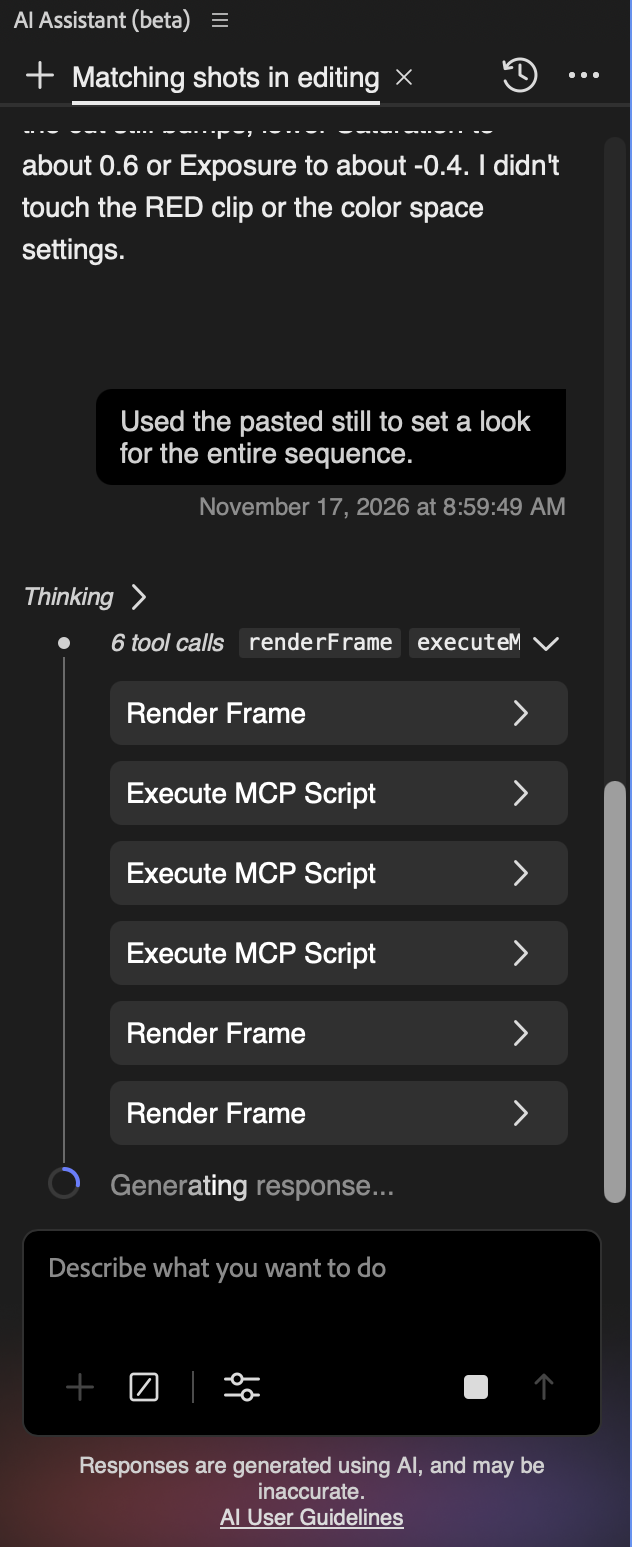

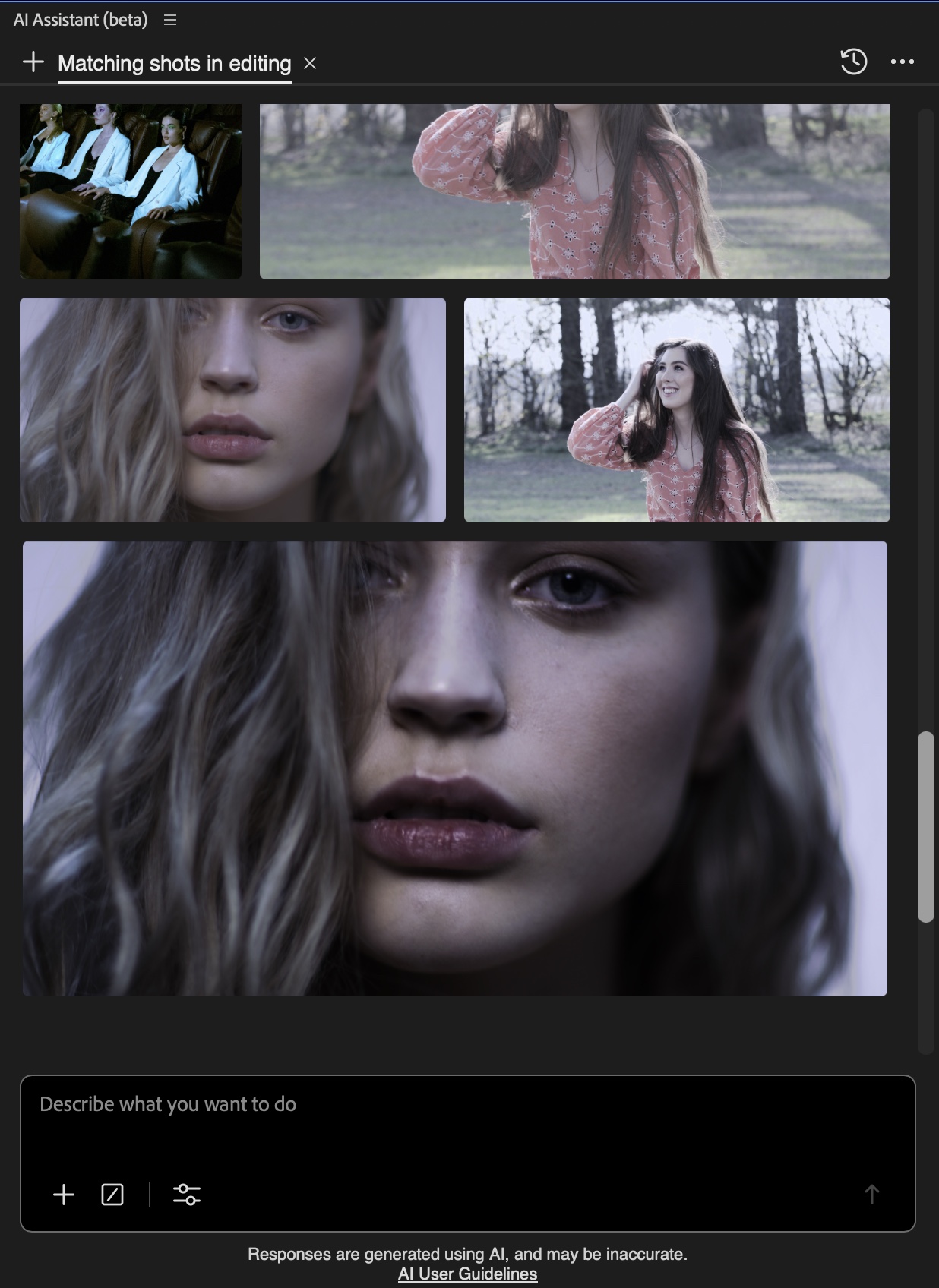
Inside the Assistant, you can see the source and what it did to give the two shots a sequence-wide look.

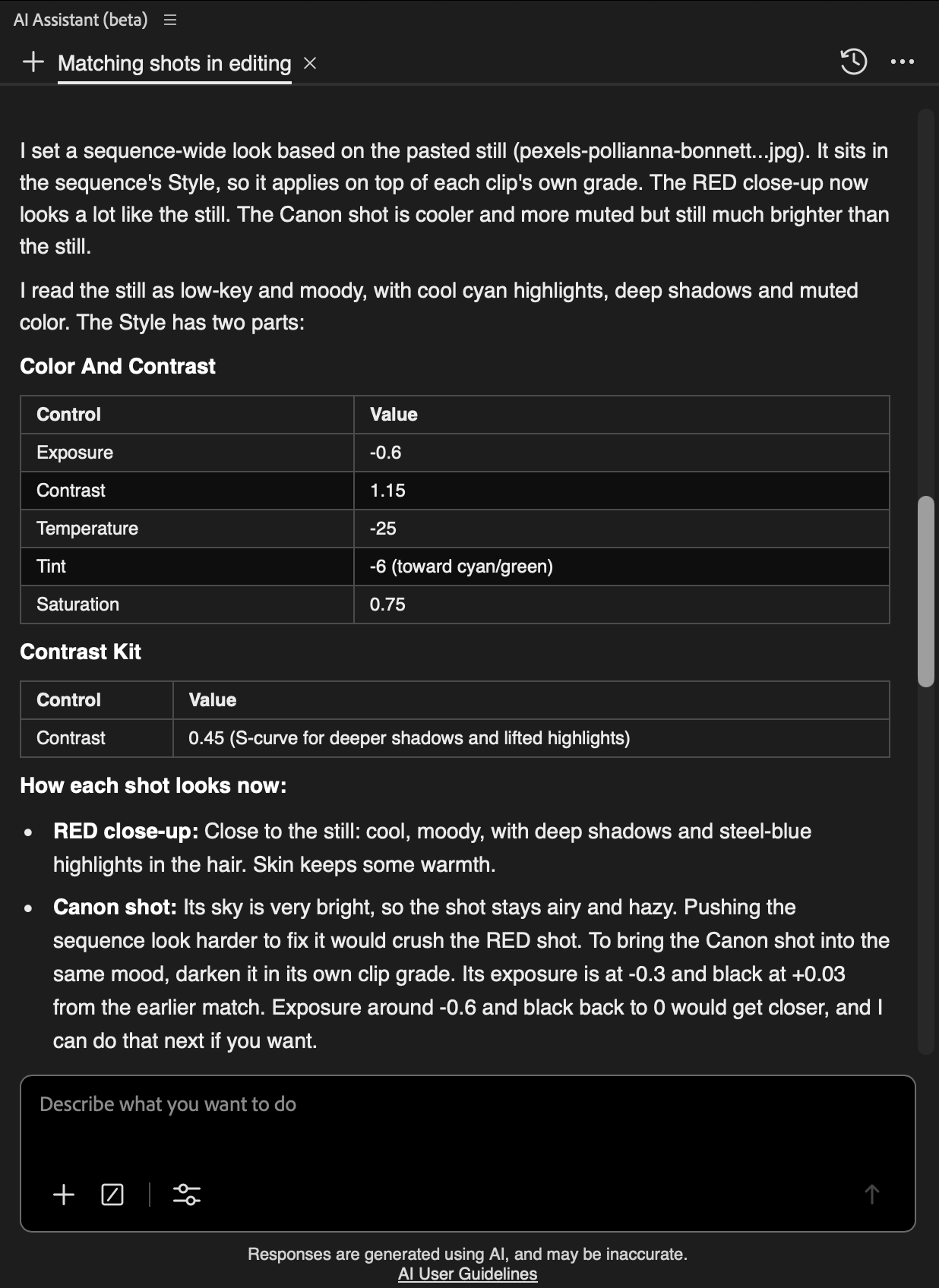
Then it gave a breakdown of that look, using not just Color and Contrast, but the Contrast Kit, one of the new sequence Style Modules in the color tools.
Cost: it looks like this took about 30 credits out of my account each time. My two Assistant passes came to about 60 credits. The Standard Creative Cloud plan gives you 25 credits, but you can buy 2,000 more for $9.99. So that 60 credits? It cost me about 30 cents.
Final thoughts
I’m really enjoying to the new color mode. I’m really happy with how it provides a fast color environment with healthy color management. It solves solves so many of the deficiencies in Lumetri.
As a new tip? I was pleasantly surprised that the AI Assistant bridged the gap and provided the missing shot match.
Would this be as good as I could do as a colorist? No. It doesn’t replace a colorist, and there still would be work to do. But this is a huge improvement from the Lumetri color match.
This functionality here in the Assistant is really amazing and now I want to see what else it can do.
This series is courtesy of Adobe.