

Filmtools
Filmmakers go-to destination for pre-production, production & post production equipment!
Shop NowA unique feature has been omitted by other reviewers and is inactive by default.


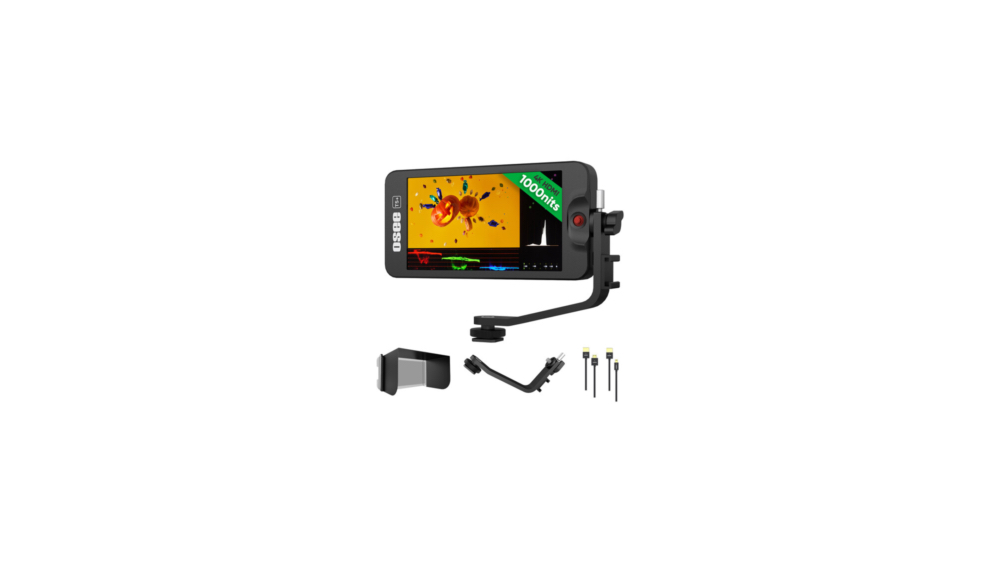
The Osee T5+ is much more then just a 1000 nits 1920×1080 video field monitor with peaking focus assist, false color mode, vectorscope and waveform monitor for only US$110. The T5+ includes a sunshade and can accept an HDMI signal up to 1080p60 or up to 4K UHDp30 (including non-integer rates too). Many other reviewers have done a great job demonstrating how well the T5+ performs with those mentioned features I covered in the first sentence to help producers get the ideal exposure, focus, framing and other camera settings, although it has other important applications which I’ll cover ahead. However, none of the dozen Osee T5+ reviews I’ve seen have even mentioned or shown the hidden, unadvertised feature which not only surpasses any competition in the T5+’s price bracket: It even beats all of the many HP DreamColor models I have ever tested to date (even the most expensive one) with this particular detail. The main reason why we have never seen this feature in T5+ (or other Osee model) reviews is because the powerful feature is inactive by default, and none of the other reviewers I’ve seen have activated it, perhaps because they hadn’t noticed it in the menu, especially since the listing in the menu obfuscates the glorious detail.
Value proposition, part 1
Even though instrument/monitors like the Osee T5+ are mainly marketed to help video camera operators, cinematographers and directors of photography (sometimes shortened to DP or DOP) get the ideal exposure, focus, framing and other settings directly from a single camera, there are other applications where this powerful combination of tools offered by the T5+ and similar models can be used. Here are some others that should not be overlooked:
- When connected to live HDMI output of an analog capture digitization device, the T5+ can help to properly adjust a proc amp for the diverse and unpredictable levels of standard black (aka pedestal) levels that existed with analog video (zero or 7.5 IRE) using the T5’s luma waveform monitor, as I did when using devices like the ones covered in my recent Review: PORTTA real-time VD20P & VD22P digitizer/upscaler/recorders from SD to 1080p60.00 (or with the False Color mode in the T5+). In this same application, the vectorscope is also essential when capturing component analog video from classic formats including Betacam, Betacam SP and MII as covered in detail ahead.
- To use as a Preview or Program output of a video mixer/switcher/vision mixer and facilitate matching the ideal exposure of multiple connected cameras using the powerful luma waveform monitor included in the T5+ (or with the False Color mode).
- To use as a dedicated Program Monitor connected to the output of a video editing system at the proper cadence chosen for the particular project or timeline. This can be with any of the supported rates included in the T5+, including 23.976 (aka 23.98)|24|25|29.97|50|59.94|60.
Each of the individual instruments now included in the US$110 T5+ at no extra cost (for example a standalone waveform monitor, a standalone vectorscope) used to cost well over US$1000 each back in the analog production video world. Now I will pause the Value Proposition until the end of this article.
What comes in the box for US$110 (or less)

For US$110 (or less), you get:
- the T5+ unit
- a tilt arm
- a sunshade (to protect from glare/reflections to a certain degree)
- an HDMI cable
- a limited 1-month manufacturer warranty
What doesn’t come in the box for US$110
For US$110 (or less), you don’t get:
- a battery (I didn’t use any in my testing)
- a external USB-C cable or power supply (I used a USB-C cable and a power supply which I acquired separately, which worked fine.)
Other relevant rated specs/features

- Panel Type: LCD IPS
- Display size: 5.5 inches (14.0 centimeters) diagonal
- Native resolution: 1920 x 1080
- Aspect ratio: 16:9
- Viewing angle: Horizontal: 160°
- Vertical: 160°
- Maximum brightness: 1000 nits /cd/m2
- Contrast ratio: 1000:1
- Color support: 1.07 billion colors (short-scale US billion: 1,073,741,824 colors): 8-Bit+FRC
- HDR support: HDR10/Hybrid Log Gamma
- Color gamut: 100% Rec. 709: 100% DCI-P3
- LUT support: Yes
- Image Controls: Anamorphic De-Squeeze, False Color, Focus Assist, Focus Peaking, Histogram, Image Rotate, Pixel Zoom, RGB Parade, Scaling, Screen Markers, Vectorscope, Waveform, Zebra
- Video I/O: 1x HDMI 1.4 input (full size)
- Embedded/audio: HDMI
- Analog audio I/O: 1x 3.5 mm headphone output
- Power I/O: 1x USB-C (17 VDC) input
- Media/memory card slot: single slot SD/SDHC [16 GB maximum/LUT and firmware update only]
- Input Power: 5 to 17 VDC
- Battery: 1x L-Series/LP-E6 combination mount on fixed plate
- Power Consumption: 5.5 watts
- Mounting: tripod/accessory mounting
- Operating conditions: 0 to 40°C (32 to 104°F)
- Construction: aluminum, polycarbonate
- Dimensions: 157.5 x 79 x 20 mm (6.2 x 3.1 x 0.8 inches)
- Weight: 175.00 grams (6.17 ounces)

Peaking focus assist-details
The Osee T5+ features a dual focus assist system consisting of Focus Assist and Peaking, controlled via the joystick.
- Focus Assist: Highlights in-focus edges with a specific color. You can choose between Blue, Red, or Green.
- B&W Background Mode: To make the colored highlights stand out more, you can toggle the image to black and white, making the focus marks significantly more evident.
- Peaking: This tool increases the «sharpness» of the input image to exaggerate contrast, making it easier to see which parts of the frame are sharp.
- Adjustable Levels: The T5+ offers 10 levels of peaking intensity. Higher levels make the contrast more pronounced.
- Pixel Zoom: For critical focus checks, the monitor supports 2x and 4x zoom. While in zoom mode, you can use the joystick to pan and inspect different parts of the image.
Waveform monitor (3 modes)-details
The waveform tool on the T5+ is highly customizable to fit different situations:

I used the luma option for the situation covered in Review: PORTTA real-time VD20P & VD22P digitizer/upscaler/recorders from SD to 1080p60.00 to match the unpredictable analog black level from classic interlace sources.
- Multiple modes: Supports Luma, RGB, and Parade styles to analyze overall exposure or individual color channels.
- Adjustable appearance: You can modify the location, opacity, and density of the waveform graph on the screen so it doesn’t obstruct your main image.
- Exposure analysis: It visualizes brightness levels across the frame, allowing you to identify exactly where in the image exposure is clipping or falling into shadows.
- Multi-Scope View: The monitor’s Multi-scopes tool allows you to view the waveform alongside the histogram, vectorscope, and audio meters simultaneously for a comprehensive analysis of your signal.
Vectorscope-details
Traditionally, a vectorscope has been used in video production to analyze color saturation, hue and subcarrier phase. This last one (subcarrier phase) was something we had to deal with in NTSC-colorized based analog multicamera systems connected via composite video to a vision mixer/switcher. Subcarrier phase was never an issue with PAL systems and fortunately stopped being an issue with NTSC systems when we began connecting via component analog instead of composite. However, we still used the vectorscope (without the subcarrier phase issue) to do cable-length compensation for the chroma saturation loss with longer cables.
As I explained in detail in Review: PORTTA real-time VD20P & VD22P digitizer/upscaler/recorders from SD to 1080p60.00, the vectorscope is still a critical instrument when adjusting a proc amp while capturing classic material via component analog from Betacam, Betacam SP and MII decks because of the multiple varying chroma saturation standards that existed, including the EBU N10, SMPTE and Sony’s proprietary Betacam SP level, which persisted in the NTSC world, but was completely rejected in the 625-line PAL world, so Sony gave in and reset to the EBU N10 levels and actually put a physical sticker on the PAL Betacam SP cardboard boxes to indicate that they were calibrated to the EBU N10 standard levels. For more details about these different analog component levels, see Tektronix’s 38-page white paper called Solving the Component Puzzle.
False Color mode-details
Having a False Color mode is especially useful for those who are not familiar with the use of waveform monitors and vectorscopes. Since I personally learned video production using the old-school: using a luma waveform monitor and vectorscope, I’ll let Scott Dumas demonstrate the use of Osee’s False Color mode in his video (1:57, meaning 1 minute, 57 seconds) here:
I’m glad that Osee allows us to have our own choice between using the old-school scopes, the newer False Color mode or any combination of them.
Hidden, unadvertised, inactive feature that surpasses the competition in its price range
Many competitors to the Osee T5+ (in its price range of US$110) indicate the incoming video format (aka 4K UHD, 1080p, 720p) followed by the incoming framerate. The problem is that all of those competitors do this by rounding the incoming framerate to the closest integer. This is even the case with most of the highest-end HP DreamColors I have ever tested to date. This is far from ideal. We need to see the incoming framerate as it really is, to at least to two decimals in the case of non-integer rates. While other competitors in this price range cruelly round non integer rates like 23.976 (aka 23.98) to «24», 29.97 to «30» and 59.94 to «60», the Osee T5+ properly respects us (as serious professionals) when we use non-integer rates by displaying them to two decimal places. I personally tested the following three non-integer rates, as you’ll see in these photos I shot with each one:

Above, the T5+ thankfully displays a 1080p59.94 source as you’ll see in the upper left corner.

Above, the T5+ thankfully displays a 1080p29.97 source as you’ll see in the upper left corner.

Above, the T5+ thankfully displays a 1080p23.976 source as 1080p23.98 as you’ll see in the upper left corner. Even though Osee has rounded it to 23.98 to save space, this is light-years better than rounding it to «24» as other manufacturers in this price-range have done. We know what it means.
Even though I didn’t take photos of them, I will clarify that when receiving integer rates, the T5+ displays it without any decimals, to save space. For example:
- 1080p60 (as in the case of the devices I tested in my recent Review: PORTTA real-time VD20P & VD22P digitizer/upscaler/recorders from SD to 1080p60.00)
- 1080p50 (Since the 625 PAL/SECAM worlds never had any need for non-integer variations.)
- 1080p25 (Since the 625 PAL/SECAM worlds never had any need for non-integer variations.)
- 1080p24 (The film and DCI rate, not the standard over-the-air television rate.)
It is true that Átomos (with its Shinobi) and Blackmagic (with its Video Assist) have also handled the framerate display just as well with their devices, but they are not in this price range.
What I hope Osee will improve via a firmware update for the T5+ or with a future unit
I congratulate Osee for accepting all our desired framerates and displaying them to two decimals on the T5+ display. However, I noticed that (as is the case with many other monitors), the T5+ EDID is currently incomplete. (If you are unfamiliar with EDID, see my recent article: EDID vs UVC Probe and Commit: Understanding the similarities & differences for cameras & monitors.) Even though the T5+ indeed accepts all of our desired framerates and even displays them to two decimals, the T5+ doesn’t show all of its capable ones via EDID with its current firmware. Instead, it only shows the integer rates via EDID:
- 24
- 25
- 30
- 50
- 60
Because the macOS (Mac operating system) is ultraconservative, it only offers the user exactly what it finds officially available via EDID for a connected monitor. So if you connect the T5+ to a Mac computer (at least with the T5+ current firmware), it will only offer those integer rates, unless you install BetterDisplay and follow my detailed instructions:

… in my review article BetterDisplay unlocks non-integer rates for Apple Silicon Macs (illustrated above). In fact, I used BetterDisplay on my Mac to send the non-integer rates to the T5+ in order to test and then take the photos you saw above, since so far (to my knowledge), Osee has never published any such photos to flaunt the feature. As I wrote in that article, even after installing the BetterDisplay application, you still won’t find the non-integer rates in the macOS System Configuration. You will have to find them and select them in BetterDisplay’s own menu, as shown within the article.
It should take less then five minutes for Osee’s development to add the three missing non-integer rates to its EDID listing as part of a firmware update. If they do, it will no longer be necessary to use the BetterDisplay application to access the non-integer rates from a Mac. If and when Osee does this proposed firmware update, I’ll update this article and publish another one to celebrate it.
Image credits
All images of the T5+ except the ones that show the framerates are courtesy of Osee. The images of the framerates were taken by me.
Conclusions and value proposition, part 2
The T5+ Osee is an amazing value proposition for US$110 since it goes well beyond its competition in its price bracket. Unlike those competitors, which disrespect the professionals who use non-integer framerates, Osee respects them and displays them to two decimal digits, rather than rounding them up, which is counterproductive when we need to be sure which one we are receiving from the source. From that perspective, we could say that Osee also includes a basic frequency counter in addition to its other valuable instruments. I hope Osee will take my proposal to complete the EDID in the T5+ and send me the LCM215-E 21.5 inch version so I can review it too and verify whether its EDID is already complete.
(Re-)Subscribe for upcoming articles, reviews, radio shows, books and seminars/webinars
Stand by for upcoming articles, reviews, books and courses by subscribing to my bulletins.
In English:
- Email bulletins, bulletins.AllanTepper.com
- In Telegram, t.me/TecnoTurBulletins
- Twitter (bilingual), AllanLTepper
En castellano:
- Boletines por correo electrónico, boletines.AllanTepper.com
- En Telegram, t.me/boletinesdeAllan
- Twitter (bilingüe), AllanLTepper
Most of my current books are at books.AllanTepper.com, and also visit AllanTepper.com and radio.AllanTepper.com.
FTC disclosure
None of the listed individuals or companies mentioned above has paid for this article. Osee sent the unit to Allan Tépper to facilitate the review. Some of the manufacturers listed above have contracted Tépper and/or TecnoTur LLC to carry out consulting and/or translations/localizations/transcreations. So far, none of the manufacturers listed above is/are sponsors of the TecnoTur, BeyondPodcasting, CapicúaFM or TuSaludSecreta programs, although they are welcome to do so, and some are, may be (or may have been) sponsors of ProVideo Coalition magazine. Some links to third parties listed in this article and/or on this web page may indirectly benefit TecnoTur LLC via affiliate programs. Allan Tépper’s opinions are his own. Allan Tépper is not liable for misuse or misunderstanding of information he shares.