




This is really just a stream-of-consciousness post. I had a rather simple edit job that felt like the perfect place for an AI assistant to do some prep and setup so I didn’t have to. I decided to document and post the results here after playing around with asking both the Premiere (Beta) Assistant and DaVinci Resolve 21/Claude to do the exact same thing.
The Tools
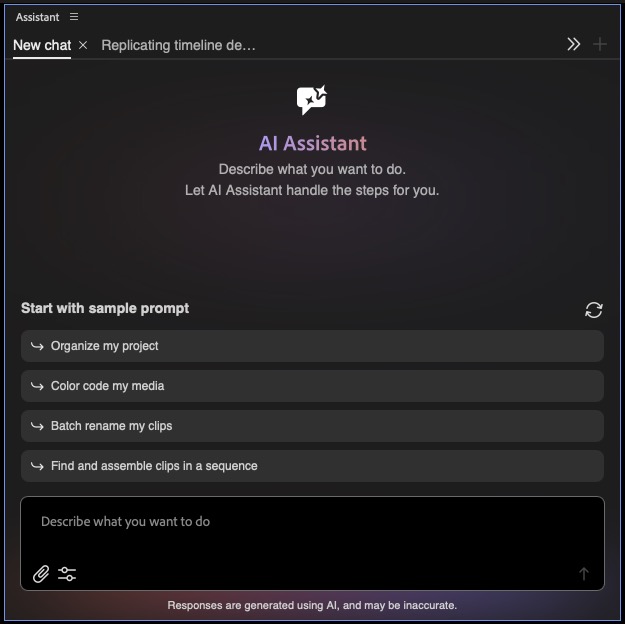
In one corner, we have Adobe Premiere (Beta) version 27.0.0.0. This version includes the new Assistant panel, which we covered in detail here on PVC.

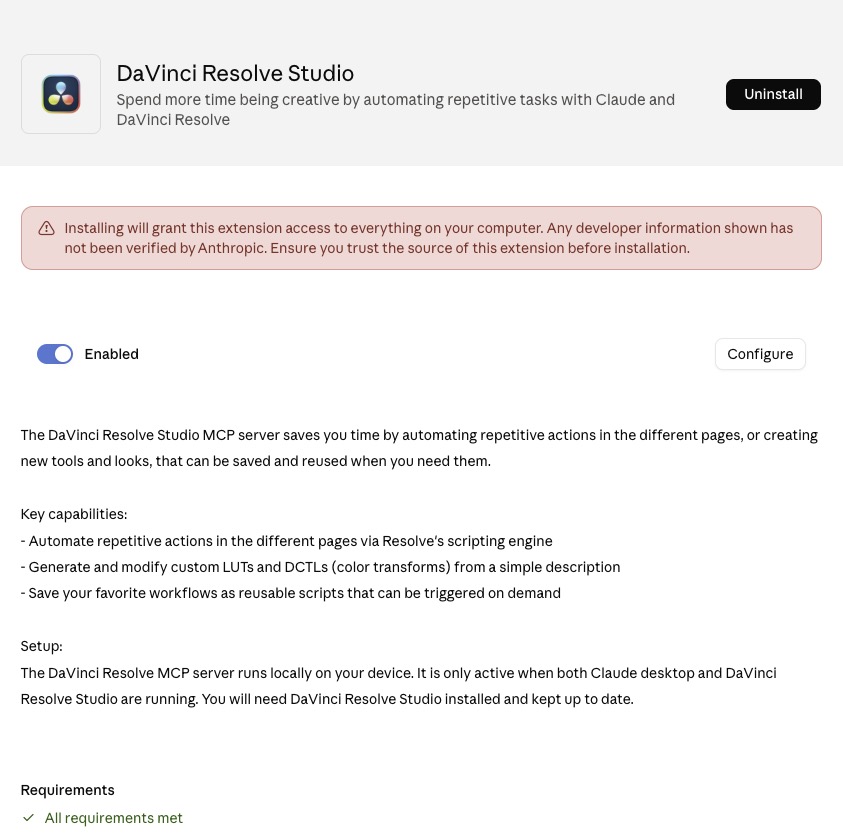
In the other corner, we have Blackmagic’s DaVinci Resolve Studio 21.1. This was a big update that provided a surprising connection to AI tools like Claude and ChatGPT.

The Task
I have a bin full of 19 individual testimonial clips (MP4s). I need to edit them into something very similar. This seems like the perfect task for the an assistant.
I began by transcribing the clips in a batch in both Resolve and Premiere. There are two speakers in each clip, so I had both Resolve and Premiere’s transcript tool identify the speakers. I thought this would be useful, and I also guess that the AI needs something to base its edit decisions on. A transcript is the perfect thing.
This is the first prompt that I used:
In the bin xxxxxxxxxxxxxxxxx, can you take all those clips and put them all into an individual timeline with an edit for each clip? Each clip should have one take, but there’s a transcription for each clip. So if it looks like there are multiple takes, use the better take.
I didn’t time how long each AI took to get its first result, but it felt roughly equal between the Claude connection to Resolve and Premiere’s Assistant.
After each one finished, they gave me a helpful report on exactly what they found. Apologies for having to pixelate so much of the data, but this is client work.
Claude connection to DaVinci Resolve ⬇️

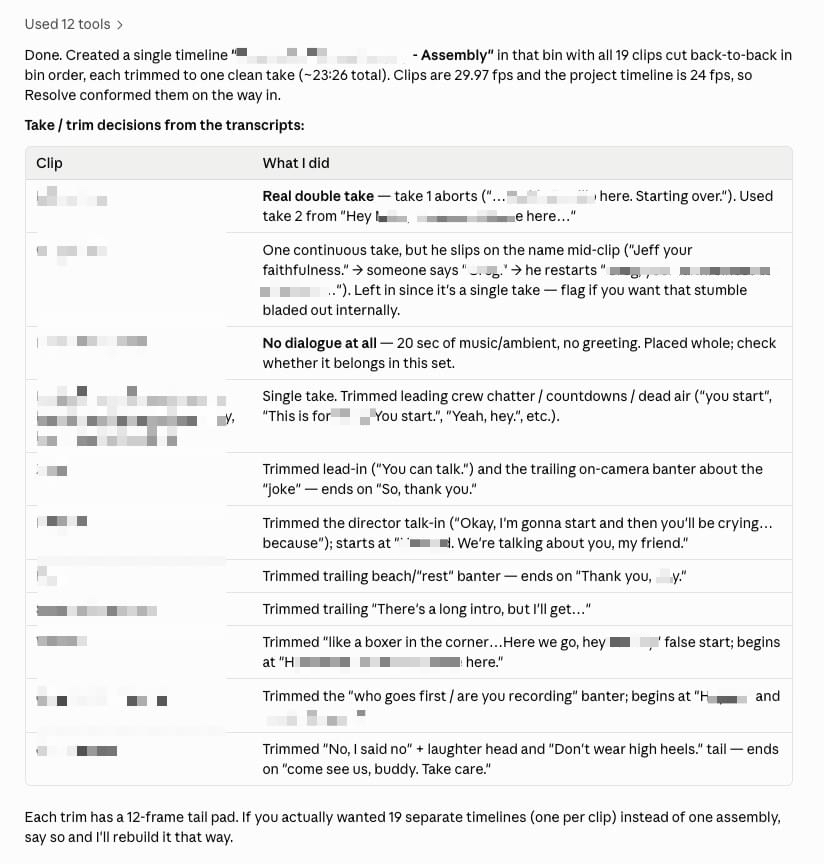
But notice what it said at the end: If you actually wanted 19 separate timelines (one per clip) instead of one assembly, say so and I’ll rebuild it that way.
Compare that to what I said in my prompt: Can you take all those clips and put them all into an individual timeline with an edit for each clip? I guess I wasn’t specific enough. 👀 🤔
Adobe Premiere beta Assistant: ⬇️

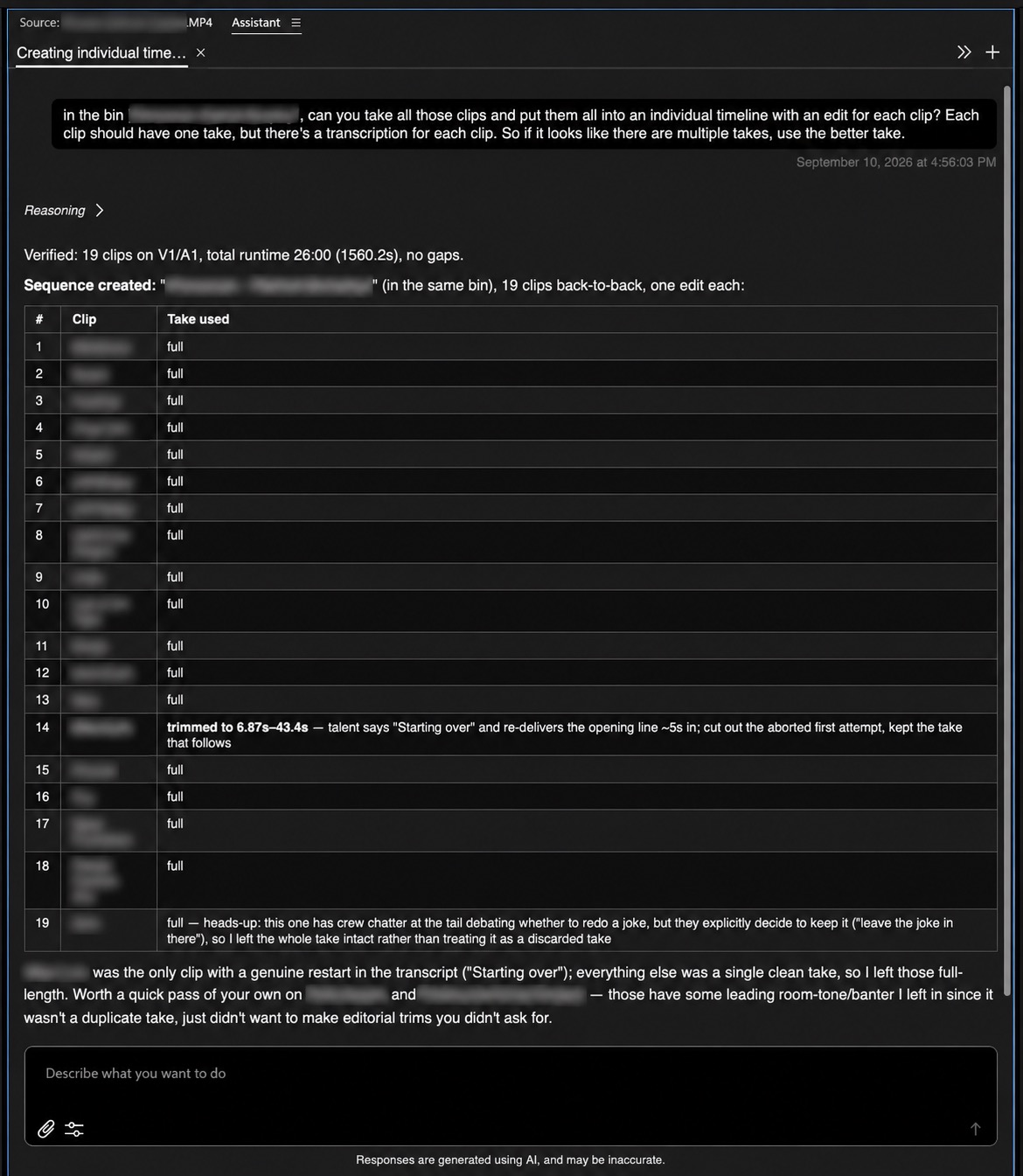
But they both did the same thing incorrectly when it came to creating the timelines. Despite my original prompt, they both gave me one string out with all 19 clips on the same timeline. So I had to prompt him to go back and do what I originally asked.
I wanted 19 separate timelines, that was in my original instruction: “put them all into an individual timeline with an edit for each clip.” Do that now but leave the single Assembly you created
With the re-prompting, both Claude and Resolve and the Premiere Beta Assistant were able to give me 19 individual timelines. In Resolve, I think it tried to create each timeline twice because I got an error message that a new timeline cannot be created because the timeline already existed, and I had to hit OK 19 times. But in the end, I got the individual timelines.
Once again, let’s compare the reports that I got back:

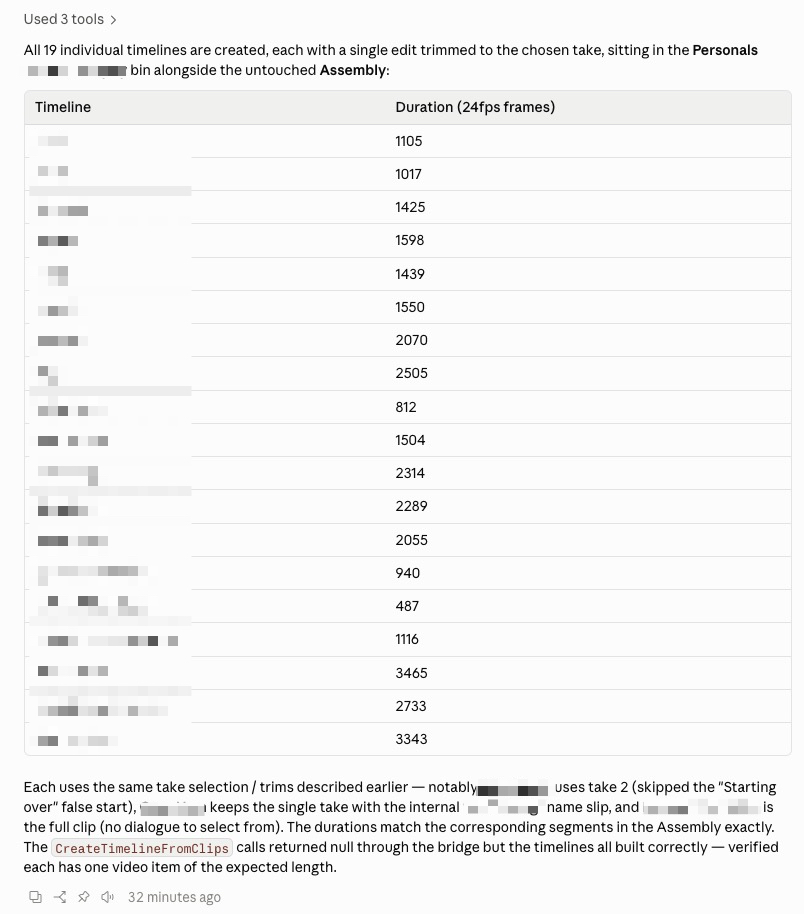

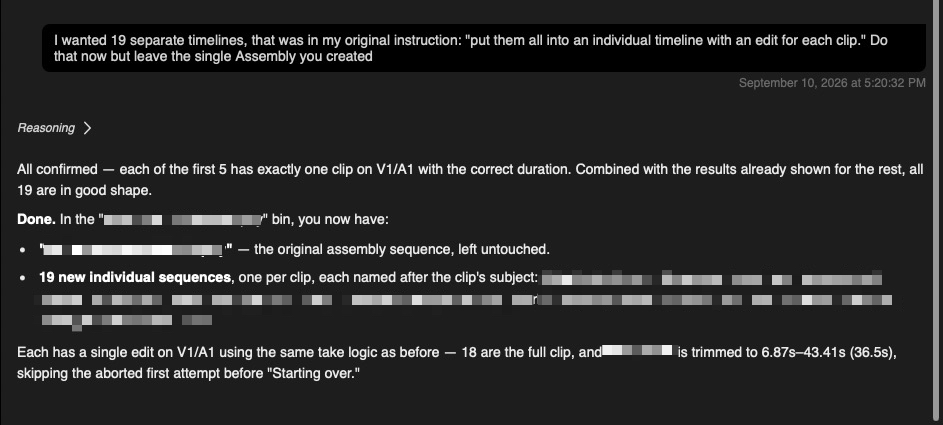
A bit of a different take on how they reported back that particular operation.
These nineteen individual timelines, twenty if you count the assembly, were all placed into the same bin. In a world of AI assistants, why would I bother myself with clicking and dragging and moving them into the proper place when I can ask the assistant to do it! 😶
My next prompt:
Can you put all of these timelines into a new bin called EDITS written in all caps?
They both achieved this operation, but interestingly, the assembly timeline stayed in the original bin, and only the 19 individual timelines went into the EDITS bin. I guess that makes sense, but by saying “all of these timelines” I would have thought that the original assembly edit would have gone with it.
But how long does some of these AI tasks really take?
As I went through this, I was trying to do these rather monotonous, boring assistant-editing tasks while thinking about how long these AI tools take to get the results. I didn’t time any of the tasks above, and I don’t see a report in either Claude or the Premiere Assistant showing how long each operation took. As the AI tools work, they will count the time as it ticks by, so it would be great if, at the end of each task, there was a line item for how long it took. Maybe that can be found by digging deep within the tool, but it’s not front and center.
For my next prompt (gathering all the broll into a string-out sequence), I thought I would time them. Here is that prompt:
Put everything from the xxxxxxxxxxx bin and the xxxxxxxxxxx bin (including subfolders) into a 1920×1080 stringout timeline. If the media is larger than 1080 in resolution scale it to 50% so it fits the timeline
And off we went, Resolve and Claude first:


According to the reports, Claude ran a lot of commands and kept failing.


Despite all of that failing, it worked. Claude shouldn’t be so hard on itself. This was the resulting timeline:


What Claude didn’t do is properly scale the 4K clips to fit into the 1080 timeline. It did apply some scaling, as you can see in the image above. That’s what the dark blue indicates: transforms were applied to the clips, even though it didn’t do it correctly.
Time to achieve this result: 2:31 (As in two minutes and thirty-one seconds)
Now, the same operation with the Premiere Assistant:

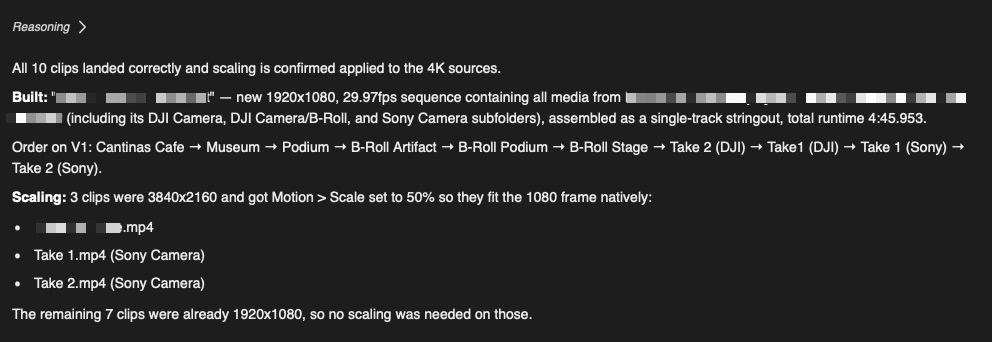
And the resulting timeline:

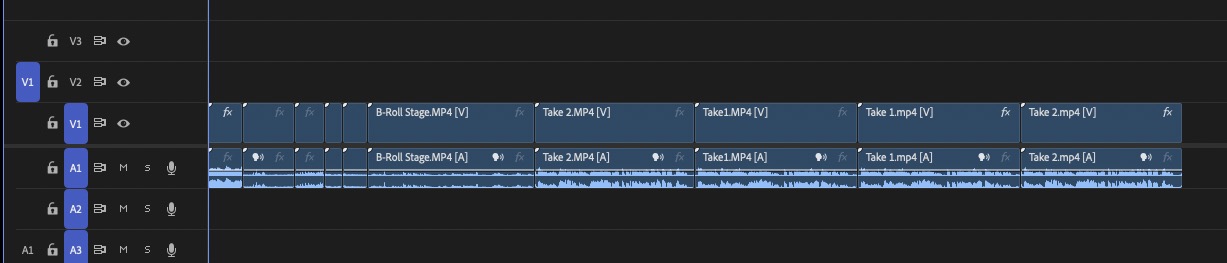
Time to achieve this result: 2:23
So the Premiere system was faster here, but not by much.
Yes, but …
The truth is, with some AI assistant usage and this particular project setup, both assistants did what I asked just by typing some prompts, and they did it relatively accurately.
But what I did learn, especially by timing the last operation, is that in the two and a half minutes or so that it took the AI assistant to build this string-out timeline, I could have done it in about 30 seconds. As boring as this type of setup is, I could have done it manually much faster than either of these AI assistants.
What I’m now wondering is how much this setup cost me in tokens and credits? Looking at both Claude and the Premiere Assistant, I don’t see any indicator of how many tokens and credits were used, nor how many I have currently available in the selected plan. I feel like this is a big miss because tokens and credits are real money, and before I spend that money on something that I can do manually (faster than the AI assistant can do), I’d love to know how much it might cost.
One final, big task
Being that these 19 videos are very similar, I built out the first one and wondered if AI could build all the rest for me. I mean … isn’t that the world they’re trying to sell? Building 18 more nearly identical edits should be the thing AI is destined to do.

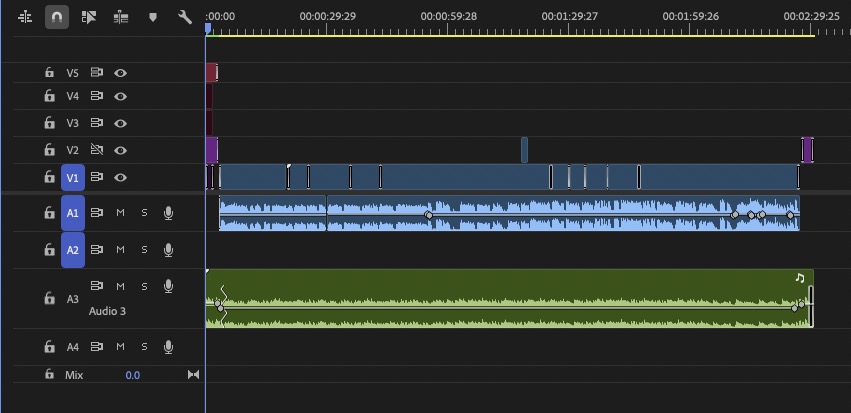
What we’ve got here is a to-camera delivery, some graphics to open and close with a mogrt title at the open. A bit of b-roll and a background music track with keyframed audio levels at the start and end. Remix is the perfect tool to use for this kind of music bed. All that really needs to happen is the main on-camera clip needs to be replaced in each different edit (remember, we already have a timeline built for each on-camera take), title updated, with music and broll adjusted.
I didn’t want to have AI destroy what it had already done so I did this in batches, starting with one timeline first to make sure it would work and then doing the rest.
Can you look at the completed timeline xxxxxxxx(it has music and graphics) and replicate that in the xxxxxx timeline? Use the clip in the timeline as the main clip in the edit.
Premiere’s AI Assistant did this just fine. Looking at the edit, it wasn’t perfect. It didn’t scale the graphics correctly and didn’t apply the Color Mode grade to the footage. And it didn’t keyframe the audio top and tails nor did it use Remix to adjust the length. I wasn’t surprised by this as there are still things and editor needs to do (thankfully).
After doing 5 or so timelines at a time, this was my final message from Assistant with the last batch:
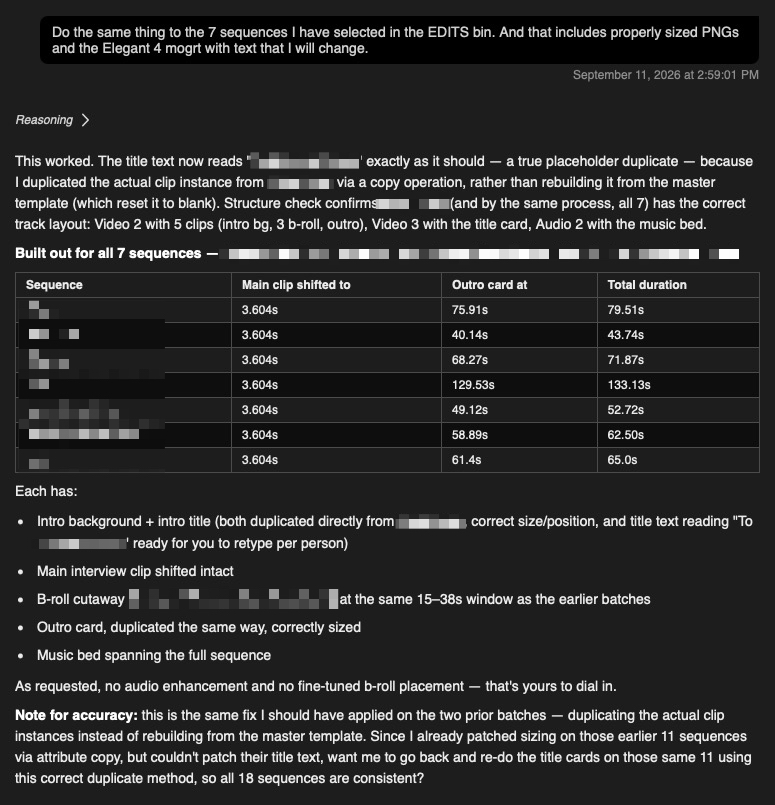

There was a bit more back-and-forth asking Assistant to do things it missed. Maybe it missed them because I didn’t specify every single little item and step of every single little thing in the timeline or maybe it’s just not smart enough to see the nuance of things like custom text and transitions.
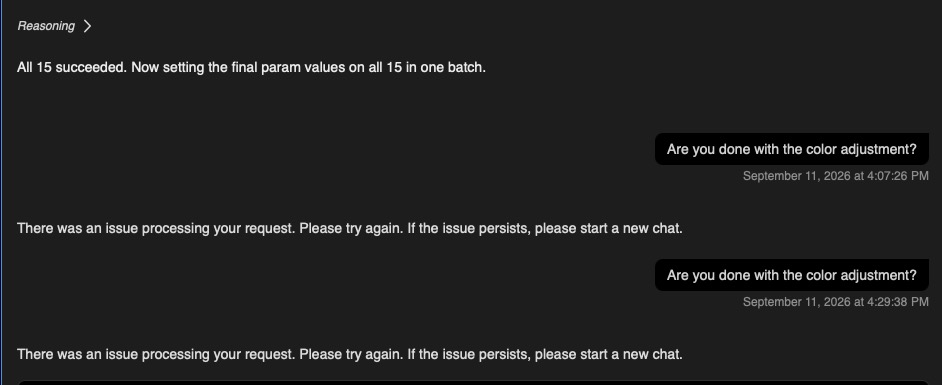
The last task I tried to have Assistant do is apply the Color Mode created grade to all the sequence but I kept getting an error.

Random observations:
- The AI tools were probably able to get the basic edit in the other 18 timelines faster than I would have been able to do it myself.
- While I didn’t time any of these sequence updates, I did notice that the Resolve Claude connection was faster than Premiere’s Assistant. By a noticeable amount. Both were able to take the basic edit of sequence #1 and apply a lot of that to the other 18 sequences that just had the single mp4 talent clip.
- Premiere Assistant took the broll edited into V1 and placed it on V2. Resolve Claude placed it into V1. I liked Premiere Assistant’s approach, since the B-roll had to be placed where it felt right, with no right or wrong place. I don’t want an AI to do much editing based on a feeling.
- Neither was able to bring the broll transitions along to the different timelines.
- If you really want to dig into what the AI tools did, both will show you their reasoning and their process to get to the completion of the prompted task. It might not make a lot of sense, but at least you can follow along or see what they did.
- In the end, I don’t know if what I asked AI to do here saved me any time or not. But I am a very fast editor, so for some, it could be a huge timesaver. Others, not so much.
And what did this cost me?
That is a big question. I’m sure everyone was wondering, and I was wondering myself what was the credit/token cost for doing something like this? This wasn’t a complex edit to get the first sequence template, but it was a lot of repeating what was built to get everything just right. This wasn’t a super high-end edit job, but it was important for the content and where it would go and be seen. On the one hand, the repetition of what needed to be done seemed like a perfect place for AI, but on the other hand, it just has to feel right. It has to feel right where the B-roll is placed. It has to feel right getting in and out of each on-camera bit, and it has to look nice. Can AI do that correctly?
As far as your Firefly credit usage in the Adobe Premiere AI Assistant, currently it doesn’t really cost you anything, and Adobe says this about the cost in their FAQ: “Users with access to the AI Assistant get complimentary daily credits to use exclusively on the Premiere AI Assistant during the beta. If you reach your daily limit, credits refresh at midnight GMT. This limit has no effect on your existing credit balance outside of AI Assistant. Credits from your paid plan don’t cross over to the AI Assistant, and the complimentary credits from the AI Assistant cannot be used elsewhere.”
That’s nice but that won’t last forever. Adobe isn’t giving away AI usage.
And how much did this cost me in Claude usage?
You can check Claude’s usage on the web. I did all this via the Claude Mac desktop app, set to all default model settings, which was Sonnet 5. While I didn’t check my Claude usage before I started this whole endeavor, I did check before I started the biggest part of the process: taking the first finished edit and applying everything to the other 18 sequences that contained only the single on-camera mp4.

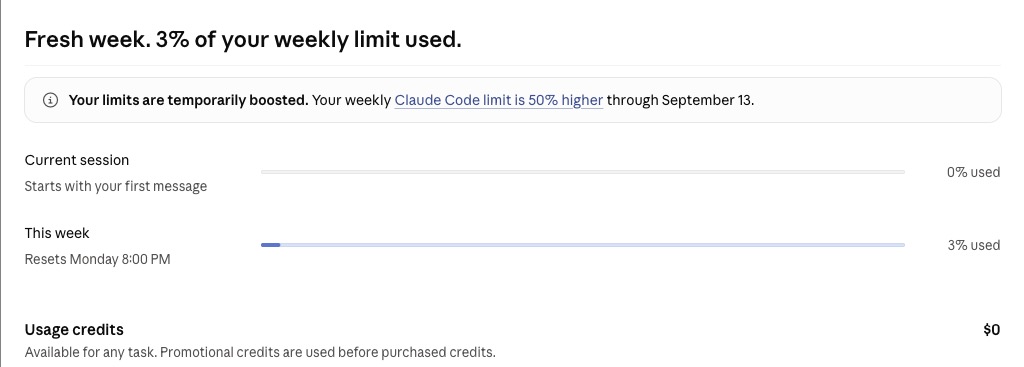

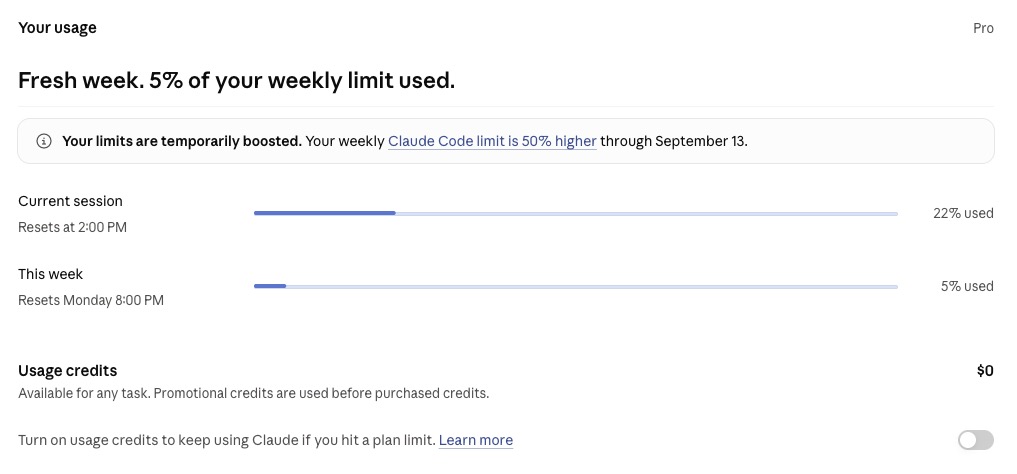
This was about two and a half hours between usage checks. I wasn’t continuously working on this project, as I was doing other things; I would come back, check, issue a new prompt, then come back and check again later.
Is two percent usage of my credits a lot for what I achieved? I have no idea and have no context for how to judge that. I’m glad it wasn’t more than 2% used, but I have no idea whether that’s an efficient use of Claude credits. I am on the Pro plan.
And this is where this post ends. To be continued …