

Filmtools
Filmmakers go-to destination for pre-production, production & post production equipment!
Shop NowTL;DR You can only show specific marker types in both the Marker panel and the timeline

Welcome to Tool Tip Tuesday for Adobe Premiere Pro on ProVideo Coalition.
Every week, we will share a new tooltip to save time when working in Adobe Premiere Pro.
Markers are an incredibly useful tool for comments, notes, and overall organization when editing in Adobe Premiere Pro. We’ve talked about them before in this series with tips on how you can use extended duration markers as well as copy and paste markers from sequence to sequence.
When working with markers, you can place them on both on a source clip, and in a timeline. To both edit and keep track of those markers, open the Markers panel (Windows > Markers). There you can see all the markers placed both on the timeline as well as source clips edited into the timeline. But the real power of the markers panel comes with selectively choosing what you see within that panel.
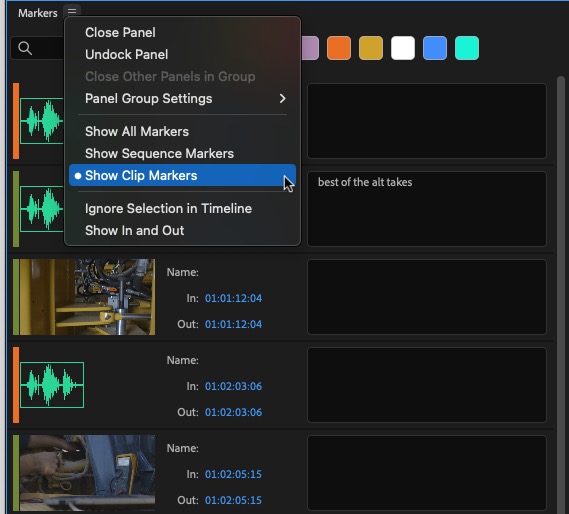
Under the Markers Panel menu, there is an option to choose whether you are seeing:
- All the markers in the Markers Panel
- Only markers placed in the Sequence
- Only markers placed on Source Clips edited into the timeline

In the Markers panel, you can also click on the color swatches and place a check mark into only the marker colors you want to see. The other markers will disappear in the Marker panel and in the timeline.

I find selectively showing Markers very useful when going through client notes and changes because I will often change a Marker color once I have a note completed, and then can leave the completed Marker color unchecked so I don’t see those notes in the timeline or the Marker panel. And just to reiterate a point here: When you begin to selectively show markers by clicking the color swatches in the Marker panel, the hidden markers that are unchecked will be hidden in the Marker panel, but those same markers will also be hidden within the currently active timeline. If you’ve got a lot of client notes you’ve downloaded from somewhere like Frame.io, taking some time to assign certain specific colors can make them a bit easier to manage within the timeline.
This series is courtesy of Adobe.