


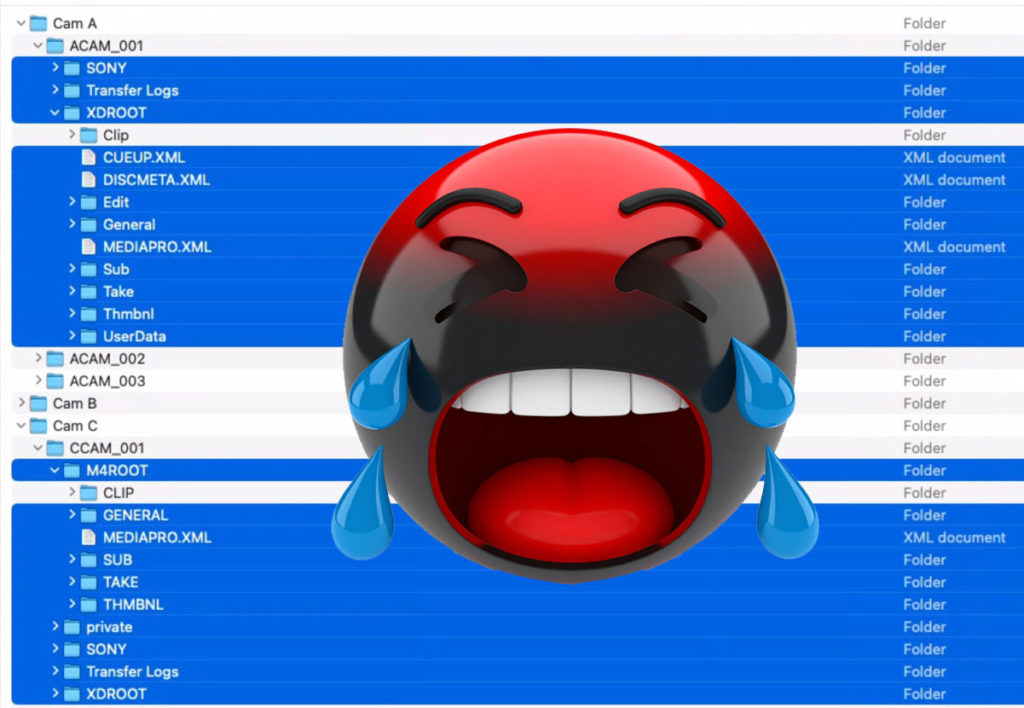


I challenge one of the major video editing application developers to fix the “folder shuffle”. What is the “folder shuffle?” That’s the dance you have to do in post-production, either bypassing or removing all of the unneeded and superfluous folders that modern digital cameras write to the camera card when recording media. This is not to be confused with the reconnection dance , which has been somewhat rectified since this piece was written back in 2010.
Here’s an example of what a typical Sony camera writes to the memory card and what is written to the drive as you backup media from a shoot:

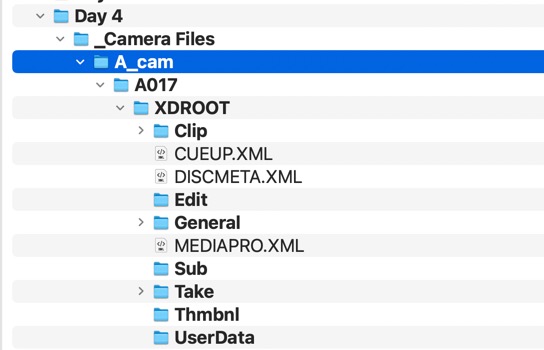
The above image is just one example of one particular Sony camera and not even everything that it actually writes to the camera card. Different cameras and manufacturers have their own methods for how and what they write to the card, with some having way more folders and files than others.
What we ultimately need are the video files (MXF, MP4s, MOVs, etc, etc).

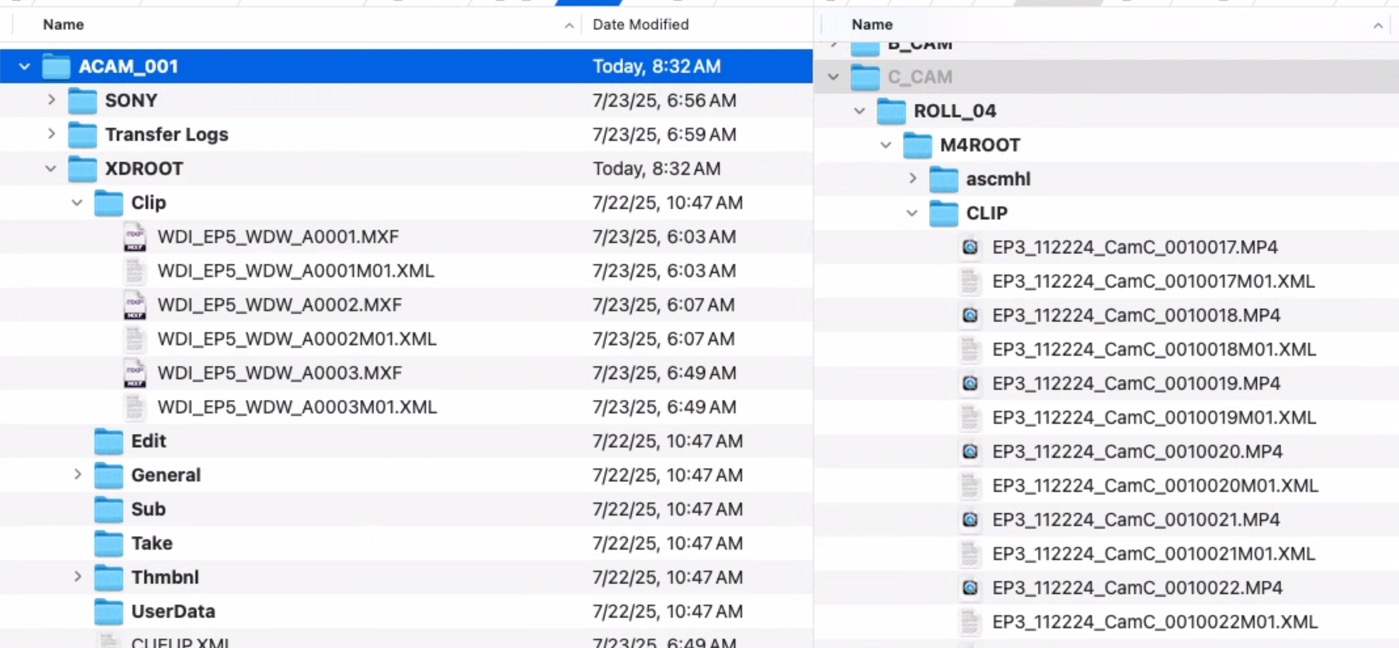
Is there some way to get those video files and the DIT/human-created organization into the editing tool without all that other stuff (read on for the answer)? It shouldn’t be that hard, what with AI and all, since AI can solve all of the world’s ills.
But first, a rant
But here we sit, 20+ years into our world of digital cinema and digital camera acquisition. You shove a memory card into your camera, shoot a bunch of footage, pull that memory card out, insert it into a reader, and offload it to your SSD drives. You may do that once, twice, ten times, a hundred times, a thousand times throughout the course of a full production. Depending on the camera you’re shooting with, that camera writes those video files onto the memory card in a very specific way. Sometimes it may be as simple as a folder with a bunch of .MOV files in it. Other times, we may get a jumbled stack of folders nested in folders with XMLs, thumbnails, and any number of other things along with the video essence. Perhaps that’s an MXF file, or maybe it’s an MP4 file.
When it comes time to edit that footage buried deep within the camera’s folder structure, what we really want are those MXFs and those MP4s. What we often get when we import those camera offloads is that mess of folders the camera creates. A bunch of superfluous files we don’t need, along with the videos and clips we need to edit. I’m sure there are very valid reasons for all of those different folders and files. You don’t actually need all of those folders imported into an edit project. We might need some of the data from all of those files. But once in the edit, we only need the video files.
You do need to back up the full camera cards and all of those different files and folders. More on that later.
Let’s say you have a well-organized folder structure from your shoot that might look something like this:


Depending on your workflow and how you like to organize your edit project, you might want that exact folder structure mirrored in your editing project. But what you probably don’t want are all of those other files that the cameras create. I’ve been dealing with this a lot on a recent show, and it got me wondering how this could be better and how all the different editing tools might handle this situation.
Adobe Premiere Pro
First, let’s try the media browser:
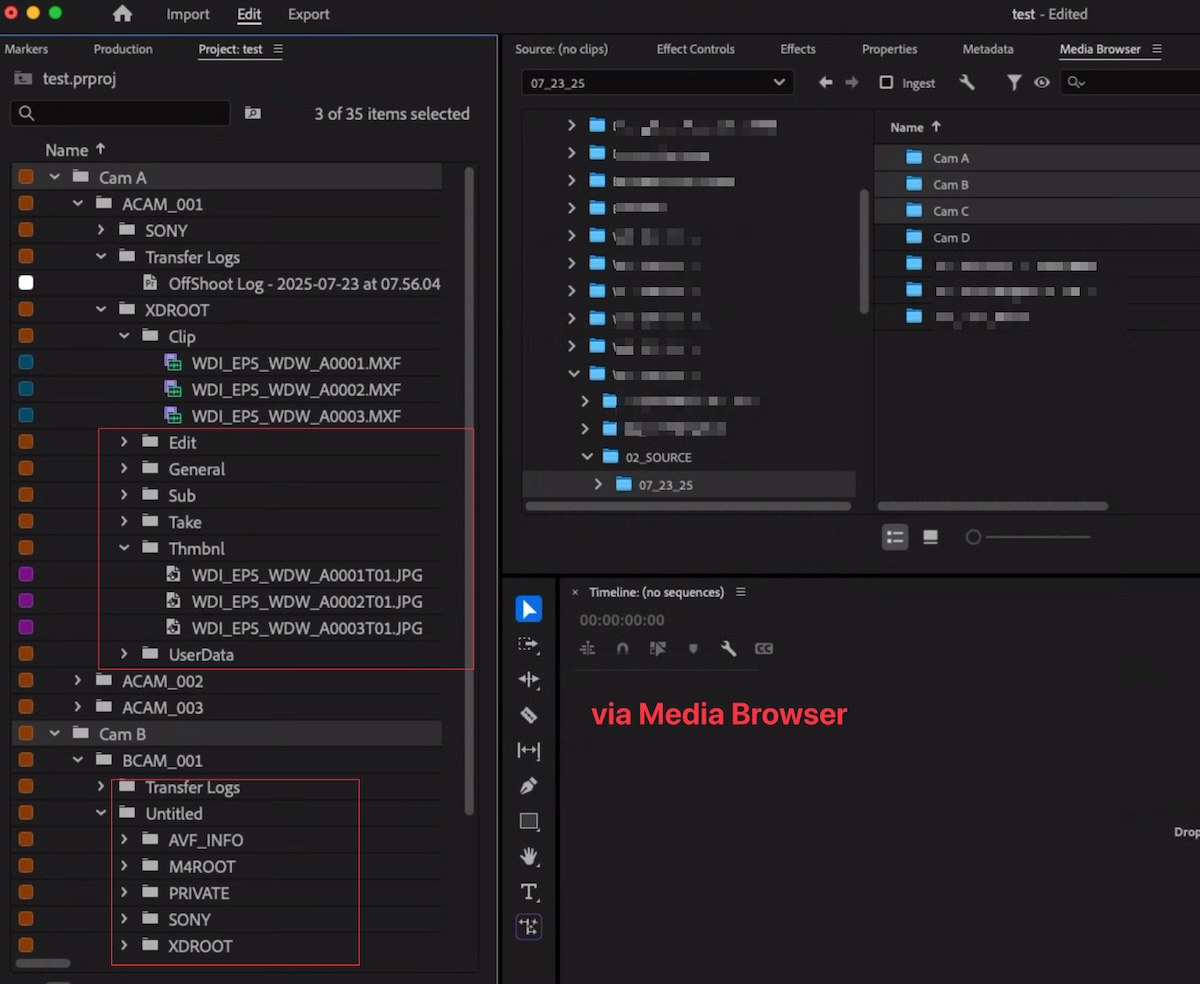

The Media Browser was both successful and a messy failure all at the same time. First of all, if you look at the Cam A, Cam B, and offload number, the folder structure was retained. At the same time, the Media Browser brought in all of those extra unneeded folders, transfer logs, and JPEG thumbnails—and many things you definitely do not need in your editing project.
And the new Import tab:
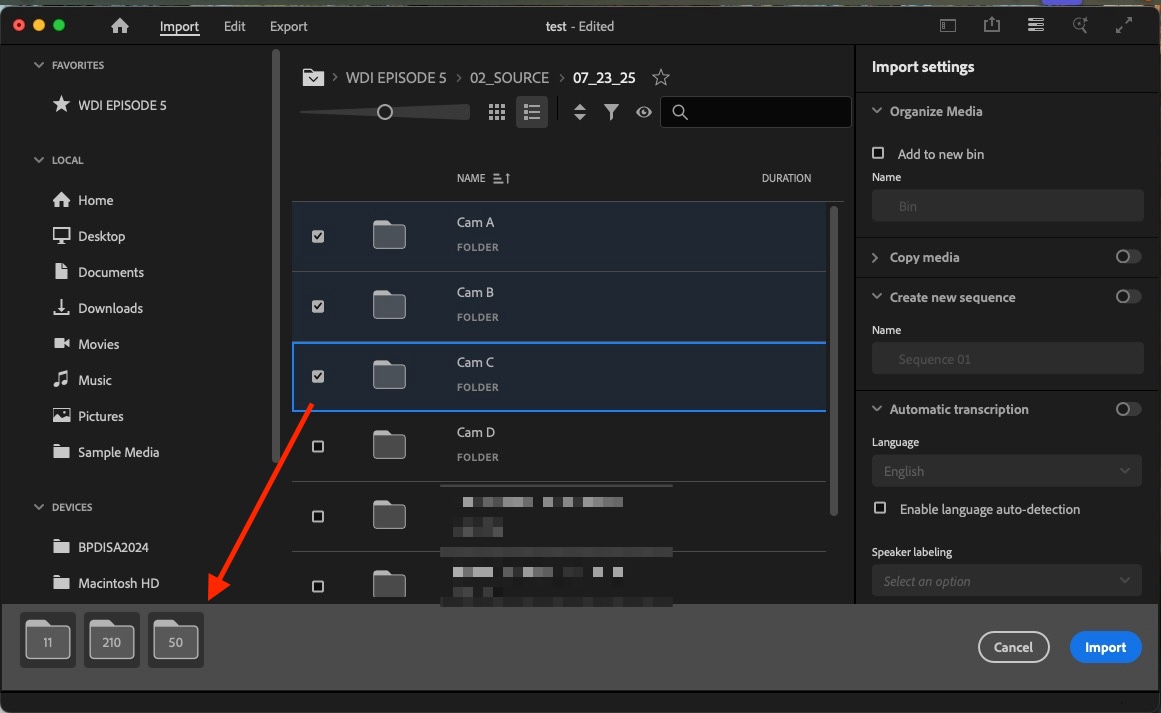

On the first step of the Import tab, I like what I see here. As Premiere is able to look into those individual folders and even tell me how many files it sees to import.
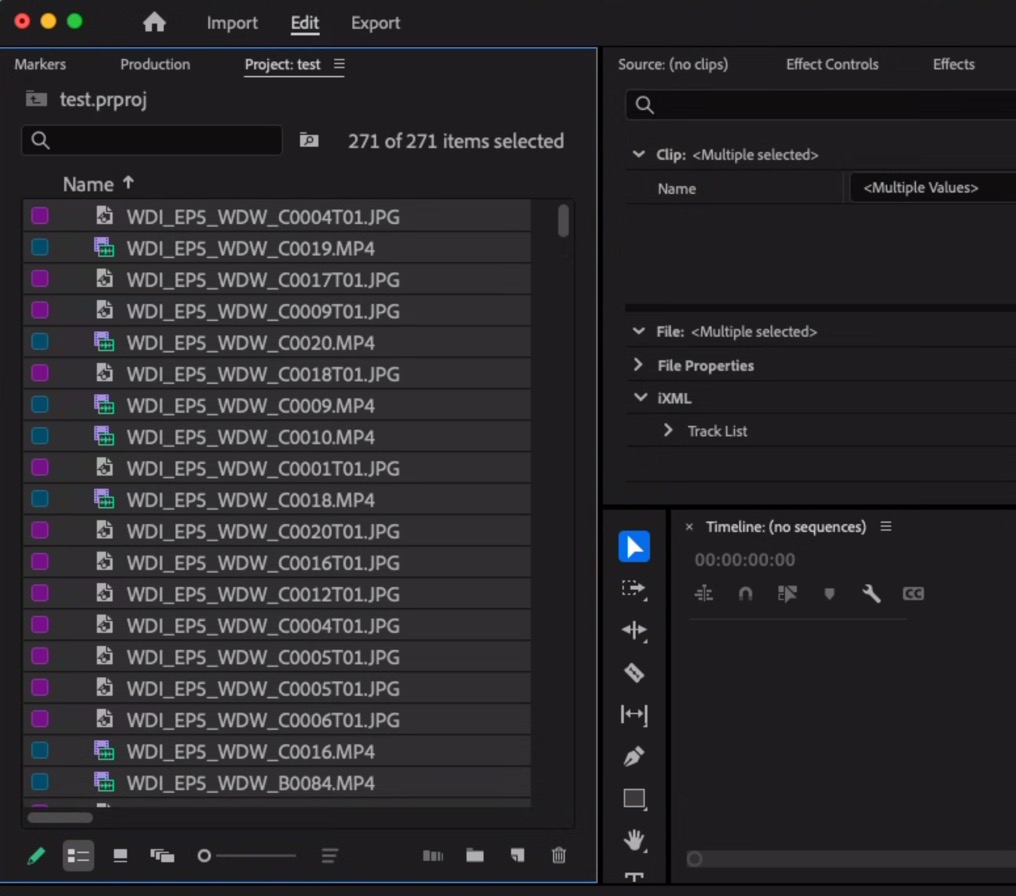

But then, upon import, I do not get any of the folder structure retained. And on top of that, Premiere also imported all of the JPEG thumbnails that the camera created.
Retaining the folder structure on import has been a big Premiere discussion over the years, and this was added in 2023. So we can kind of get the best of both worlds in Premiere, as you have a choice in how you import. If you need all of those folders, use the Media Browser. If you just want to dig everything out, use the Import tab. Regardless of the method you choose, you’ve got some work to get your bins organized once the media is imported.
Now, if you read that post on when this was added to the beta, it looks like that folder structure retention may come to the Import tab. But personally, I hope that doesn’t happen as I like having options on how I import. And Premiere is the only one that will do this.
Avid Media Composer
Avid Media Composer’s Source Browser is a recommended method to link to original camera sources.
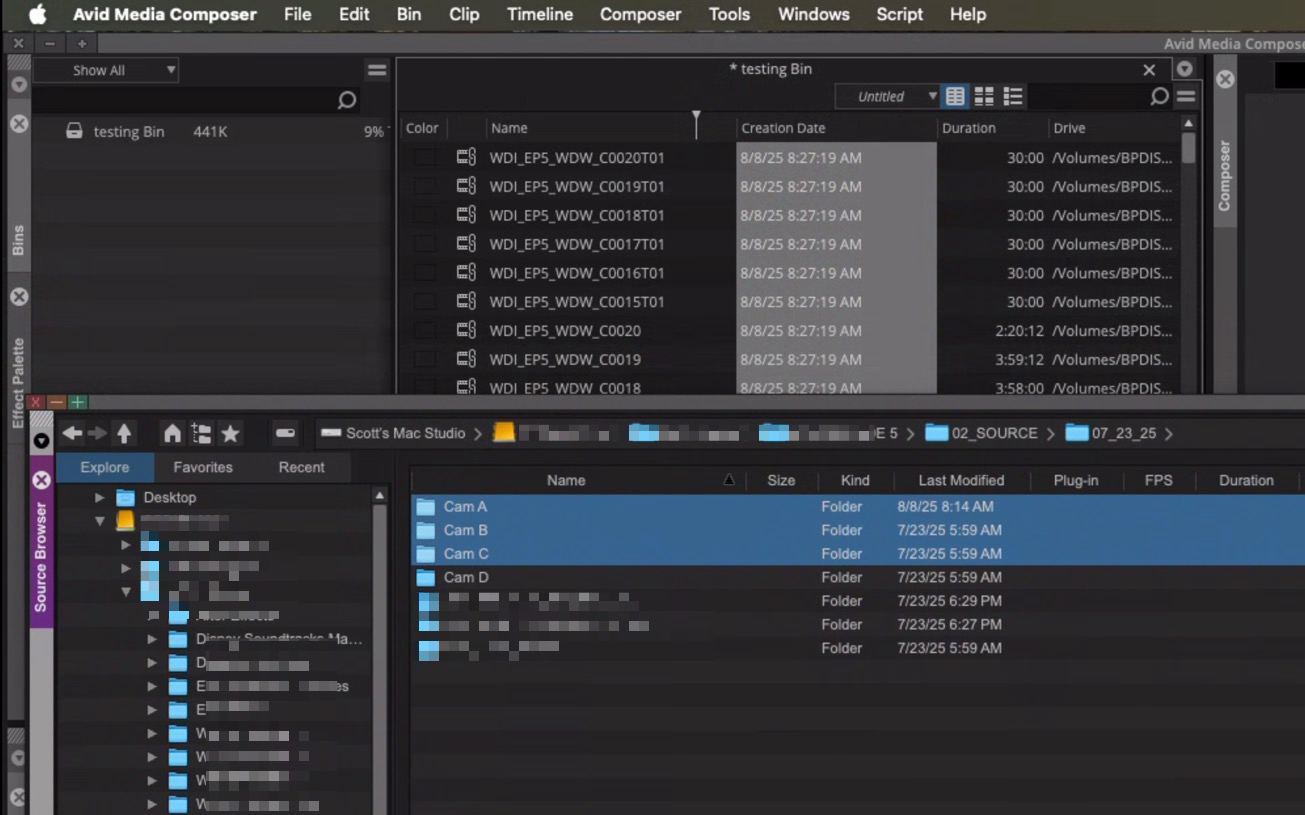

While Avid’s Source Browser can look into all the selected camera folders and dig out the needed MXF and MP4s, there is no folder structure retained. I give the Avid Source Browser credit, though – it doesn’t bring in the JPEG thumbnails. It’s smart enough to know you don’t need those.
DaVinci Resolve
Resolve has an interesting set of options on the Media page. And you do use the Media page when importing media into Resolve, don’t you?
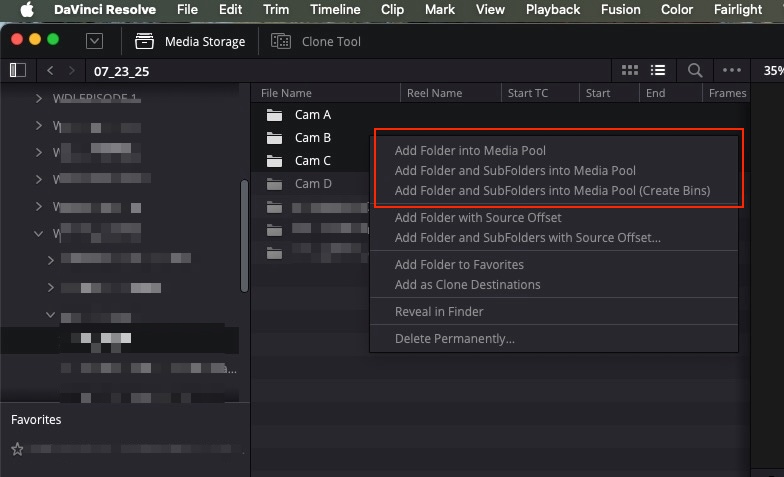

You can choose to just straight-up import all the media in a set of folders, or use the “Create Bins” option to do just that, have Resolve automatically create bins when importing media.
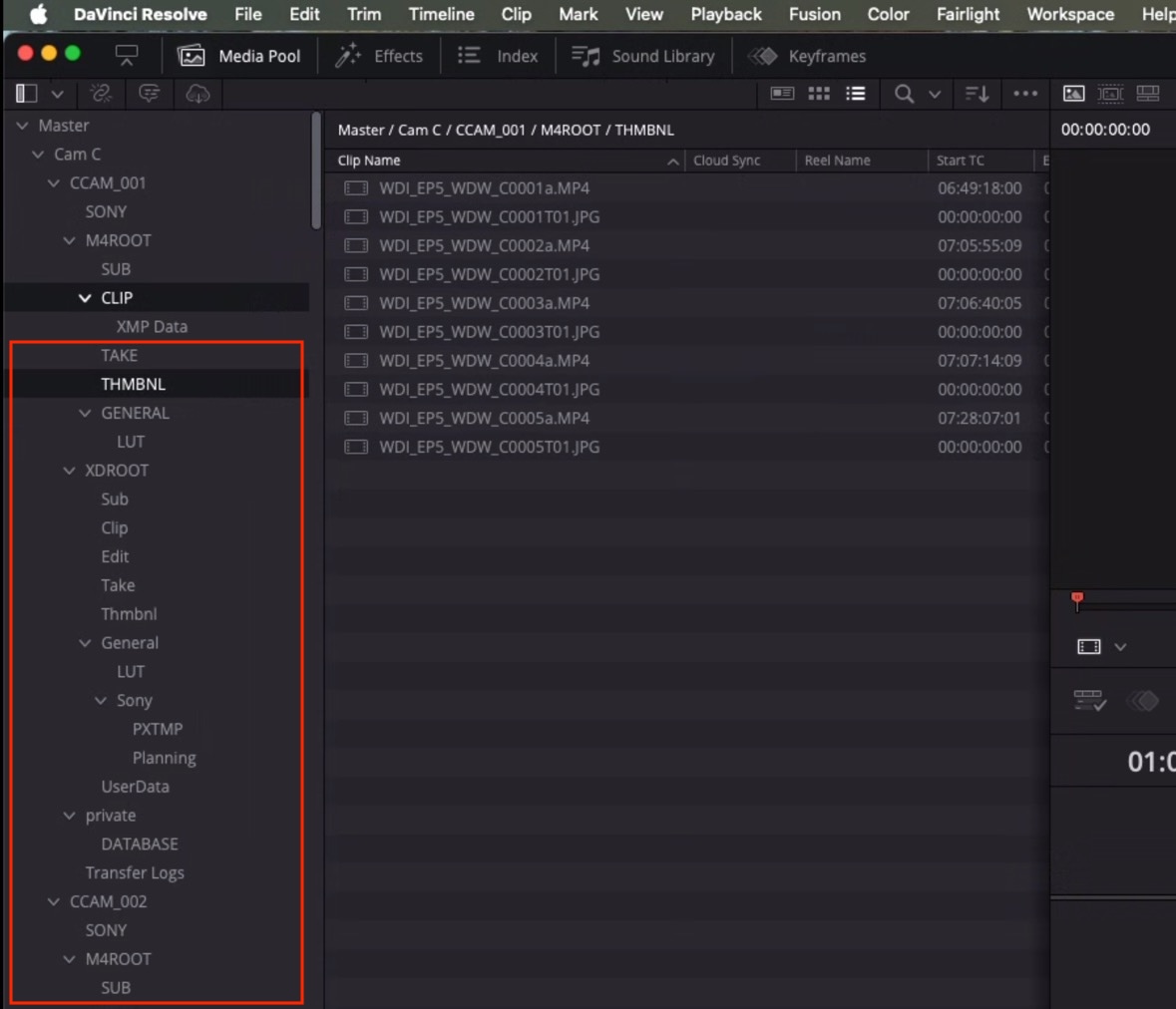

My gut would tell me that “create bins” is the way to go because I want to Create Bins from those folders, but Resolve takes it quite literally and creates a bin out of every single folder it sees. If you’ve got large shoots with a lot of offloads, that is going to be a lot of cleanup you have to do using the Create Bins method. It seems to bring in folders I didn’t even know existed!
The key to getting any of that media imported with Resolve would be to use the Add Folder and SubFolders into Media Pool option. Then you get all of the video media and those pesky JPEG thumbnails just dumped into one bin. Some cleanup and organization are required, no matter which method you choose. And again, a big plus to Avid for ignoring those JPEG thumbnails.
Final Cut Pro
Final Cut Pro has an import dialog box that’s worth going through and checking a couple of settings:
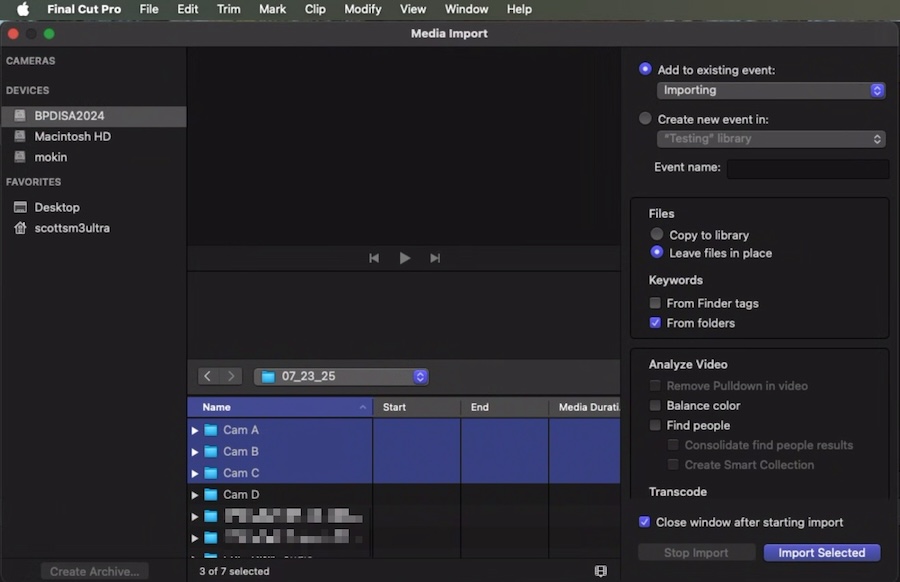

I always choose to leave files in place when working with Final Cut Pro as I want the media to stay where I’ve organized it on my hard drive. Since Final Cut Pro doesn’t have traditional bins, you’re making Events and Keyword Collections for organization. Making keywords from the folders automatically might be the way to go.
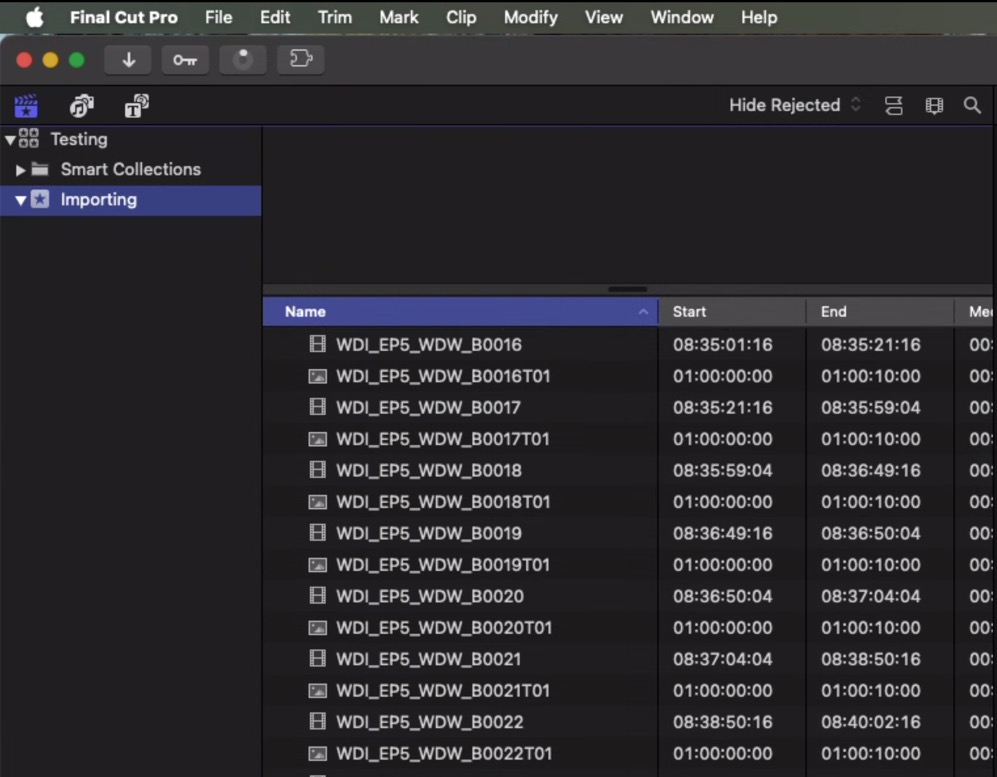

Making keywords from the folders didn’t help much there either, as Final Cut Pro just dumped everything into one event, including the JPEG thumbnails.


Am I asking too much from my editing software?
It might seem insane to go through this tedious exercise, but if you’re working on a show that’s shooting multiple cameras over multiple days or weeks, where you may have many offloads per day, you’ve got a lot of media residing deep down in a lot of different folders. I partake in various exercises like this to optimize workflow, including offloading media, creating folder structures for those offloads, organizing media upon import to the editing tool, and organizing bins within the editing tool. If I can shave off just a few minutes here and there, that might end up shaving off a few hours, or maybe even many hours, in the course of a long edit. There’s nothing wrong with trying to optimize workflows.
That begs the question: am I asking too much for the editing tool to recognize my organizational folders from the shoot while ignoring all of the many different camera-created folders (and files)? Looking at the exercises above, I guess the answer is yes. I am asking too much of the editing tools.
But yet, in a world where we can have AI help us do things like:
- Remove objects from a frame automatically
- Mix audio
- Create edits from our script
- Organize media by content in the frame
- Transcribe text with great accuracy …
Is it too much to ask AI to be built into our editing tools to sort out all of those superfluous folders and files we don’t need for the edit? What we really want AI to do most of all (at least what many of us want) is help with those boring, tedious, and laborious parts of post-production that we don’t enjoy doing. We want to get to the creative part of the edit. Yes, this is a job that’s great for an assistant to have them import media and organize it in a chosen way. But not all of us have assistants.
So, how do you deal with this, Scott?
The short answer is, I often do a lot of manual organizing. It’s one of those important and necessary evils of editing and post-production, that you frequently have to organize manually. Templates, macros, and keyboard shortcuts can make this a lot faster. After doing it for a number of years, you’ll develop your own techniques to speed this process. Depending on the job and how you need things organized, sometimes this takes a lot more time than others. Good organization and setup are part of what should be budgeted in both your time budget and your money budget for any edit.
But I still use Kyno to help.
I’m a big fan of third-party tools, and the best tool I’ve found to help deal with this is the beloved (if somewhat in limbo) most amazing post-production software tool ever created outside of your editing application: Kyno.
Here is what Kyno can do. Kyno has an amazing “Send to” option that will send media from Kyno into Adobe Premiere Pro, DaVinci Resolve, or Final Cut Pro. This will take media you’ve organized in Kyno with tags, markers, or subclips and send that media from Kyno into your editing tool with that logging intact. There are also options for how to deal with folders and subfolders, including the insane camera structures that modern digital cameras create.
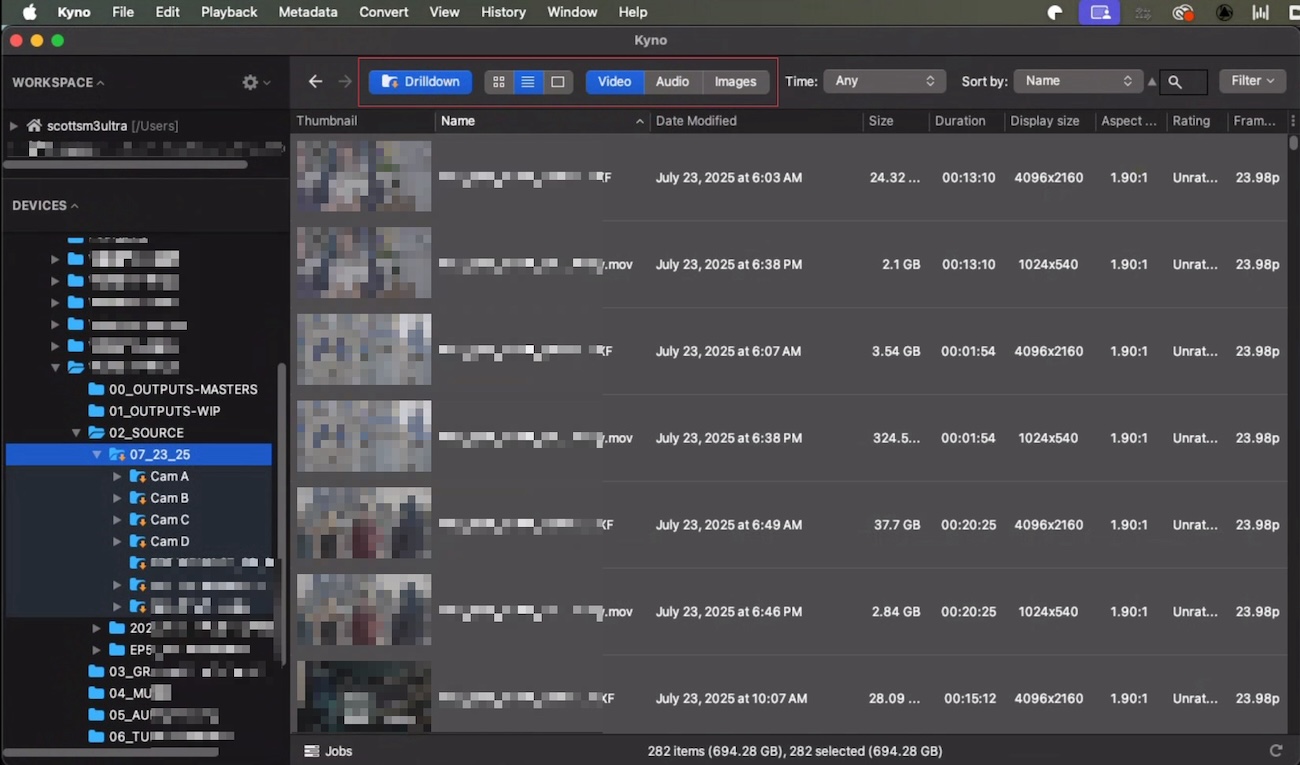

Here I’ve told Kyno to drill down into a dated folder and look at everything in that folder, including multiple off-loads for my cameras. There are options to filter what I want to see, so I’ve told Kyno to only show me the video files and exclude any audio files and images. Excluding images will filter out those pesky JPEG thumbnails that are used by the camera and not used in the editing process.
Now, using Kyno’s File > Send To command will give me options for how I want the media sent from Kyno to my NLE.
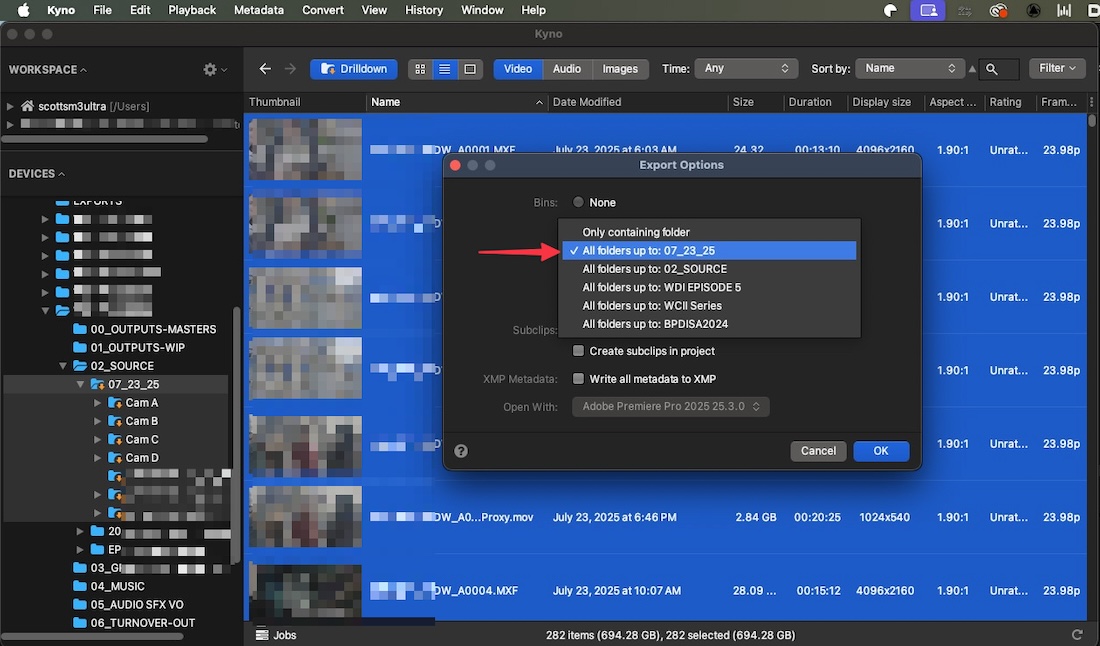

I can tell Kyno how much of the DIT folder structure I want to retain. In this case, I’ll go with the date as I have multiple offloads over many different dates. The end result is the best option that I’ve found for this process.
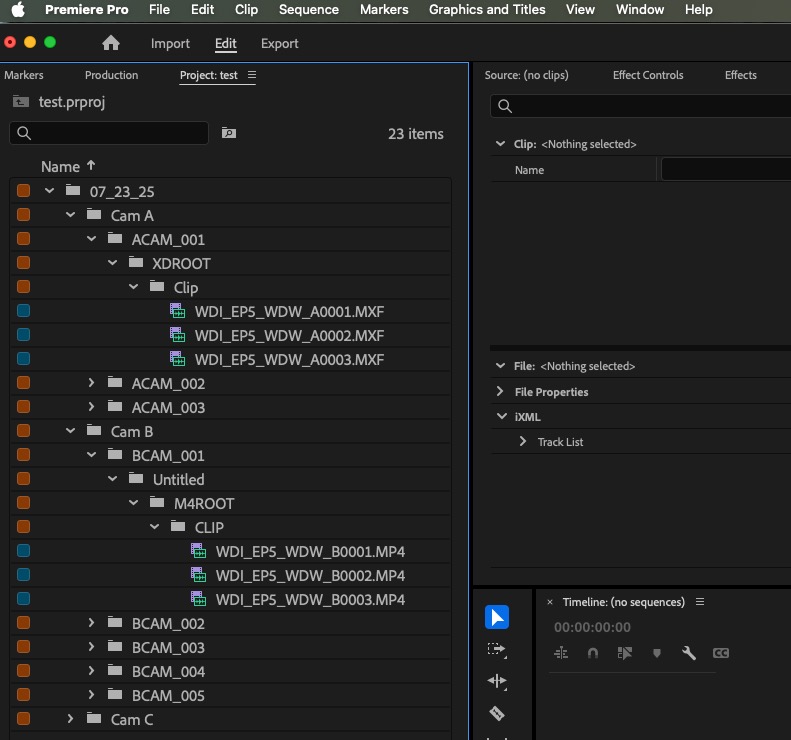

Back in Premiere, you can see that while not perfect, I’ve got my dated and offload folder structures intact with just a bare minimum of camera-created folders. Gone are the Sub, Clip, Edit, Take, General, private, DATABASE, Sub and many more folders that you don’t need in your editing project. It’s a lot faster to organize from these few folders than it is to organize from all the folders that some of the other tools will import. Not perfect, but I’ll take this. Time saved is money made.
But Scott, isn’t Kyno dead?
Kyno is not dead and it’s still available for purchase on the Lesspain Software website. I’ve made my love for Kyno known many times over the years, as no other post-production tool has ever matched its usefulness. Kyno was acquired by Signiant in 2021 and seems to have been in limbo since then. But at NAB 2025, I was told by Signiant that a Kyno update was coming with Apple Silicon support. When that update hits, you’ll hear about it here! In the meantime, you can get a lot of use out of that $160 Kyno Standard version. If it saves a lot of time when it comes to folder import organization, then it could be money well spent. Or grab the free trial and try it for yourself.
Speaking of these folder structures …
You are backing up the entire camera cards, aren’t you?
I was visiting a recent shoot and saw the producer digging deep into all these folders created by the cameras and digging out just the MXF and MP4 files to back up onto a hard drive. This is not the preferred method because, besides taking a lot of time to dig into all these folders, it’s possible some media could easily be missed. That exact thing has happened. Some workflows probably require a lot of those files created by the camera in the post-production process, including workflows that can’t read the proper timecode without all of the camera-created files. Besides, it’s much easier to grab the top-level folder off the camera card and back that up in an organized way, as opposed to digging deep into the XDROOT or M4ROOT folders just to find the clips. There should also be a DIT organizing the media, not the producer, but that’s another conversation for another day.
I’ve always assumed everybody always backs up the full camera card structures, but I put a poll on social media the other day asking exactly how you back up your media, and I found out that not everybody backs up the entire folders.
First, Threads:
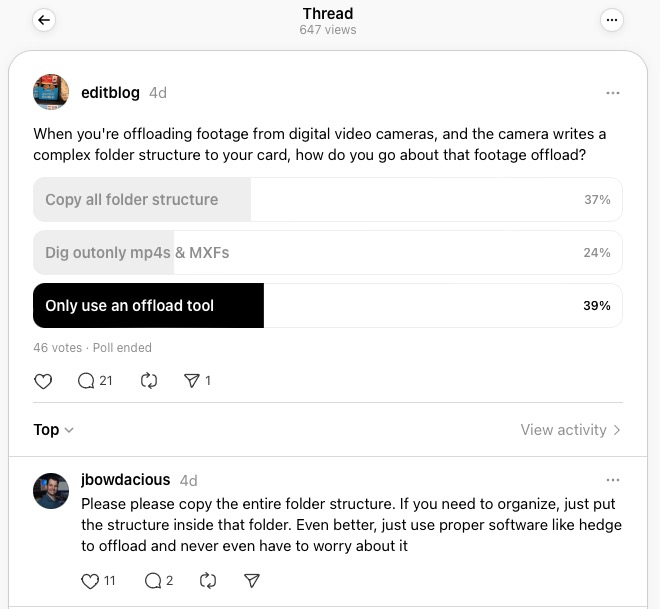

Okay, that’s great to see. Most people are offloading properly by copying the entire folders or using a tool like Offshoot to do the work for them.
And TwitterX:
When you’re offloading footage from digital video cameras, and the camera writes a complex folder structure to your card, how do you go about that footage offload?
— Scott Simmons (@editblog) August 3, 2025
That’s great to see most people are on Twitter or also backing up the full camera cards. I’m honestly quite surprised that the results of the poll are that high. I thought way more would be just pulling out the MXFs or MP4s.
How do you handle this, dear editors? I’d love to hear if you’ve found a third-party tool or plug-in that can solve this.