



There’s certainly been a lot of internet chatter recently about vibe-coded alternatives to many Adobe Creative Cloud apps from ArtCraft, including FilmCraft. As you might guess from the name, FilmCraft is a video-editing tool that clones Adobe Premiere. Depending on which tweet, skeet, post, or short you believe, it’s either the death of every Adobe application (and perhaps all paid applications in general), or a big piece of crap that will clog up your computer. The answer, like most things when there are extreme views, is somewhere in between.

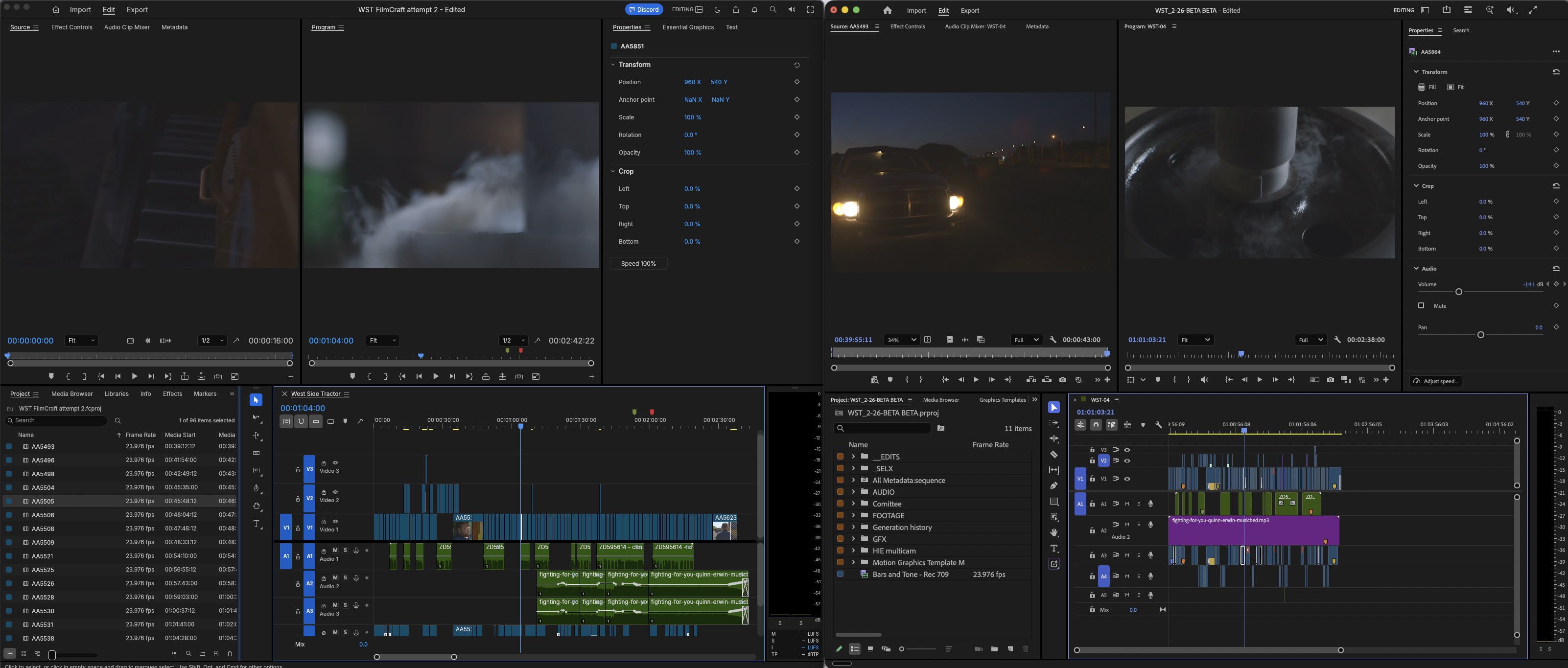
Whenever I test a serious video editing tool, I pull out a simple test edit I have used to test many post-production tools over the years. It’s a corporate project, shot mainly on Canon cameras, so it’s a supply of 1920×1080 .mxf media with a few drone shots thrown in for good measure. Add in a voice-over, some music and an ending title card, and you’ve got a nice base for a test.
To make this work, I have both XML and AAF exports of the final edit, so let’s give this a try.
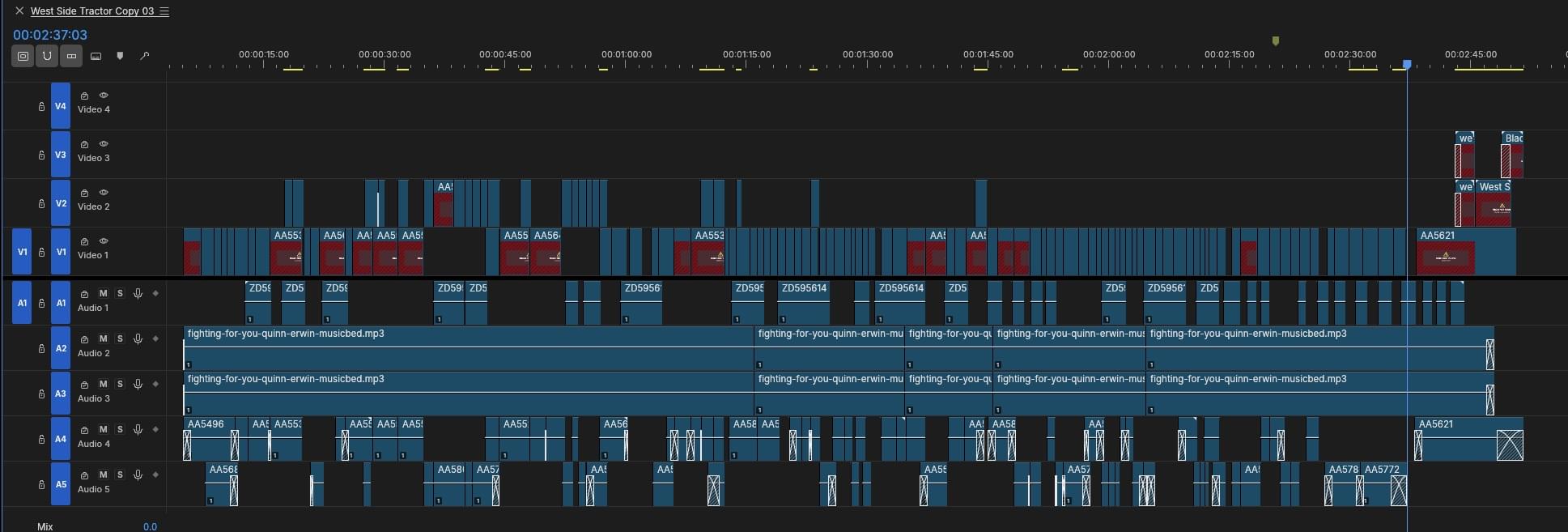
To my surprise, FilmCraft imported both the XML and AAF and quickly gave me what looks like a properly formatted timeline of this edit.

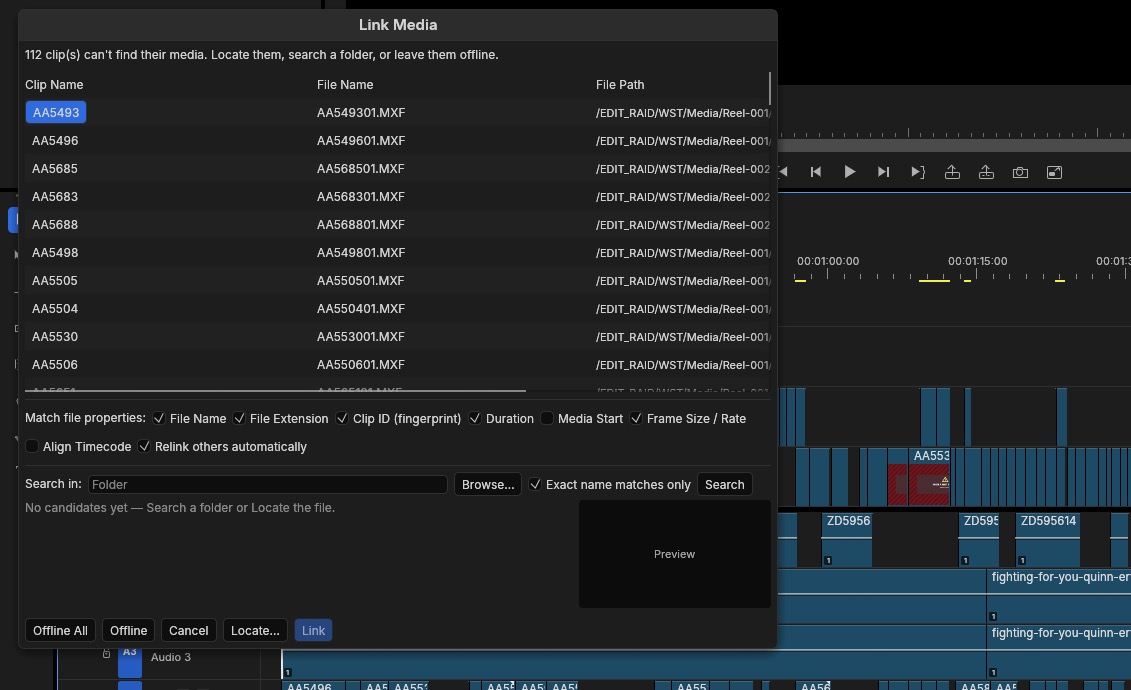
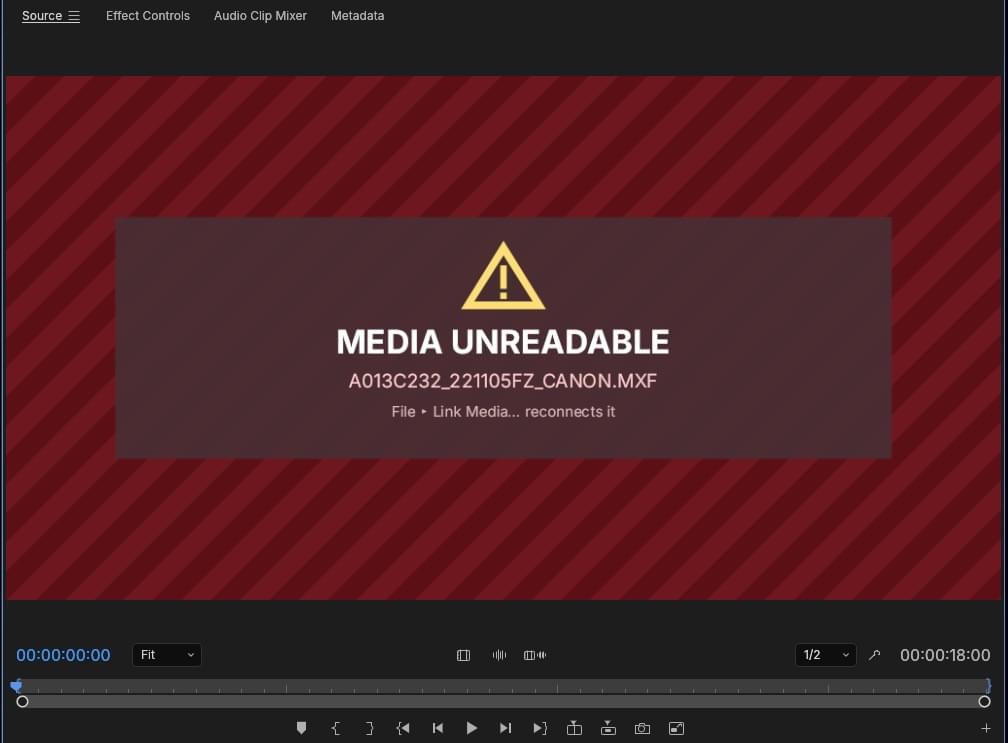
But try as I might, I could not make FilmCraft relink the media, despite a very familiar-looking Relink dialog box.

I have XMLs and AAFs for this project exported in several different list formats, and with one of those, I was able to import the timeline with media intact.
- One thing I noticed that FilmCraft never did was ask for any permissions on macOS, whether it’s accessing an external drive or the Downloads folder. Even when you’ve adjusted your macOS security preferences to allow installing applications outside the Mac App Store, you still often have to adjust or click through security gates. FilmCraft had none of those. That’s a bit of a red flag right there, though I’m not saying FilmCraft is doing anything evil. It’s just different.
The Good
On the most basic level, being able to import some clips, mark IN points and OUT points, string stuff together, add some effects and text, and output a completed program … it kind of works.
And if you know your way around Premiere, then it will be quite familiar, as FilmCraft is quite literally a clone of Premiere.
There are a few unique things that would be nice to see in Premiere, or any other NLE really.

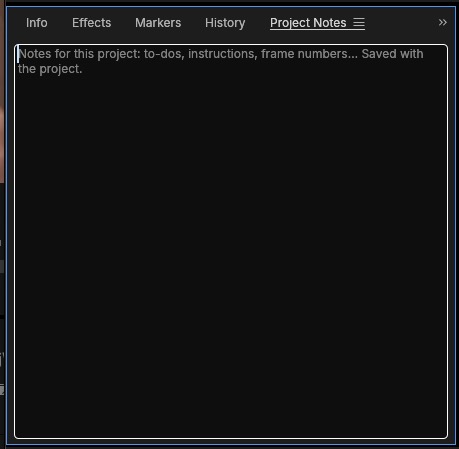

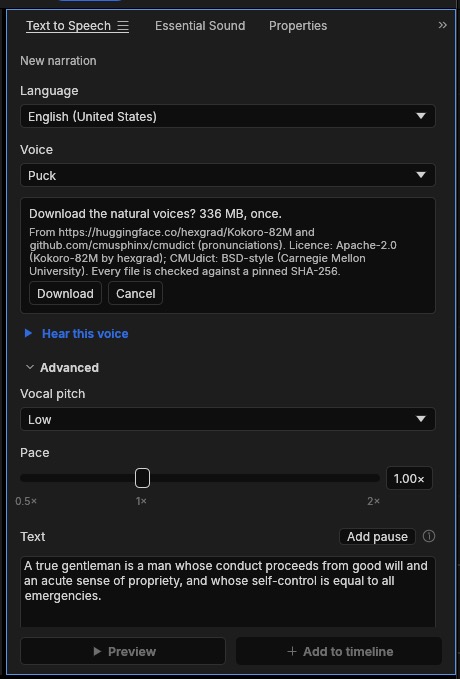

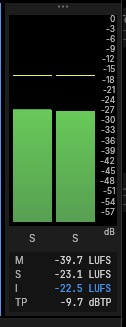
I wouldn’t say it’s optimized for exporting, though, but more on that in a bit.

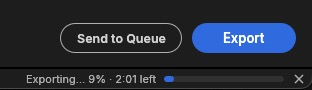
I also noticed how small FilmCraft is. It’s built in the Rust programming language, and while I don’t know much about that, I just thought those differences in size between the two applications were striking.
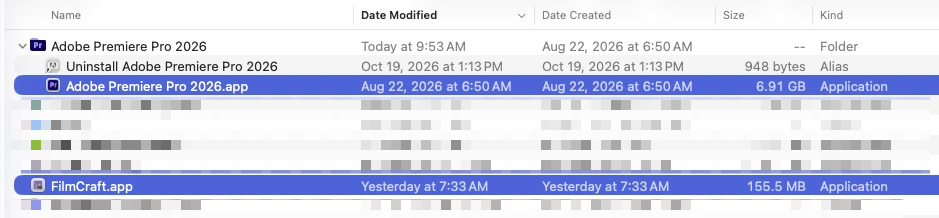

FilmCraft doesn’t have third-party extensions and tools that allow it to dynamic link and integrate with other apps in a suite so there’s a lot more going on under the hood with Premiere, but still, that’s a pretty big difference in size. I checked the package contents of this Premiere install, and I didn’t see any errant render files or outputs that had gotten in there. So I feel like this is pretty much how big the application is. Older Premiere installs are also around the same size.
The Bad
The very first thing I noticed upon opening FilmCraft was that when I double-clicked a clip to load into the source monitor, I couldn’t just scrub underneath the image to move the playhead. I had to literally click and grab the tiny playhead itself to scrub it.
I threw in a bunch of different media formats, and for the most part it could read everything, though playback wasn’t smooth on all of them.

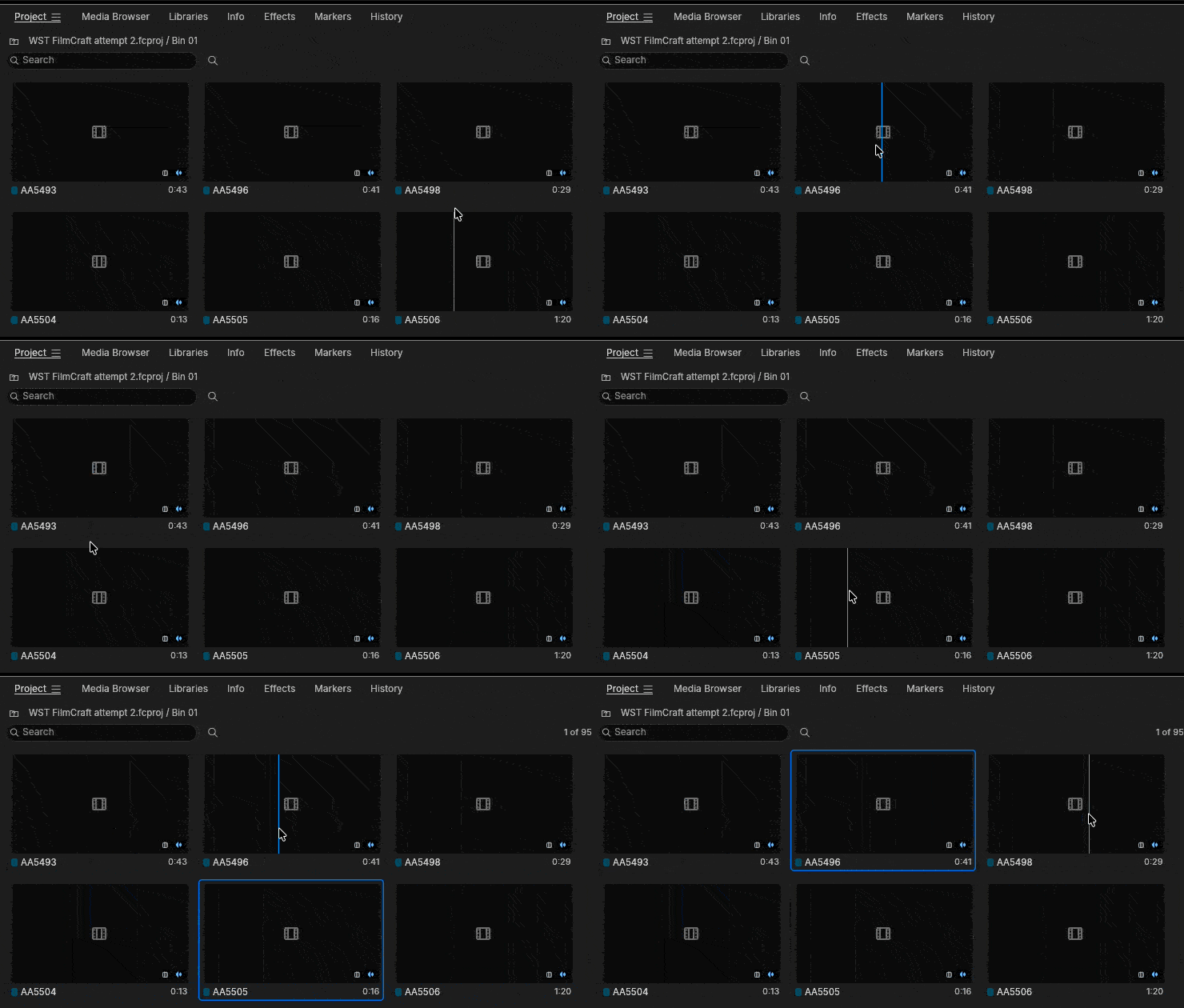
A lot of things just don’t really work. For example, after importing my XML, I have a bin full of clips and my single edit sequence. I wanted to select all my clips and put them into a bin, so I hit Command+A (Select All ) in the Project panel. What happens? It selects all of the clips in the timeline. 🤦♂️🤦♂️
That’s okay, since I can still shift-select all the clips in the Project panel and drag them down to the bin icon in the lower-right corner and FilmCraft will create a new bin with all those clips, right? Wrong. Doesn’t work. At least File > New > Bin from Selection does work. But FilmCraft makes me go back in and right-click that bin to be able to rename it. Unlike Premiere, which creates the new bin and leaves the name field editable and ready to type a new name. Because you should always name a new bin and not leave it named Bin 1.

These are small, niggling things that are easy to fix, but they’re big annoyances for an experienced editor. But honestly, I don’t think any experienced editor will do extensive work in free, vibe-coded software. That’s not to say there aren’t people who want to try, like me.
One of my favorite things about Premiere is Hover Scrub and all the functionality it brings.

What really doesn’t work very well is trimming and doing extensive work in the timeline. The first odd example was quite literally my first trim with the mouse in the timeline.

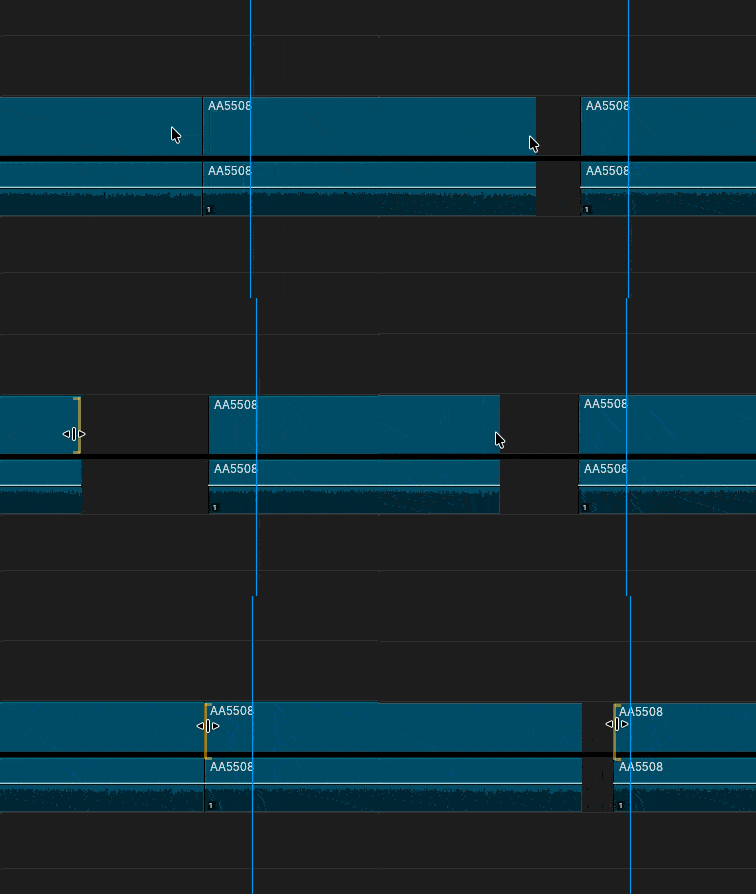
Only the eagle-eyed editors here might notice what is wrong in the trim above. Any takers?
This is with all preferences and tools at their default. A yellow trim indicator is supposed to be a ripple trim, and in the above GIF, I see yellow and a ripple trim; this ain’t. So let’s try that same trim with the ripple edit tool.
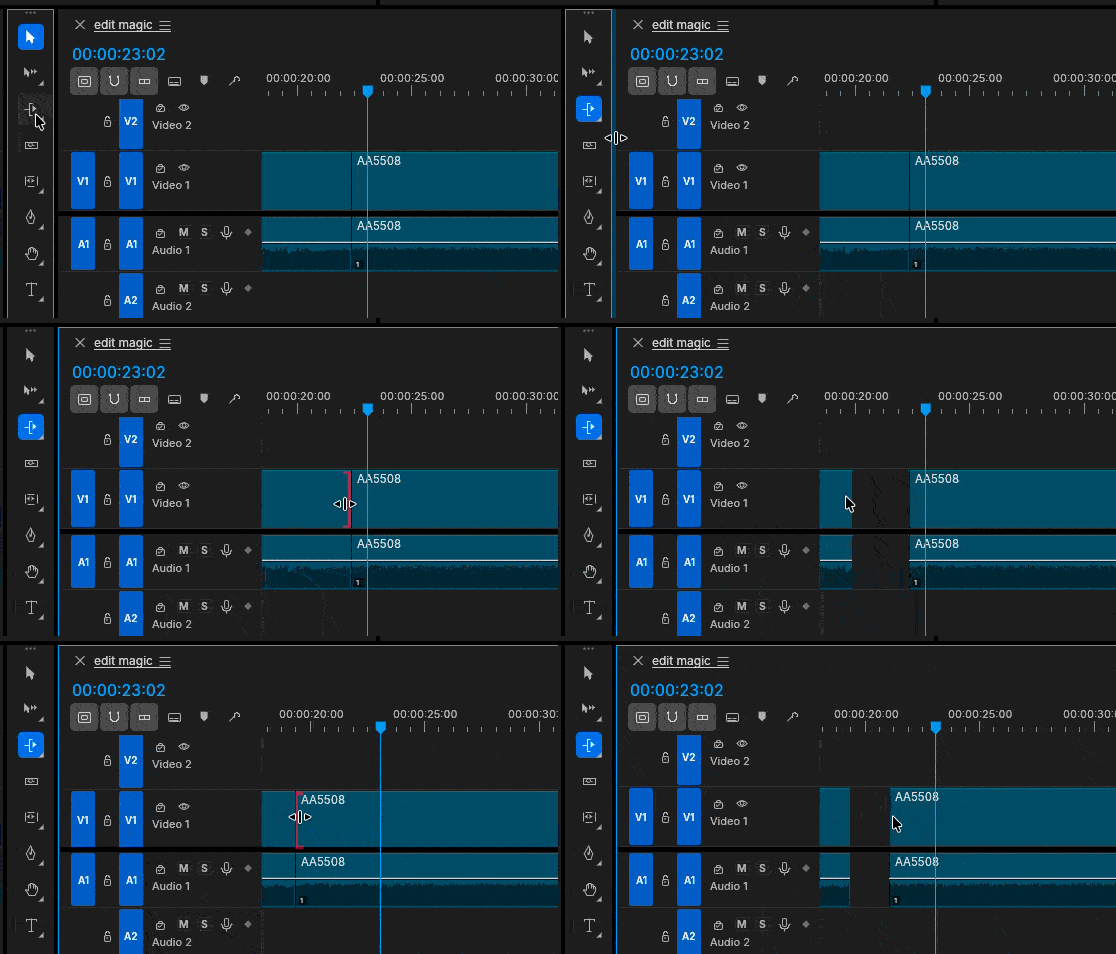

That kinda worked, but the trim edge indicator is red. Red does not mean ripple trim. Not in Premiere, not in Avid, not in Resolve. But I guess it does in FilmCraft!
But the Q and W trim shortcuts work!

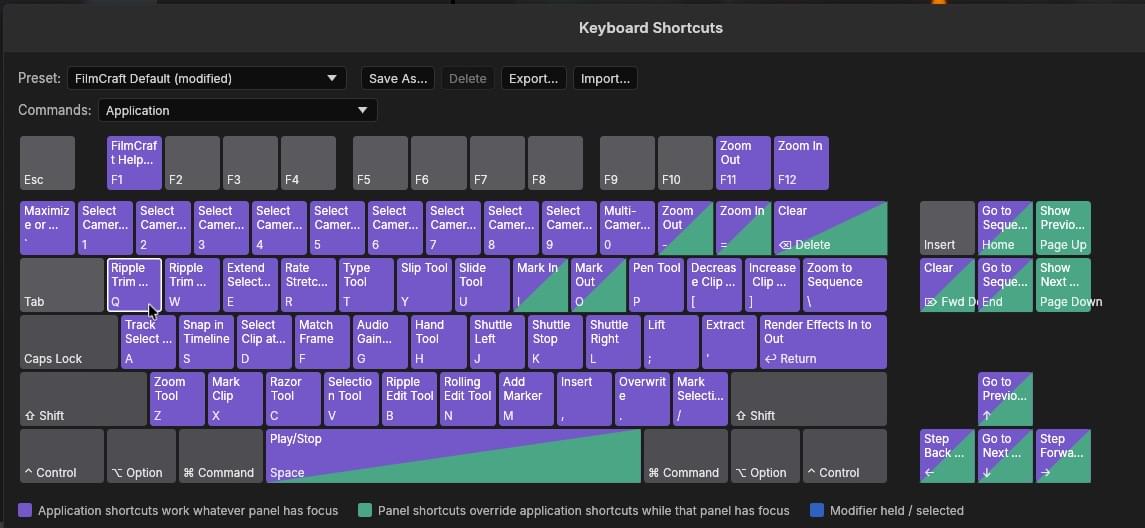
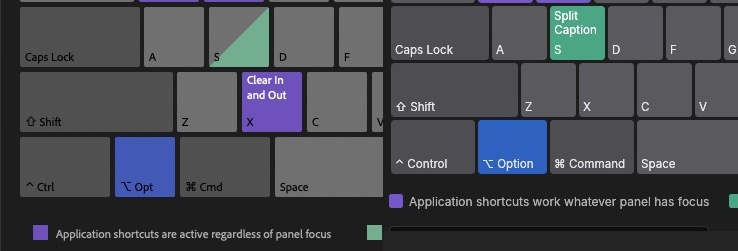
But then there are keyboard mismatches. While I have a very customized keyboard layout, one of the first things I did was mark an IN to OUT point on a clip with the default Mark Clip with the x key. That worked. What didn’t work was delete for a delete between those IN to OUT points and option+delete for a ripple delete. This is where Premiere has some nuanced functionality: how it handles a clip selected in the timeline via a mouse click, and how it handles a clip selected between IN and OUT points. It can be a bit complex to understand, but incredibly powerful once you do.

The Ugly
Often you do things, and FilmCraft just sits there or gives a beachball. That doesn’t mean it isn’t working in the background, since it’ll often catch up and complete the task. A beachball is never a good sign, but to be fair, you can get a beachball every now and then in any NLE.
And there are things that are just different from how it works in Premiere or things that don’t work at all. So if you’re legitimately an expert in Premiere and you think you’ll jump to FilmCraft and move with equal speed and precision, that’s not going to be the case.
For example, if you want to use the Mark Clip command, which is defaulted to X on the default keyboard, to mark an empty space in the timeline from in to out, either for Ripple Deleting or for overwriting new media, that just doesn’t work in FilmCraft.

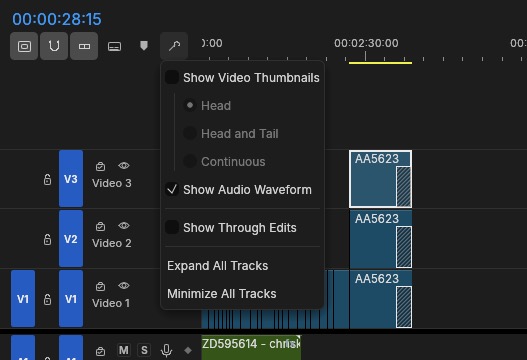
If you work with complex timelines with a lot of tracks, you may use the very useful Command Swipe option to quickly solo, mute, or turn track headers on and off. That doesn’t work in FilmCraft. I see no keyboard shortcuts for moving source patching in the timeline.
There is a Create Multi-Camera Source Sequence option, not under a sub-menu but under the Clip menu.

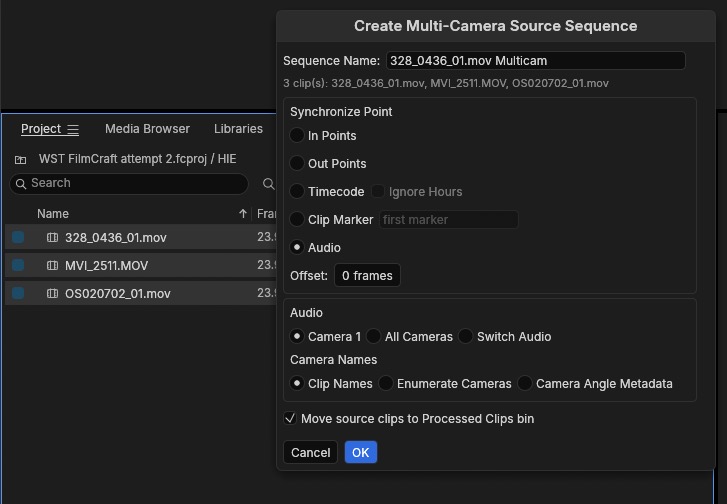
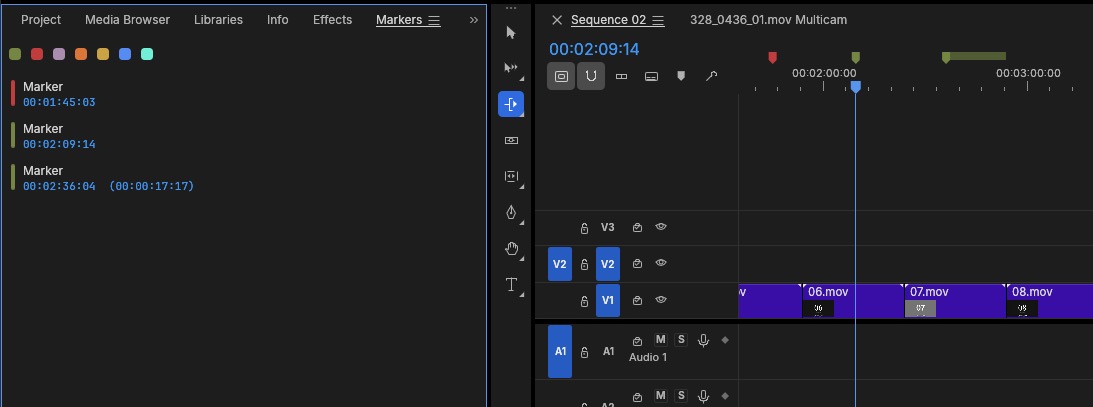
It successfully synced three camera angles, but instead of giving me a multicam clip, it just stacked those three angles in a new timeline. But I was able to take those three angles, nest them, and then enable multicam to get a true multicam clip. And there is a multicam mode that did successfully let me do some camera switches. That said, it had a lot of trouble playing back three 1080 angles.
And then there was exporting. I took the same 2-minute and 30-second timeline and sent it to the Export tab, exported as an H.264 1080p High Quality.
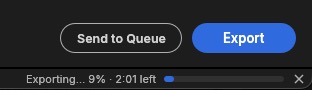
FilmCraft export time: 2 minutes and 20 seconds
Premiere export time: 11 seconds
That was quite the difference. So I tried a five-second timeline made up entirely of ProRes proxy media, and exported that as a ProRes proxy QuickTime.
FilmCraft export time: 55 seconds
Premiere export time: less than 2 seconds
That was not using fast previews, but since I was exporting in exactly the same ProRes codec I did get smart rendering. That’s why it went so fast, so I thought I would export to a different codec.
Premiere export time to different ProRes flavor: less than 10 seconds
I think that shows Adobe Premiere has a lot more under the hood when it comes to exports and rendering than FilmCraft. I would expect that, with all the work Adobe has done over the years optimizing delivery and export. In fact, I’m sure there are many under-the-hood things like that. That’s a professional, high-end video editing application that has development teams and deep internal support. yes, you have to pay something for it, but you get what you pay for.
Conclusions
There is no doubt that getting a clone of Premiere this far along is an impressive feat. This would never have been possible without AI. And the fact that ArtCraft has clones of so many other high-end tools is even more impressive.

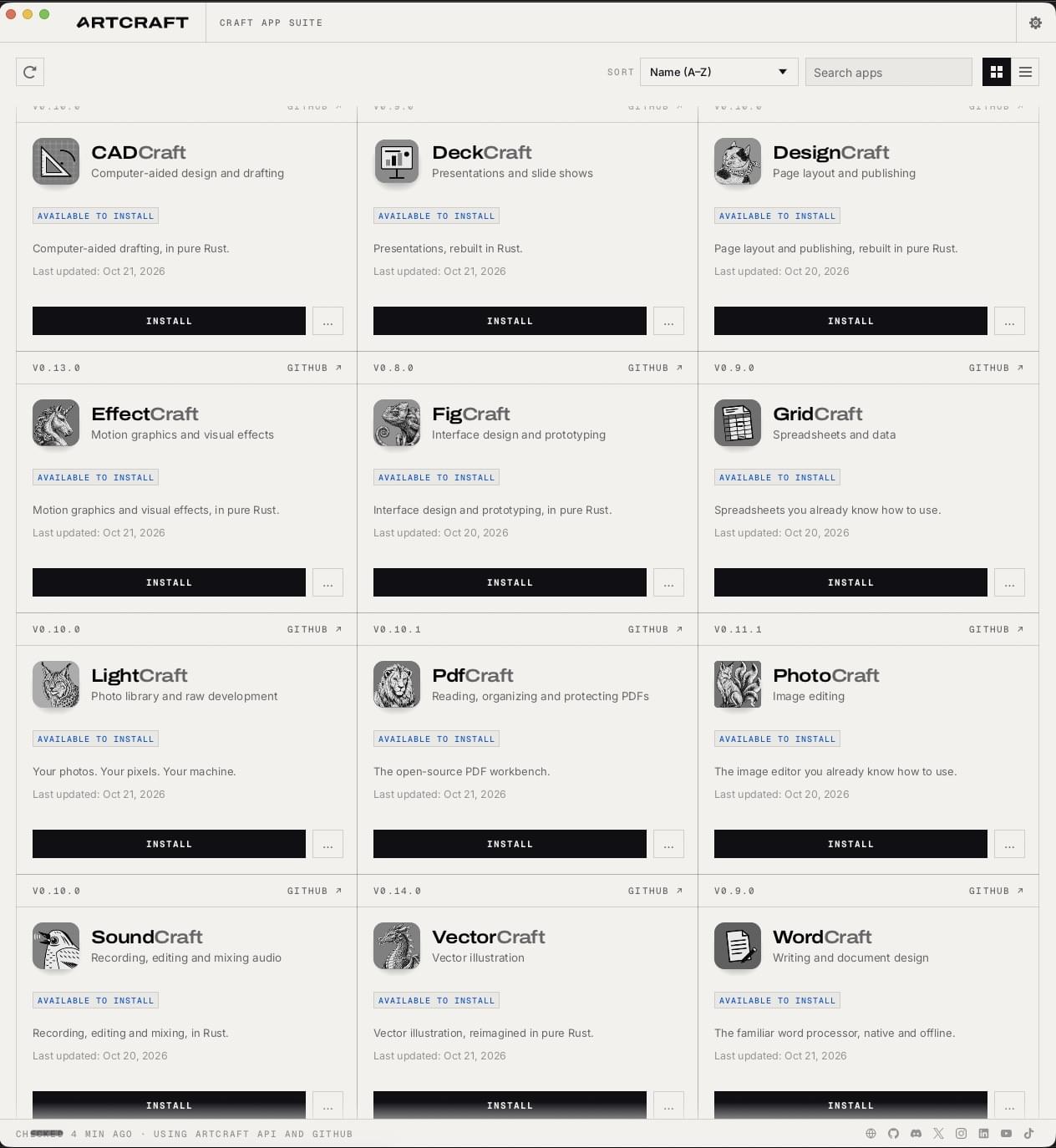
The big question is who is behind this project, and there are deep rabbit holes to go down about ArtCraft itself. It doesn’t seem like a hidden bunch of coders in a dark room, and the creator seems quite proud of what he’s made. I’m not an attorney and certainly don’t know the legalities of vibe-coding something so close to high-end apps made by multi-billion-dollar companies. So I think the question everybody wonders is what the legalities are behind this.

FilmCraft uses a lot of Adobe-specific terms, such as Lumetri, Essential Sound and Essential Graphics. I don’t know how legal or illegal that might be, so I’m sure Adobe’s lawyers are looking at that as you read this.
I think the real question is: will people legitimately move to something like FilmCraft over Premiere or Resolve or Final Cut Pro or Avid Media Composer or any paid piece of video editing software? I’m sure some will, and if you read social media, then there are a lot of YouTubers and content creators who exclaim FilmCraft to be the death of all paid video editing software. And I say let that crowd move on, and I hope they enjoy themselves. Video editors who even make a moderate income from what they do can easily afford their editing tools, and most of us are happy to support their continued development. Our livelihoods depend on these tools, and we like to know who makes them. We want to know they’re secure, that we can get support, and that they’ll keep getting updates over time. I’m not sure the same applies to the ArtCraft tools. But more than anything, at least as far as their video editing application goes, it doesn’t work as well.