


Welcome to Tool Tip Tuesday for Adobe Premiere on ProVideo Coalition
I love the audio meters. I don’t always love having the audio mixer panel taking up real estate.
Scott showed you a couple of weeks ago how to customize your track header at minimal track height and still be able to see the track names. This tip is a small extension of that idea.
Adding meters to your track header
Yeah, you can add track meters to your track header. It’s been there for years
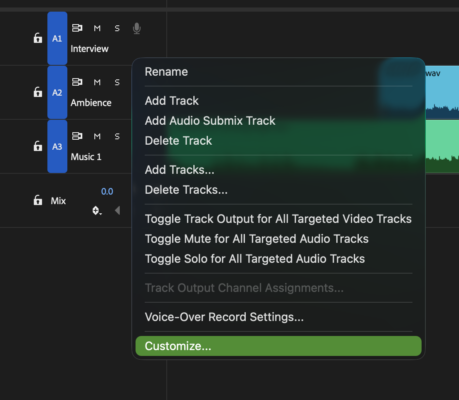

Right-click any track header and choose Customize…. You’ll see per-track audio meters as an option.
Drag them to the header.
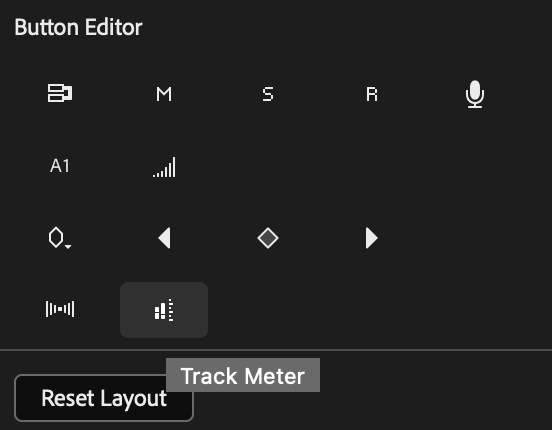

The only limitation is that tracks need to be tall enough to be visible.
That’s what I want, but I only get 3 or 4 tracks on a laptop screen.
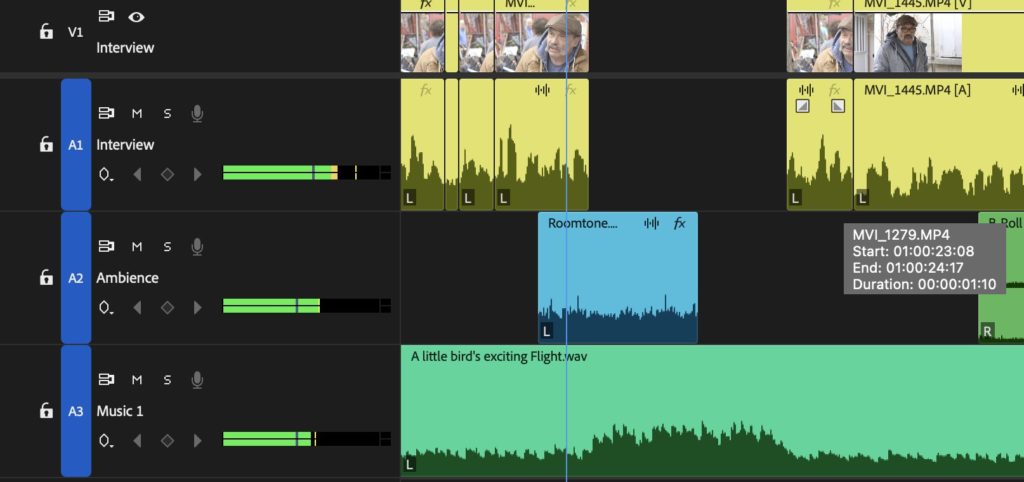

Minimum height with meters.
Here’s where Scott’s tip connects.
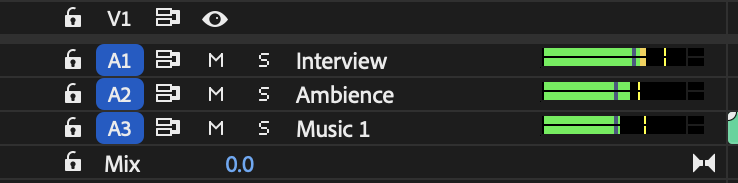
Drag out everything you don’t need from that header area. I had to do this twice. It’s not giving clear feedback when you drag downwards. You can drag elements downwards off a track panel. I got rid of the keyframes, the record button, everything other than sync locks, mute, solo track name, and meters
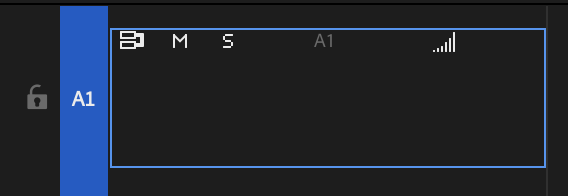

Finally, pull the meters to the right. Key is to have everything in a single line.
Now I can have 10+ tracks and see the meters while they’re playing. One day, it’d be nice to have a preset for these.

Key takeaways
You can watch audio playing across all your tracks without opening the mixer at all. That’s not a replacement for the mixer when you need it. But it’s fantastic for when you’re cutting, and there are loads of tracks. You’ve got everything you need without giving up screen space.
This series is courtesy of Adobe.