


Welcome to Tool Tip Tuesday for Adobe Premiere on ProVideo Coalition
There was a thread on Reddit recently about an Avid editor coming over to Premiere Pro. They thought that because they couldn’t find a specific feature, that they were out of luck of feeling comfortable.
A lot of the discussion came down to discoverability: the small editorial features that make a difference, but aren’t easy to figure out.
Swap edit is one of them. If you’re coming from Avid, this is what you know as yellow arrow segment mode.
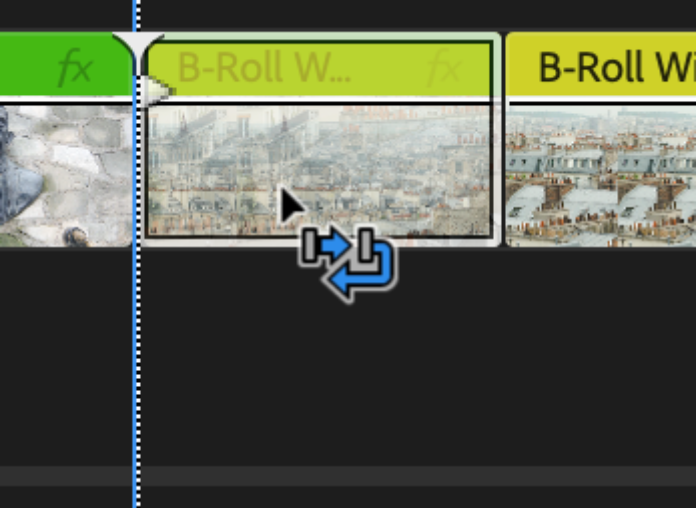

What I want to focus on is what happens when you grab a clip, or a series of clips, and drag them to a new spot in the timeline.
The default drag is an overwrite
By default, clips that are dragged overwrite what the “lay on top of”. It’s called Overwrite. They’re writing over the existing material.
The modifiers you might already know
Insert: Hold the Command key (Ctrl on Windows) while dragging, and you’re pulling the clip from where it was and doing an insert at the new spot.

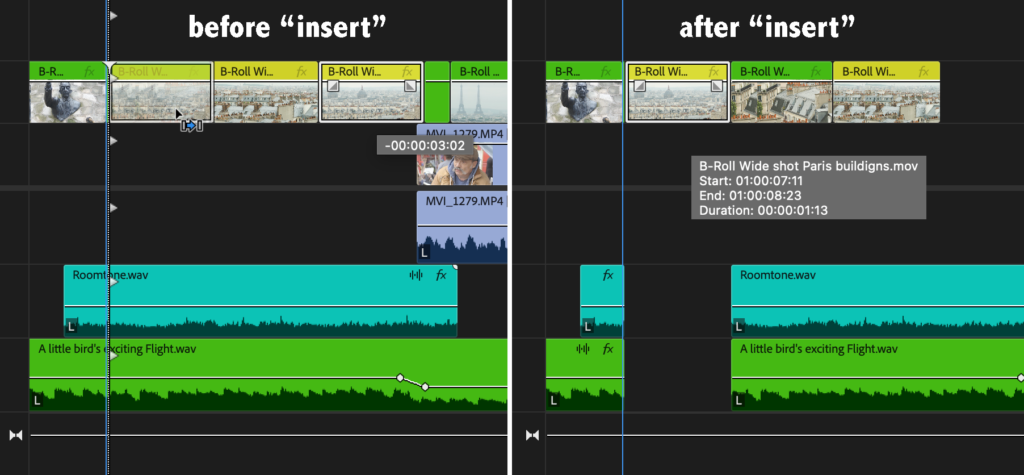
Copy: Hold the Option key (Alt on Windows) before you start the drag, and you get a copy of the clip. That’s really useful if you’re building a stack of the same clip and using masking or other techniques to reveal parts of it.
What about Copy/paste?
Say I want to take a clip or clips out of one section of the timeline and move them to the left, with everything else moving down to fill in. I don’t want to overwrite what’s there. I don’t want to insert into what’s there, pushing everything down. I don’t want a copy.
Copy and paste don’t do this. Paste is an overwrite, because copy/paste writes over whatever material is there when you hit paste.
What you want is a swap edit.
Swap edit
Start dragging the clip, then hold down Command+Option (Ctrl+Alt on Windows). After the clip starts moving, you’ll get this cool sort of hook arrow. Drop it, and the clip lands where you put it while the other clips move to close the gap it left behind.
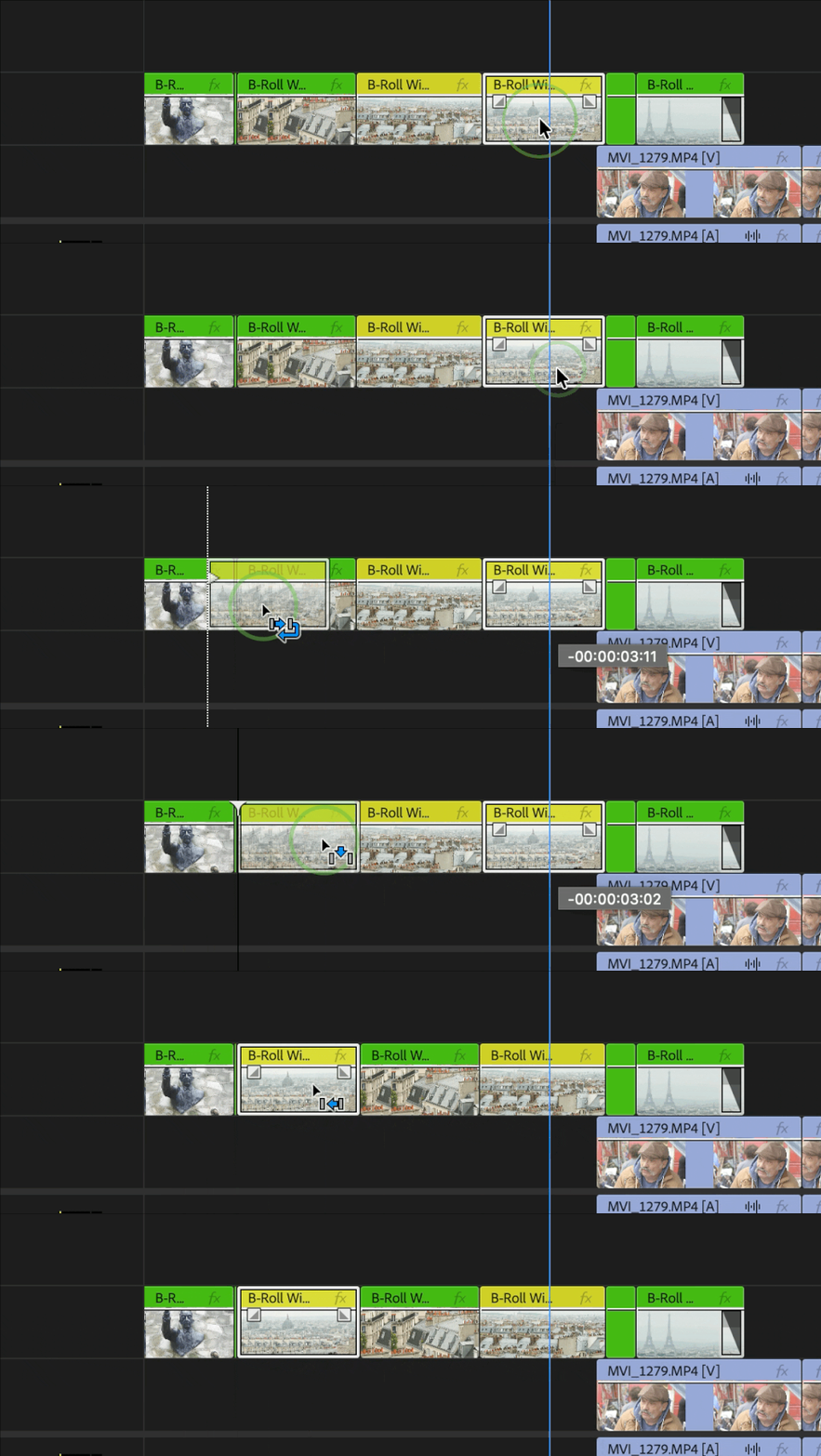

It only works on the same track. Drag to any other track and you’ll see an insert cursor instead.
Where I use it – montages and quick movement
Swapping shots around in a montage. Moving interview sound bites. Anywhere I need clips to change position and displace their neighbors instead of overwriting them. I just want to swap their position from where they are to this spot here.
Final thoughts
This whole column is built on the idea that we don’t judge how you work.
We want to help you understand the underlying functionality of the tool beyond that just a button exists.. Swap edit is one of the best features editors miss because the discoverability is a little difficult or they don’t know the actually wanted/needed it. Try it out. It’ll be one of those tools that you didn’t know how you lived without.
This series is courtesy of Adobe.