



On a lot of projects, the audio arrives in uneven shape. Lavs and booms recorded in different rooms, ambience that changes shot to shot, a music bed baked into a scene that was never meant to carry one. The editor ends up triaging dialogue long before it gets near a final mix, and the available fixes tend to be blunt: a noise-reduction pass that thins the voice, or a second tool that fixes one problem and introduces another.
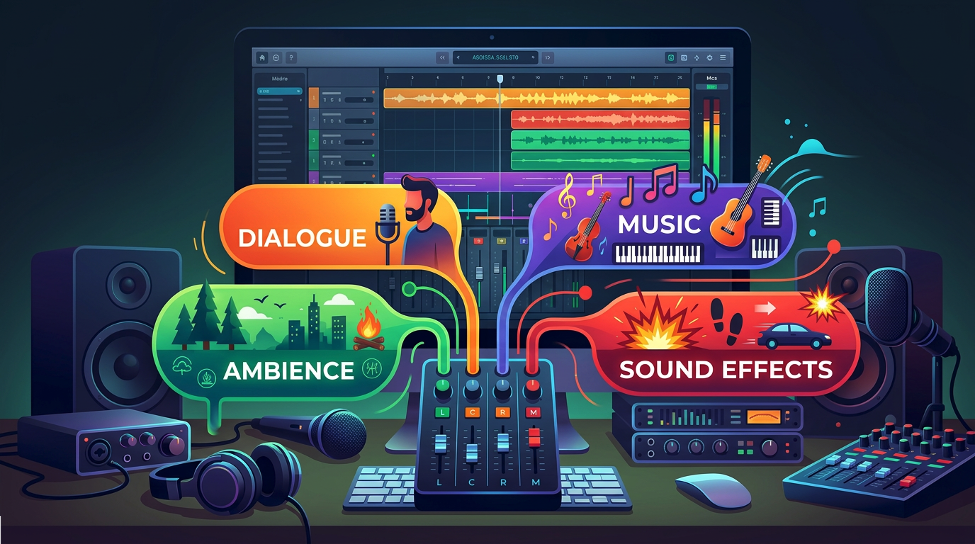
Enhance Audio, available in the Premiere beta, is aimed squarely at that triage. Instead of treating a recording as one blended signal, it separates speech, music, ambience, sound effects, and reverb in a single pass, then gives the editor a control for each, in the timeline.
Control that matches the problem
The dialogue controls map to the decisions editors actually make. Volume lets you ride the speech level on its own. Enhancement sets how much cleanup the voice gets, from untouched to the full treatment. Reverb takes the room off the voice only, so it is useful on reverberant recordings and nearly invisible on dry ones. Music, ambience, and effects each have a volume and a mute. The practical effect is that a clip with a fused music bed or a noisy room is no longer an all-or-nothing call.
The design is a hybrid. Source separation runs on-device. The voice enhancement runs on Enhance Speech V1, fully local, or Enhance Speech V2, Adobe’s highest-quality voice model, which runs in the cloud through Firefly.
What it costs to keep editing
The model choice becomes a planning question once you consider how editors actually work, which is to say, constantly changing their minds. Each enhancement carries five seconds of handles on each side. Trims inside the handles need nothing. Cuts, fades, and trims on an enhanced clip no longer trigger a re-render, which was a frustration on Enhance Speech V1 alone. The only time Premiere goes back to work is when you extend past the handles into material it has not analyzed, and then it processes only the new section.
On V2, that reprocessing draws generative credits at two per minute, for the speech enhancement only, from the pool included with a Creative Cloud subscription. On V1 it costs nothing. One way to think about it, and this is a suggestion rather than Adobe guidance: if a cut is still moving, V1 may be the sensible pass, with V2 reserved for the clips you intend to lock. Test that against your own material, since you set the model globally in Preferences and can switch per clip.
Stems you can hand off
For anyone preparing a turnover, Split to Clips is likely the most interesting option. It places speech, music, ambience, and effects on the timeline as separate clips, each of which can be edited, leveled, and moved independently. The result is a cleaner clip and also a more useful starting point for whoever works the stems next.
Where it still needs your ears
Separation does not finish a mix. Audition the dialogue alone, then in context, and back off Enhancement if the voice starts to sound processed. Recheck how music and ambience sit against the cleaner dialogue, match levels across clips, duck music where it competes with speech, and check on more than one playback source before delivery. Treat the separation as the start of the mix, not the end of it.
What it means for the edit
Taken together, the benefit for editors is fewer handoffs and fewer compromises. Dialogue cleanup that used to mean bouncing between tools, or accepting one blended pass, can now happen where you are already cutting. Because the layers stay separable, you can make the call on a noisy room or a stray music bed as part of the edit rather than as a rescue job later. And because trims and fades no longer trigger a re-render, the cleanup does not slow down the part of the job where you are still making decisions.
It will not replace a good recording or a good mix. What it changes is how much of a rough clip you can bring back into play, and how much control you keep once you do. For editors who spend their days deciding which problem clips are worth saving, that is a meaningful shift.
Enhance Audio is in the Premiere beta. The beta is available from your Creative Cloud downloads. Run it on your hardest clip and see what holds up.