


Here we are, many months after the debut of Apple’s newest Mac Studio, the M3 Ultra, doing a review. The M3 Ultra is Apple’s top-of-the-line Mac Studio. While we recently saw the debut of the M5 chip in new MacBook Pros, that is a base chip without any Pro and Max variations, and only available in the smallest MacBook Pro. (I don’t think that’s going to be a choice for high-end professionals.) The M3 Ultra is the pinnacle of performance and only available in the Mac Studio.


I don’t know about you, but with the recent introduction of the M5 chip and the 14-inch MacBook Pro, the M series of Macs is starting to get a little bit confusing. Is an M5 better than an M3 Max? There are a lot of M-series chips out there now, and in the world of AI and ChatGPT, I asked him her it to round up the M-series chips going back to the original M1 so we can take a walk down memory lane.
-
M1 (base)
• ProRes hardware: ProRes decoding supported in hardware; no dedicated ProRes encode accelerator in the original M1 family (M1 Pro/Max introduced ProRes acceleration).
• Where used: MacBook Air (M1), 13″ MacBook Pro (M1), Mac mini (M1).
• Source / note: Apple introduced the ProRes hardware accelerators with the M1 Pro / Max family — original M1 is limited to the standard media decode/encode blocks and is commonly documented as having ProRes decode support but not the dedicated ProRes encode accelerators of Pro/Max. reneritchie.net+1 -
M1 Pro
• ProRes hardware: 1 ProRes encode & decode engine (Apple describes a ProRes accelerator in the M1 Pro media engine).
• Where used: 14″ / 16″ MacBook Pro (M1 Pro configs).
• Source: Apple specs / newsroom for M1 Pro. Apple Support+1 -
M1 Max
• ProRes hardware: 2 ProRes encode & decode engines (M1 Max adds a second ProRes accelerator; higher throughput than M1 Pro).
• Where used: 14″ / 16″ MacBook Pro (M1 Max configs), Mac Studio (configurable M1 Max).
• Source: Apple specs / newsroom. Apple Support+1 -
M1 Ultra
• ProRes hardware: Double M1 Max → 4 ProRes encode & decode engines (M1 Ultra is essentially two M1 Max dies combined; Apple explicitly says double the media engine capability).
• Where used: Mac Studio (M1 Ultra configuration).
• Source: Apple newsroom / Mac Studio spec pages. Apple+1 -
M2 (base)
• ProRes hardware: Base M2 has the Media Engine with ProRes support for decode/encode in the standard media block (Apple’s language is “ProRes” is supported in the media engine), but ProRes accelerator counts rise in the Pro/Max variants (see M2 Pro/Max). In practice the base M2 shows one ProRes engine listed in device specs (media engine with ProRes).
• Where used: MacBook Air, some Mac mini / MacBook Pro base configs.
• Source: Apple M2 newsroom/specs. Apple -
M2 Pro
• ProRes hardware: 1 ProRes encode & decode engine (Apple states M2 Pro’s media engine includes ProRes encode/decode).
• Where used: Mac mini (M2 Pro), 14″/16″ MacBook Pro (M2 Pro configs).
• Source: Apple spec pages. Apple Support+1 -
M2 Max
• ProRes hardware: 2 ProRes encode & decode engines (M2 Max doubles the ProRes accelerator resources vs M2 Pro).
• Where used: 14″/16″ MacBook Pro (M2 Max configs), Mac Studio (configurable in some models).
• Source: Apple newsroom/specs. Apple -
M3 (base) / M3 Pro
• ProRes hardware: M3 family’s media engines add ProRes support; M3 Pro provides the media engine with ProRes acceleration (Apple lists ProRes in the M3 Pro media engine). The M3 Max is the model with two ProRes engines.
• Where used: MacBook Pro (M3, M3 Pro/Max configurations), Mac Studio (M3 Ultra option).
• Source: Apple M3 announcement/specs. Apple -
M3 Max
• ProRes hardware: 2 ProRes encode & decode engines (Apple explicitly: “with two ProRes engines” for M3 Max).
• Where used: MacBook Pro (M3 Max), Mac Studio (configurable).
• Source: Apple M3 release text. Apple -
M3 Ultra
• ProRes hardware: 4 ProRes encode & decode engines (M3 Ultra doubles the M3 Max media resources — Apple advertises “four ProRes encode and decode engines” and gives stream-playback counts).
• Where used: Mac Studio (M3 Ultra configuration).
• Source: Apple newsroom for M3 Ultra / Mac Studio specs. Apple+1 -
M4 (base) / M4 Pro
• ProRes hardware: M4 and M4 Pro include ProRes acceleration in the media engine; M4 Pro typically shows a single ProRes engine in Apple specs (media engine: ProRes encode/decode) while M4 Max adds more.
• Where used: MacBook Pro (M4 Pro), Mac mini (M4 / M4 Pro), Mac Studio (M4 Max).
• Source: Apple M4 specs. Apple+1 -
M4 Max
• ProRes hardware: 2 ProRes encode & decode engines (Apple explicitly calls out “two ProRes accelerators” / “two ProRes encode and decode engines” for M4 Max). This gives substantially higher ProRes encode throughput vs the single-engine Pro/regular chips.
• Where used: Mac Studio (M4 Max), MacBook Pro (M4 Max configs).
• Source: Apple M4 Pro/Max release and Mac Studio / MacBook Pro specs. Apple+1 -
M5 (base) and M5 Max / M5 Pro / M5 Ultra (where applicable)
• ProRes hardware: Apple’s Oct 2025 M5 family press materials list a modern Media Engine with ProRes support; Apple spec pages for M5-based Macs show ProRes encode & decode acceleration in the media engine. Apple publishes per-SKU counts (single vs two vs four) on product spec pages — for example the base M5 entries show a single ProRes engine in the media engine while the higher tier Max/Ultra-equivalents would list two or four as appropriate. Exact counts for every M5 variant should be read from the Mac model spec page you care about (MacBook Pro, Mac Studio, etc.).Apple+1
One question I often see asked is, “Should I buy a Mac Mini or a Mac Studio?”
I’m a big believer in buying the best system you can afford at the time. We’ve even published a buyer’s guide here on ProVideo Coalition. I’ve reviewed quite a few Apple silicon Macs myself, from the M1 Ultra Mac Studio to the M3 Max MacBook Pro to the Mac mini, always taking time to compare when I can. Mac Studios have a long shelf-life, and you can get years out of a Mac Studio in your edit suite. The extra connectivity is a big plus on the Mac Studio:
- M4 Pro Mac mini: 3 Thunderbolt 5, 2 UBS-C
- M4 Max Mac Studio: 4 Thunderbolt 5, 2 USB-C, 2 USB-A
All video editors these days have a lot of portable SSD drives, so those ports fill up fast. I still use the USB-A ports of a Resolve dongle and peripherals. And when you consider price, they aren’t that far apart.
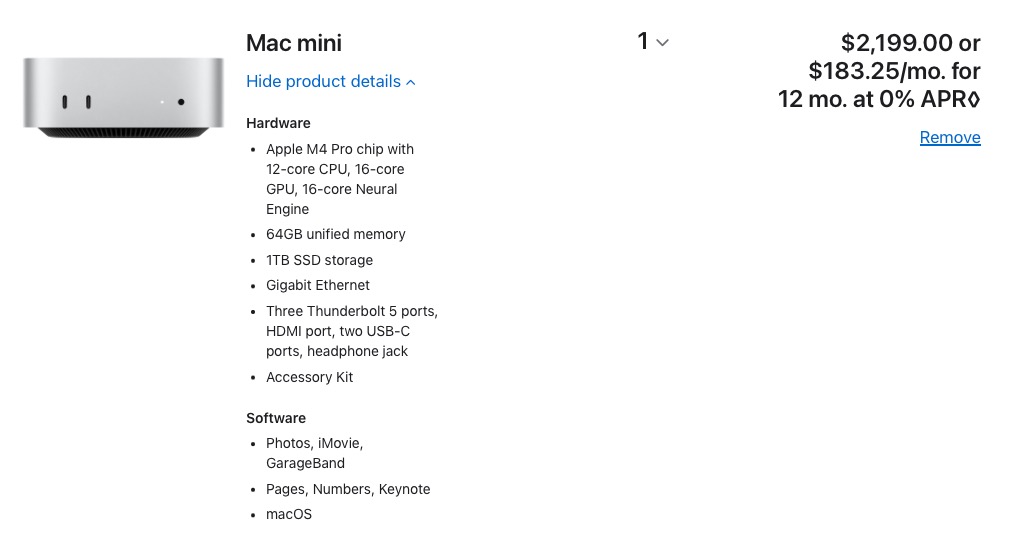


That’s only $700 difference for similar specs. $700 for more ports, a faster processor, faster memory bandwidth, more GPU cores, and better cooling just to name a few, that’s well worth $700 IMHO. And you’re going to get a longer life out of the Mac Studio. As video editors, we’re using most of that power.
Okay, but what about the tests
When I do tests like this, I always try to do them on real-world things I am working on. I recently had a job that was partially creating 9×16 talking head content for social media. This was shot with the camera lying on its side on a green screen. Each clip was composited on a static background with a PNG graphic element
36 minute 9:16 green-screen interview, keyed with a png background and a png foreground element. Basic color correction. Exported to H.264 YouTube preset.
| Adobe Premiere Pro | DaVinci Resolve | |
| M3 Ultra Mac Studio | 4:28 | 9:15 |
| M2 Max Mac Studio | 5:28 | 16:31 |
| M1 Ultra Mac Studio | 4:56 | 10:56 |
| M4 Mac mini | 20:24 | 27:43 |
| M3 Max Macbook Pro | 5:09 | 16:48 |
36 minute 9:16 green-screen interview, keyed with a png background and a png foreground element. Basic color correction. Exported to ProRes 422.
| Adobe Premiere Pro | DaVinci Resolve | |
| M3 Ultra Mac Studio | 4:16 | 8:51 |
| M2 Max Mac Studio | 8:53 | 15:26 |
| M1 Ultra Mac Studio | 5:38 | 10:03 |
| M4 Mac mini | 14:28 | 27:11 |
| M3 Max Macbook Pro | 8:36 | 16:10 |
This was a pretty processor-intensive output with color correction, keying, resizing, and things of that nature. Doing these outputs on the MacBook Pro would instantly crank up the fans, which in a quiet edit suite can get quite loud. While the Mac Mini uses a similar processor, I don’t remember hearing the fans crank up, so it obviously has some better cooling in the different form factor.As always, I don’t think I’ve ever heard of Mac Studio. It is as silent as can be while cranking through its work.
On the MacBook Pro output, I noticed that the ProRes output was just under twice as long as the H.264 output. I made the ProRes output right after the H264 output, so the fans were cranking and the MacBook Pro was running hot. Would it be quicker after it had time to cool? I shut the machine down and let it cool for an hour, but the output time was still 8:42.
On another job, I had to create a loop out of various clips from many years of an awards show. It was a simple edit but several different formats with a graphic transition between them. I cut this in Adobe Premiere Pro but it was an easy edit to translate to other NLEs to compare the export times.
1 hour 43 minute program, 1080 29.97, mainly ProRes sources (some H264, XAVC), output to H264 Youtube preset
| Adobe Premiere Pro | DaVinci Resolve | Final Cut Pro | |
| M3 Ultra Mac Studio | 8:19 | 19:11 | 10:40 |
| M2 Max Mac Studio | 11:20 | 25:56 | 22:40 |
| M1 Ultra Mac Studio | 8:04 | 12:55 | 9:30 |
| M4 Mac mini | 25 minutes 39 seconds | One hour, 3 minutes | Canceled at 6% after 13 minutes |
| M3 Max Macbook Pro | 10:50 | 25:09 |
This was an interesting test on the M3 Ultra. This particular program was made up mainly of ProRes, with a couple of different frame rates, and a lot of archived materials that had been converted. It included a few titles and some transitional elements that were PNGs. I had built the whole thing originally in Premiere, but since it was a relatively simple edit, I exported an XML to Resolve, and then I used SendToX to convert that to an FCP XML to go into Final Cut Pro. I thought this would be a good comparison test between the three editing applications.
Why didn’t I just export an FCP XML from Resolve to Final Cut Pro when I was sending the edit to Resolve anyway? I did, but had some linking and resizing issues. SendToX made the conform more accurate as it makes the conversion better than Resolve.
What I found when I got into Davinci Resolve is that the export times began at about 8 minutes and they kept growing until 30-45 minutes to an hour. Something was definitely wrong. I removed a couple of odd generator clips that came over via the XML, but still, export times were way off. I’m a bit baffled by this one.
It’s not all about rendering and exporting, so I did a few other tests using some built-in post-production tools
Transcribe and create captions. 98-minute film.
| Adobe Premiere Pro | DaVinci Resolve | Final Cut Pro | Avid Media Composer | |
| M3 Ultra Mac Studio | 6:04 | 6:54 | 45 seconds | 36 minutes |
| M2 Max Mac Studio | 4:31 | 7:24 | 1:16 | 15:47 |
| M1 Ultra Mac Studio | 5:30 | 8:09 | 52 seconds | |
| M4 Mac mini | 3:27 | 7:07 | 39 seconds | |
| M3 Max Macbook Pro | 4:50 | 3:59 | 1:19 |
It’s impressive how fast Final Cut Pro can transcribe a clip and create captions. If you’re in need of a fast caption and subtitling workflow then FCP is the way. While style and animations options are limited you can’t beat it for speed. I might even suggest FCP as a dedicated subtitle and captioning tool even if you edit in another NLE. Exporting your submaster, bring that into FCP for captioning. If you really do need more control over formatting and animation, something like captionAnimator can help.
I feel like FCP is one good feature update away from being a great TikTok-style caption animator.
Scene detect a fast-moving 24-minute promo
| Adobe Premiere Pro | DaVinci Resolve | |
| M3 Ultra Mac Studio | 2:44 | 1:01 |
| M2 Max Mac Studio | 53 seconds | 1:02 |
| M1 Ultra Mac Studio | 2:14 | 1:38 |
| M4 Pro Mac mini | 58 seconds | 48 seconds |
| M3 Max Macbook Pro | 1:01 | 1:23 |
Resolve took the checkered flag in the scene edit detection quite handily. I was curious about the accuracy. While I didn’t compare the number of edits detected side-by-side, I did generate an EDL from each timeline once it was finished.
- Adobe Premiere Pro: 938 edits
- Resolve: 969 edits
Which was more accurate? Hard to say. I was “scene detecting” from a finished edit, so I went back to the original timeline to check to see how many edit events I had in there. Most of the clips are on video track one, but there were some on video track two and three. This isn’t a complete comparison, but exporting an EDL from that original edit showed me 894 edit events.
Output 7:41 show with subtitles to H264
I’m always curious – is there a difference between the shipping versions of Premiere and the beta versions of Premiere when it comes to things like rendering and outputting? Usually, there isn’t a difference, as it’s just feature upgrades that make the biggest difference between shipping and beta versions. But on occasion, there is.
| Adobe Premiere Pro | Adobe Premiere Pro 26 beta | |
| M3 Ultra Mac Studio | 20 seconds | 22 seconds |
| M2 Max Mac Studio | 44 seconds | 1:16 |
| M1 Ultra Mac Studio | 32 seconds | 32 seconds |
| M4 Pro Mac mini | 52 seconds | 52 seconds |
| M3 Max Macbook Pro | 44 seconds | 47 seconds |
The output from the beta version on the M2 was interesting because it required a rendering of the audio, which none of the other outputs did require. So that was a significantly longer output.Why is anybody’s guess.
Output 7:41 show with subtitles to ProRes
| Adobe Premiere Pro 25.5 | Adobe Premiere Pro 26 beta | |
| M3 Ultra Mac Studio | 18 seconds | 21 seconds |
| M2 Max Mac Studio | 34 seconds | 37 seconds |
| M1 Ultra Mac Studio | 26 seconds | 27 seconds |
| M4 Pro Mac mini | 52 seconds | 54 seconds |
| M3 Max Macbook Pro | 33 seconds | 36 seconds |
RENDER 7:41 show to ProRes LT w/o subtitles
| Adobe Premiere Pro 25.5 | Adobe Premiere Pro 26 beta | |
| M3 Ultra Mac Studio | 24 seconds | 25 seconds |
| M2 Max Mac Studio | 56 seconds | 40 seconds |
| M1 Ultra Mac Studio | 32 seconds | 29 seconds |
| M4 Mac mini | 56 seconds | 1 minutes 20 seconds |
| M3 Max Macbook Pro | 55 seconds | 40 seconds |
Looking at the ProRes encoding above, it would appear that in Adobe Premiere Pro, exporting a file to ProRes is slightly faster than rendering a timeline to ProRes. I would assume they both use the ProRes encoding engines, but the difference might be explained in how the software writes the data, as rendering a timeline creates tons of tiny playable files vs. exporting a file, which writes one new one.
It’s always worth noting that when you render an Adobe Premiere Pro timeline to something like ProRes you can then export to that same codec and check the Use Previews option under the General tab of the Export mode. That will just copy those render files into the export without rerendering them. Exporting with “Use Previews” took the export time to around 5 seconds on the various machines.
Looking at these tests, I think it’s clear that the Mac Studio, as well as the higher-end Max and Ultra chips, are right at home in an edit suite. The extra hardware media engines (in the form of encode, decode, and playback for formats like H.264, HEVC, ProRes, and ProRes RAW) are just what the video editor needs. It’s hard to know exactly what was going on when there is an anomaly like the Mac mini smoking the Mac Studio on scene detection, but what an editor most wants when it comes to speed it playback performance, and encoding speed. And the Mac Studio delivers. Two of the machines in testing were running MacOS Tahoe, while most were running some version of Sequoia. Did that make a difference in testing? Maybe slightly, but that’s not what I measured.
This recent YouTube video does look at some performance numbers between OSs if you’re interested.

As I mentioned above, there have been a lot of variations of Apple Silicon since it shipped. To try and make sense of it all, I did what anyone else would do these days: I turned to AI and chatbots.
AI doesn’t always get things right. (Shocking, I know)
When working on this article, I made a simple request to several of the AI tools out there to help make sense of all the options available. Here is what I asked: Can you build me a chart that compares the Apple Silicon M1 chips up to the M5 chips?
I asked this question in a follow-up to several of the AI chatbots out there, and Perplexity was the one that appeared to give me the closest answer to what I was looking for, an actual chart that helps compare the different chips Apple has offered since Apple Silicon came along.
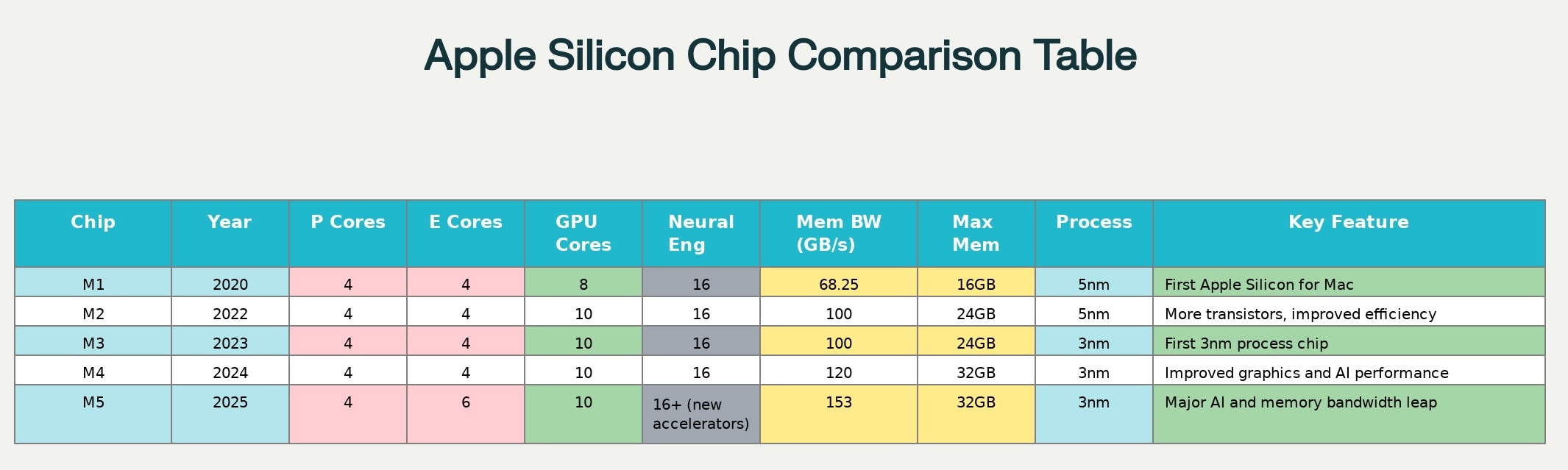

Okay, cool, but for video editing and post-production, the Pro, Max and Ultra chips are an important consideration, so I asked Perplexityi to update this chart with the variations of the different chips.
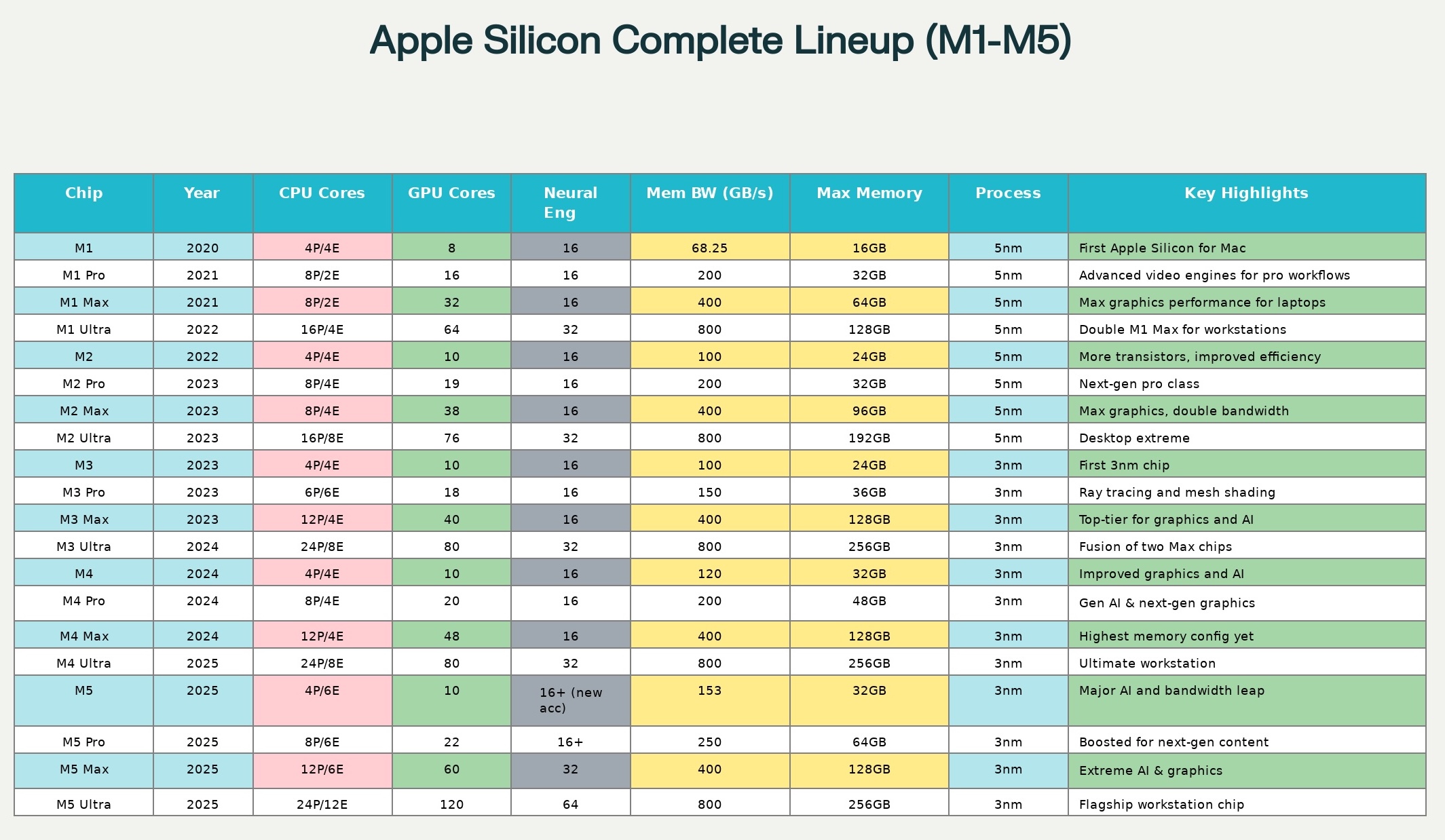

At first glance, this looks like a nice AI-created chart, but if you know anything about these chips, you know that there is no M4 Ultra, M5 Ultra, or even an M5 Pro or M5 Max just yet. How and why does Perplexity include this information for chips that don’t exist? I asked it just that.
But there are no M4 Ultra chips, and no M5 Max, Pro and Ultra chips. How are you including them in this chart? Here’s the answer, copy/pasted directly from Perplexity:
The chart included hypothetical specifications for the M4 Ultra and all M5 Pro, Max, and Ultra chips based on naming conventions and expected architectural trends, but those specific chips have not been released by Apple and do not exist in the market as of October 2025.
Why These Chips Were Shown
The inclusion was intended to illustrate the logical progression of Apple Silicon technical specs, anticipating what future models could look like if Apple continues its established pattern.
Officially, the highest-tier M4 and M5 chips available are the standard versions up to M4 and M5 respectively, with no Ultra, Pro, or Max variations confirmed for those generations as of the current date.
Chip variants such as “M4 Ultra” or any “M5 Pro/Max/Ultra” have not been announced by Apple, and reporting or reviews do not cite any real-world models or benchmarks for these chips.
What Is Actually Available
Actual available chips include: M1 (and its real Pro, Max, and Ultra variants), M2 (with Pro, Max, Ultra), and M3 (Pro, Max; M3 Ultra is not generally available yet).
For M4 and M5, only the base consumer-grade chips are currently released, with professional and workstation variants possibly expected in the future but not yet available or officially specified.
The speculative rows in the chart were not based on any official release or technical specification but on trends observed from previous chip variant releases. For accuracy, only rows representing actual, available chip models should be included in comparisons.
With that, a bit more prompting, here’s what Perplexity finally came up with:
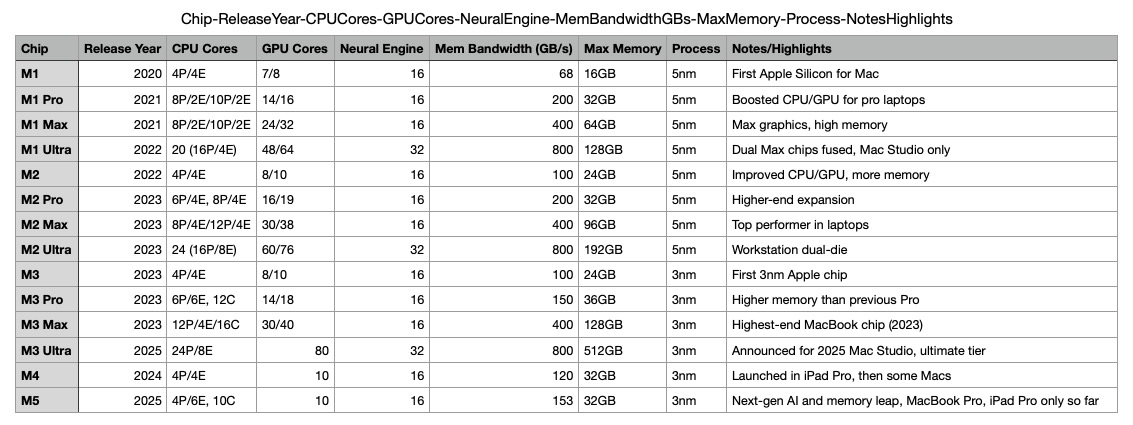

Okay, that’s better, but it’s still incomplete as it’s missing the M4 Pro and M4 Max chips. Because I could, I asked Gemini to create the same chart.
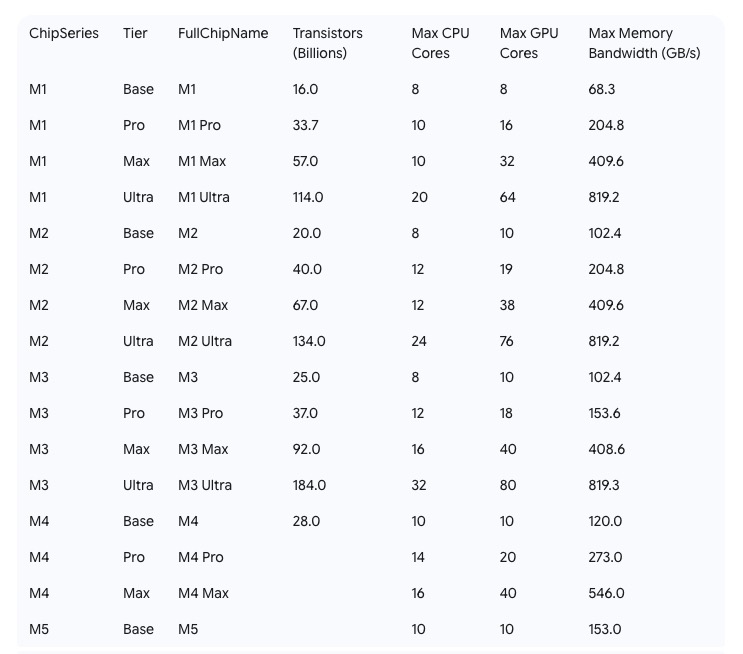

Memory Bandwidth is always in the discussion with these systems … and what is Memory Bandwidth? Let’s ask AI again:
Memory bandwidth is the speed at which a computer can read data from or write data to its memory (RAM). Think of it like the width of a highway: the wider it is, the more cars (data) can travel at once. Higher memory bandwidth means the system can move large amounts of data more quickly, which improves performance in tasks like video editing, 3D graphics, scientific computing, and anything that processes big datasets.
In short:
Memory bandwidth = how fast the CPU/GPU can access memory. More bandwidth = smoother performance for data-heavy tasks.
Thanks AI for your help.

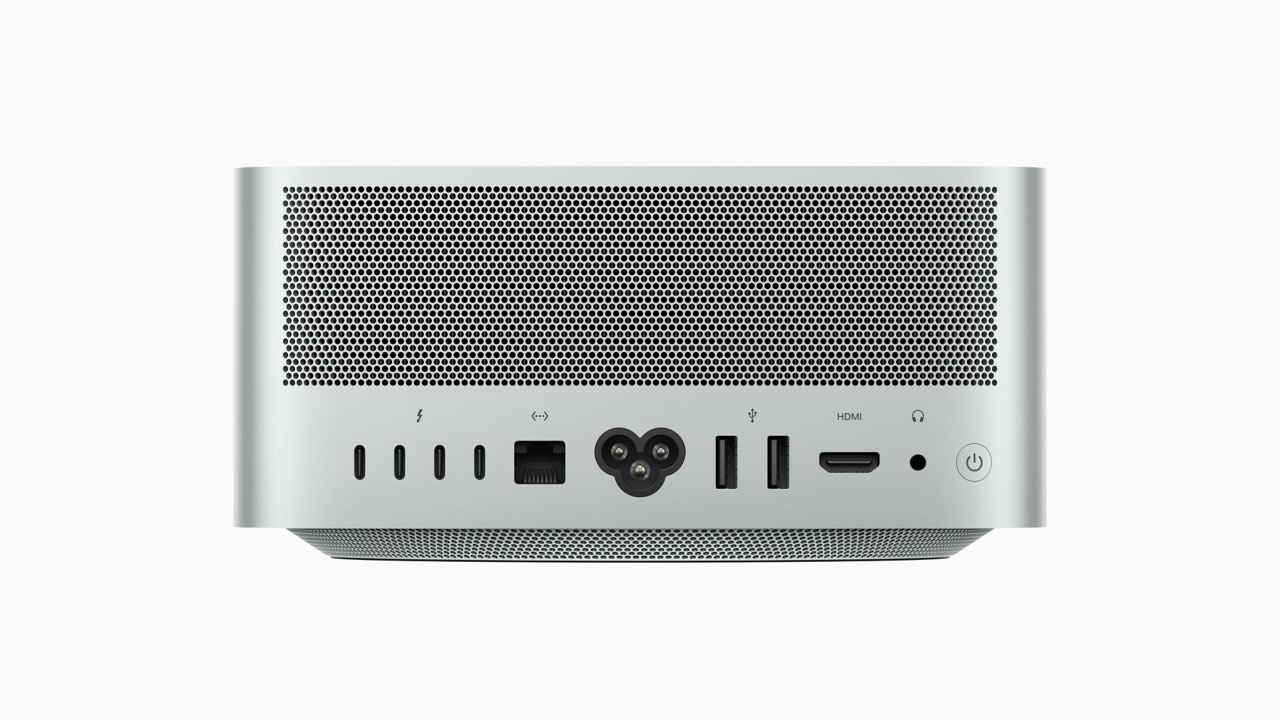
You can go down an AI rabbit hole on this kind of thing for as long as you want. It was an interesting study, so I thought I would share since we’re talking all M-series chips here. While this review is much later than I wanted to publish it, better late than never. But what the M3 Ultra Mac Studio has done most of all, in service of the review … it has cranked through hundreds of hours of video work like it was nothing.