

It is with great joy and fanfare that I can report that, in the new Adobe Premiere Beta, Adobe has finally provided an option to fix my single most hated feature in Adobe Premiere. A new preference is Now in Beta: New Preference to Control Automatic Track Creation on the Timeline.

On May 6 of 2022, I published an article here on ProVideo Coalition called “My Single Most Hated Feature in Adobe Premiere Pro.” It was in response to a long and ongoing discussion on the Adobe forums about how, if you loaded a clip into the source monitor that, for example, if you had more audio tracks in the source clips than were in your timeline, Premiere would automatically add tracks to the timeline to insert or overwrite all of the tracks from your source clip into your edit. There had been many discussions about why this behavior should not be the default, but there was no option, so editors weren’t always forced to battle the extra tracks and clips they didn’t want in the timeline. Rather than having to explain it over and over again as to why this default behavior was undesirable, I wrote that blog post to explain it in more detail. And I have forwarded that link a number of times since its publication.
If you want to head over to the Adobe community forums, you’ll see one of the several original threads where this issue was discussed, going back three plus years. And yes, I was a prominent voice in that discussion.

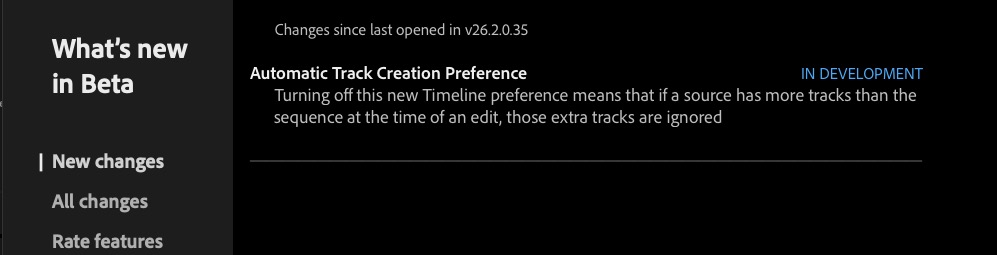
Well, I’m happy to report that in the most recent Adobe Premiere Beta, beginning with build 26.3.0 (Build 10), there’s now a preference in the timeline settings to turn this behavior off.

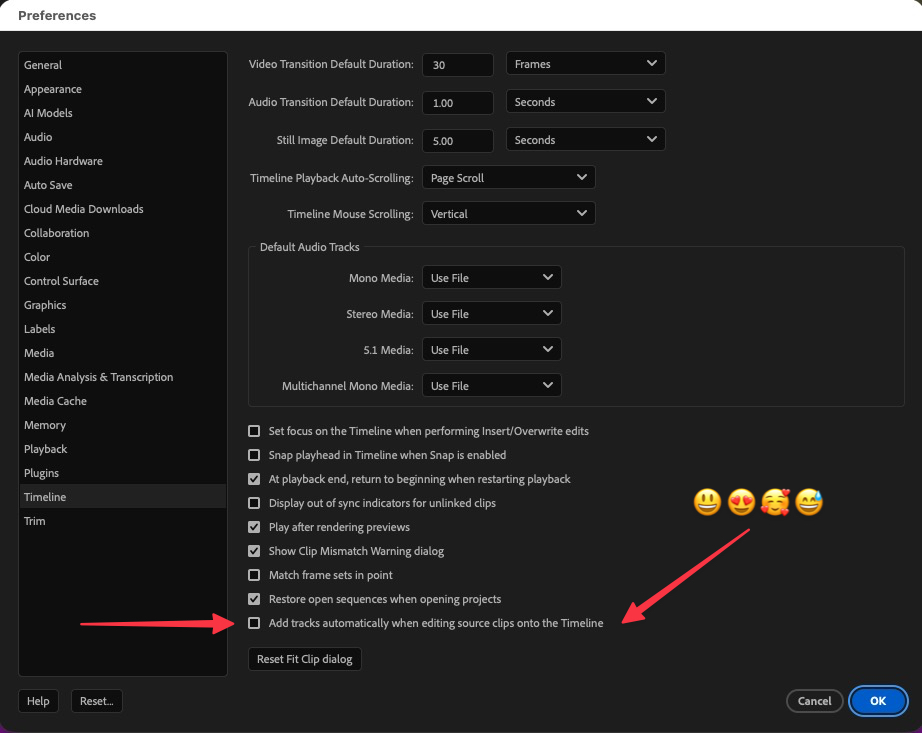
Head to Settings > Timeline, and there is a new checkbox for the preference “Add tracks automatically when editing source clips” on the timeline.


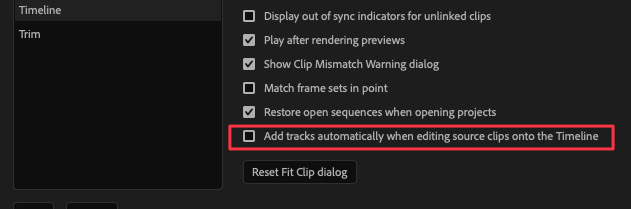
When this preference is unchecked, and you see what I always called that “dreaded little plus thingy” pop up in the timeline, you can rest assured that when you insert or overwrite any source media into the timeline, Premiere will not create new tracks that don’t already exist.
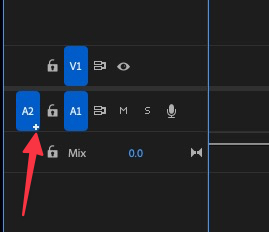

And allow me to demonstrate with a GIF:
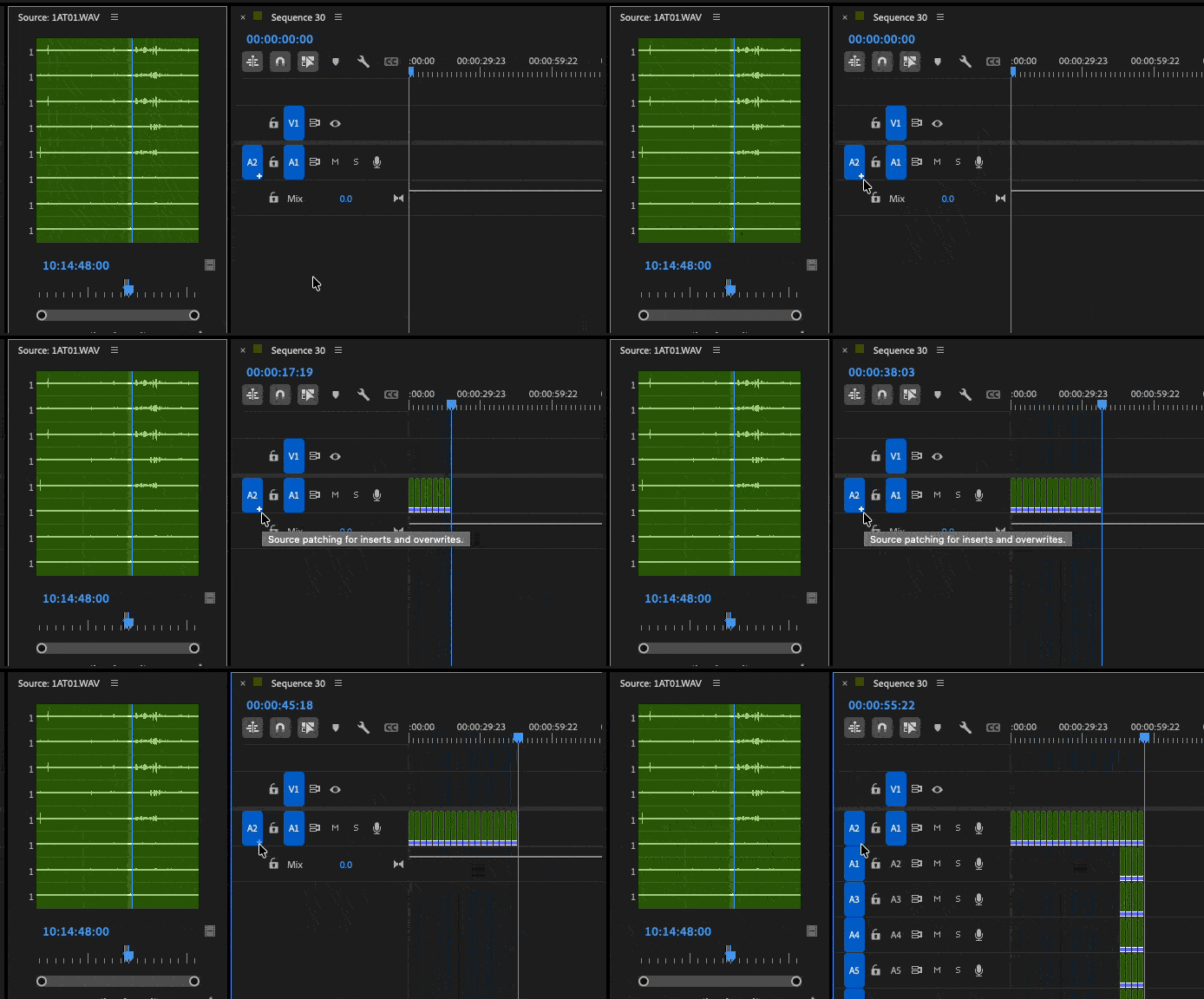

What you see above is me overwriting about 60 frames of 8-channel audio into a timeline with a single audio track. Adobe Premiere does not add any audio tracks to accommodate until I, the editor, make the decision to add them by clicking the little + thingy. And that’s exactly how it should be. The editor should always make the decision to add new tracks to the timeline, not the software.

I don’t know why it took so long to add this tiny little feature. And I don’t know why sometime so simple has to go into the beta first, but here we are. This is something that Avid Media Composer has had forever, and Blackmagic added to Resolve relatively soon after they made a push into creative editorial. There’s no keyboard shortcut to toggle this on and off, but that’s okay, since you won’t turn it on and off very often. In fact, most editors will make sure this new preference is unchecked and probably never turn it on again.
But here we are on Friday, March 13th, in the year of our Lord, 2026, and my wish has been granted. Thank you, Adobe.
