


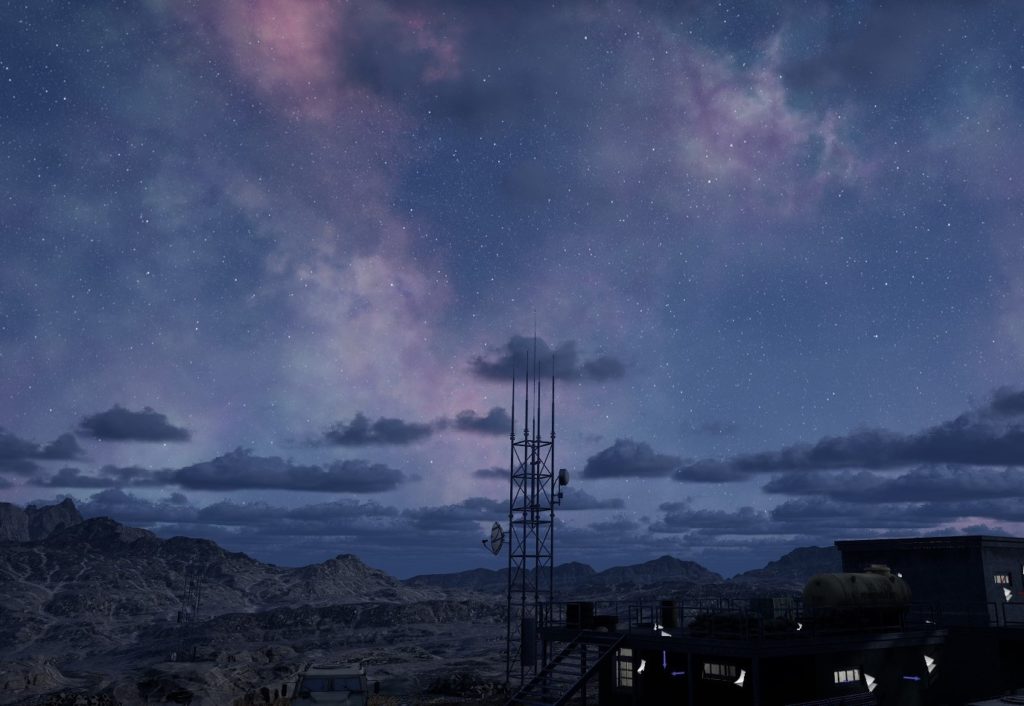
Starting out a big project is always daunting. Where do you even start? The characters? The environment? For me, establishing where we are is always my important first step, so choosing my environment is key. In this article, we’re going to start out our animation process by picking the environment that we want, going through how to download and install it into our project, and then we’re going to talk about the ambience of the scene, and how a paid add on will be one that you’ll use in every project you create!
CHOOSING THE RIGHT ENVIRONMENT
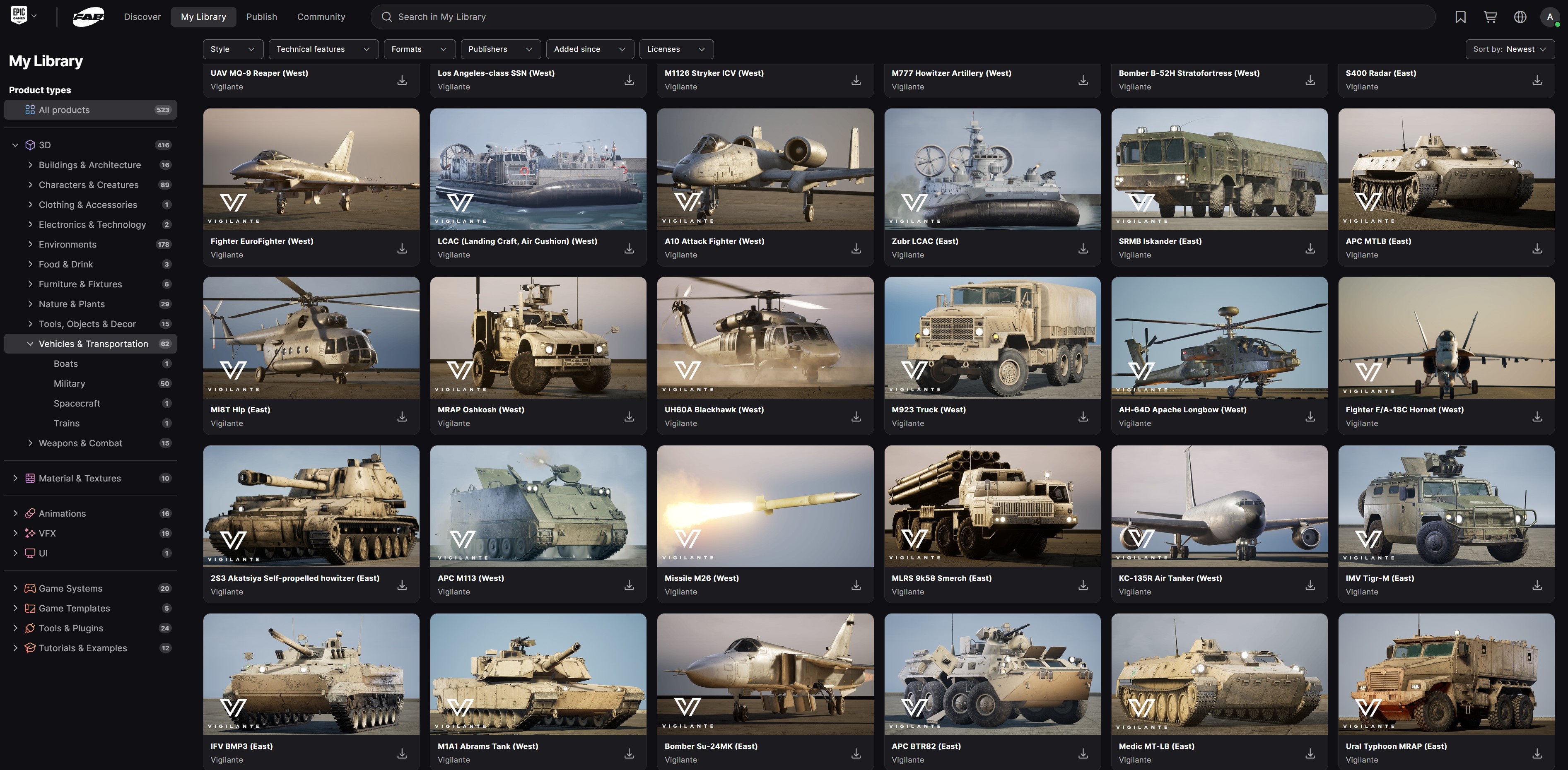
Let’s start right off the bat by saying that, when it comes to your environment, they can get to be pretty costly, depending on the location you’re looking for. Since we’re going to stick with an army base, there is one that I had picked up a long time ago, for free, via Fab (formerly the Unreal Market place). Fab gives away free elements every two and a half weeks, normally including an environment. As of the writing of this article, here’s a look at what was free this week.
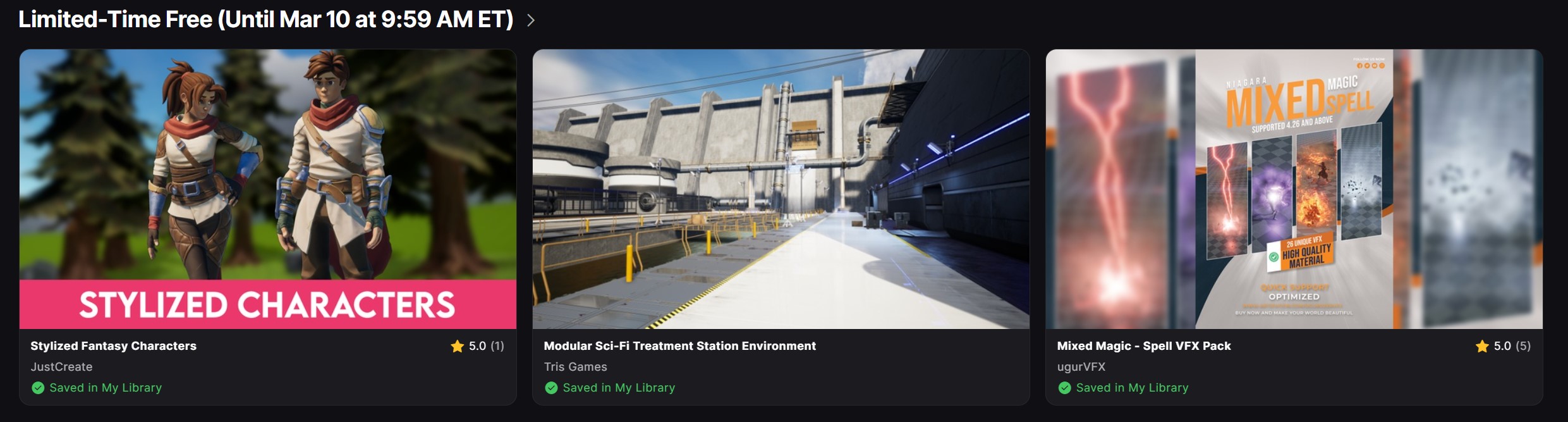

So, as you can see, an environment was included in this week’s drop.
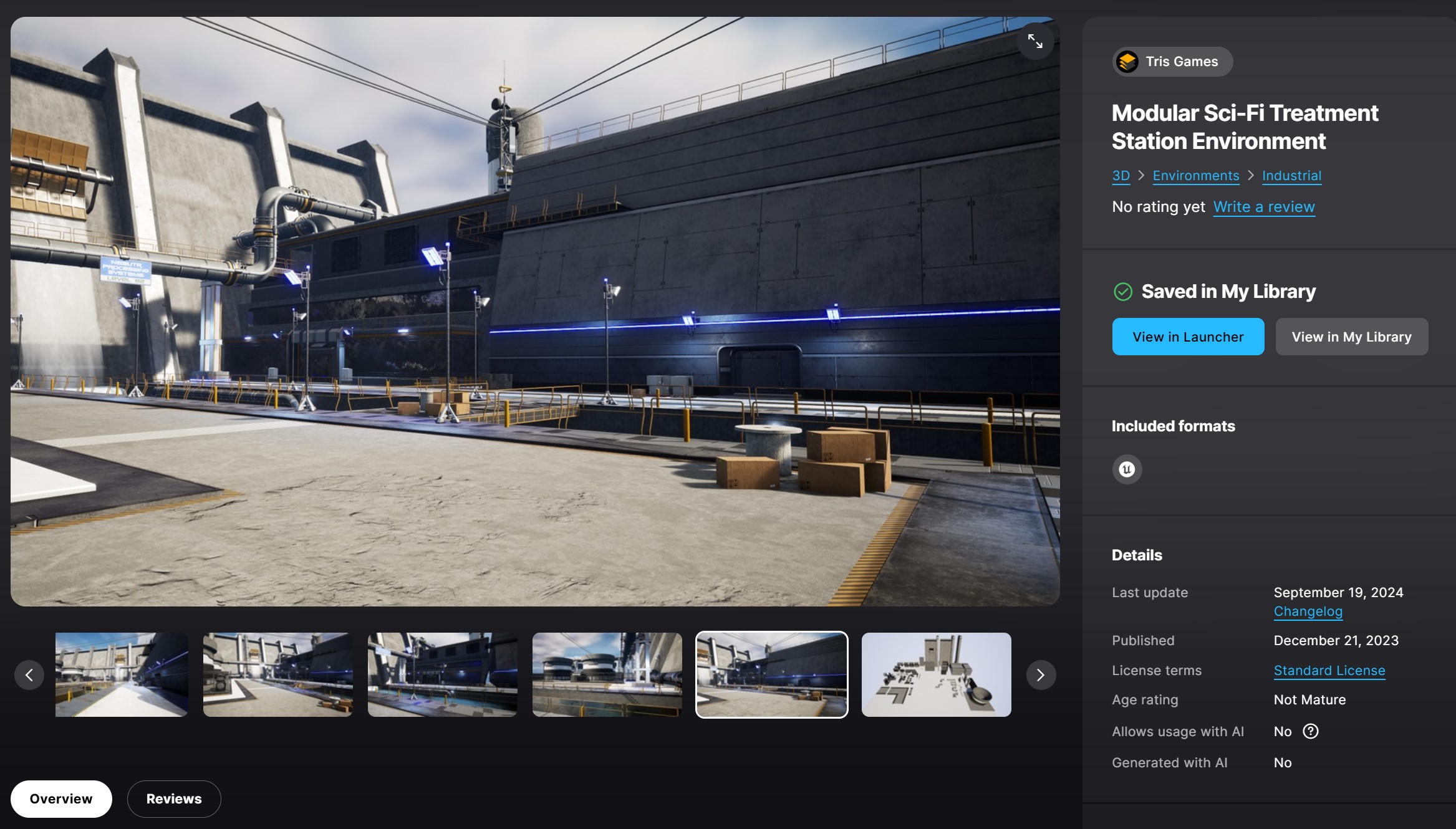

I currently have 178 environments in my Fab account, and probably 95% of them were given for free every couple of weeks so, depending on what you’re looking to create, you might already have a access to an environment that will work for you, or that you can take a modify to get looking the way you need it to look. Keep in mind that there’s a ton of things that go into increasing the overall look of the environment (characters, etc), but we’ll talk about that in future articles. For this animation that we’ll be creating, we’re going to go with an Army/Military exterior environment and, it just so happens that I do have one that was given for free by Fab. This is the one that we’ll be using moving forward in this article series.
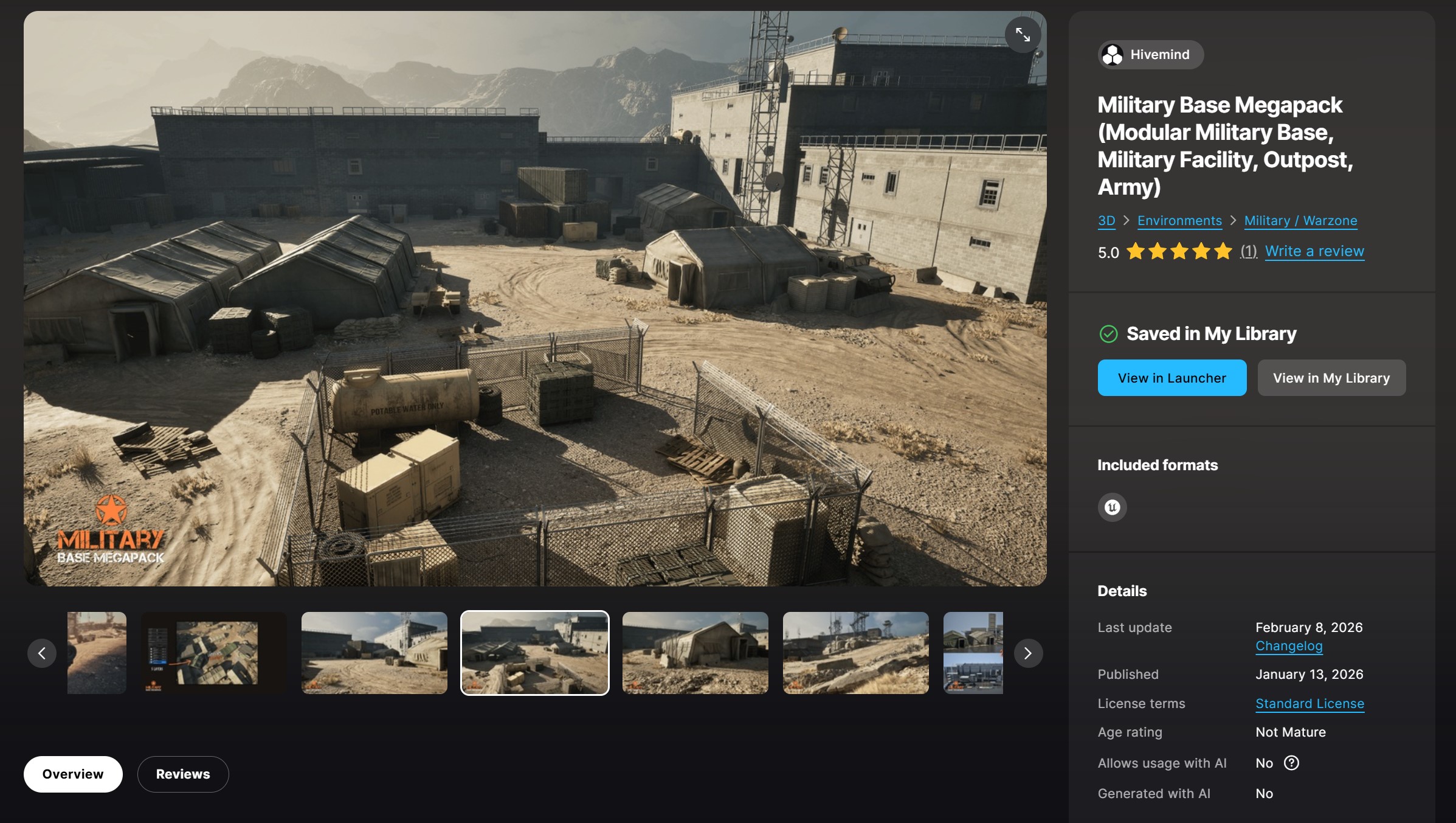

Hivemind is the creator of this pack, and they have given away quite a lot of environments for free through the bi-weekly Fab Giveaway. If I hadn’t received this environment for free, it would have cost me $68.46 for a license for <$100,000 in revenue. One thing you’ll notice very quickly if you have this environment is that apparently only Hummers are allowed as vehicles, as they are the only ones that are included. Luckily, I have, again, gotten a lot of free military vehicles over the years, so it’s pretty easy to populate the scene with extra military vehicles for aesthetic purposes.

So, here’s how you go about getting things set and ready to go with your environment. First, launch Unreal Engine and create a new Third Person game project.
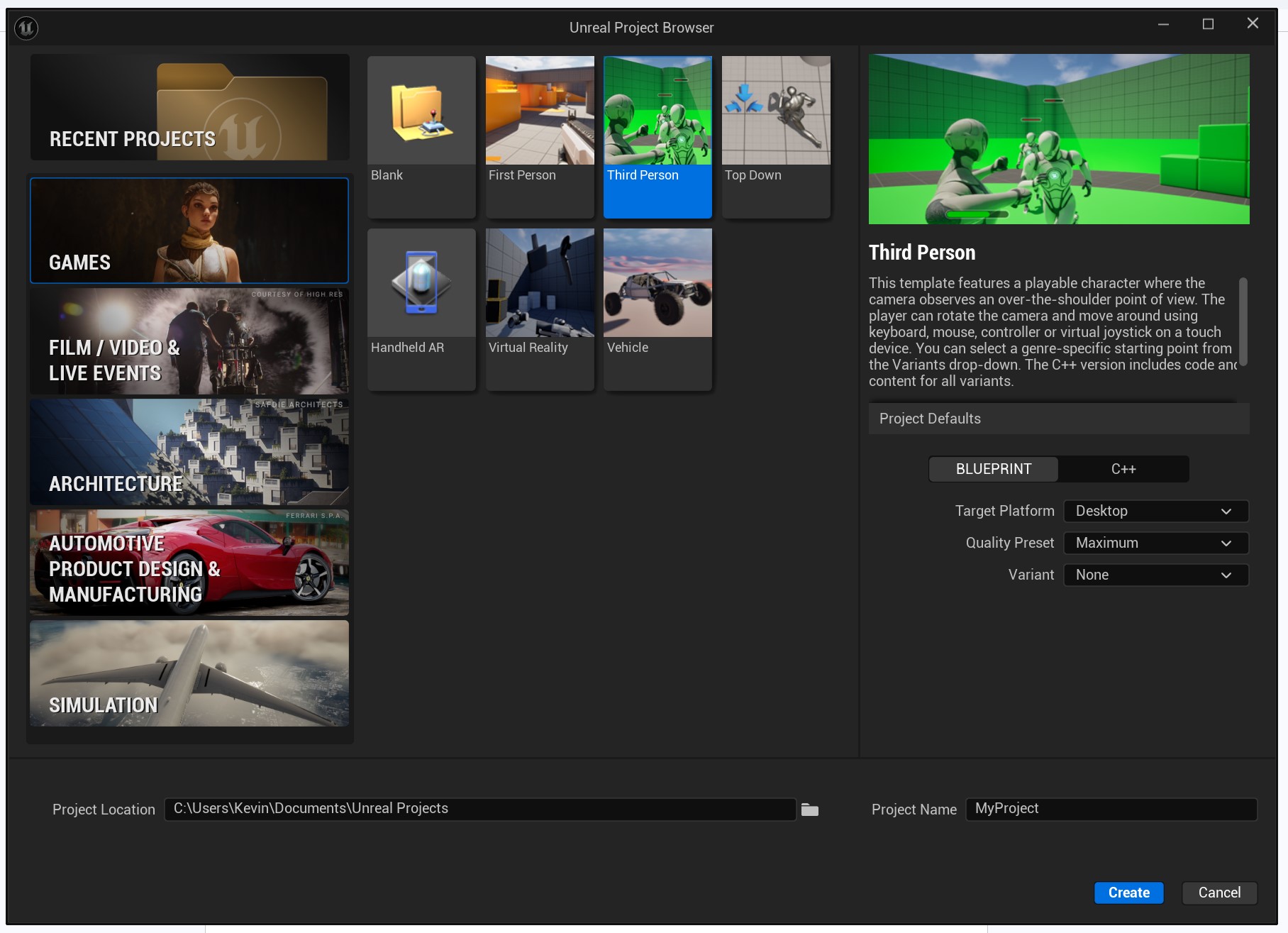

We’re obviously not creating a game, but this setup is the easiest way to start, when you’re going to be producing animation inside of UE5. Once you’ve done that, you can head back to the Epic Games Store, hit the FAB button, sort by your Library, select “Environments” and then you can either further search by category, or just type in what you’re looking for in the search bar.
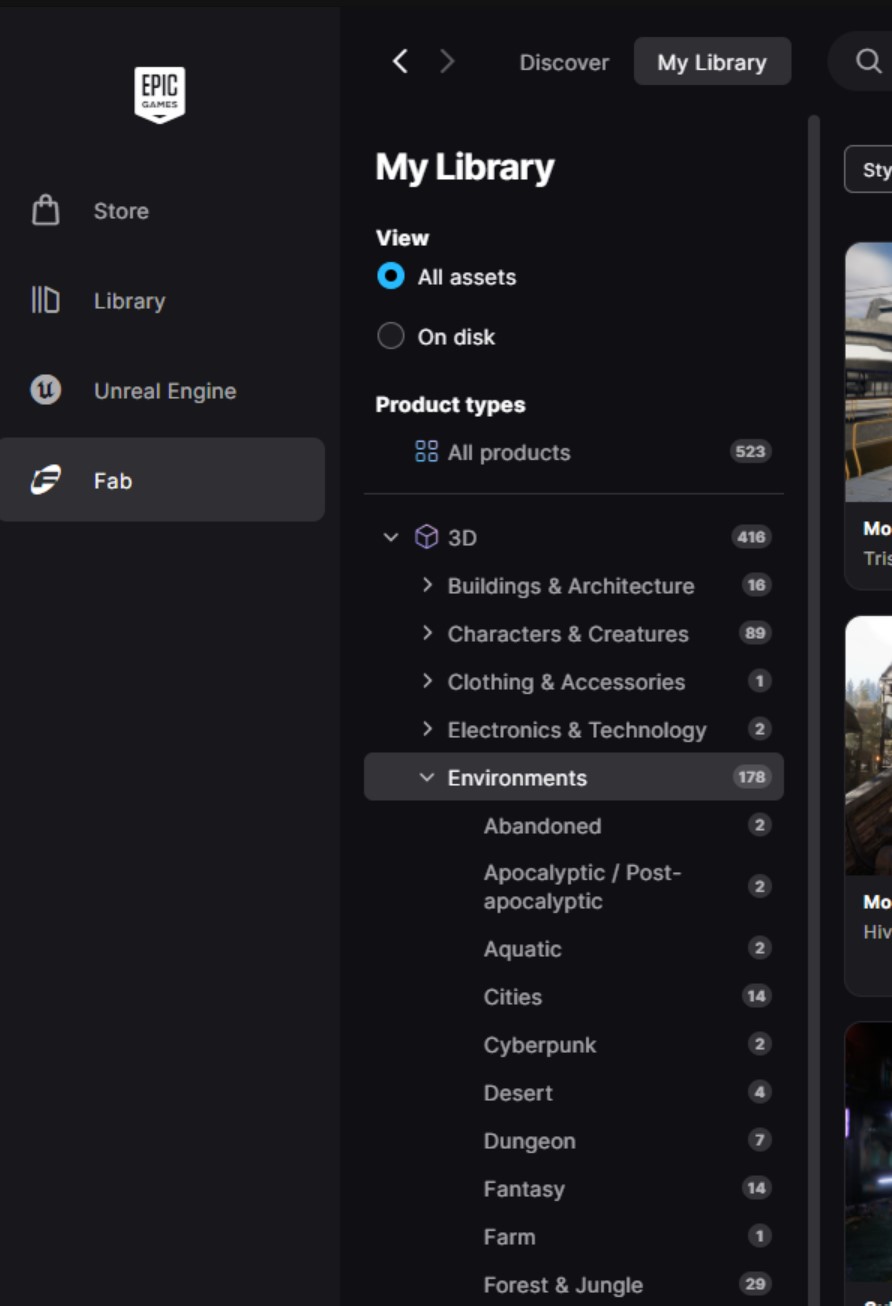

You can do this to find either your elements, or elements you might want to purchase. Once you’ve found the element you want to add to this project, simply select it and press “Add to Project”.
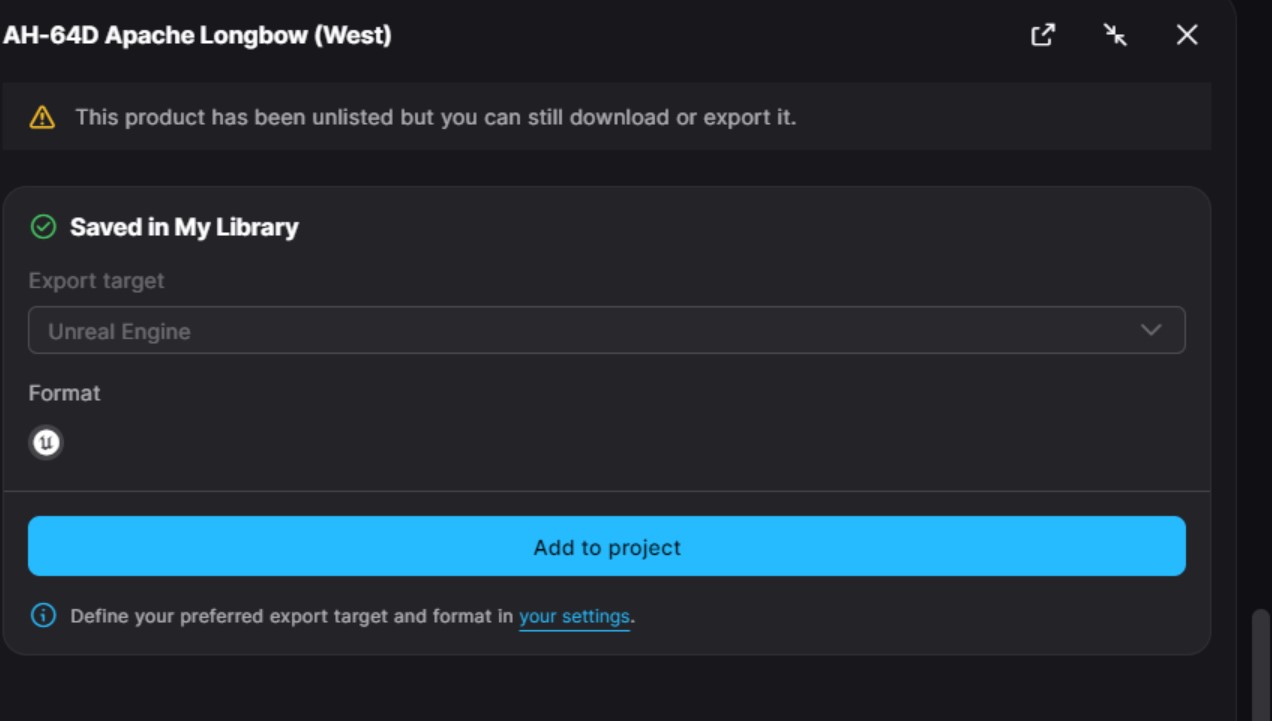

Depending on the version of the element you’re trying to add (the Military Environment is UE 5-5.7, so it’s good to go with our version of Unreal – 5.6), you might get a blank screen that looks like this:
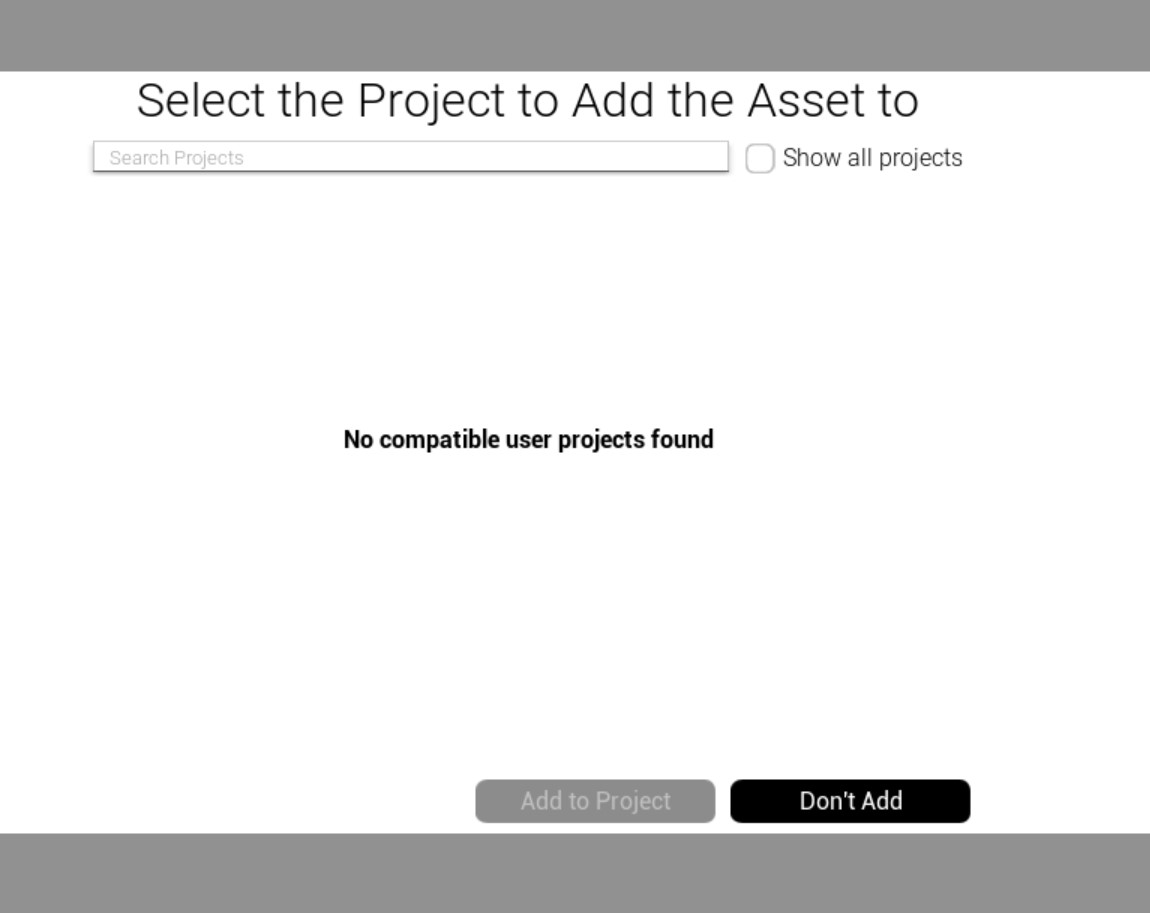

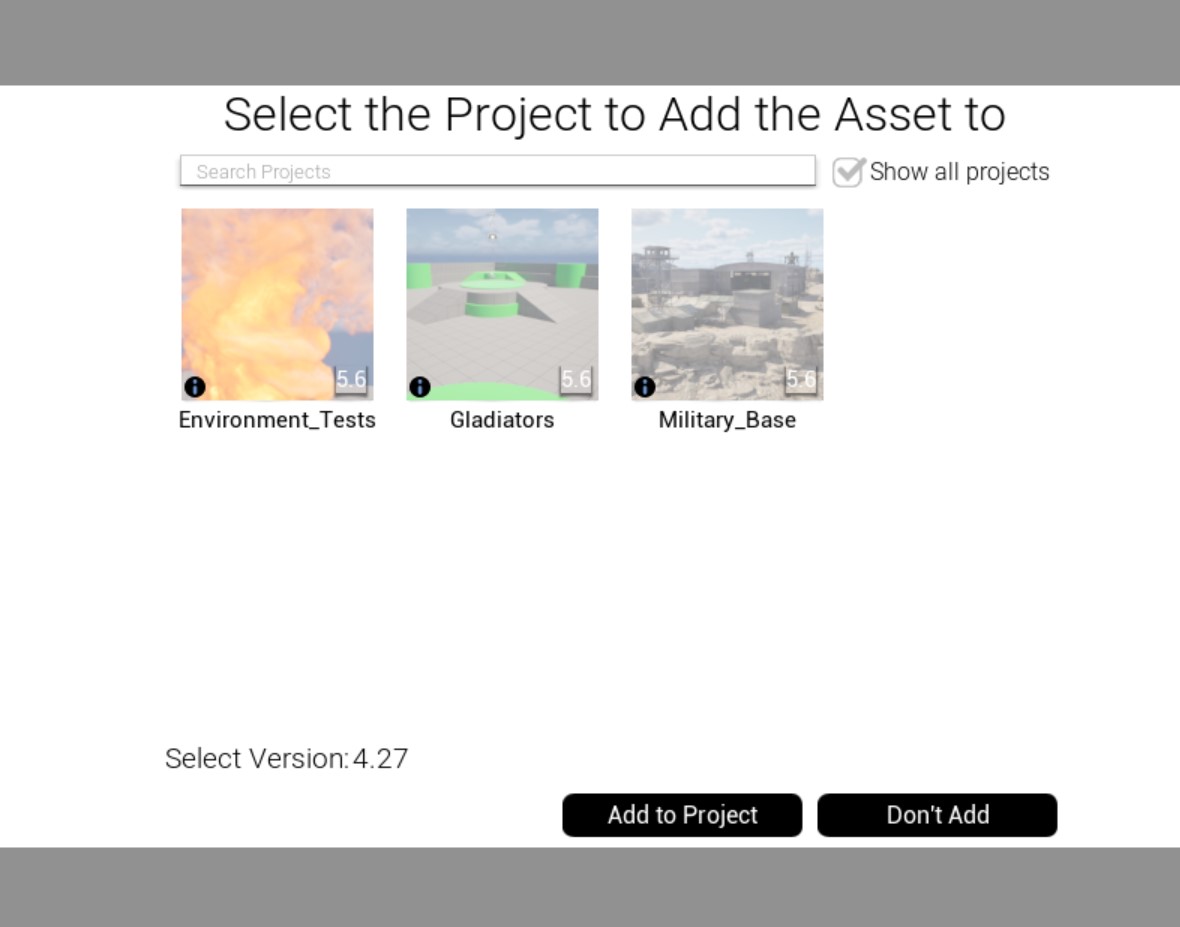
This is telling you that there is no compatible version of Unreal to go with your element. No worries, it doesn’t mean you can’t use them. All the military vehicles that I’m adding to my project are version 4.27 of Unreal, but since I’m only using them as window dressing, I don’t overly care how compatible they are with the version of Unreal I’m using, I only care how they look sitting stationary in my scene, so all I have to do is press “Show All Projects”, and my Military Base project will show up. Once I select it, you’ll immediately see that the element I’m trying to import doesn’t match the version of the project. That’s OK, I can just select the version I want to import, in this case it’s 4.27, simply click “Add to Project”, and you’re good to go.

When you first open the level, you’ll notice that the time of day is roughly dusk. What makes up the “roughly dusk” lighting setup is five different elements. A directional light, Exponential Height Fog, a Sky Atmosphere, a Sky Light and a Post Process Volume. Now, four of those are pretty self explanatory. The Directional Light, Atmosphere and Sky light are determining the brightness, and really the look of the scene. The Exponential Height Fog is there to take detail away from the background to make it look less CG and more realistic. The Post Process Volume is like an After Effects adjustment layer. In our case here, it’s adjusting the camera’s exposure at the “world” level, and not at the camera level. This is what my scene looks like when I open the map included with the environment.
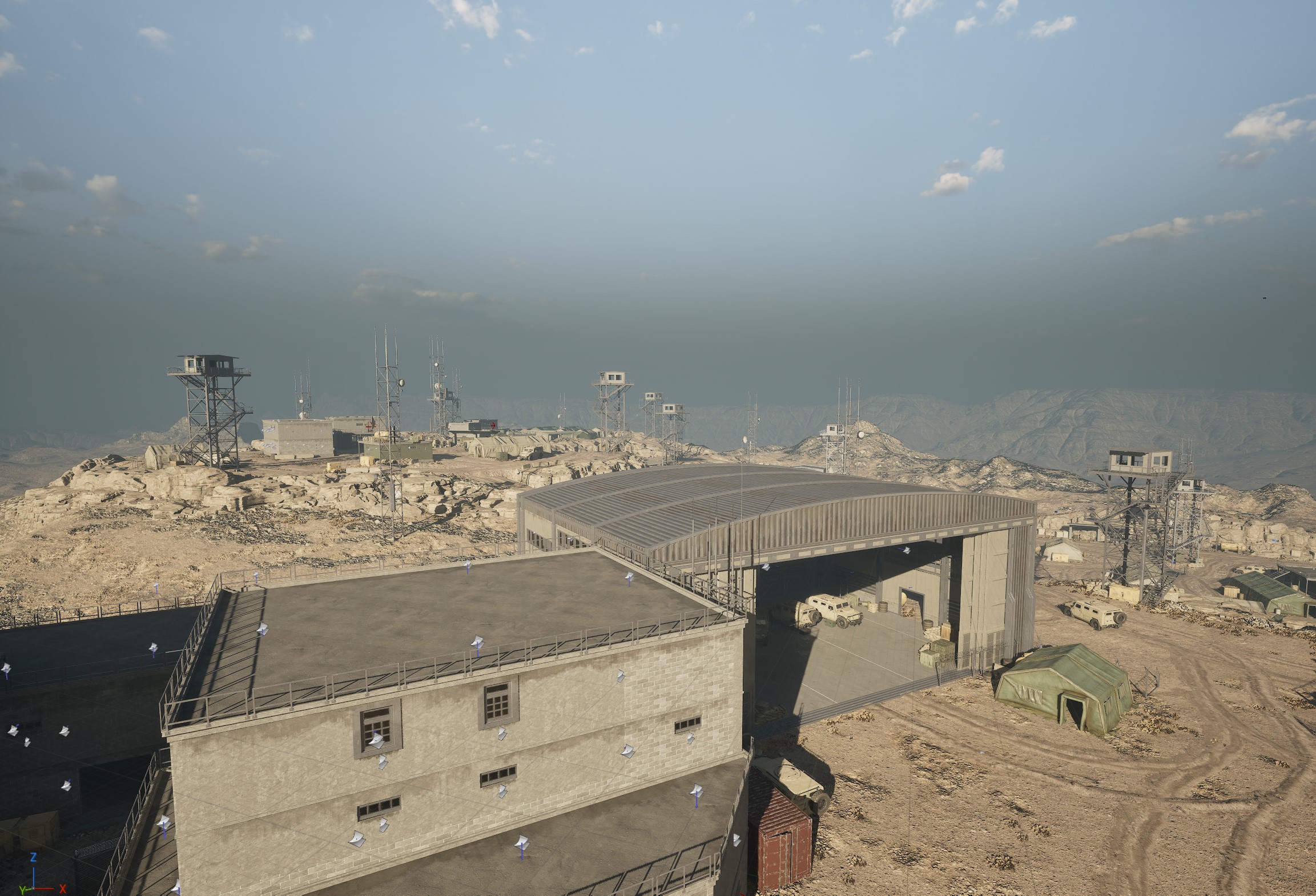

This is where Ultra Dynamic Sky comes into my workflows.
WHAT IS ULTRA DYNAMIC SKY?
Ultra Dynamic Sky is essentially a powerful weather and atmospheric tool that lets you direct the sky the same way you’d direct lighting on a real set. Inside Unreal Engine, it gives you control over time of day, weather, clouds, and even night skies, so you can quickly transform the tone of a scene without rebuilding your environment. Want a soft sunrise for a hopeful moment, a heavy storm for tension, or a calm, star-filled night for something intimate? You can create those looks naturally and fluidly. You can even add planets to the night sky to simulate being on another planet! Instead of the sky being a static background, it becomes part of your storytelling — shaping light, atmosphere, and feeling in a way that supports the narrative and elevates the cinematic experience. From a filmmaker’s point of view, this is really about complete control over mood. With Ultra Dynamic Sky inside Unreal Engine, you’re basically getting a sky that behaves like it’s part of your lighting crew. Instead of wrestling with a bunch of separate settings, you can shift the time of day in the snap of a finger.
Rich Weather System That Works Seamlessly with Visual Effects
Weather can completely change the tone of a scene. A calm day feels safe. Rain adds drama. Fog brings mystery. What’s great here is that the weather doesn’t feel like it’s just layered on top — it feels connected to everything else. If you bring in rain, the sky naturally gets heavier. The light softens. The world feels moodier without you having to tweak a dozen settings. Snow makes everything feel colder and quieter. Storm clouds roll in with a sense of build-up, and lightning can flash across the sky in a way that actually lights the scene for a split second. It’s cinematic without feeling overdone. For storytelling, that’s powerful. You can slowly introduce bad weather as tension builds in your scene. Or drop your characters into thick fog to isolate them emotionally. It’s less about the effect itself and more about how easily you can shape atmosphere to match the moment. As a filmmaker, you don’t want to fight your tools. You want to say, “Make it stormy and dramatic,” and have the world respond in a believable way. That’s exactly what Ultra Dynamic Sky does.
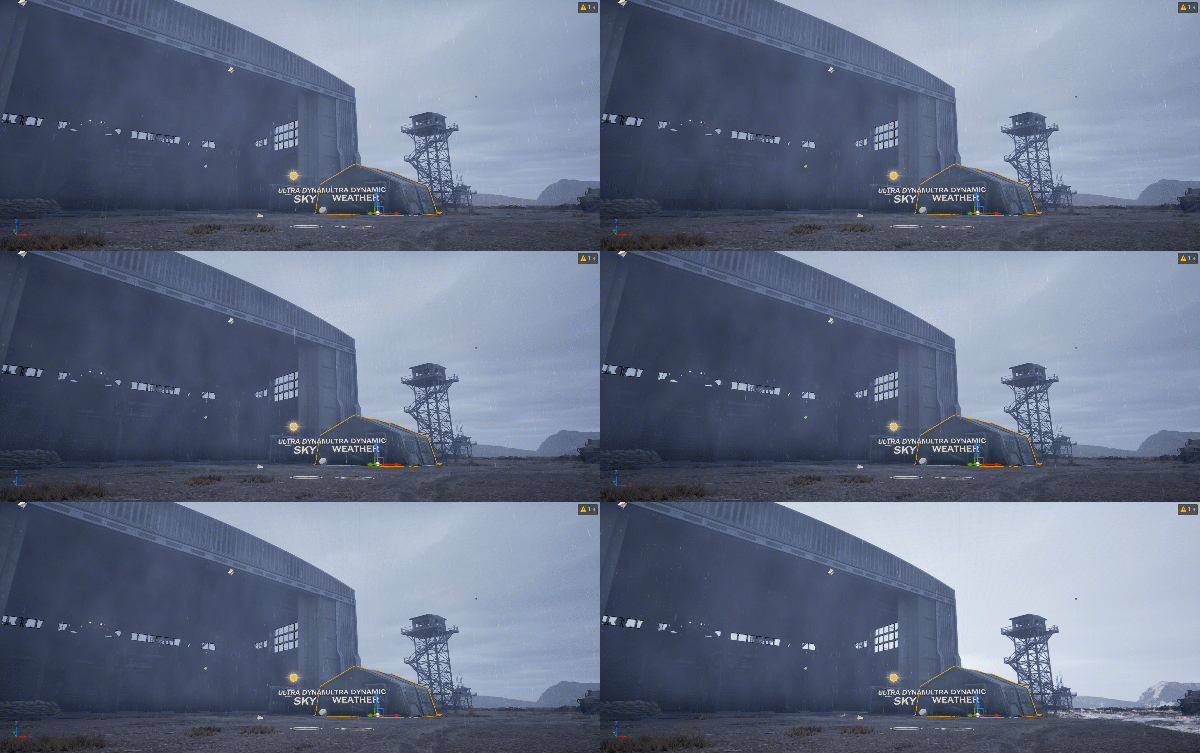

Multiple Cloud Styles for Aesthetic and Performance Needs
Skies matter more than people think. A blank sky can make a shot feel flat. The right clouds can add depth, scale, and emotion. Ultra Dynamic Sky gives you options so the sky always fits your scene. If you want big, dramatic clouds with depth and movement, you can have that. Light pushes through them beautifully, especially during sunrise or sunset. Wide shots instantly feel more epic. If you’re doing a slow camera move across a landscape, the sky doesn’t just sit there — it feels alive. If you need something lighter and simpler, that’s available too. You can keep the sky subtle for dialogue scenes or intimate character moments. Or go heavy and textured for thrillers and darker stories. Clear blue skies for bright, commercial-style shots? Easy. Thick overcast for tension? Also easy. From a filmmaking angle, this flexibility is what really sells it. The sky becomes part of your composition. It supports your tone instead of distracting from it. And because it’s so easy to adjust, you can experiment quickly — which is honestly one of the best features of Ultra Dynamic Sky
Real World Astronomical Simulation for True Day/Night Behavior
When it comes to Ultra Dynamic Sky, it’s all about realism. The sun and moon move the way they would in the real world. That means the way light hits your scene throughout the day feels authentic. If your story takes place in a specific location, you can match how the light would actually behave there. The sun sits lower in winter. Days last longer in summer. Twilight can linger in certain regions. Those small details make your world feel grounded, even if the audience doesn’t consciously notice why. Nighttime especially benefits from this. The moon doesn’t just hang in a random spot — it behaves naturally. Stars feel properly placed. The sky feels believable instead of like a painted backdrop. For filmmakers mixing digital environments with real footage, this can help everything blend more smoothly. But even if you’re fully digital, that subtle realism adds weight to your scenes. It makes the world feel lived in.
Visually Compelling Aurora Effects
And then there’s the aurora — which is just plain beautiful. These northern lights ripple and glow across the sky in a way that instantly elevates a night scene. It’s one of those visual elements that can turn a simple shot into something unforgettable. Imagine a quiet character moment under softly moving green light in the sky. Or a fantasy landscape glowing with color overhead. The auroras don’t feel static — they move gently, like real light dancing across the atmosphere. You can keep them subtle for realism or push them brighter for something more stylized. It gives you another layer to work with when building a scene’s tone. And because it blends naturally with the moonlight and clouds, it feels like part of the world — not an afterthought.
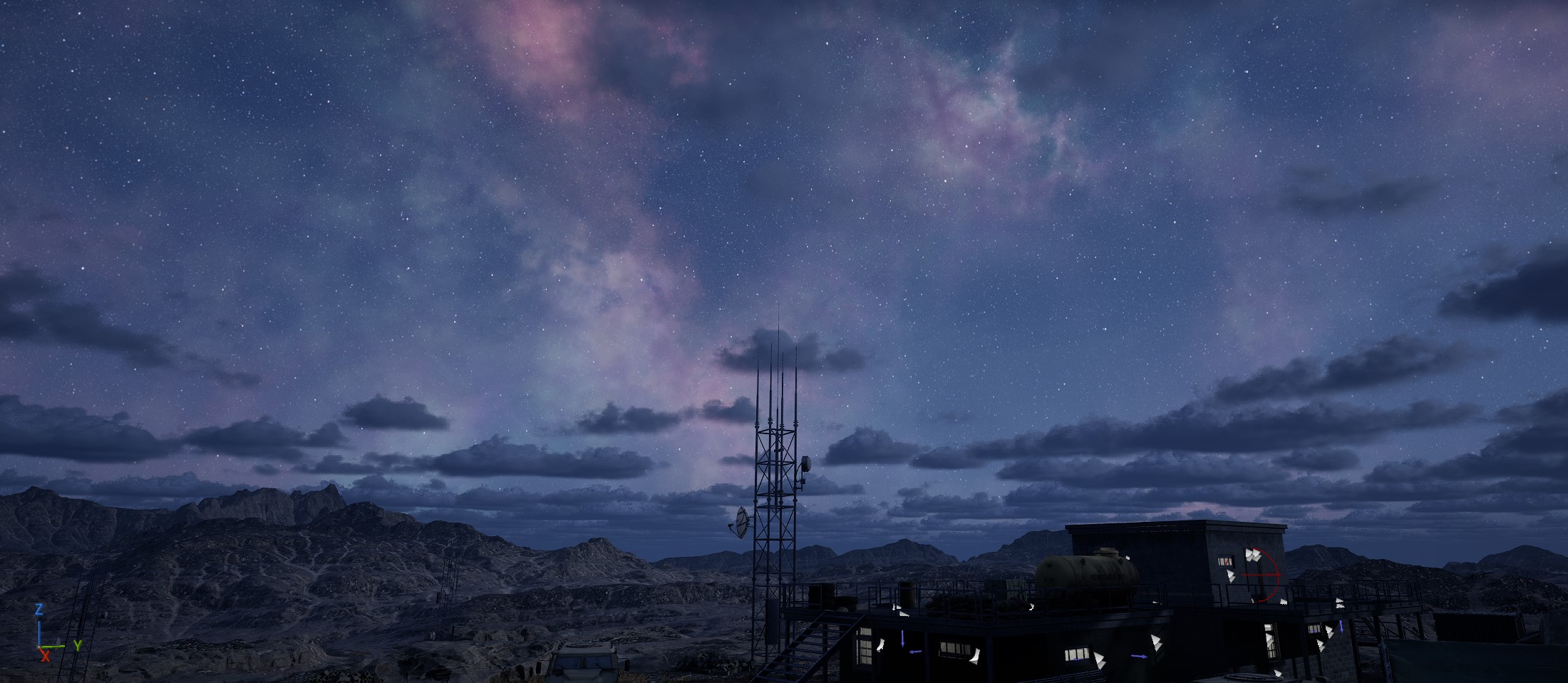

Overall, looking at Ultra Dynamic Sky strictly through a filmmaker’s lens, it’s really about creative freedom. You’re not stuck with a static backdrop. You’re directing the sky the same way you’d direct actors or camera movement. You can shift time, bring in weather, adjust clouds, and transform the emotional feel of a scene in minutes. It makes digital environments feel less mechanical and more alive. And when you’re telling stories visually, that kind of flexibility and mood control is everything.
When you step back and look at what we’ve actually done here, it’s more than just downloading an environment and dropping it into Unreal Engine 5. We’ve set the tone for the entire project. Choosing the right environment is really about choosing the feeling of your story before a single character moves. By grabbing assets through Fab — especially taking advantage of those bi-weekly freebies — you can build out a serious library over time without constantly spending money. That alone removes a lot of pressure and makes it easier to experiment. Once everything’s imported and sitting in your level, the real magic starts with shaping the atmosphere. This is where Ultra Dynamic Sky becomes a game changer. Instead of being stuck with whatever lighting setup ships with the map, you get full control over time of day, weather, cloud styles, even subtle astronomical details. Want tension? Bring in a storm. Need something reflective? Push it toward dusk. Looking for isolation? Cool night sky and soft moonlight. It’s fast, it’s flexible, and it makes the environment feel alive instead of static. That kind of control is huge when you’re thinking like a filmmaker instead of just a developer. The sky stops being background decoration and starts becoming part of your storytelling toolkit. And the best part is how quickly you can pivot. If something doesn’t feel right, adjust it. Shift the sun. Add fog. Clear the clouds. Starting a big project can feel overwhelming, but once your world feels right, everything else — characters, cameras, animation — has a solid, cinematic foundation to stand on.
Article one of our look at Unreal Engine 5 can be found here.