



Welcome to Tool Tip Tuesday for Adobe Premiere on ProVideo Coalition
Have you ever seen two little white triangles show up on a clip in your timeline and wonder what they are? Those are Through Edits.
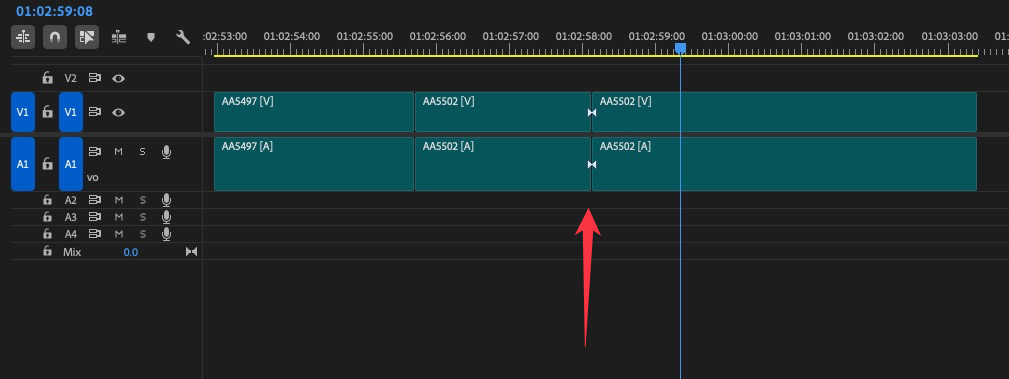

Through Edits are cuts or edits made in a clip sitting on the timeline. Even though there is an edit in the clip, it is still a continuous piece of media and you won’t see any noticeable jump cut or any change in the viewer if playing the clip back. You can create a Through Edit by either cutting a clip with the Razor Tool or using the Add Edit command.
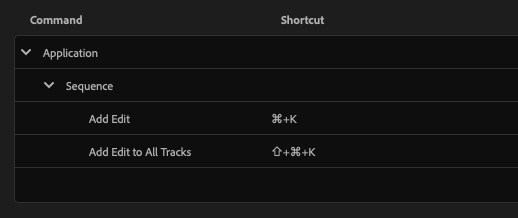

Editors coming to Premiere from another platform might know them as match frame edits.
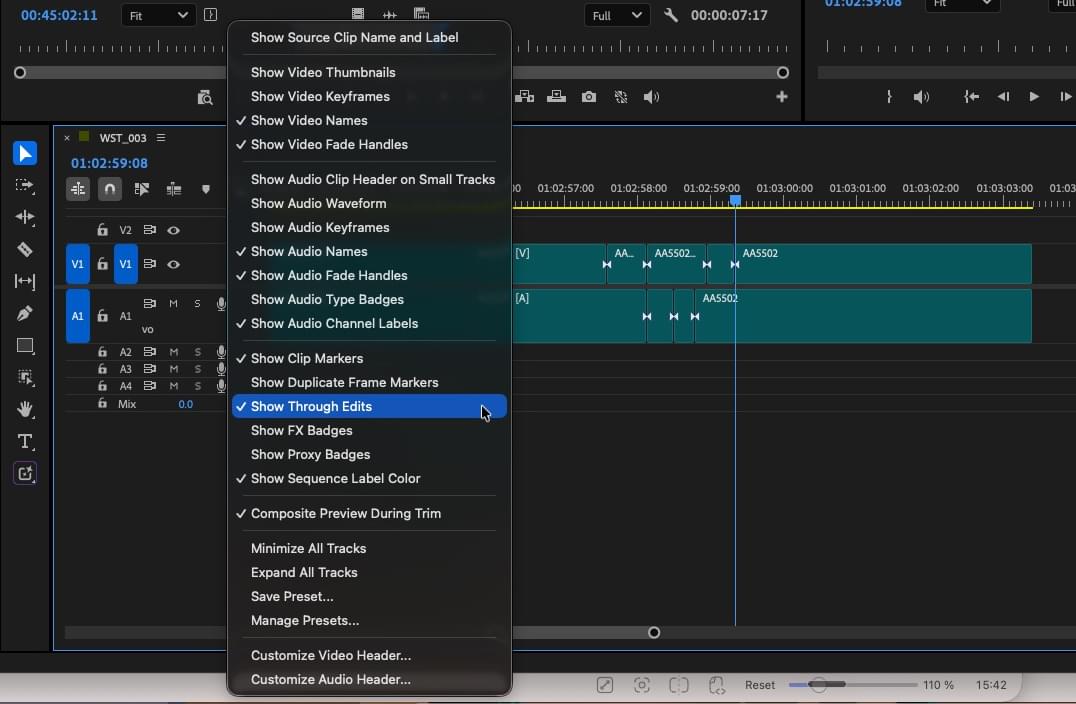
If you haven’t seen them, or don’t want to see them, Through Edits can be turned on or off via the timeline wrench menu.

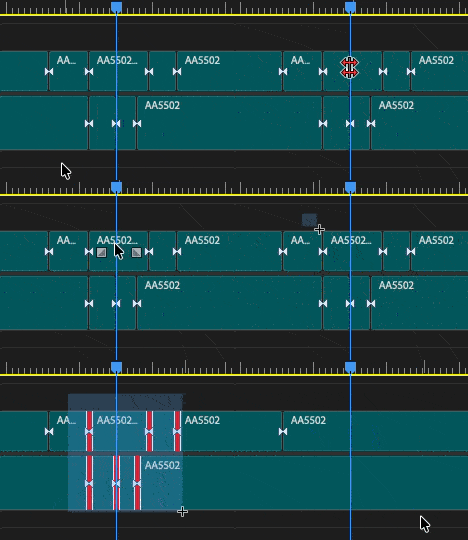
If you want to remove Through Edits, just select the edit and hit delete, or hold down Command (Control on a PC) and drag to select multiple edits at once, and then hit delete.

There’s no real use case for Through Edits other than to show where a cut has been made in the clip, but no trims, slips, slides or edits made around that edit point. I will occasionally use them as a visual indicator in the timeline when I don’t want to place a marker. But I always remove them when I’m done, since they show up in an EDL or other conform list.
This series is courtesy of Adobe.