

Welcome to Tool Tip Tuesday for Adobe Premiere Pro on ProVideo Coalition.

Following last week’s Tool Tip Tuesday on Moving Video and Audio Sources Up and Down, let’s share another useful tip on source patching.
As we talked about, you can use the mouse to drag the video and audio sources and patch them to different tracks, as well as use keyboard shorcuts to move them up and down. But if you have complex source assignment patches that you’ve setup with multichannel sources (or a Source sequence), you can save those source assignment patch setups as a preset.
First, set up the source patching as needed, then right+click on the source audio and video patches. The choose Save preset…

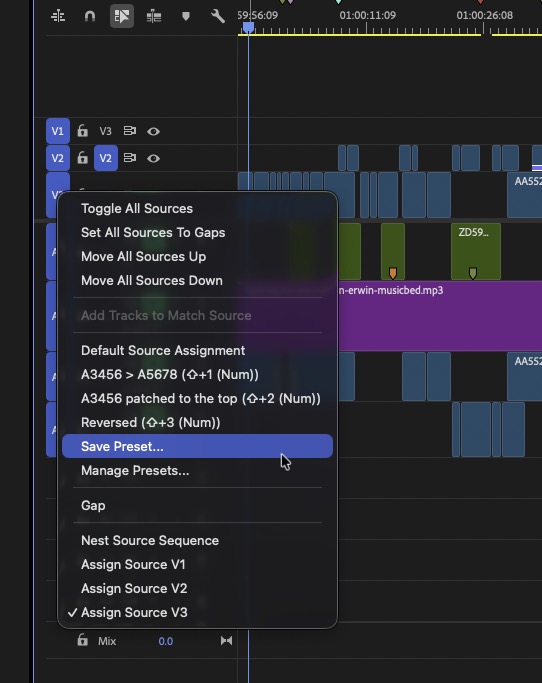
I use this mostly for saving audio souce assignment preset so my names attempt to tell me what they do.
Once a preset has been saved, Manage Presets… is how you do just that, manage the presets as well as map them to a keyboard shortcut.
There are no default shortcuts for saved source patching presets, so open the keyboard editor and search for “source assignment” and map them to your liking.

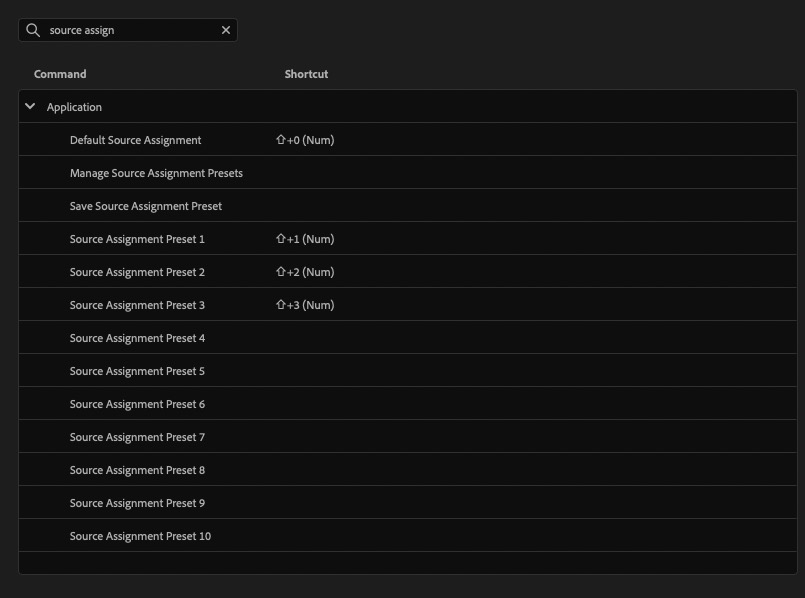
Bonus tip: Default Source Assignment resets all the patches to their 1:1 default (such as V1 to V1 and A1 to A1). I use this shortcut more than the source assignment presets.
This series is courtesy of Adobe.