

Welcome to Tool Tip Tuesday for Adobe Premiere Pro on ProVideo Coalition.

Every week, we will share a new tooltip to save time when working in Adobe Premiere Pro.
There is a very common issue that pops up regularly on many Premiere forums. To sum it up:
Why can’t I drag this clip to the timeline?
Or some variation on that, such as:
Why does Premiere only let me drag audio to the timeline?
Before we get into this issue, I want to first point out that dragging clips from your bin to the timeline is not a very efficient way to work, and it’s a bit counterproductive to how Adobe Premiere itself was designed. This brings us to the importance of the Source Monitor. There’s a reason it exists: the intended design encourages users to load a clip into the Source monitor, mark the IN to OUT points for the specific segment they want to use, and then either insert or overwrite it directly into the timeline. This is an additive editing method where you build your timeline from scratch, clip by clip. When you drag entire clips to the timeline, you must use a subtractive method where you cut things away, which is, in my humble opinion, a less accurate and less efficient way to work. But I digress.
What often happens when someone drags a clip to the timeline and only gets the audio or video option to drop into the track is that either the source audio or source video is unpatched. If you’ve never heard of source patching in Premiere, I’d start with this article from six years ago on the topic: Premiere Pro Hot Topics: Understanding Source Patching and Track Targeting. This is a great place to begin to understand source patching.
Source track patching refers to the video and audio track numbers that appear to the left of the track header panel. The number of tracks in a source clip or source timeline determines how many source patches show up in the timeline.

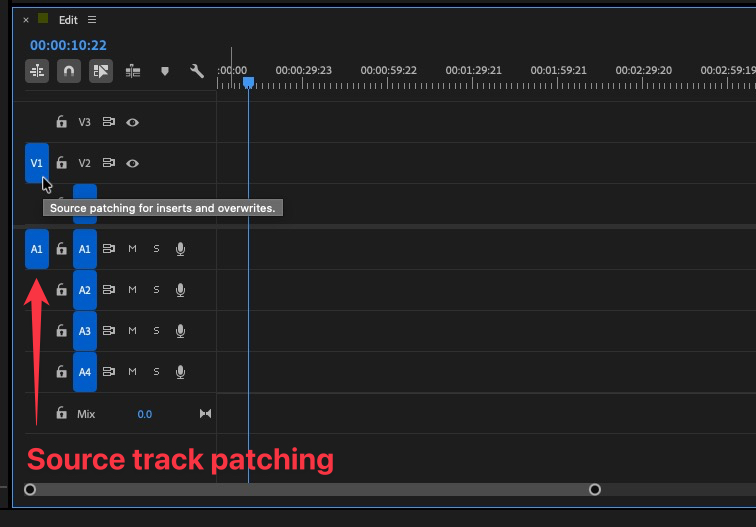

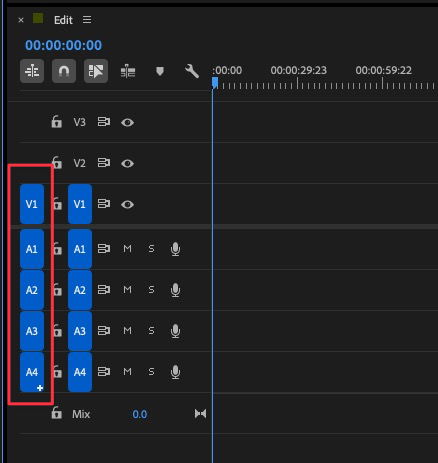
The most common use case here for source track patching is when you’ve loaded clips into the source monitor, or you’re editing a clip right from the bin. But source track patching can cause a problem when you’re dragging a clip from a bin to a timeline.
Let’s look at several different scenarios here with a gif.

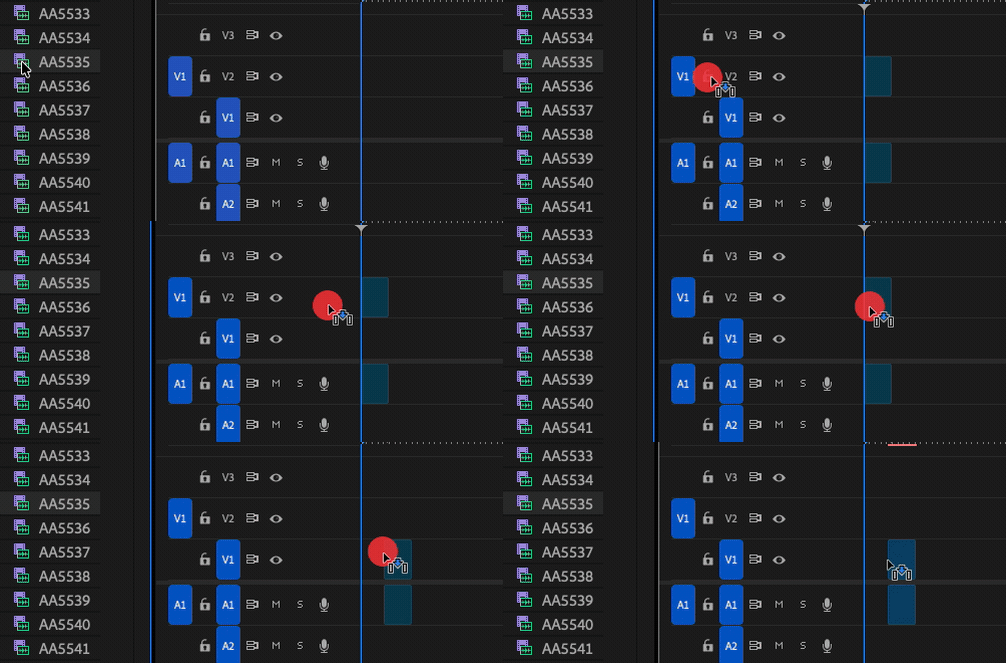
But watch what happens when just one of those source patch targets is turned off.
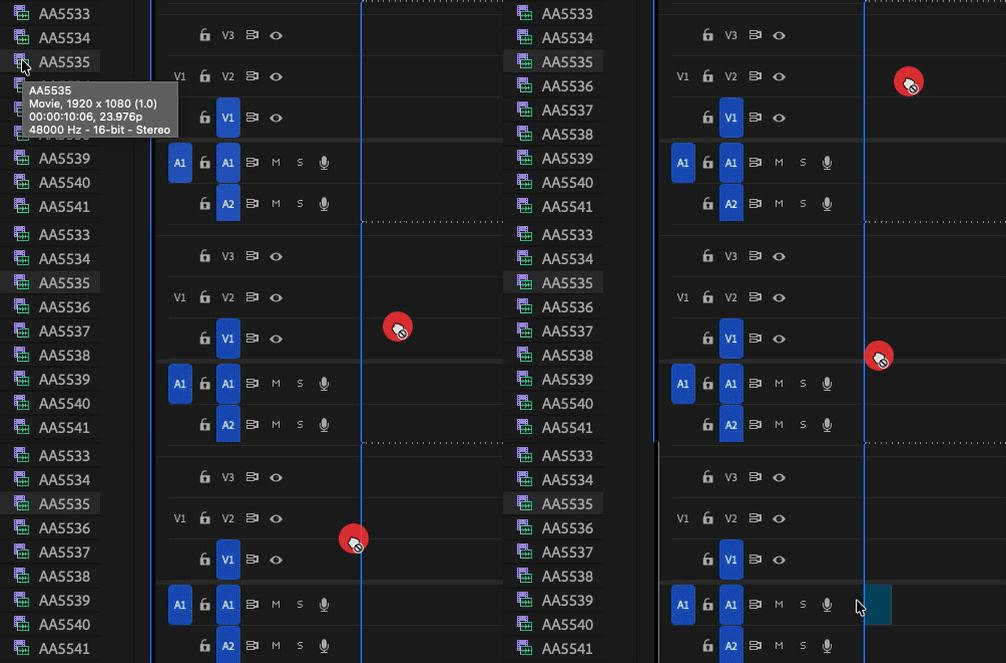
And what happens if both source patches are turned off?
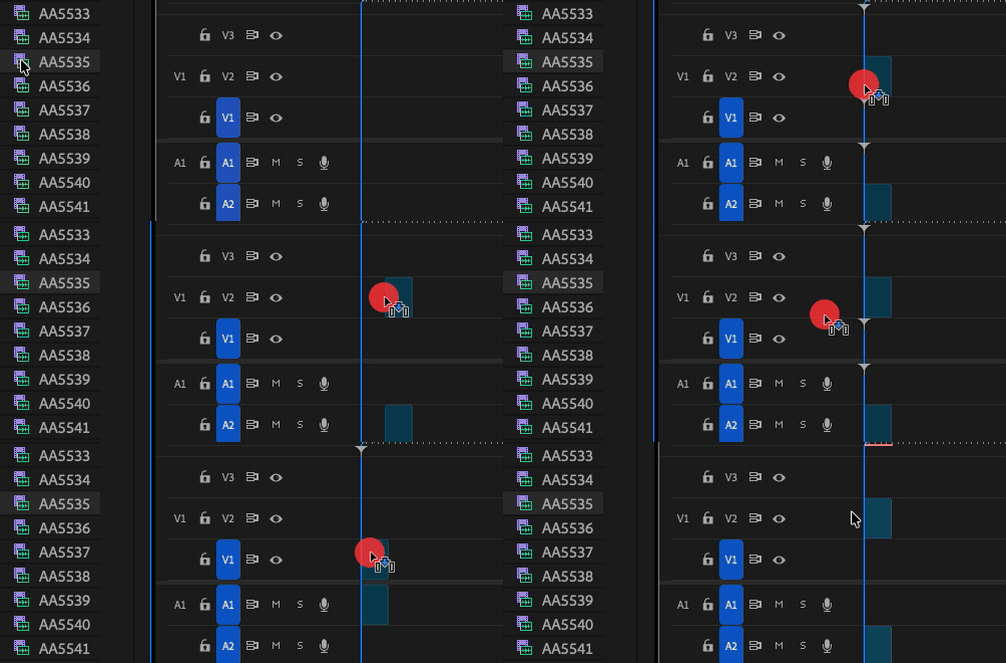
And let’s look at that one more time.

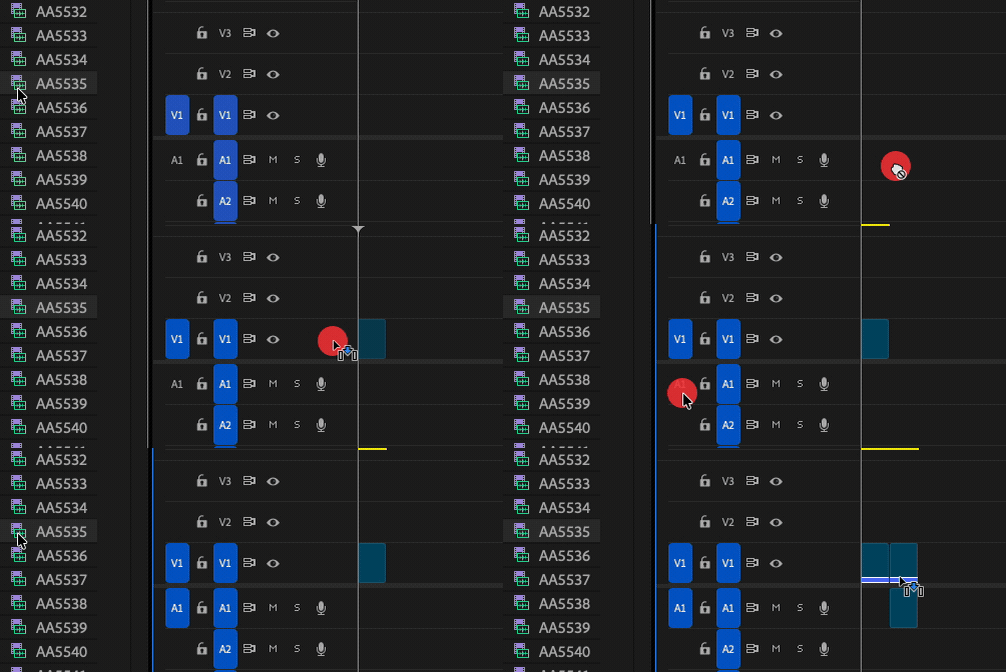
And what if there are no source patching targets in the timeline? Most likely, the Source monitor has been selected without any clips loaded into that Source monitor. As soon as you click a clip in a bin to drag it to the timeline, those source patches will return.

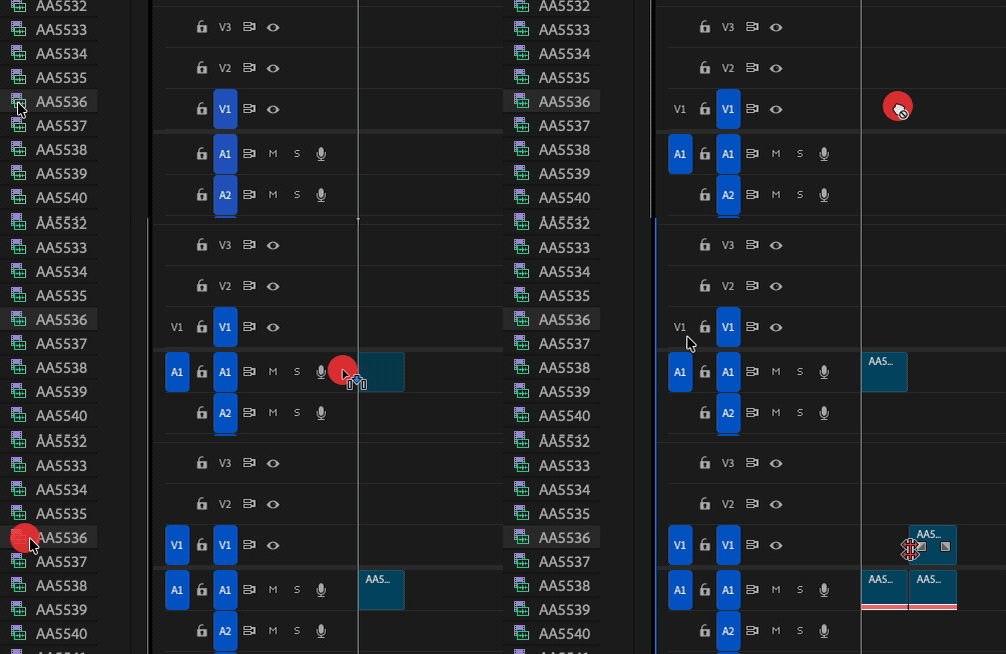
So there’s your answer to why sometimes, when you drag a clip from a bin to the timeline, you can’t drop either the audio or the video onto a track. We’ve reached the end of this Tool Tip Tuesday, but I will reiterate what I said at the very top of this tip: drag and dropping is an inefficient way in which to edit, and if you’re unfamiliar with editing from the Source monitor and the very basic concept of three-point editing, then that should be your next task to learn.
This series is courtesy of Adobe.