

Welcome to Tool Tip Tuesday for Adobe Premiere Pro on ProVideo Coalition.

Recently, we answered an important question here on Tool Tip Tuesday for Adobe Premiere: Why can’t I drag my clip to the timeline?
Answering that question involves the “patching” of audio and video sources. Audio and video sources are the video and audio channels that come from a clip, whether you’re dragging it from a bin to the timeline or double-clicking to load a source clip in the Premiere Source viewer panel.

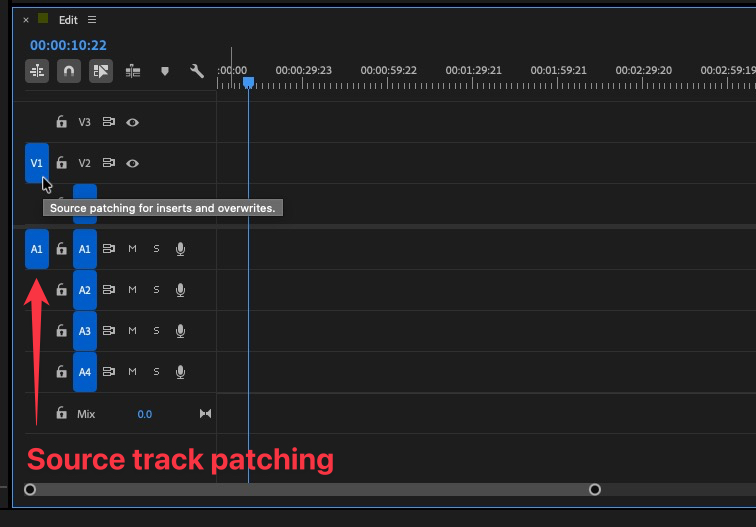
One way to move these source patches is to drag the audio or video sources up or down in the timeline to patch them from one track to another.
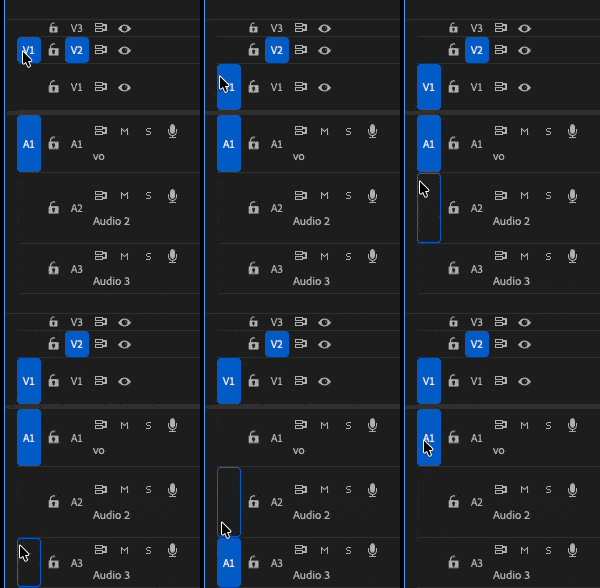

But like many things in Premiere, dragging with the mouse is a slower and more inefficient way to work. There are unmapped keyboard shortcuts for moving the audio and video sources up and down in the timeline to repatch them from one track to another.
Open the Keyboard Shortcuts editor and search for “move source.” You’ll find shortcuts for moving the video and audio sources up and down to repatch them unmapped.
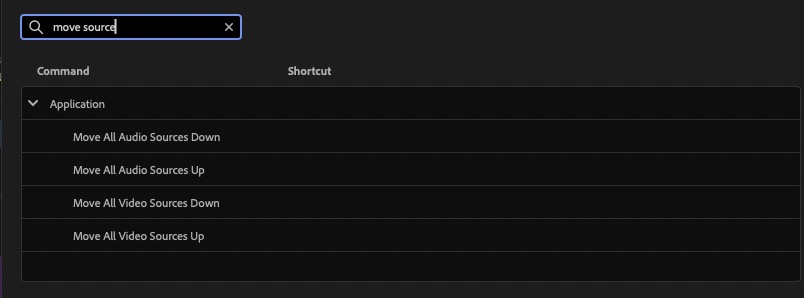

By mapping these to a keyboard shortcut, you can change the destination for where you can edit source media without ever having to click and drag the mouse. And what’s nice about these shortcuts is they will work whether you have the timeline panel in focus or not. So if you’re working on auditioning a clip in the Source viewer panel, and you want to change the destination to where you might insert a new clip, you can change those source video or audio destination patches with a mapped keyboard shortcut while the Source viewer has focus.

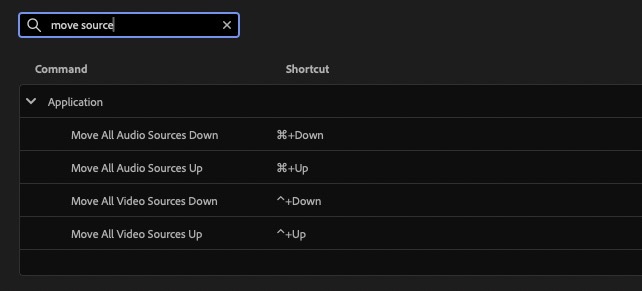
This is a particularly important shortcut for Avid Media Composer editors who have moved over to Premiere. This is the fastest keyboard patching method, and it’s as close as you can get to Avid’s timeline setting for Auto-patching.
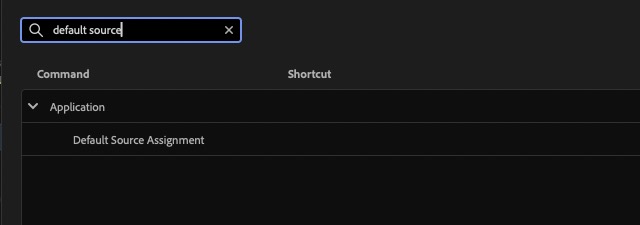
And if you’ve ever moved your source patching to a very undesirable location and you want to quickly restore it to its default state, which is usually source V1 edited to video track one and source AI edited to audio track one, there’s an unmapped keyboard shortcut for that as well, in Default Source Assignment.

This series is courtesy of Adobe.