


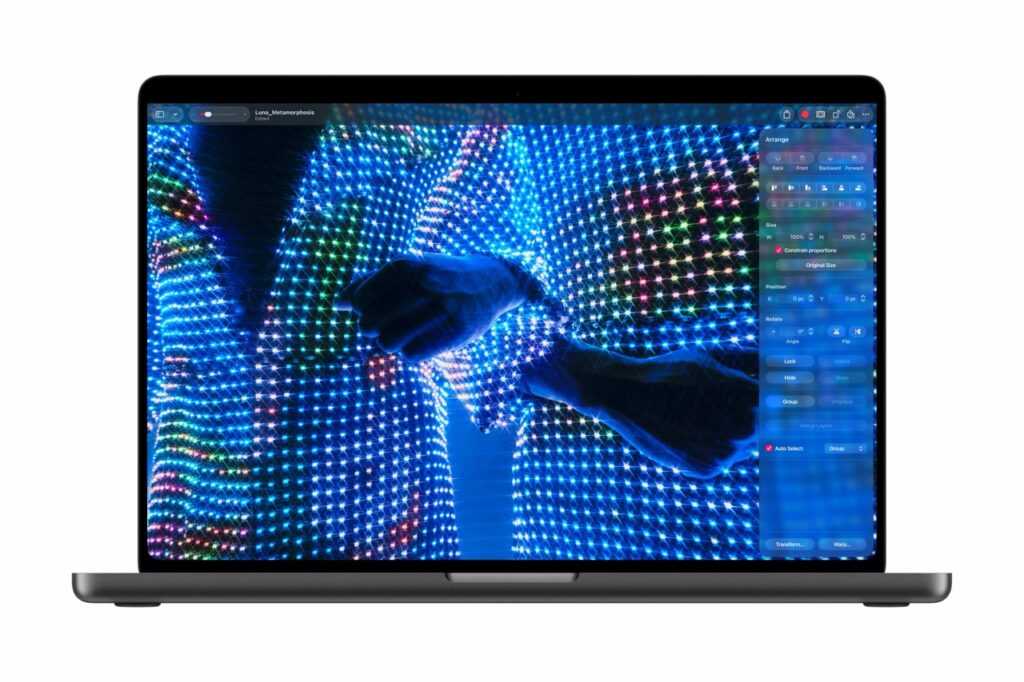
Hot on the heels of the new M5 Mac Studios, Apple has introduced a new high-end MacBook Pro, the M5 Max MacBook Pro with PROLED XDR Display. That name is a mouthful, but it highlights one of the biggest features in this update: an OLED touchscreen display. And I think the other feature that gets buried a little bit is the fact that these new MacBook Pros are a little bit smaller and noticeably lighter than MacBook Pros that preceded them. Lighter is better in a laptop, as long as you can still have the power. And with that, I think Apple has succeeded.


About over a month ago, Apple sent me an M5 Ultra Mac Studio for testing and review (Part 1 of that review is live). I was excited when they offered this review opportunity for the new MacBook Pro, and I know what rarefied air I’m in to have this privilege. I hope these media post-production-focused reviews are helpful. As a full-time freelance editor, I am always looking for ways to speed up post-production and make it a little faster and easier. Having used both Macs and PCs in my career, I’ve always leaned toward Macs, especially when it comes to owning my own edit suite.
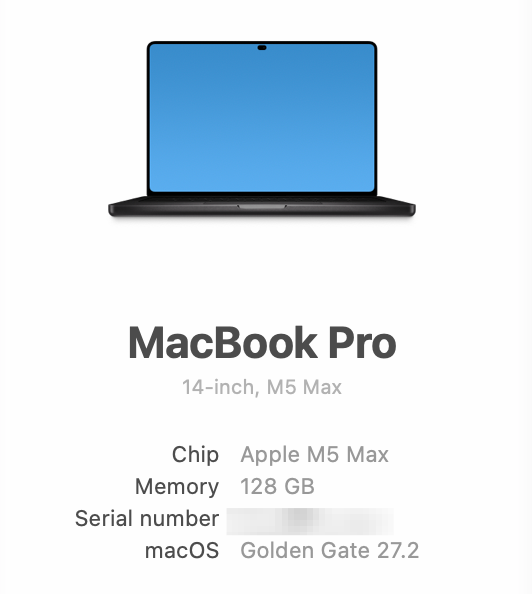

The machine Apple sent me to test was a 14-inch M5 Max MacBook Pro with 128 gigabytes of RAM and a four-terabyte hard drive. It’s a really good laptop, as review machines tend to be. This is an $8,000 machine, but you can get a well-specced 14-inch for about $4,500.

You can do good post work with less RAM than 128 GB; I’m just beginning to dig into the whole world of local AI models and how they require large amounts of RAM. My main focus in these reviews is just the raw power of these machines and how they churn through various post-production tasks in their editing tools. This review will be the same.
First impression on taking it out of the box
One initial impression struck me above all else when I took this thing out of the box. I know it has a powerful chip and there is a new touch screen, which I didn’t know how I would feel about. But instantly upon picking it up, the first thing I noticed was the weight and how it is so much lighter than previous MacBook Pros. The size is about the same as previous 14-inch MacBook Pros, but it’s much lighter. And this is instantly noticeable. Weight and size are big factors with a laptop, and there’s always a trade-off between weight and power. MacBook Airs have been amazingly small and light, but they don’t pack much horsepower. A 16-inch MacBook Pro is a powerful laptop, but you’re going to get stronger if you have to carry it around.
These are the size and weight specs straight from Apple’s website:
14-inch
- Height: 0.59 inch (1.50 cm)
- Width: 12.24 inches (31.08 cm)
- Depth: 8.52 inches (21.63 cm)
- Weight (M5 Pro): 3.0 pounds (1.38 kg)
- Weight (M5 Max): 3.1 pounds (1.40 kg)
16-inch
- Height: 0.63 inch (1.60 cm)
- Width: 14.0 inches (35.55 cm)
- Depth: 9.62 inches (24.42 cm)
- Weight (M5 Pro): 4.0 pounds (1.82 kg)
- Weight (M5 Max): 4.1 pounds (1.84 kg)
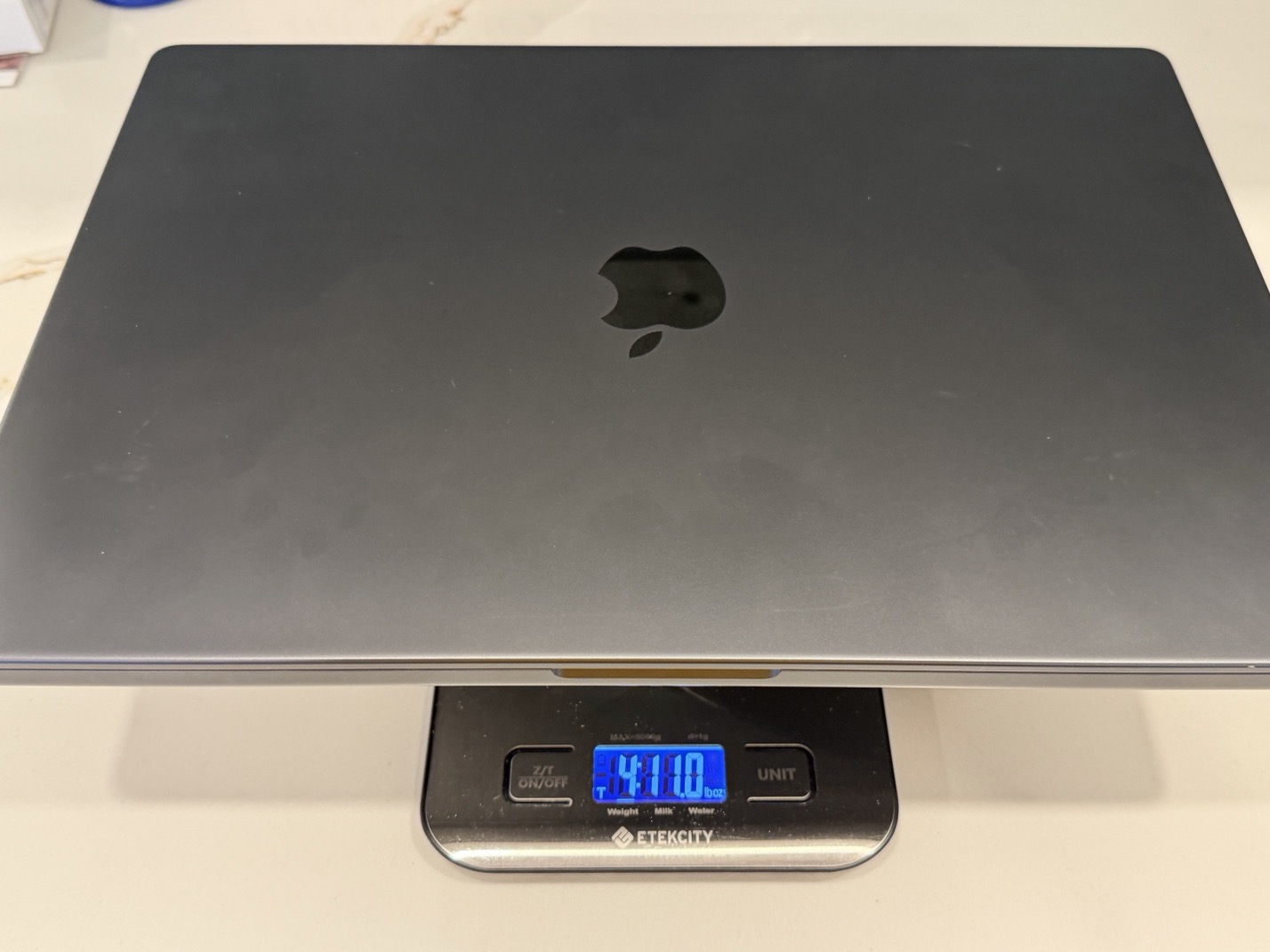
For comparison, I grabbed my wife’s 14-inch M2 MacBook Pro and my M3 MacBook Pro, and I grabbed a kitchen scale.

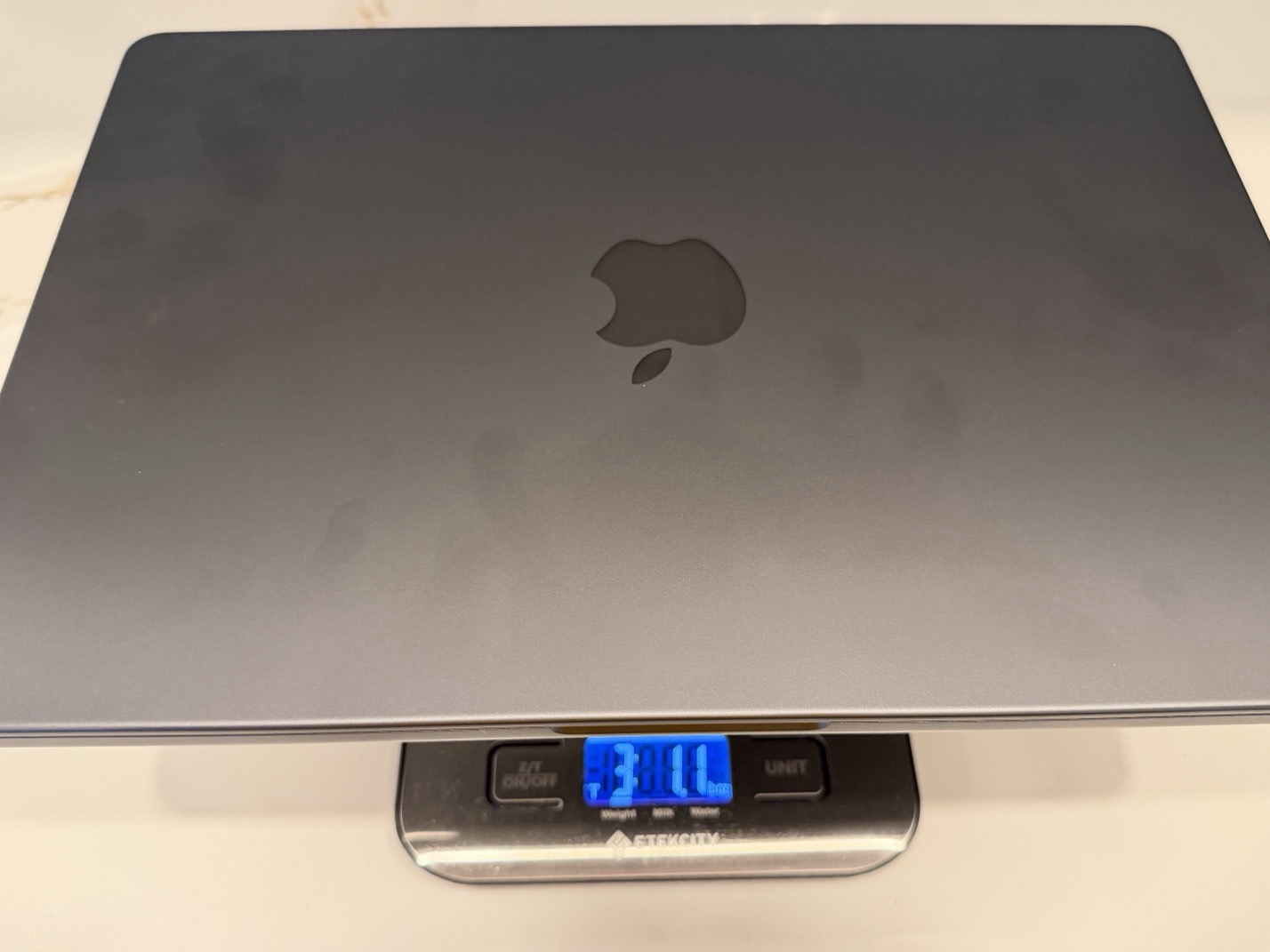
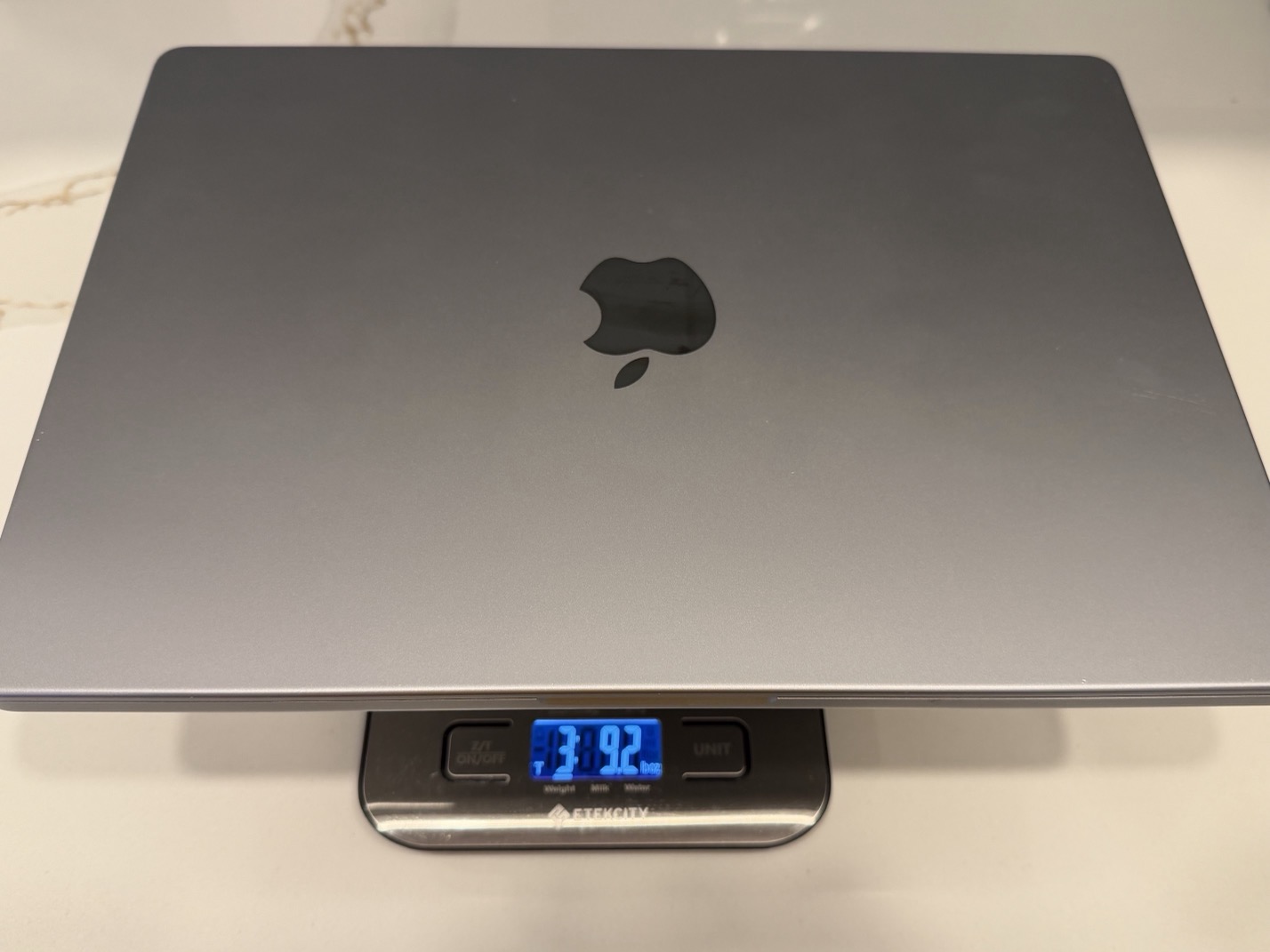
Yeah, that was weird, but this 14-inch feels so nice I wanted to see those weights for myself.
I’ve gone back and forth between a 14-inch and a 16-inch laptop over the years for mobile post-production. I was always firmly in the 16-inch camp until I bought a 14-inch M2 Max back in the day. That really put me squarely in this fourteen-inch camp. As a smaller size, it really just lends itself to more portability. That’s especially true if you have to lug it around a lot in a backpack.
I had a period between desktops when that laptop was my main editing machine, and I kept it plugged into a dock and a monitor about 75% of the time. That made it incredibly useful at my desk while still being portable. For the other 25% of the time, when I took the laptop on set or edited outside of the edit suite, I always had a second monitor. Sometimes it was a cheap HDMI purchase off Amazon. Usually it was an iPad as a second display.
One of the biggest downsides I experienced, compared to something like a Mac Studio, was that laptops would crank up the fans much sooner to stay cool. And MacBook Pro fans have traditionally been quite loud. This new MacBook Pro has a new thermal architecture, and the fans did not crank up nearly as much as I’ve seen on older MacBooks.
The only time I really missed a 16-inch screen was during class presentations or at a conference like NAB. I had to plug in the screen for classroom projection to mirror the laptop display, and that’s when I really missed those extra two inches. That was just a fraction of the time, as opposed to how often I edited on the laptop.
All that said, if I were buying one of these laptops today, I would go with the 14-inch model.
And then there’s the touchscreen
A lot of digital ink has been spilled since the introduction of the new MacBook Pros about the touch screen. This is the first time that Apple has included a touchscreen in one of their MacBook Pros. Before we dig deeper, I think it’s worth pointing out that Apple is the company that got us so accustomed to touchscreens, of course, with the iPhone. Then came the iPad, which took a touchscreen and gave us an almost laptop-like form factor with a bigger screen and the ability to use a keyboard.

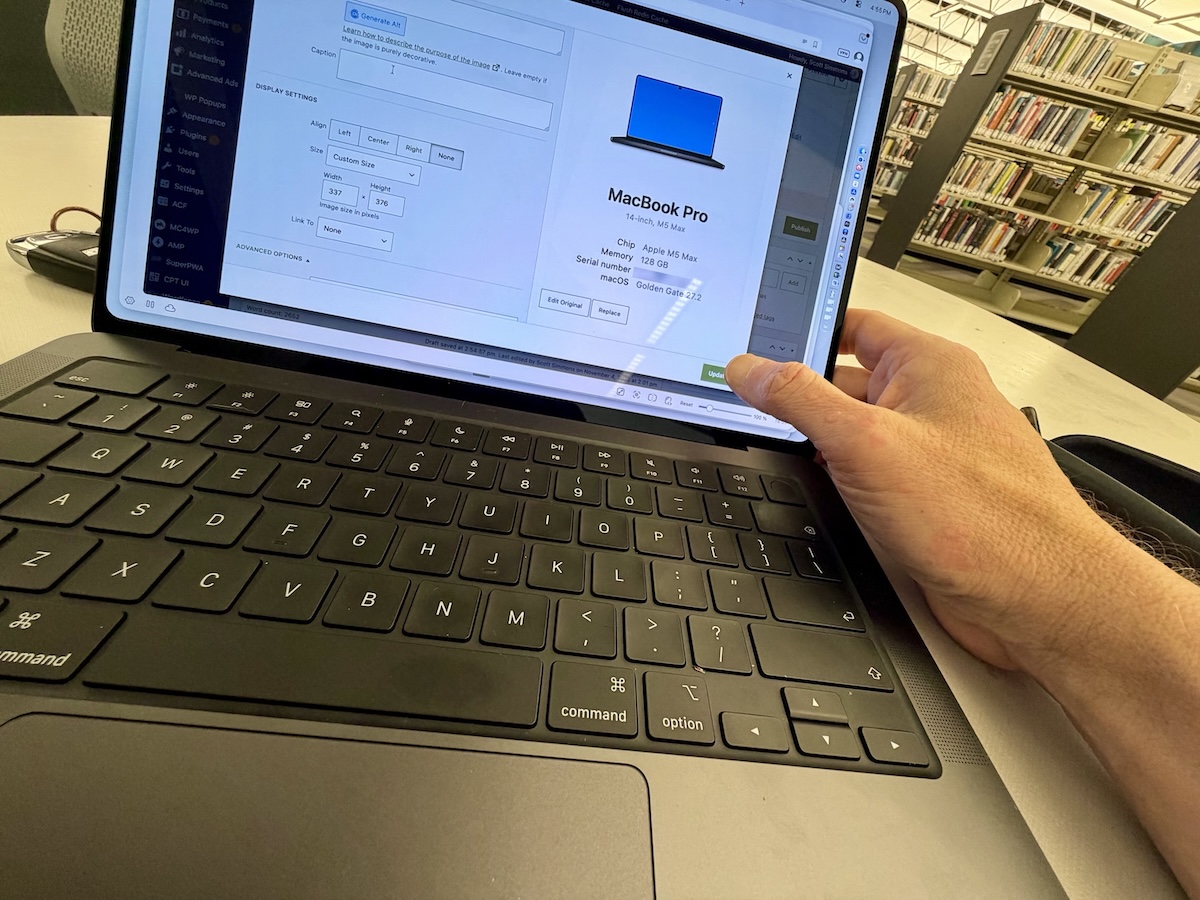
I’ve used an iPad extensively since they came out, but really began using one as a laptop replacement around the iPad Pro era. In fact, the M4 iPad Pro became a staple in the edit suite. And any editor who uses an iPad regularly is used to touching the screen. But a laptop is different from an iPad, and an iPad with a keyboard and trackpad is different from one without.
But honestly, I think a lot of the people complaining about the touch screen on the new MacBook Pro aren’t the people it’s intended for, and that includes me. If you’ve grown up using a regular laptop, then your computing experience is with a keyboard and a trackpad. All those other weird little interface gizmos seem to have died in favor of a trackpad (remember that thing that was a pencil eraser in the middle of the keyboard?!!). I think every laptop I’ve ever owned has had a trackpad, including the one PC laptop I owned many years ago. So sitting in front of a laptop with a touchscreen is a relatively new experience. Have I used it? That touchscreen, that is.
Before I answer that question, I want to state for the record that I think the touchscreen on the new MacBook Pro is aimed squarely at the generation that grew up with iPhones, and smartphones overall. They expect a touchscreen anytime they’re within a couple of feet of a computer screen. I set both of my teenagers down in front of the new MacBook Pro to do some homework with little more than. I gave them instructions on how to log into their online classrooms, and mentioned that this new MacBook Pro has a touchscreen. This was a change from their usual school computers: a crappy Chromebook and a MacBook Neo.
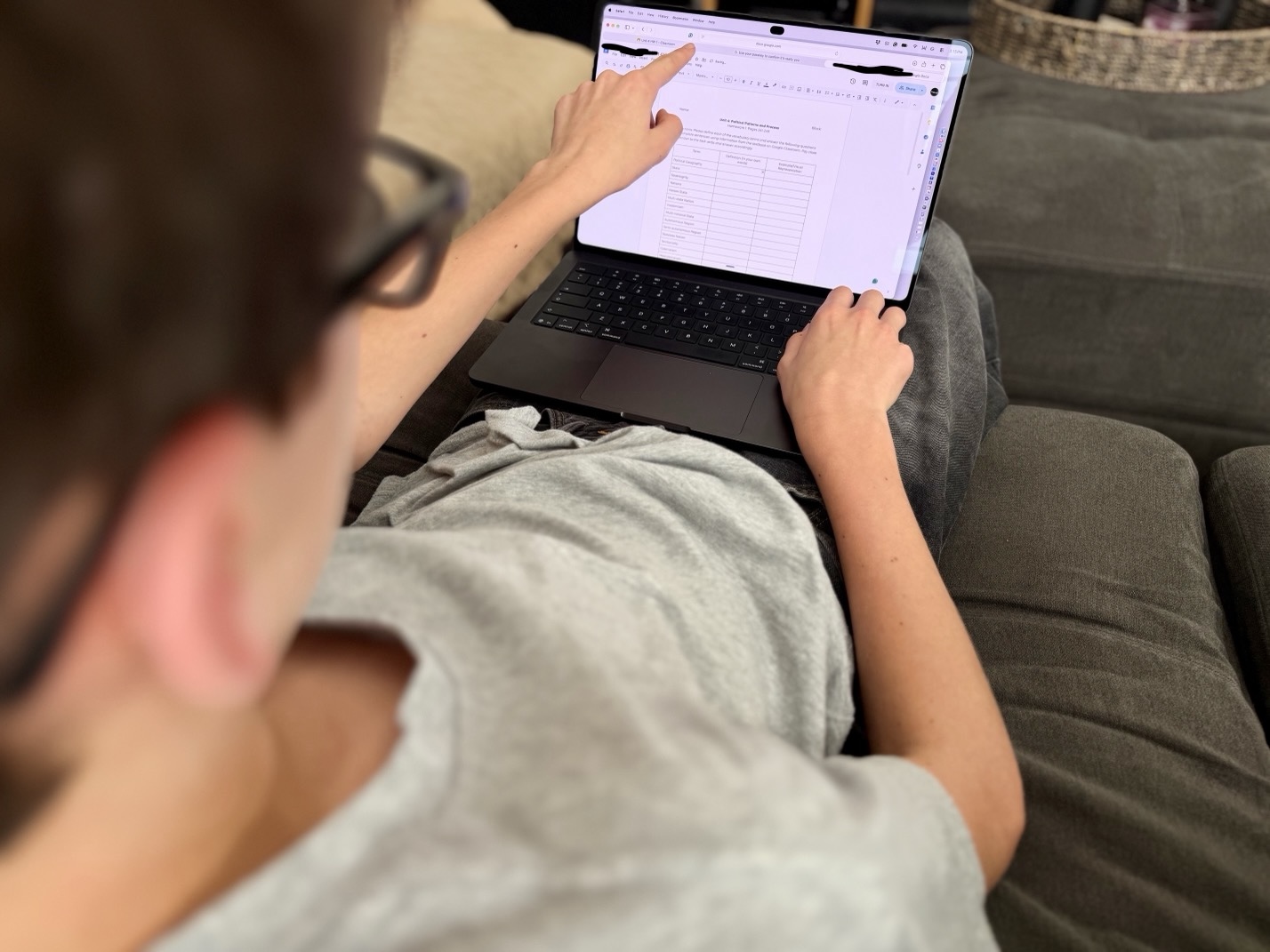
After an evening of homework and general web surfing, they seem to take to having a touch screen readily available. In fact, my oldest, who owns the MacBook Neo, now wants one of these machines (he isn’t getting it; the Neo is perfect for him). I tried to casually observe while they were doing their work, and the touch screen interactions weren’t constant, as they both still made good use of the trackpad. But there were times when they used the touch screen. Quizzing them both about it afterward, they liked having this as an option. This could just be because it was new, but one comment was a bit more telling. It was something to this effect, ”Dad, we touch our phone all the time, so why can’t we touch the screen on the laptop?” Well, I think the answer is your other laptop doesn’t have a touch screen.
How much have I used the touch screen?
So the next question I asked myself was, how much have I been using the touch screen in my relatively short time testing out this new MacBook Pro? I’m trying to make a conscious effort not to use it just because it’s there, but to use it when I think it makes sense.
And I can tell you without hesitation as I type this, I like the touchscreen (and I wasn’t sure if I would find that it adds anything). It does add an extra layer of interface options for many things you do on a laptop. Am I reaching up and touching and sliding and dragging and multi-fingering and zooming and scaling and all that kind of stuff all the time? No. But I have found it’s pretty quick to reach up and hit Cancel or OK on a dialog box.
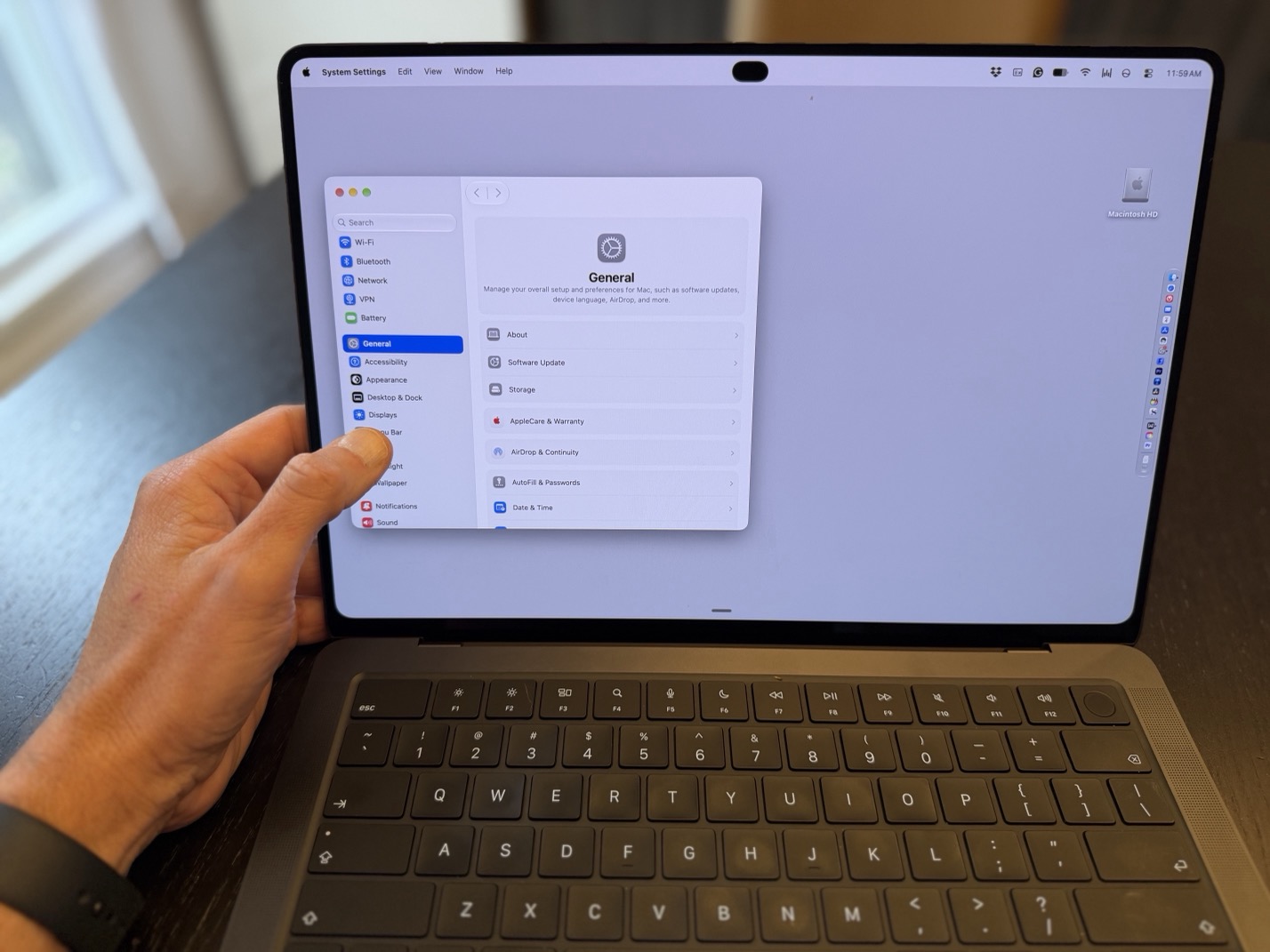
I’ve also found that I’ve started placing web browsers closer to the edge of the screen, as I’ll reach up and scroll with my finger instead of the trackpad. The same thing happens with something like the system settings. In the few days I’ve really been using it, it’s been a lot of writing more than video editing. I used it extensively while writing this article, as well as (hopefully) an upcoming book about freelance video editing. When I’m not typing with both hands, I’ve taken a bit of a new stance at my desk. I lean back with my right hand on the trackpad, and as a lefty, my left hand up near the screen for scrolling. Something similar to when I used it on my lap. So far, I kind of like it.
I will also admit I kind of liked the Touch Bar on that line of MacBook Pros. When it was implemented well in the right applications, I thought it could be quite useful. But the problem with the Touch Bar is that it wasn’t better than the Function keys, and my F keys are very important. In all my editing applications, my F keys are mapped to a number of very useful commands. So while the Touch Bar was useful, it wasn’t more useful than the function keys for most of my work.

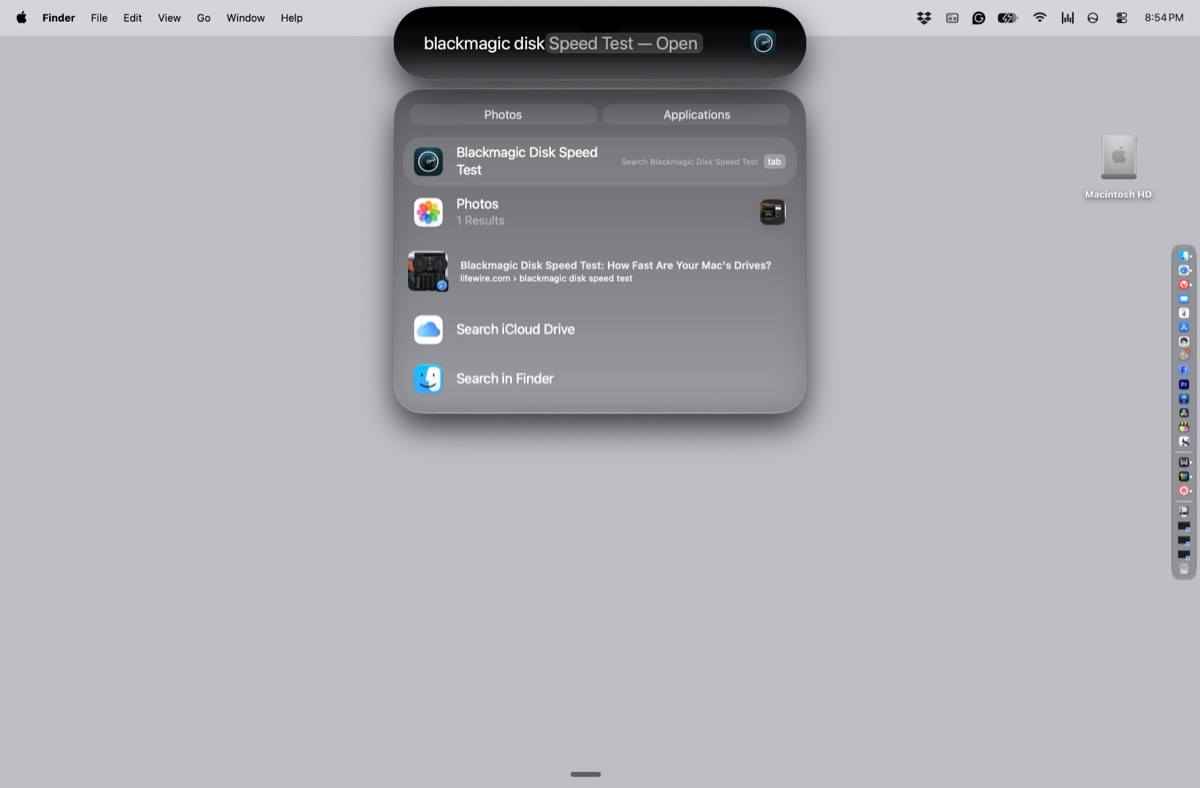
The problem I saw with the Touch Bar was that it replaced something useful. So you lost something to gain something, and what we gained with the Touch Bar wasn’t better than what we lost by losing hardware function keys. The touch screen is there all the time, but you don’t have to use it if you don’t want to. That’s what made me laugh about so much of the social media scuttlebutt about it. That’s because no one is forcing you to touch it and use it.
And the PROLED XDR display screen is gorgeous
Another big selling point of the new MacBook Pro with PROLED XDR Display is right there in the name itself, the PROLED XDR display. Apple makes a number of gorgeous displays and this one is no exception and it’s one of the best ones I’ve encountered.
The specs are impressive:
- Tandem OLED
- Up to 2000 nits peak brightness
- 10,000,000:1 contrast ratio
- Wider color gamut that covers both P3 and Adobe RGB
These display specs can be tricky to test, but putting them in front of your eyes with something like a really good HDR YouTube channel in full screen gives you a sense of how gorgeous it is. If part of your laptop experience is watching movies at the highest paid Netflix tier, then this is the type of screen you want.
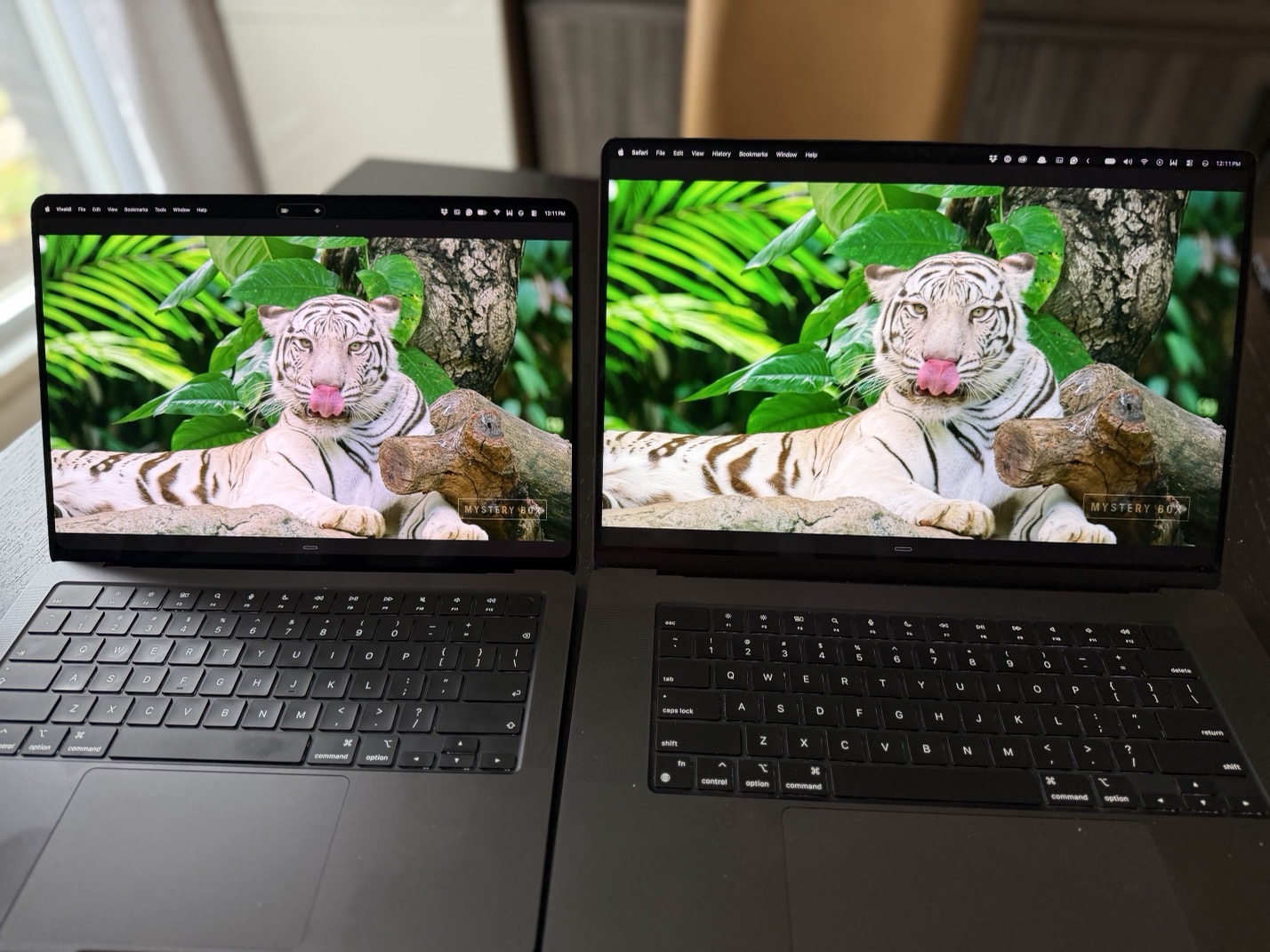
I made a mistake thinking this display was the same as the Studio Display XDR, but it’s not. It’s a different display technology closer to the iPad Pro. With a little help from our AI friends, I pulled together this comparison chart of three of Apple’s best screens.
Modern Apple XDR Display Comparison
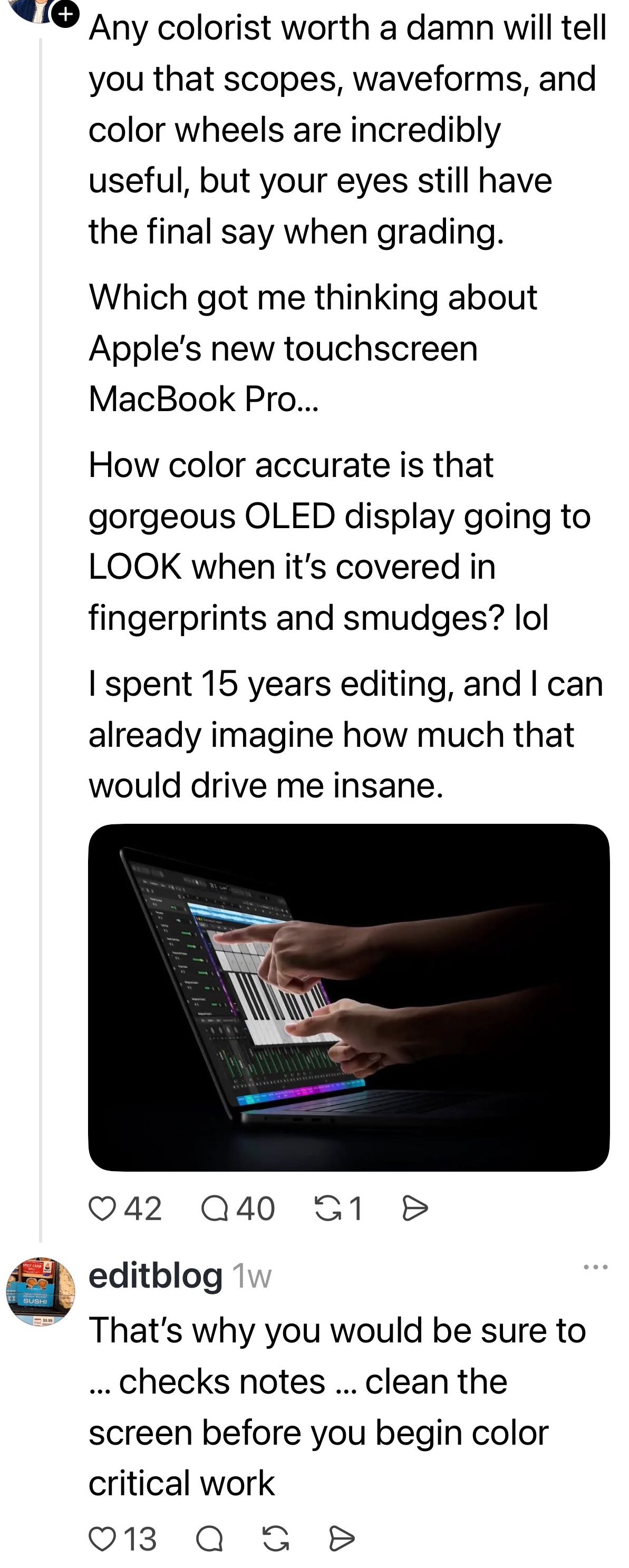
One thing I noticed while reading the tech specs of this new screen is that it has both an anti-reflective coating and a “fingerprint-resistant oleophobic coating.” I don’t think I’ve ever seen this fingerprint-resistant coating mentioned, but a little research tells me it is common on Apple touchscreen devices. But it’s not common on non-touchscreen devices, so that makes it the first time. I’m guessing this coating hits the MacBook Pro because it is, of course, the first time it’s been a touchscreen on a MacBook Pro. I haven’t noticed many fingerprints myself, but since this screen is marketed for high-end display use, if you’re doing color grading on your PROLED XDR display, clean it of any potential fingerprints first.
If I could embed a Threads post here, I would, but I can screenshot it.

And what about touch-friendly software?

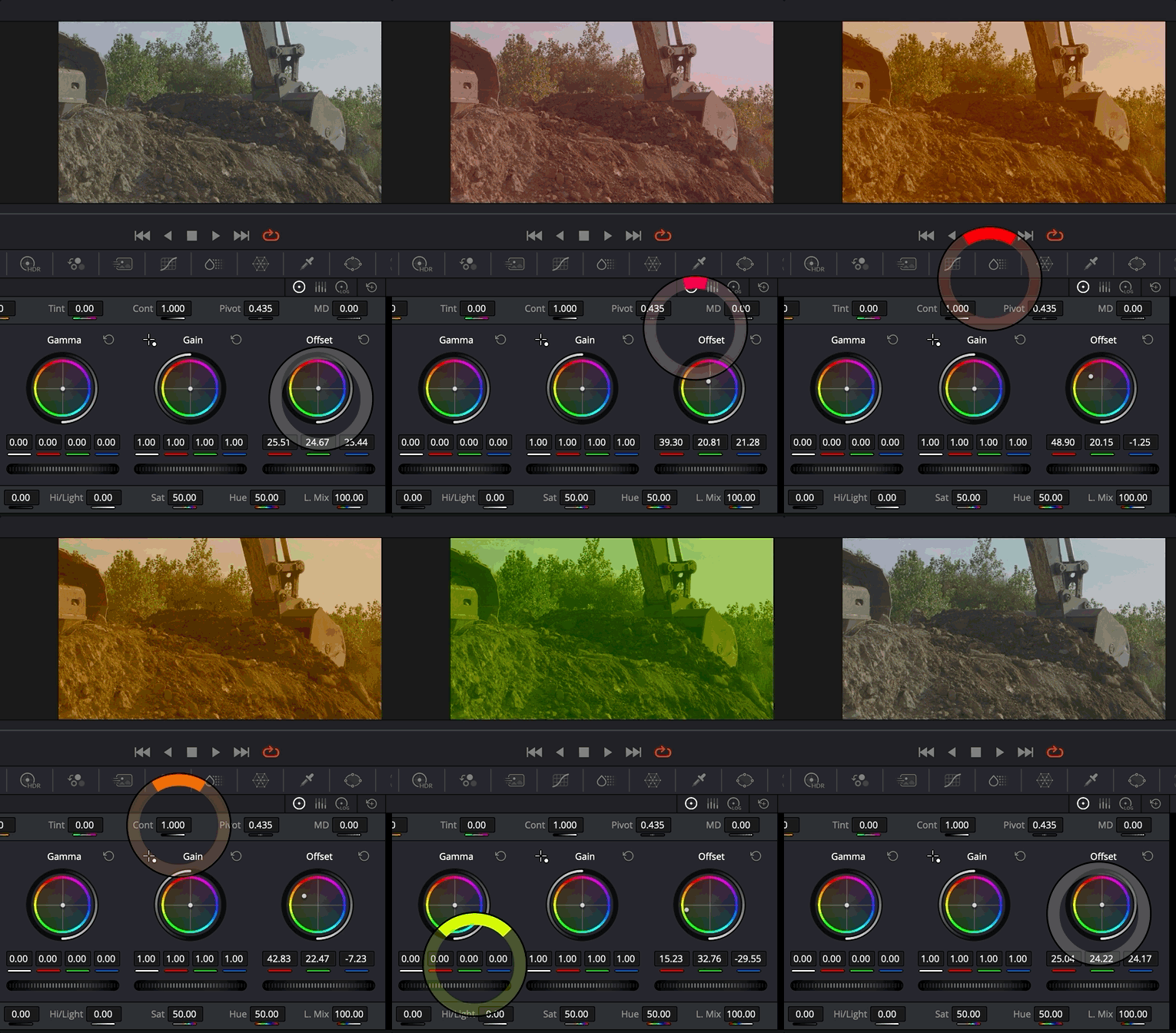
I think we are so new to this era of the touchscreen MacBook Pro that most software isn’t optimized for this new interface yet. macOS is slowly getting more touch-optimized. I think that will be the case for most software on the Mac. Apple is providing developer tools to help developers prepare their software.
When it comes to post-production tools like our NLEs, it’ll be really interesting to see how the software makers adapt. Final Cut Pro will most likely be the first, and it will, I’m sure, be the most touch-friendly of all the NLEs once everything is optimized. The Final Cut Pro interface in and of itself is nowhere near as busy as Adobe Premiere, Apple Media Composer, or DaVinci Resolve.

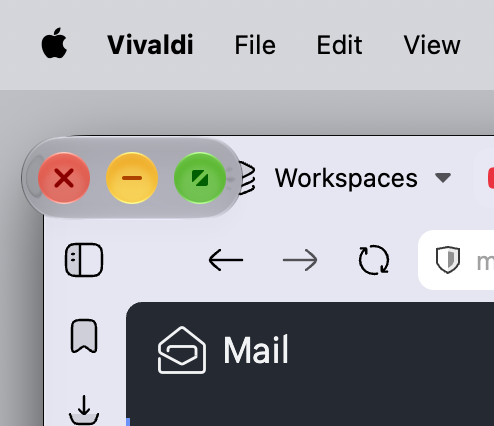
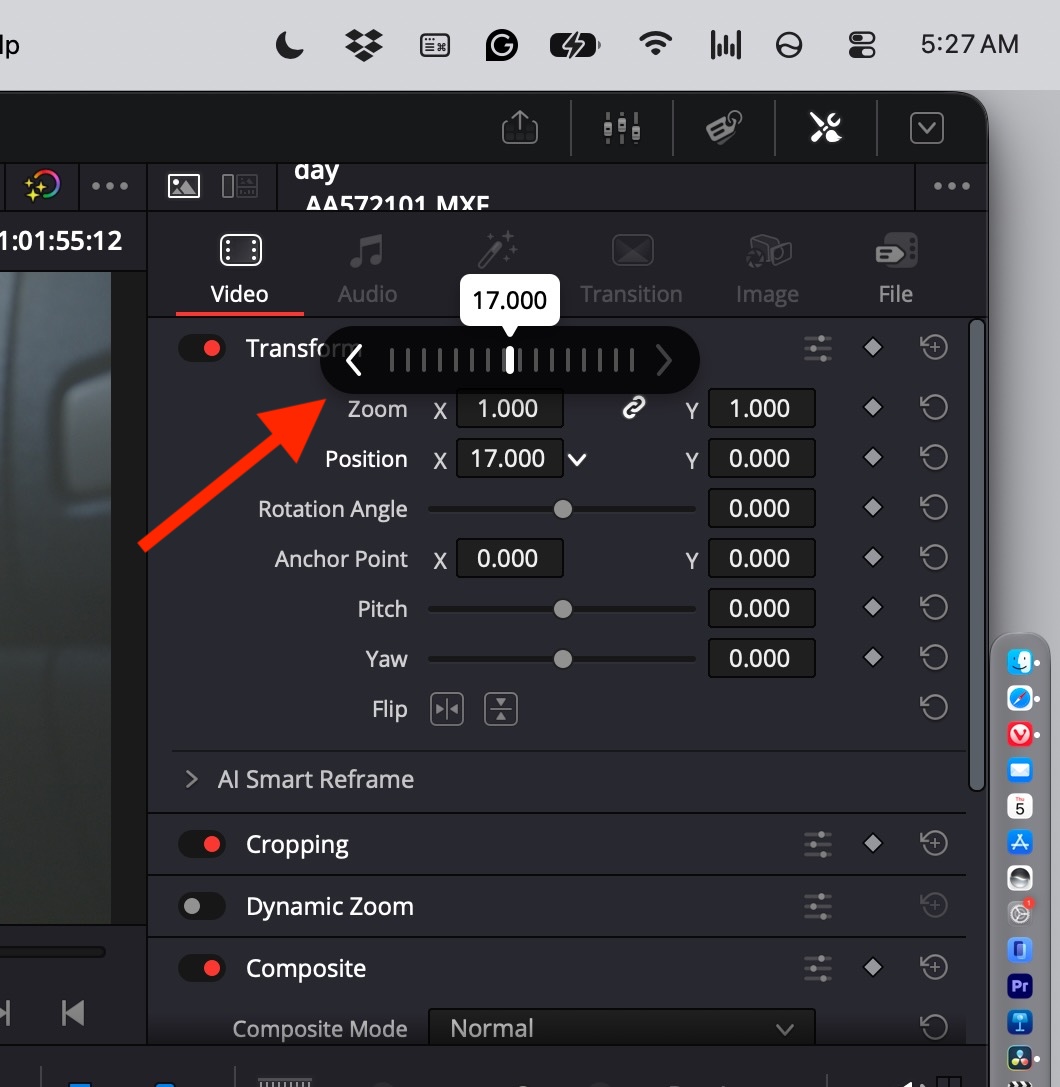
Blackmagic is first out of the gate with touchscreen support. The DaVinci Resolve 21.2 update adds touch support.

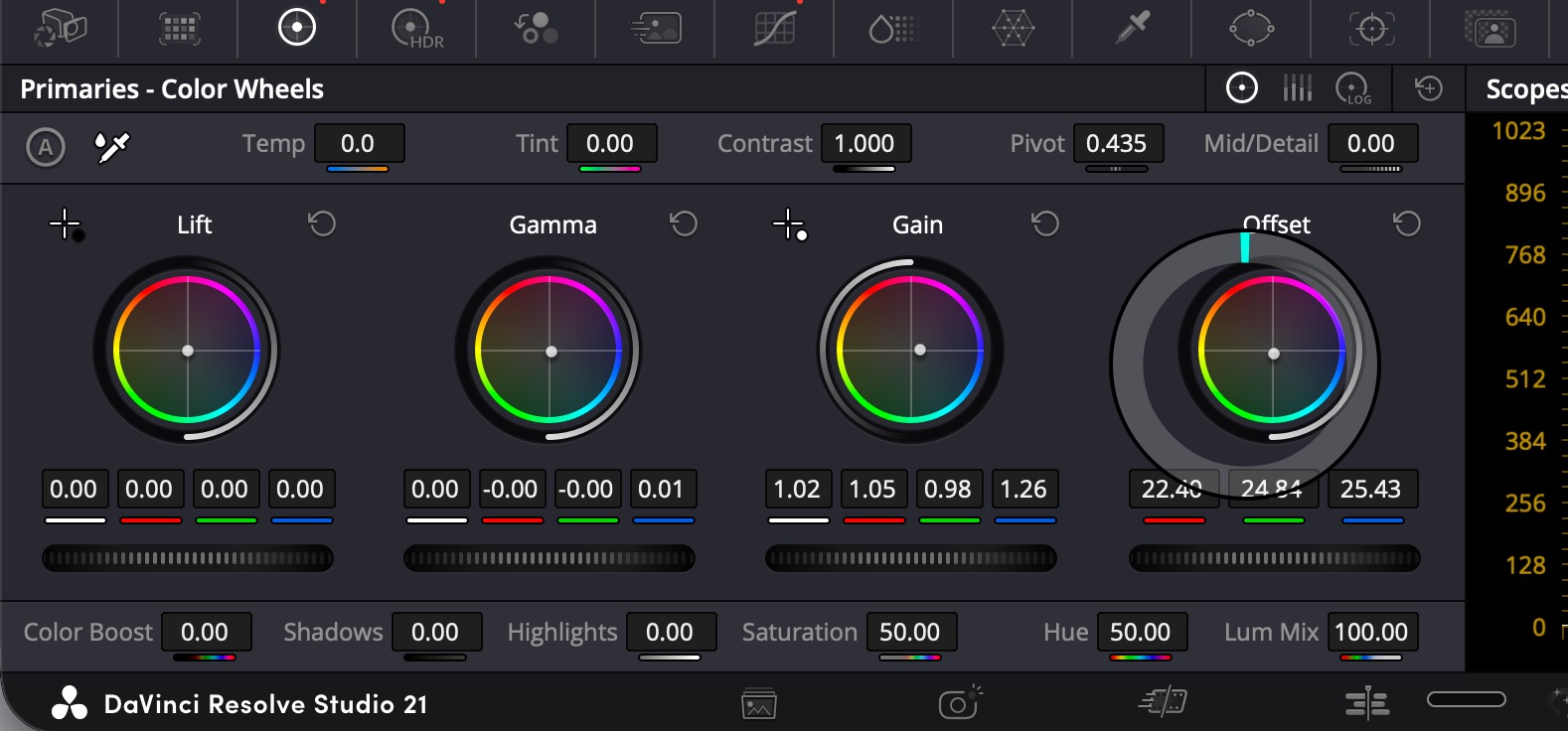
Touch-sensitive controls aren’t everywhere in Resolve. It’ll be a bit of discovery to find where this has been implemented. For example, the ring in the Color page in the image above is in the Primaries – Color Wheels, but it doesn’t exist in the High Dynamic Range – Color Wheels. That feels like an oversight, as this touch support was probably added at the last minute. It will be a lesson in discovery as to how and if some of our professional tools get touch support. And where. Where will be the biggest discovery.
Performance?

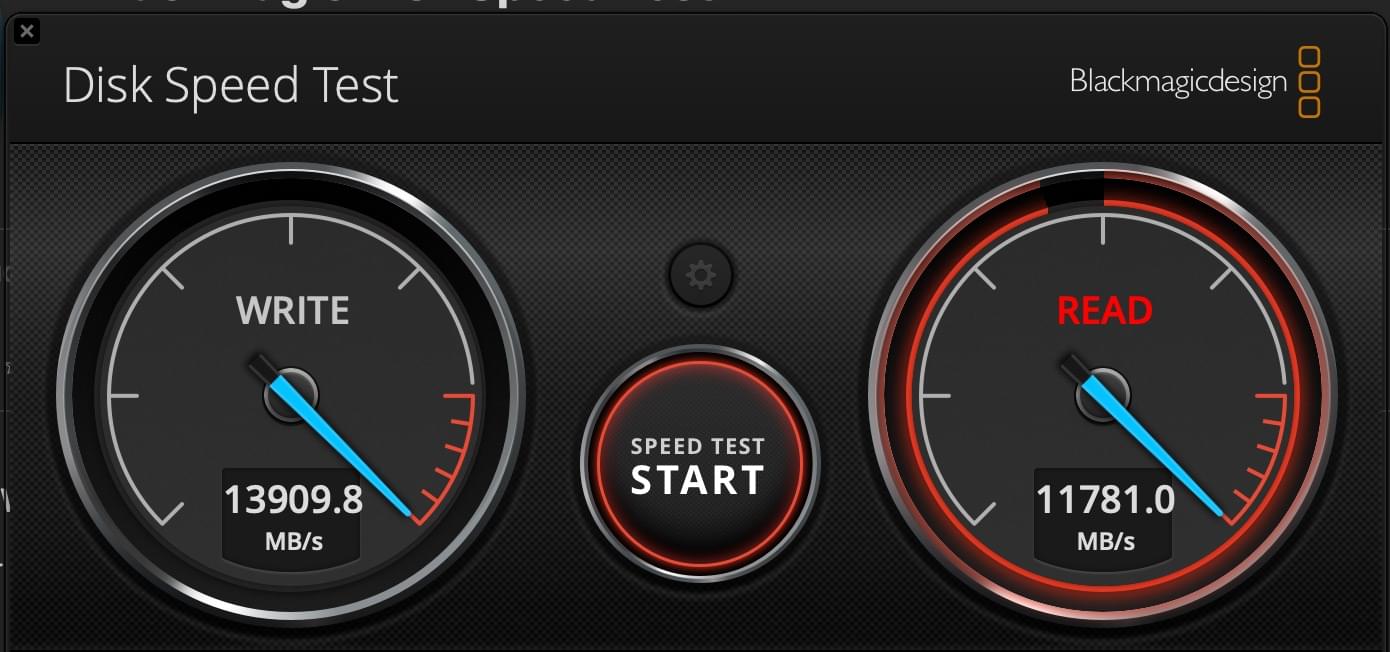
I only had limited time with this MacBook Pro, but since this is hot on the heels of the recent M5 Ultra Mac Studio update, I thought I would run it through some of the same tests I did for the M5 Ultra. I still had most of those projects online, and I was curious about the difference, considering the chip is just a step below.
These are some impressive numbers, and I’m just going to lay them out against the M5 Ultra, with the M5 Max listed first.
Media analysis time for visual search tools
| Adobe Premiere | DaVinci Resolve | Final Cut Pro | |
| M5 Max MacBook Pro w/ PROLED XDR Display | 7:20 | 21:50 | 23:58 |
| M5 Ultra Mac Studio | 5:40 | 21:00 | 22:05 |
This is one of the most intensive of the AI related post-production tasks. The analysis has to happen before the search can begin.
Enhance speech, voice isolation
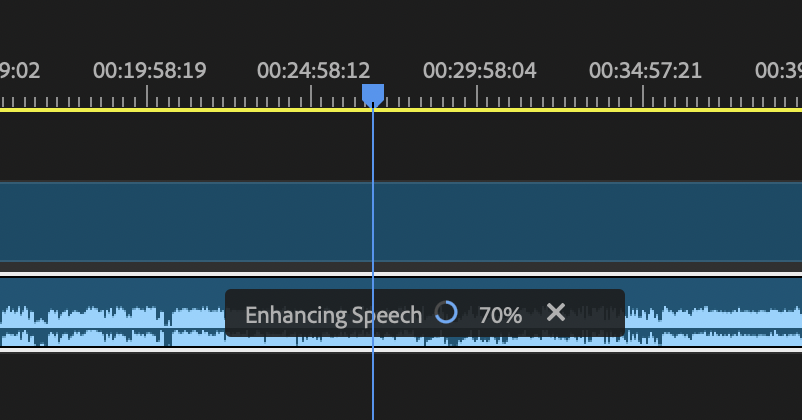

| Adobe Premiere | DaVinci Resolve | Final Cut Pro | |
| M5 Max MacBook Pro w/ PROLED XDR Display | 1:36 | Instant (processes in real time) | Just a few seconds |
| M5 Ultra Mac Studio | :57 seconds | Instant | 18 seconds |
Surprisingly, Enhance Speech kicked the fans on in Premiere when proxy encoding didn’t.
Transcribe to captions
This was a batch transcription of seven interviews.
| Premiere | DaVinci Resolve | Final Cut Pro | |
| M5 Max MacBook Pro w/ PROLED XDR Display | 1:17 | 2:33 | 1:21 |
| M5 Ultra Mac Studio | 1:49 | 3:25 | 1:34 |
| Adobe Premiere | DaVinci Resolve | |
| M5 Max MacBook Pro w/ PROLED XDR Display | 3:02 | 8:13 FANS |
| M5 Ultra Mac Studio | 2:25 | 8:28 |
Resolve kicked the MacBook Pro’s fans on partway through the process.
Edit scene detection
| Premiere | DaVinci Resolve | Final Cut Pro | |
| M5 Max MacBook Pro w/ PROLED XDR Display | 1:42 | 1:04 | :45 seconds |
| M5 Ultra Mac Studio | 1:19 | 1:17 | :39 seconds |
File encodes
4K HEVC file, 1 hour and 47 minutes in length.
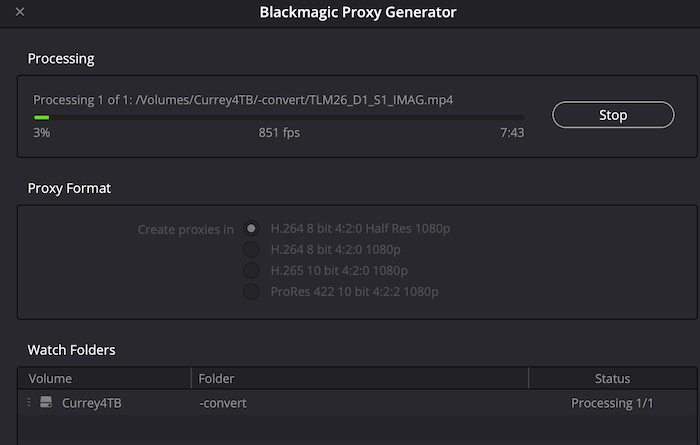

| Encode to H265 BITC | Adobe Media Encoder |
| M5 Max MacBook Pro w/ PROLED XDR Display | 14:10 |
| M5 Ultra Mac Studio | 12:43 |
| Encode to ProRes Proxy Quarter screen | Apple Compressor |
| M5 Max MacBook Pro w/ PROLED XDR Display | 7:18 |
| M5 Ultra Mac Studio | 12:39 |
That was impressive. I wonder if Apple has optimized Compressor in some way? I may have to test that one again.
| H.264 8-bit half resolution | Blackmagic Proxy Generator |
| M5 Max MacBook Pro w/ PROLED XDR Display | 7:59 |
| M5 Ultra Mac Studio | 11:57 |
And the last one:
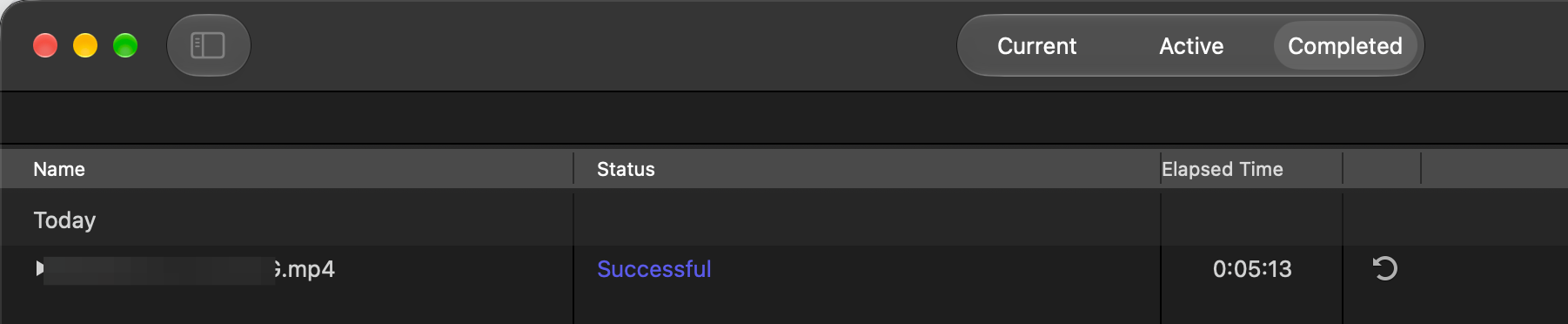

| ProRes Proxy quarter size | Apple Compressor |
| M5 Max MacBook Pro w/ PROLED XDR Display | 5:13 |
| M5 Ultra Mac Studio | 12:42 |
Those are some overall impressive numbers. I mentioned the new thermal architecture in this new MacBook Pro. It was built to direct heat away from the display. I think it’s been successful, as I didn’t hear the fans of the new M5 Max MacBook Pro w/ PROLED XDR Display kick on nearly as much as they do on older MacBook Pros.
M5 Max MacBook Pro with PROLED XDR Display
PROS
- Smaller and lighter is a good thing in a new laptop update
- M5 Max is fast
- Touchscreen is a new way to interact with a Mac
CONS
- Can get expensive very quickly
- Not much else I can think of
- Touchscreen is a new way to interact with a Mac
CAUTIONS
- The glowing Apple logo on the display is back and someone out in the public might ask you about it
- Don’t avoid the touchscreen because you haven’t use it before on a Mac, give it a fair shake
- Touchscreen is a new way to interact with a Mac