

Welcome to Tool Tip Tuesday for Adobe Premiere Pro on ProVideo Coalition.
Every week, we will share a new tip to save time when working in Adobe Premiere Pro.


There’s a tiny button hiding in the corner of the Adobe Premiere Pro timeline that many editors may not be aware of. It’s also a button that can accidentally get turned on, which creates an incorrect (and often very frustrating) behavior when editing from a sequence loaded into the Source monitor. The technical name for this button is the Insert and overwrite sequences as nests or individual clips button, but it’s colloquially known as the “Nest or Not Nest” button.

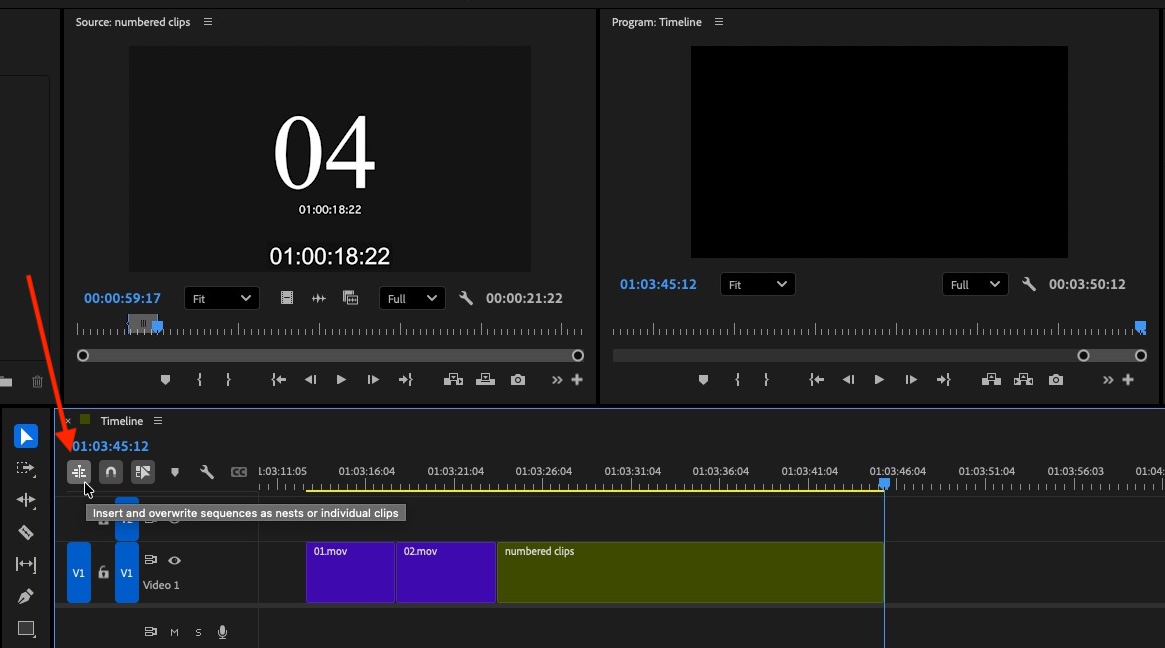
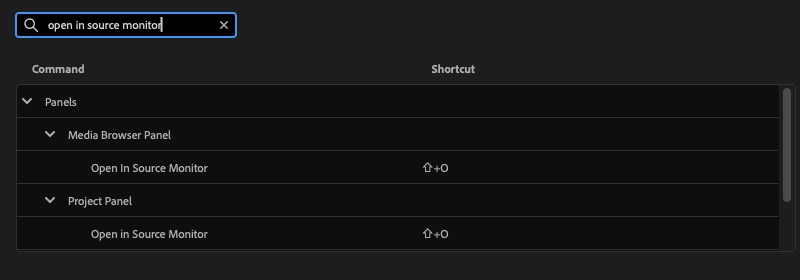
When the “Nest or Not Nest” button is toggled on, as shown in the image above, a Source timeline will be edited into the Program timeline as a nest, as you can see in the yellow clip called numbered clips. That’s a nest of the numbered clips sequence that is loaded in the Source monitor. It’s called numbered clips, as that was the name of the timeline the clip was edited from. You can load a sequence into the source monitor by just dragging it in, or using the Open in Source Monitor shortcut.

While I personally don’t think this “Nest or Not Nest” button is particularly useful (I honestly can’t think of a single time I’ve ever used it, editing from a source selects sequence or a pancake timeline) it’s an important function to know about because if it accidentally gets turned on, you may get stuck with a lot of nests in your timeline when what you really want are the individual clips from something like a selects sequence.
I’m sure there are some that use this button. I’d be curious to hear what your use cases are in the comments below.
And here’s a bonus tip: What happens if you accidentally have the “Nest or Not Nest” button turned on, you’ve edited for a while, and now you have a lot of nests in the timeline and you want those original source clips instead? Right-click and turn the nest into a multi-cam. Then, right-click it again and flatten.
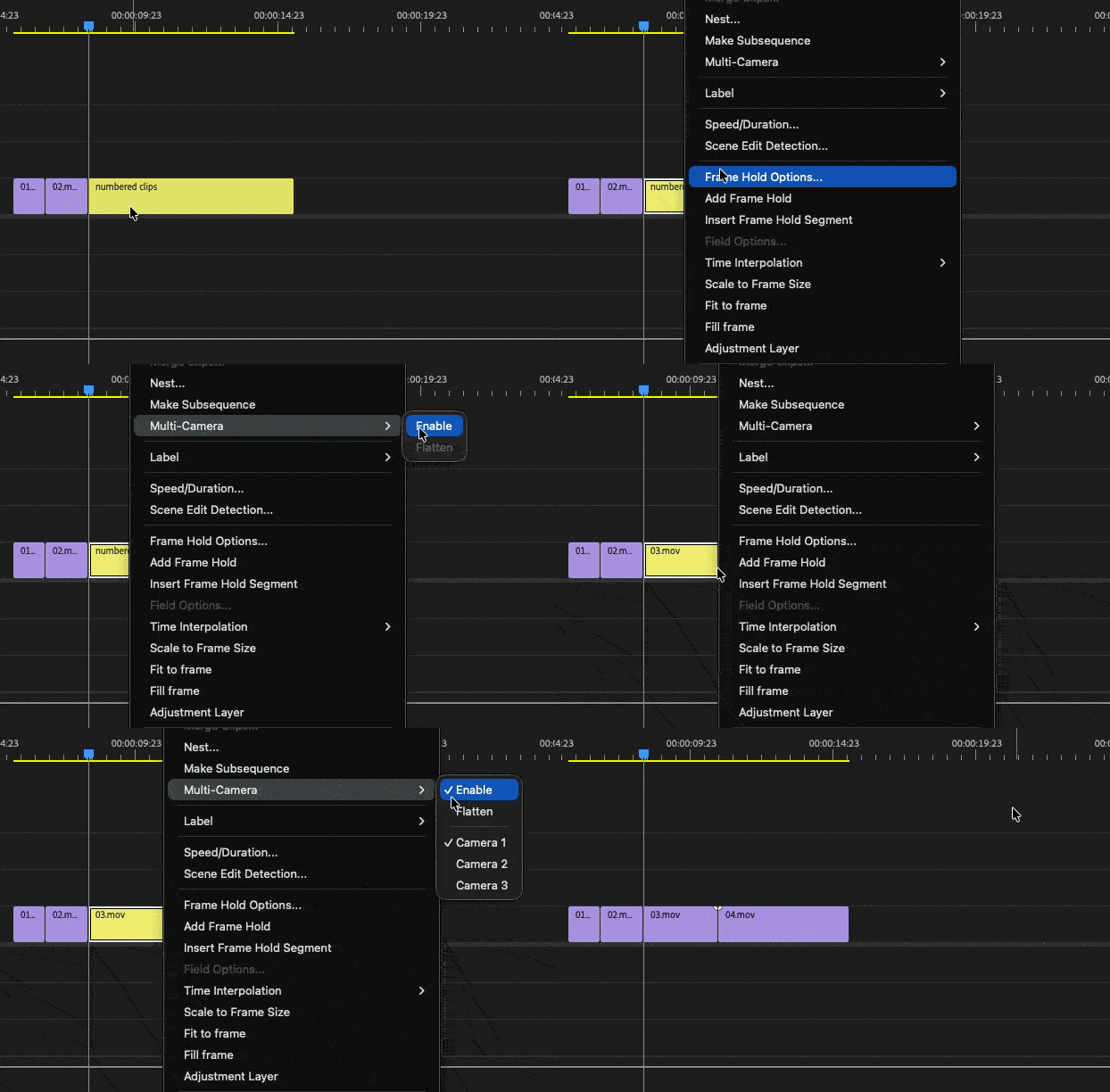

That might be the best tip of this whole article.
This series is courtesy of Adobe.