

Welcome to Tool Tip Tuesday for Adobe Premiere Pro on ProVideo Coalition.
Every week, we will share a new tooltip to save time when working in Adobe Premiere Pro.


Despite what you might read on social media, Adobe Premiere Pro is a very stable editing platform, especially when following best practices for storage and media types. But on occasion you might have to do some troubleshooting when problems arise. One of the easiest things to do is use the Reset options method when launching Premiere to do just that … reset a number of options with the application.
To bring up the Reset options dialog box, hold down a modifier key when launching Premiere, such as option on a Mac or ALT on a PC. Hold that key down until the Reset options dialog box appears.
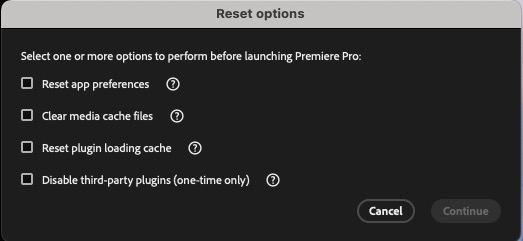

While it’s not uncommon to see advice to select all the above options when troubleshooting, you can be more selective in choosing one option at a time to see if one reset or cache clear might help with an issue. I would suggest studying the Reset options dialog box before using any of the options to better understand what you’re doing. One way to learn more is visit Adobe’s help documentation and learn about why you might want to reset the preferences in the first place. And while you’re at it, why not learn a bit more about the mysterious Premiere Pro media cache and all those files the media cache creates.
You can also hover your mouse over the question marks for a pop-up that describes what each option does.
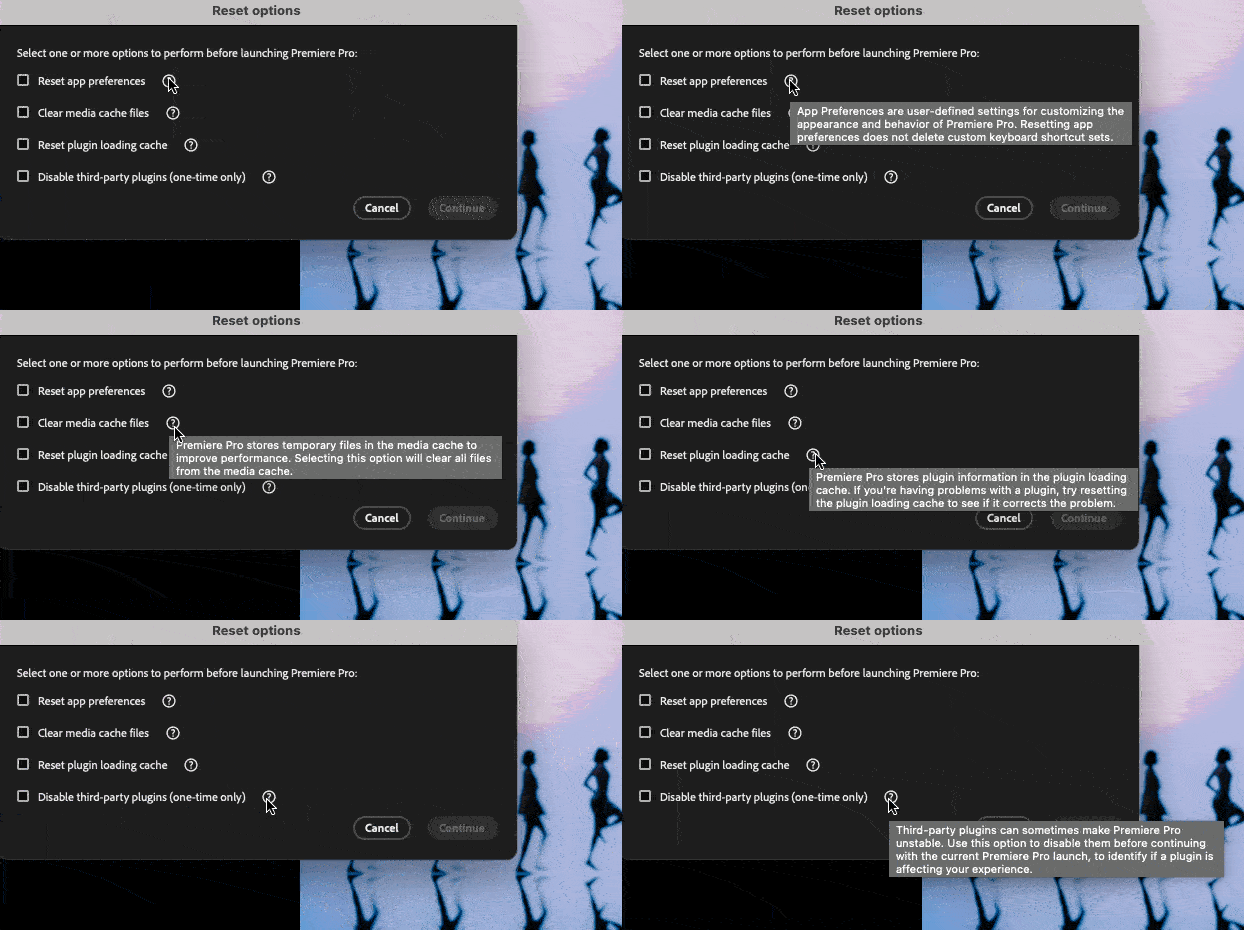

At the very least, read over these pop-ups before executing any resets. It’s important to notes that while you’re resetting preferences and deleting cache files, nothing you might do here can’t be regenerated (as in with the media cache files), relaunched (as in the plugins), or re-set up (as in the app preferences).
When all else fails, dig into Frame.io’s article about troubleshooting Premiere Pro. Even though this article is written about Premiere Pro 2024 the information is still valid.
This series is courtesy of Adobe.