


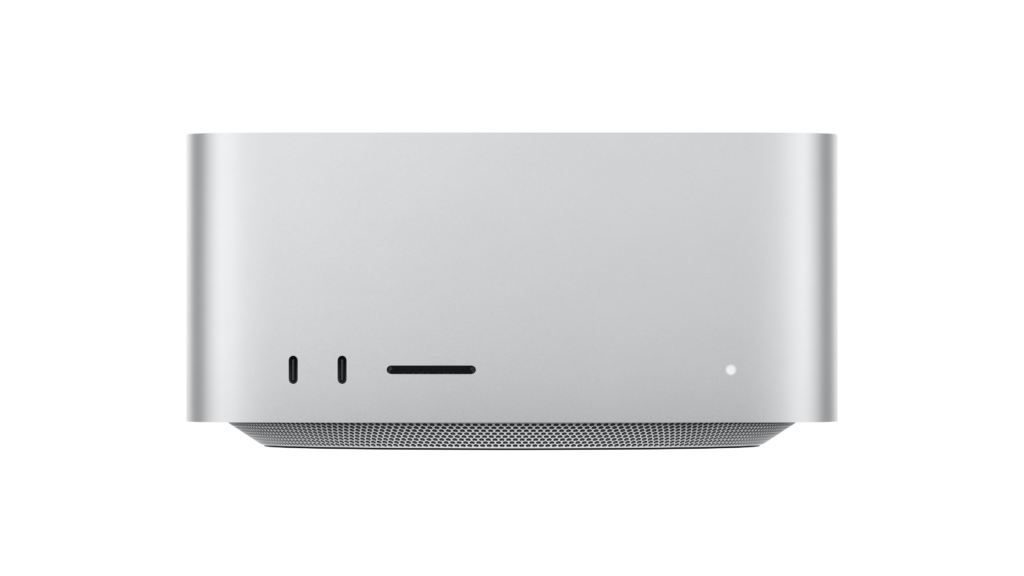
The Mac Studio M5 Ultra is here. Apple recently introduced new Mac Studios in a surprise update that included new Mac Studios and new Mac minis.
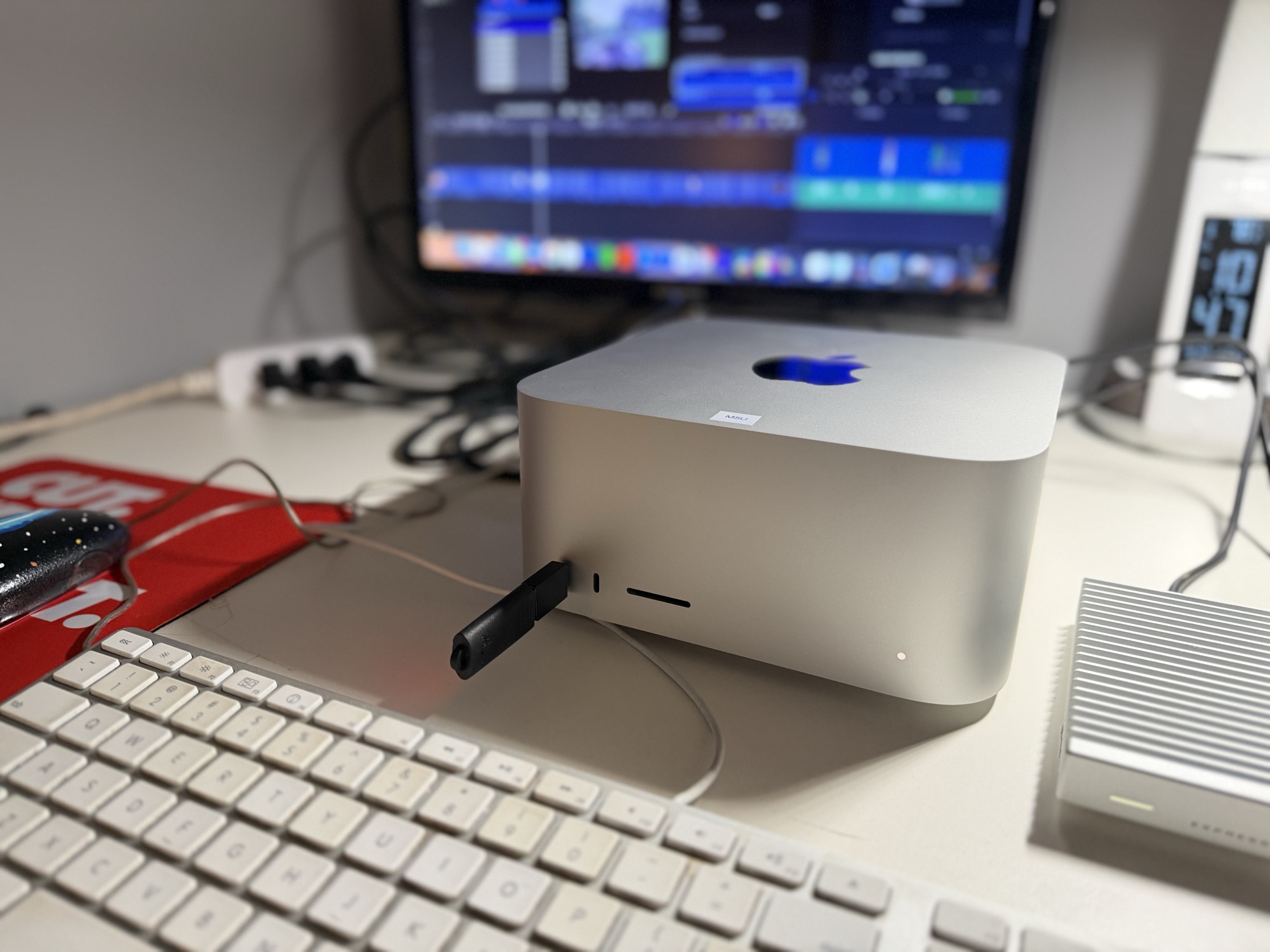

The Mac Studio line presents editors with a choice between a Max chip and an Ultra chip. Recently, looking back at the Mac Studio updates from last year, the M chip lines in the Mac Studio weren’t the same but this year’s update brings that in line with a choice between an M5 Max and M5 Ultra in a Mac Studio.
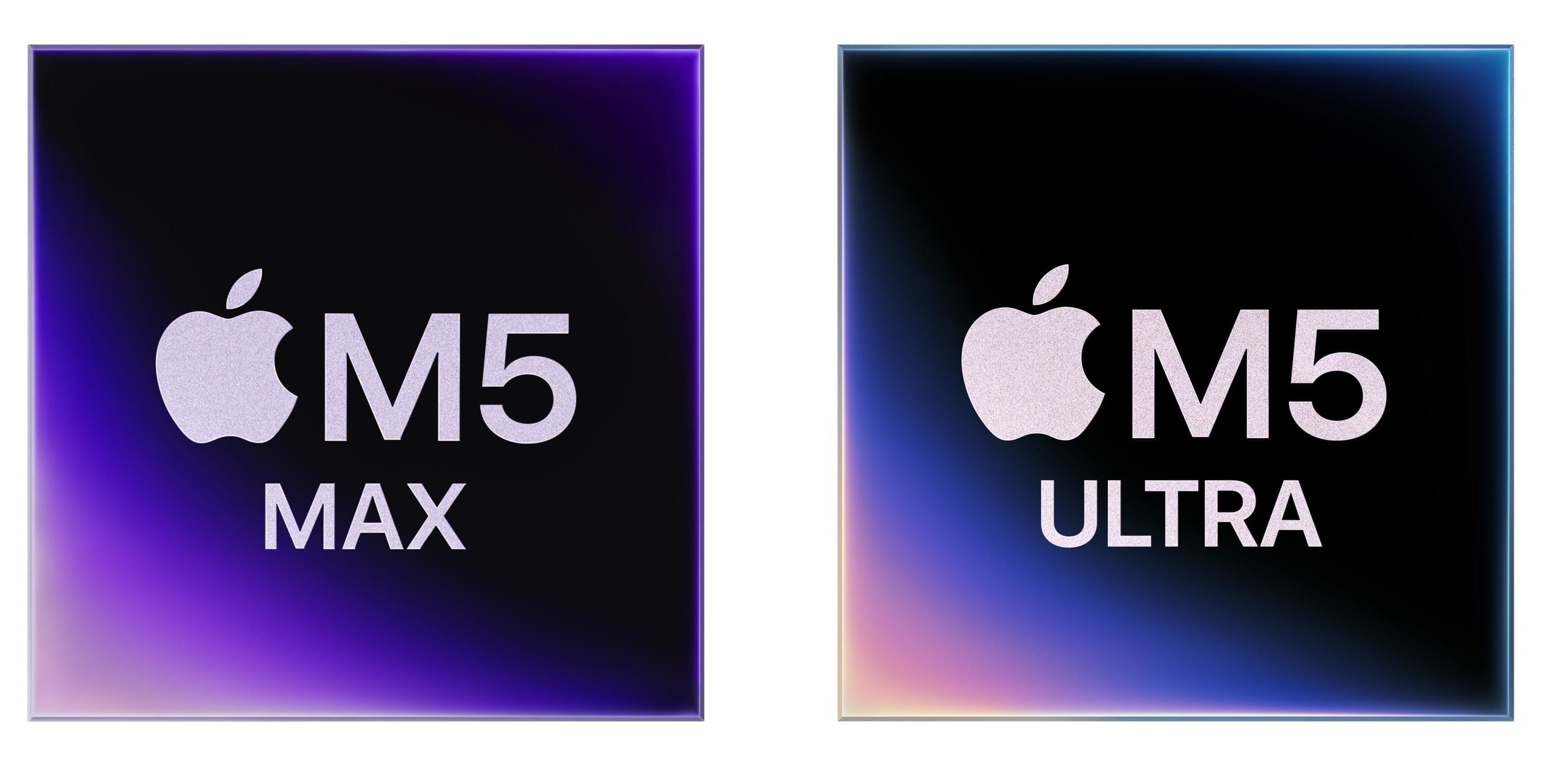

Apple’s UltraFusion technology makes the Mac Studio Ultra’s chip count possible. The M5 Ultra is essentially two M5 Max chips connected with the UltraFusion technology to provide over 4.4TB/s of bandwidth. macOS sees an Ultra chip as one unified processor with one unified memory pool, and applications don’t need any special configuration to take advantage of the full chip. What the engineers have done with the M5 Ultra is different from previous generations of the Ultra chip in that the creation of this generation of Ultra chips uses a quad-die architecture for the first time. For editors, 3D artists, and ML practitioners running heavy workloads, that seamless integration is probably more meaningful than the raw core counts printed on the spec sheet.
And this “doubling” continues in a sense as the M5 Ultra chip contains twice the media engines over the M5 Max. This is an image I always point editors to when looking at Mac Studio configurations.
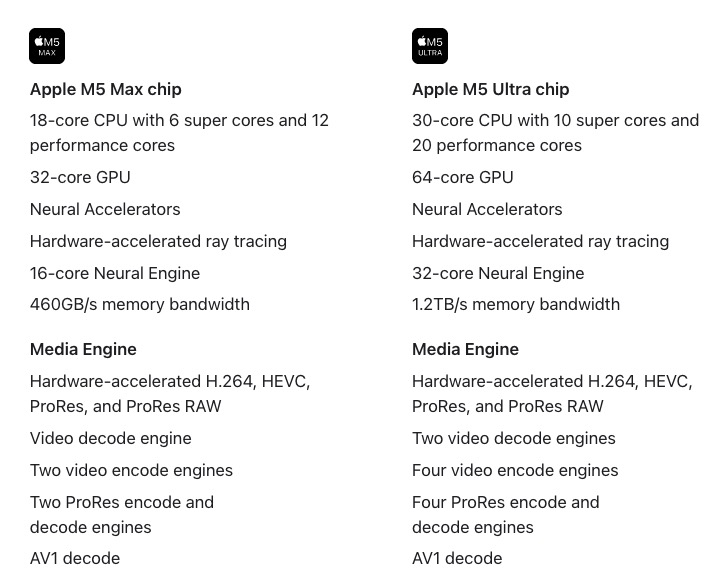

That image on the surface might be a bit deceiving as double the media engines doesn’t mean twice as much of everything but it does mean more speed overall depending on what you’re doing. The doubling of a Media Engine means twice the throughput depending on what you’re doing so that’s why there are impressive benchmarks such as an M5 Ultra playing 33 streams of 8K ProRes. That shows the power of what Apple has built even if that benchmark would be a rarity in the real world.
But what’s worth noting here is that by building these Media Engines into the Apple silicon M-series of chips, developers can take advantage of this. If you’re a developer you can use Apple’s Video Toolbox APIs to build Media Engine support into your applications and this is something that all of the major video editing platforms do. If you really want to get technical then spend some time in Apple’s developer documentation learning about the Video Toolbox framework.
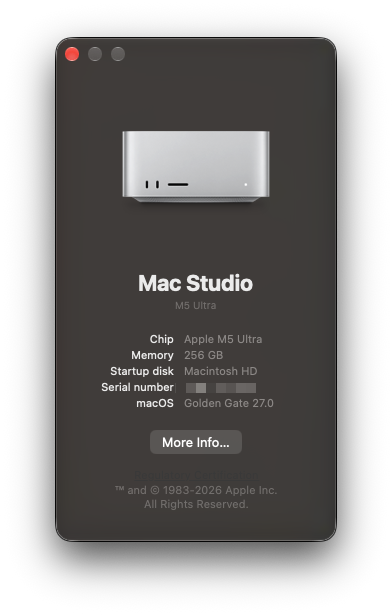

I was lucky to get an M5 Ultra with 256 gigabytes of RAM as a review unit to run through the usual battery of tests. Since we are now living in an AI era, and using AI and running local LLM models is something that’s important to many editors, in both part one and part two of this M5 Ultra review, we’ll focus on a lot of the AI features in our non-linear editing applications. These features can be tricky to test, but many are AI-forward in how they are marketed and executed within the application.
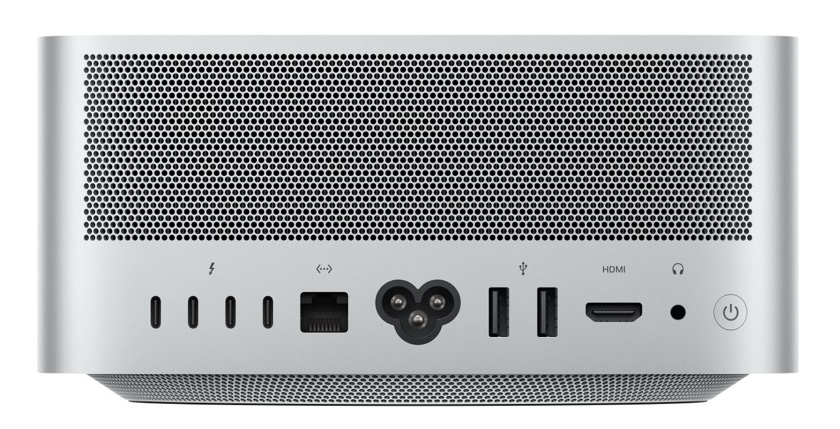

And connectivity is nearly identical to what has been the connectivity of the Mac Studio since the M1, just updated with new specs and standards:
-
- 2x Thunderbolt 5 (USB-C) ports (supporting data transfers up to 120 Gb/s, native DisplayPort 2.1, and system clustering).
- The front Thunderbolt ports are USB-C on the M5 Max configuration
- 1x SDXC card slot (supporting UHS-II speeds).
-
- 4x Thunderbolt 5 (USB-C) ports (supporting up to 120 Gb/s, DisplayPort 2.1, and charging peripherals).
- 2x USB-A ports (supporting data transfers up to 5 Gb/s).
- 1x HDMI port (supporting multichannel audio output and advanced high-resolution display protocols).
- 1x 10Gb Ethernet port (Nbase-T Ethernet with backward compatibility for 1Gb, 2.5Gb, and 5Gb networks using a standard RJ-45 connector).
- 1x 3.5 mm headphone jack with advanced, built-in support for high-impedance headphones.
- Wi-Fi 7 (802.11be) via Apple’s proprietary N1 wireless networking chip.
- Bluetooth 6.
- Thread networking technology built-in for localized smart device infrastructure.
Analysis time is for visual search
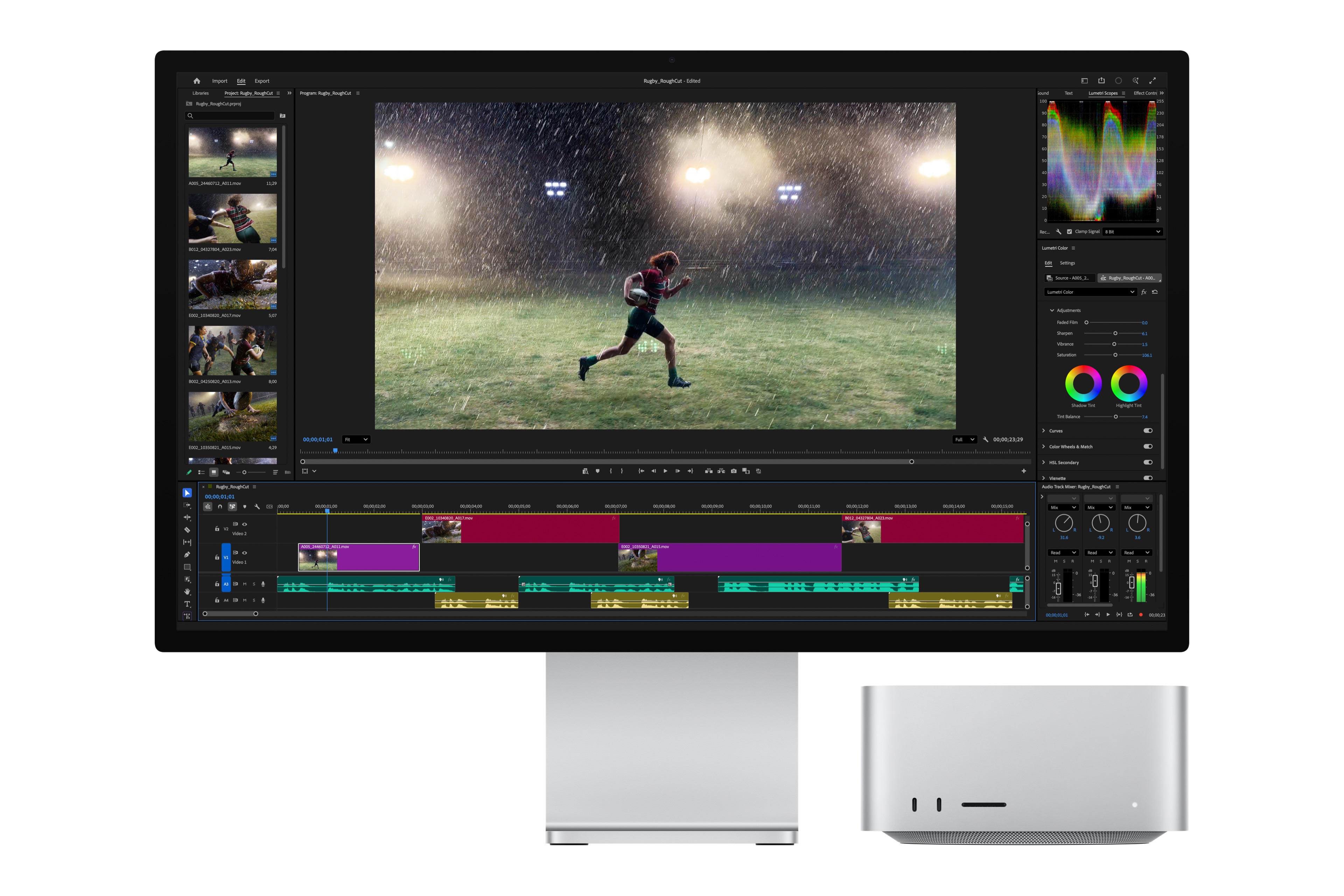

Visual search tools are now part of all three of the major non-linear editing tools. It’s a natural extension of AI and a good use case as being able to search not by keywords or by metadata, but by literally describing a clip. It’s especially useful in documentary editing, where you have a lot of B-roll.
Visual search is the big time-consuming feature, at least as far as the analysis goes. All clips have to be analyzed, and depending on the app you’re using or what you’re analyzing for, it could be visual search analysis, transcriptions, or face analysis and detection. It’s a truly useful feature, but it’s something that you must plan into your workflow if you have an extensive batch of clips, because the analysis takes a while. Premiere, Resolve and Final Cut Pro all do this analysis on device with local models.
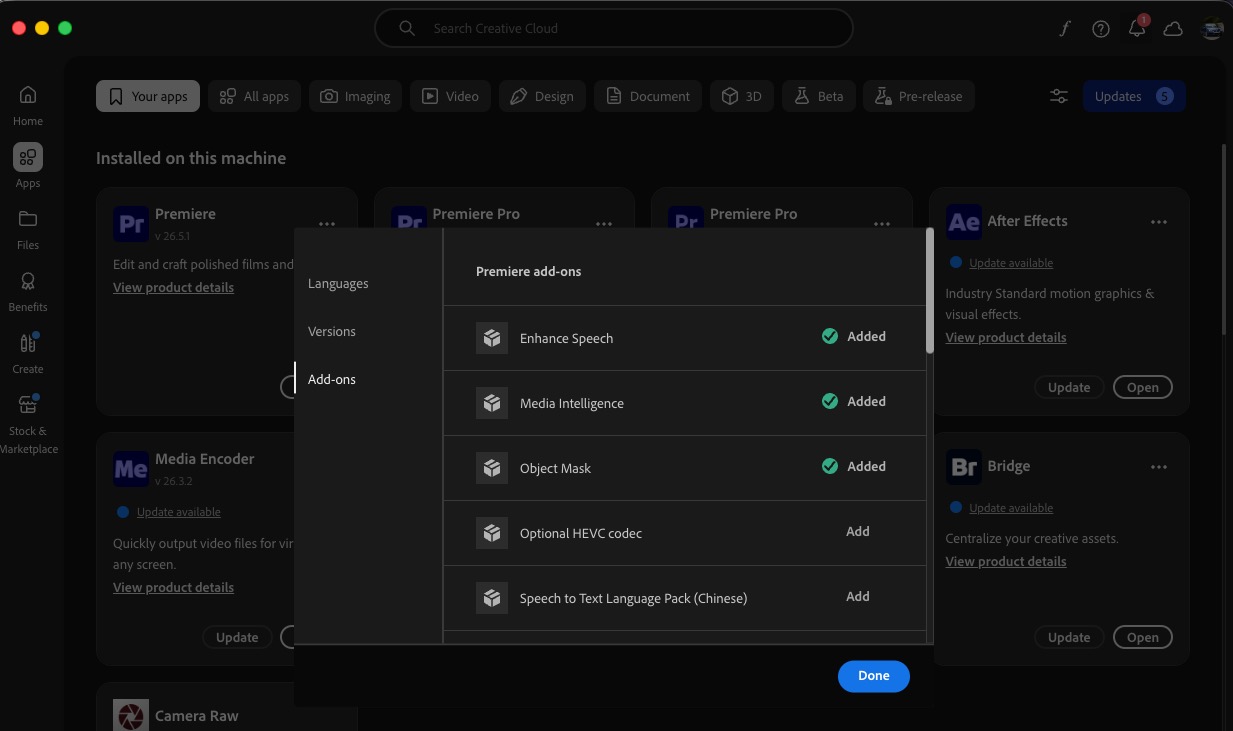

For this test, I imported a several folders of B-roll. I had 65 clips of various formats and lengths. This was from a documentary shoot. My first folder of 500+ clips proved this was going to take too long so I pruned it down to a much more manageable 65 clips.


| Adobe Premiere | DaVinci Resolve | Final Cut Pro | |
| M5 Ultra | 5:40 | 21:00 | 22:05 |
| M3 Ultra | 6:28 | 22:09 | 24:43 |
| M1 Ultra | Stopped at 16
minutes |
41:00 | 28:17 |
I’m not sure what happened with Premiere on the M1 Ultra but I killed the process after it seemed to stall at 16 minutes. It didn’t crash but it didn’t keep progressing either.
Resolve has a two-step process for IntelliSearch. It can identify and analyze the content, but it can also do a face and a separate analysis pass just for face detection. You don’t have to do face detection if you don’t want to.
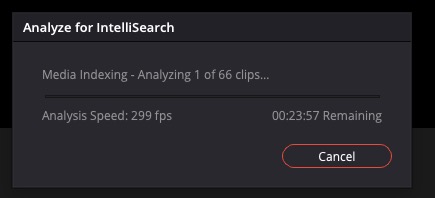

In my tests, it took an additional hour for face detection but I didn’t count that in the times I clocked. Resolve also offers two levels of analysis: a fast analysis and a more in-depth analysis, and each requires two different downloads of additional model data.
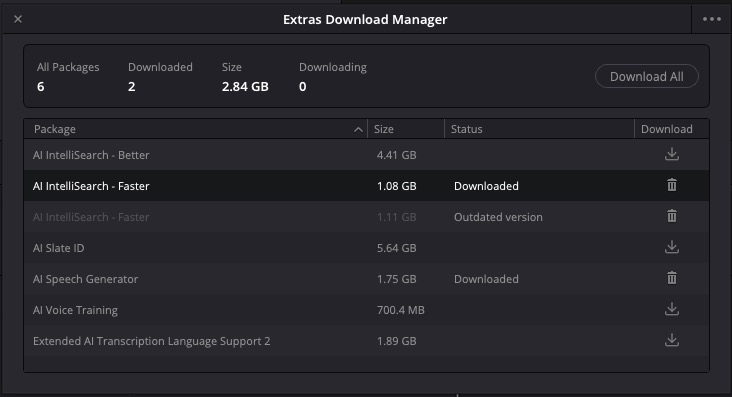

I went for the fast analysis, and obviously the more in-depth analysis would require longer to analyze.
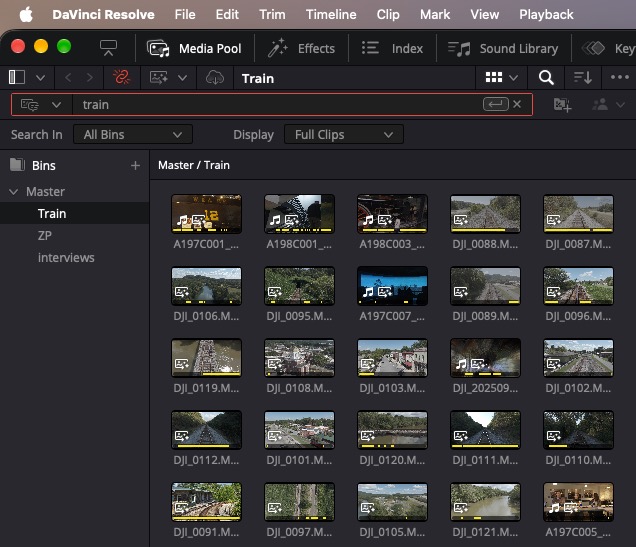

Looking at the chart above, Premiere was so much faster in the analysis, but then I think it’s less accurate. A lot of this footage had to do with trains, and some of those trains had numbers on the side of them. When the analysis was done, and I searched for the word train in all three applications, they quickly returned a lot of train footage and train track footage, exactly as you would expect.
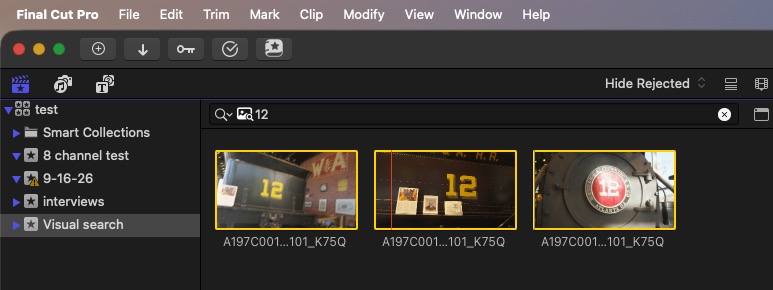

But a couple of trains had a number twelve on the side, so when I searched for “12”, both Resolve and Final Cut returned those clips with twelve on the side of the train, but Premiere did not.
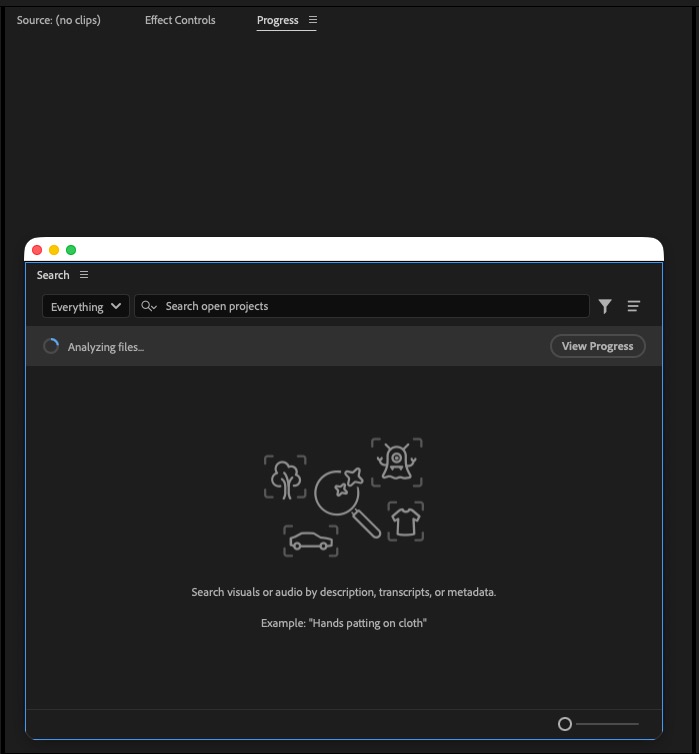

I also don’t like Premiere’s all-or-nothing approach to media analysis. You either turn it on or turn it off. I think there are many projects where I would only want certain bits of content analyzed for visual analysis. Not just because it takes time and requires data to do it, but because there are just certain clips I knew I would know I would never want to search through.
Enhance speech
I had a great clip for this test. It was a 57-minute single clip of multiple interviews with the same person, taken in different places. Some interviews were in a car, some were in an office, and then there were some walk-and-talks through various shops, restaurants, and buildings. So the noise level and the quality varied. But they were sent to me as a single clip. This used on-device models to enhance the speech.
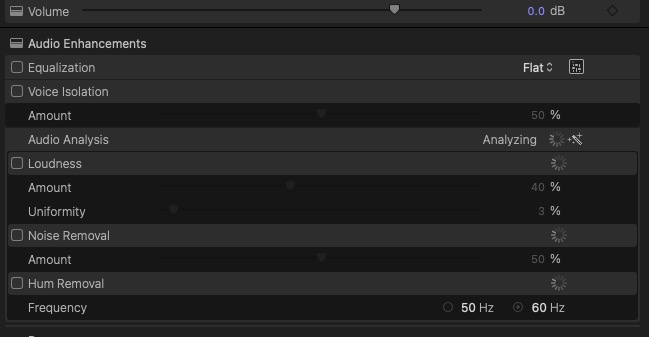

We have a clear winner here but a big gap between second and third place.
| Adobe Premiere | DaVinci Resolve | Final Cut Pro | |
| M5 Ultra | :57 seconds | Instant in real time | 18 seconds |
| M3 Ultra | 3:41 | Nearly instant | 20 seconds |
| M1 Ultra | 13:49 | Also nearly instant | 31 seconds |
Resolve’s enhanced speech is called AI Voice Isolation, and it runs in real time. So there’s no analysis that has to happen. But FCP flew through the analysis. And they all sounded really good. It’s amazing how well AI voice clean-up is these days.
Transcribe to captions
For this operation, I took the same 57-minute clip above that had been cleaned up and had each NLE transcribe the single clip to captions on a timeline.
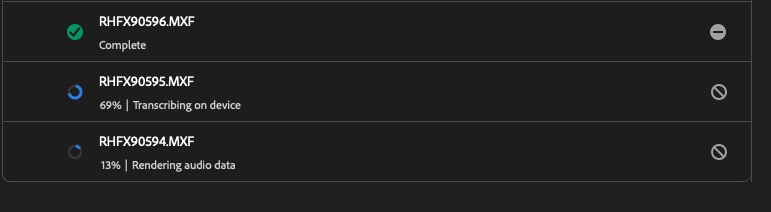

| Adobe Premiere | DaVinci Resolve | Final Cut Pro | |
| M5 Ultra | 1:49 | 3:25 | 1:34 |
| M3 Ultra | 9:00 estimate give but a crash | 2:58 | 3:45 |
| M1 Ultra | 3:46 | 4:42 | 5:02 |
The M5 really made a difference in the transcribe-to-captions test.
Batch transcribe interviews
This was a relatively simple task. Batch transcribed seven different interviews that totaled over two hours.


| Adobe Premiere | DaVinci Resolve | |
| M5 Ultra | 2:25 | 8:28 |
| M3 Ultra | 6:50 | 9:30 |
| M1 Ultra | 8:23 | 14:57 |
Scene detection
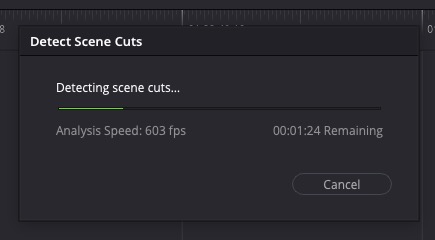
This was a 34-minute documentary project. It was an old documentary originally shot in DV, and all we had left was an H.264 conversion of a DV .mov file. We needed to grab some shots out of it, so rather than manually going through and editing myself, I let scene detection do its thing.

| Adobe Premiere | DaVinci Resolve | Final Cut Pro | |
| M5 Ultra | 1:19 | 1:17 | :39 seconds |
| M3 Ultra | 1:22 | 2:09 | :53 seconds |
| M1 Ultra | 1:30 | 2:51 | :58 seconds |
It’s hard to say which scene detection was more accurate on an edited piece, but what matters more here, I think, is speed. You just want it to get done quickly so you can find the shots that you want. FCP is the king here.
Resolve was running about 200 frames per second faster on the M5 Ultra than the M3 Ultra.
Multi-file encode
In this process, I had a 4K HEVC file from a trade show that was an hour and 47 minutes long. I needed a quarter-screen-size proxy with a burned-in filename, as well as a small H264 with burned-in timecode for viewing. I created presets in Adobe Media Encoder and encoded them from a fast external SSD to the internal SSD of the Mac Studios.
| Adobe Media Encoder | |
| M5 Ultra | 15:28 |
| M3 Ultra | 21:58 |
| M1 Ultra | 58 minutes, 23 seconds |
For this encode, Adobe Media Encoder ran them both concurrently
One interesting thing I noticed is that the M5 Ultra cranked through these things at maximum power. I forgot to check the Silicon app, but I did hear the M5 Ultra fans spin up and the machine got really hot. But I think that’s what it is supposed to do: use its power and built-in cooling to the max.
That was such a big difference between the M1 and the M5 in the times I ran again individually.
| Encode to H265 BITC | Adobe Media Encoder |
| M5 Ultra | 12:43 |
| M3 Ultra | 14:56 |
| M1 Ultra | 47:48 |
| Encode to ProRes Proxy Quarter screen | Adobe Media Encoder |
| M5 Ultra | 12:39 |
| M3 Ultra | 14:31 |
| M1 Ultra | 45:25 |
Those times were right. It was interesting to see that running the encodes concurrently didn’t add much time to the overall encode.
I also took the same file above and ran that through Blackmagic Proxy Generator to make a single H.264 8-bit half-res file
| Blackmagic Proxy Generator | |
| M5 Ultra | 11:57 |
| M3 Ultra | 12:28 |
| M1 Ultra | 10:31 |
Yeah, not sure about the M1 Ultra’s win there.
And finally, the same file through Apple Compressor to create a ProRes Proxy quarter size
| Apple Compressor | |
| M5 Ultra | 12:42 |
| M3 Ultra | 13:24 |
| M1 Ultra | 13:18 |
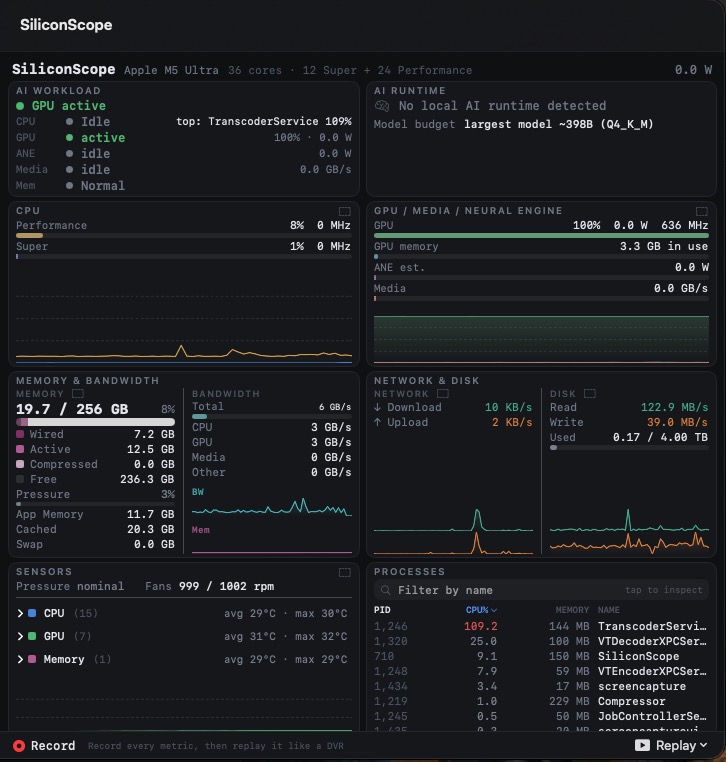

One thing I noticed when running some of these encode tests on the M5 Ultra is that once the process really got going, the fans kicked on to keep the Ultra cool. This is anecdotal, but it feels like the fans kicked in sooner on the M5 Ultra than on both the M1 and the M3. Though under heavy encoding, the fans kick in on both of those as well. And the fans didn’t turn on when encoding via Compressor.
But overall, Mac Studios are incredibly quiet, and I know people who have them on their desktop and have never noticed the fans coming on. Even when the fans come on, it’s noticeable but nowhere near as loud as when a MacBook Pro’s fans turn on under a full load. I noticed the fans more from the heat the M5 Ultra was putting off than I did the sound. And it did get hot. I found an article online suggesting an M3 Ultra might reduce GPU power under a heavy LLM processing workload before the fans kick in.
I think video encoding and LLM AI work are probably two of the most intensive things you can ask of a Mac Studio, and Apple designed them with a state-of-the-art thermal management system to keep the systems cool.
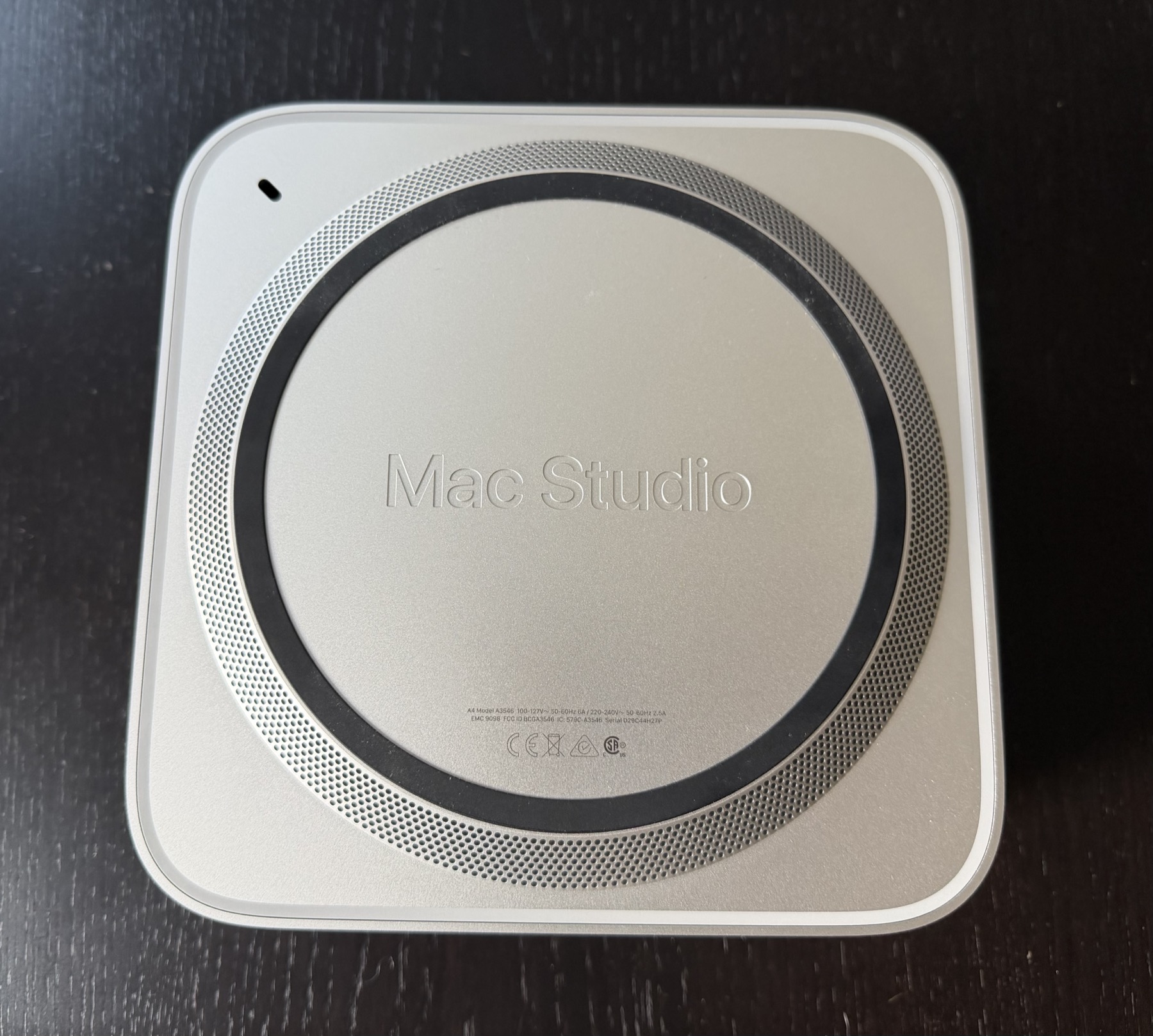

It’s worth noting that for optimum cooling in a Mac Studio, has to be kept on a stable, flat surface with plenty of room around the bottom, around the base of the Mac Studio, as air is drawn from the bottom of the system. If rumors are to be believed, a Mac Studio design update might get even better cooling but as one who has run many TBs of encodes through a Mac Studio, the cooling seems pretty darn good to me.


I once went to a colleague’s edit suite. I was a bit shocked to see he had his Mac Studio sitting on the very large armrest of a very fluffy couch. I don’t think that was its usual place to live, but he had moved it there to get it closer to a second display. And he had been working in that position long enough where his main editing desk had become cluttered with other stuff. It did feel like it was running hot even when he wasn’t running encodes, and we discussed how it cools; he was a bit surprised to see the ventilation on the bottom of the Mac Studio. It was still working, but that’s certainly not the recommended place to put it.
What configuration to buy?
We all know of the current state of SSD storage, RAM and computers in general, as the AI data center boom has raised prices across the industry. That has made for an interesting position in purchasing computers like the Mac Studio for post-production.
If you price an M5 Ultra Mac Studio, you currently only have two RAM choices: 96GB and 256 GBs. That base M5 Ultra (with a 1 TB SSD) will set you back $5,499. That’s high enough that it takes some serious consideration for a freelance editor. Bumping up to 256 GBs of RAM adds an additional $4,000 and that takes it out of the realm of possibility for many freelancers.
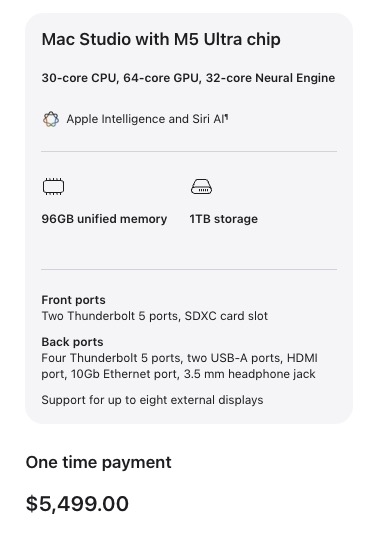

This will be a very good machine for most post-production tasks. If your editing machine is a laptop or a Mac mini, then this will be a powerful upgrade. If you happen to still be running one of the last Intel Macs, then this machine will be a revelation.
If comparing to a Mac Studio with an M5 Max chip, you have to up the RAM to get to a similar configuration, as the 96 GB RAM option is only available with an M5 Ultra. But that may be okay as that 128 GB RAM option has always been a sweet spot.
But configuring a M5 Max with a similar spec gets you to $5,399.
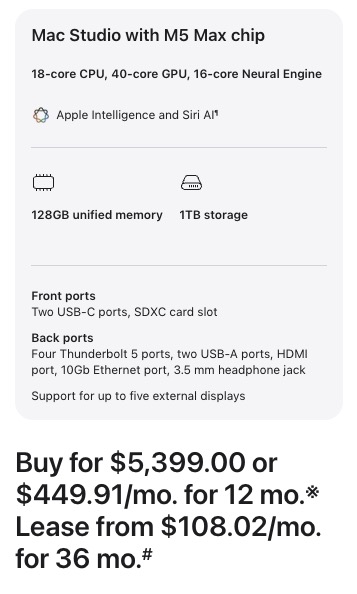

This could be a difficult choice. If you plan to run any local AI models, the extra RAM of that M5 Max configuration might be worth it. Video professionals often have several large applications running big projects open at the same time, so the more RAM, the better has always been the easy way to look at things. But in the RAMpocalypse we are in the 96 GBs of the M5 Ultra will allow good work to get done for an “affordable” price. You can run Final Cut Pro, Adobe Premiere, DaVinci Resolve and Avid Media Composer very well with 96 gigabytes of RAM.
On the RAM question for local AI models, I asked both Gemini and Claude this question, and the general consensus seemed to be:
36GB – 48 GB for a hobbyist.
64 GB – 96 GB as a sweet spot for semi-pros and enthusiasts.
128 GB – 512 GB for power users and developers.
This is a good discussion about RAM options:

But as far as for video editing and post productions, the 96 gigabyte Ultra option would be plenty of RAM for post production. The four big NLEs all recommend around 16 gigabytes of RAM for working with HD, And jump up to 32 to 64 gigabytes for working with 4K and higher media. Of course, if you want to open more than one application at a time, which is incredibly common, you would want more. But you should be able to run web browser and Premiere and After Effects just fine with 96 gigabytes of RAM.
How to look at the cost?
When buying a $5,000 – $10,000 computer for video editing, this is a business expense and it should be looked at that way.
Let’s look at this through the lens of the original M Ultra Mac Studio that I reviewed in March of 2022. That was a $5,799 machine that is still going strong today. I know several editors who purchased an M1 variant of the Mac Studio when they came out and they are still happy with the power of that machine.
But as a business expense you have to look at the deprecation and how that amortizes over time. In the US, the IRS uses a 60-month depreciation as a baseline so if you purchased a new M1 Mac Studio in 2022 you’ll soon be coming up on that 5 year mark.
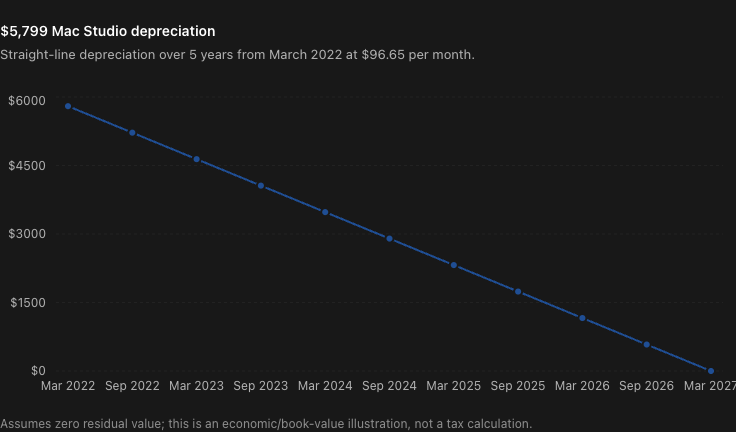

Original cost: $5,799
Depreciation estimate so far: ~$5,219
Potential remaining value: ~$580
Ownership cost: ~$1,160/year or $96.65/month
Fully depreciated: March 2027
That’s roughly $100 per month for that system and if you’re a freelancer that’s just an hour or two of work when you break it down using that metric. It’s easy to type that out but it’s a bit more difficult to make that initial purchase.
Apple does have the new Apple Upgrade program where you can lease a Mac Studio (among other Apple products) and that might make sense for some so talk to your accountant if you have a question about leasing a computer.
But if you purchase your Mac Studio you have another perk once you’ve decided it’s time to upgrade: selling that Mac Studio.
A quick search through eBay for sold M1 Ultra Mac Studios shows many that have sold for very good used prices. These prices
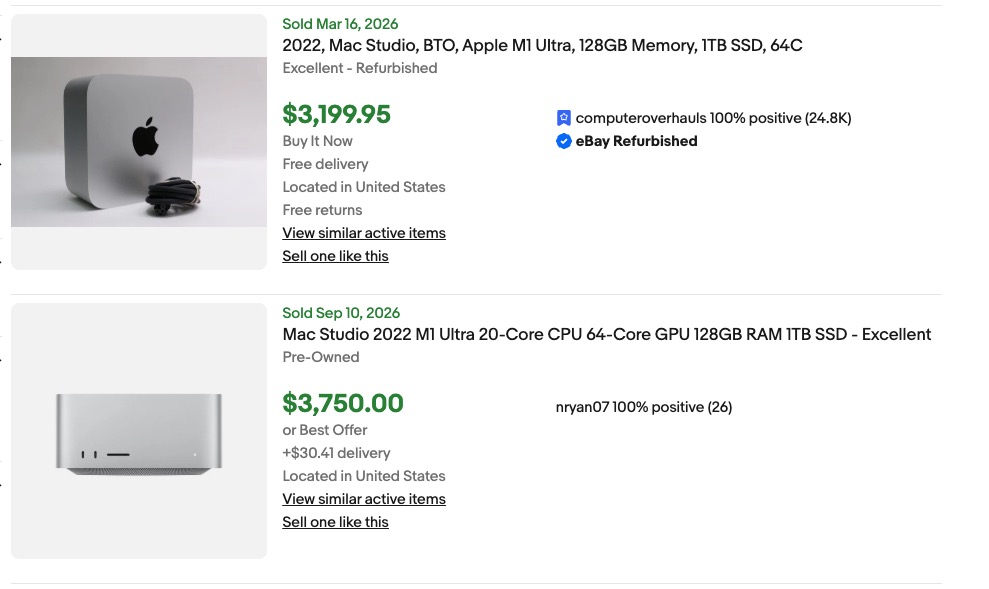

Call these Mac Studios the Toyota Tacoma of the computer world.
Stay tuned for Part 2 of this Mac Studio M5 Ultra review, all about Avid Media Composer.