


Back in 2021 I wrote a comprehensive guide to building your own editing PC that I’m still fairly proud of. It’s had a lot of readers over the years and is still a good reference for the basics. Here I will assume you know those things (or go back and read them) and update you on the latest news.
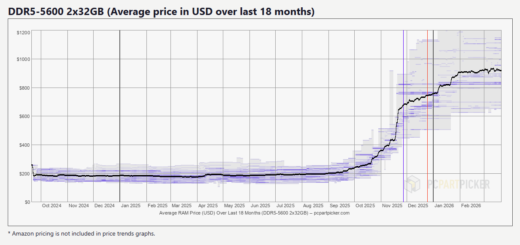
The headline being that whilst back then we had the GPU crisis, we now have the so-called RAMpocalyspe, where RAM prices have literally quadrupled in about 4 months. This leaves us with a big question – are these price hikes a passing thing or are they here to stay?
The DRAM shortage
So the biggest issue at present – the massive price rise in consumer DRAM prices, which is also having a knock on effect on other component prices.

The long and the short of it is that the big AI players are using their massive resources to buy up the capacity of the big 3 manufacturers (Samsung, SK Hynix, and Micron) as the AI arms race continues to devour compute at any cost – more GPUs = bigger training runs = more capable AI, at least that’s the easiest, if not the cheapest, way to achieve that. This means those companies can make more money using their fabs to produce the HBM memory for the likes of Open AI instead of selling DRAM to us. And whilst there isn’t a complete consensus, it appears that most commenters think this is going to last a good few years and get worse before it gets better. Here are a few key points:
- Micron have closed their consumer facing Crucial division (though there is still some Crucial RAM to be bought)
- Prices are at 400% of what they were in August 2025
- A single Nvidia GB300 datacentre rack can contain 37TB of a mix of HBM3E and LPDDR5X memory
- Western Digital has sold out its entire 2026 HDD production capacity to AI firms
- Cars, phones, electronics, other PC hardware – are all competing for limited RAM
- While some Chinese suppliers (e.g. CXMT) are trying to meet this need, that’s going to take a while



So what are our choices?
When prices shoot up, it may seem obvious that you just need to wait it out. But in this case, some are saying prices might not come down til 2030 and could keep going up in the meantime. Having read a lot on the subject, I am on the pessimistic side – I think things will get worse for the foreseeable future, though maybe not quite as long as that. The AI arms race seems to ramp up each week at the moment. And they have the money – at least until a possible crash, but that’s hard to predict when or if that might happen.
So what to do:
- Build now. Not ideal with these prices, but if you need a new PC this year, honestly I don’t think waiting is going to help you. All the signs are that this could last a while. Some are putting less RAM in their systems, some are upping their budgets, some looking at the used RAM market, some are using DDR 4, some are using their RAM from their previous build. For sure shop around & do your research on how much RAM you need.
- Or wait. If your machine is working well — like mine — this might be a smart move, though probably only if you can wait a while. The earliest realistic hope for price relief is 2027, but some say 2028 and some say never – this might be the new normal. It’s worth remembering that the prices were very low the last few years after a glut of production.

A review of hardware changes in the last five years
Here’s a quick reminder of what’s changed in the last few years & what hasn’t.
What’s changed:
- The Intel vs AMD story has flipped, at least in Adobe Premiere Pro – this is mainly down to Intel’s QuickSync advantage
- DDR5 RAM is now the standard for new builds over DDR4
- The GPU shortage of 2021 is over – you can actually buy cards again!
- Talking of GPUs, of course there’s been a couple of generations since
- AI-accelerated features are now a part of life, though there’s much less actual need for “AI” labelled hardware than marketing depts would have you believe
What hasn’t changed:
- PCPartPicker is still a great starting point for planning your build – yet e.g. doesn’t list latest Threadrippers
- Puget Systems’ research and benchmark tools are still the gold standard for editing-specific performance data
- Nvidia over AMD for the GPU, it’s just not that close
- The build process itself is largely the same
- The argument for doing it yourself – still a great learning experience, still gives you a machine you understand inside out & loads of fun (but for sure it’s a hobby, if you have to take two days out to do this and account for that financially, that won’t help the budget)
With that in mind, I’ll go through the main hardware considerations
The CPU
In the original article I wrote, AMD had a pretty meaningful lead over Intel in performance per dollar. Not that long after that, things changed – and the key was Intel’s QuickSync technology built into their chips. For the Adobe Premiere Pro editor specifically, having an Intel chip became a major advantage because it could essentially team up with the GPU on the tricky task of dealing with those compressed (and hard to play back) codecs H.264 and H.265 (HEVC). For example, you are exporting a timeline and QuickSync decodes the H.264 while your Nvidia GPU handles the encoding. I have an Intel chip in my (beefy) laptop and it does export quicker than my AMD PC.
Minutes matter when you’re exporting & it’s not just export, it’s snappy timeline responsiveness and lower energy use. It also frees up your GPU for GPU-accelerated effects, debayering R3D footage and so on. AMD does have its own hardware video engine (Video Core Next), but it has always lagged behind QuickSync in NLE implementation.
Worth noting – at one point Adobe changed the H.264 decoding priority so that Nvidia sometimes takes precedence over Intel’s QuickSync, so you may want to double check that depending on your setup and version in Preferences > Media – and ideally test your options for H.264 workflows.
But what about all the other times when you’re not decoding H.264/H.265? Well, then the trusty AMD Threadripper is still awesome, using its brute force power to get you where you need to go. (And I will say from experience having one, using the computer generally and multitasking just feels very snappy).
So what does all this mean for the CPU decision? Based on Puget’s current recommendation page for Premiere and Davinci Resolve (but check those pages to keep up to date):
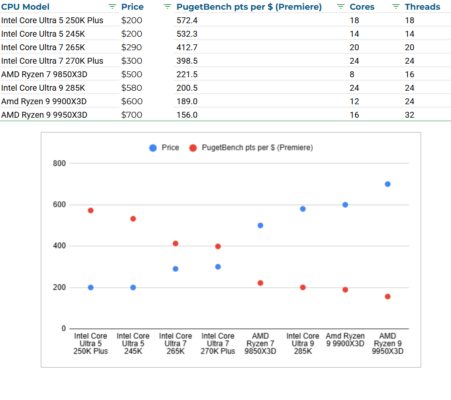
- For primarily Premiere Pro long-GOP H.264/HEVC workflows, the Arrow Lake Intel Core Ultra 7 270K Plus is looking very good right now – it’s at a reasonable $300, has topped the latest Puget tests and has 24 cores. QuickSync gives it a clear advantage over the AMD chips and it’s very reasonably priced for what it delivers. Or you could pay less for the new 250K Plus at $200 and also get most of that performance
- For most other workloads, AMD’s Threadripper 9000 series leads if you are happy to pay for a full workstation – the 32-core 9970X or the 24-core 9960X not far behind at a much lower price
- AMD’s mainstream Ryzen 9000 desktop chips (like the 9950X) do better in Resolve & will still work well
- The AMD Threadripper PRO series is not recommended for Premiere – they are more expensive and the added features don’t translate into better performance
- The Intel Xeon range doesn’t really compete with the Threadripper except for Avid editors who need to be qualified for support – Avid have always tended to stick with the Xeon for workstations. I run Avid MC on my AMD chip fine, but in a post house there are advantages to sticking with something from Avid’s qualified list
If you’re using DaVinci Resolve rather than (or as well as) Premiere, the GPU becomes even more important than the CPU – and some of these trade-offs shift accordingly.
I always like to compare price against performance and here is a chart of PugetBench points per $ that shows that as you pay more for your CPU, you get less bang per buck – in a remarkably linear way (spot the odd one out). Though you may be willing to pay for that increase in cores that could come in useful in other software or multitasking in general, so you need to look at all use cases. I mean I looked at all this last time and still bought a Threadripper!

The GPU – Nvidia retains the lead
This is where the most has changed since 2021 – both in terms of the market and the specific recommendations.
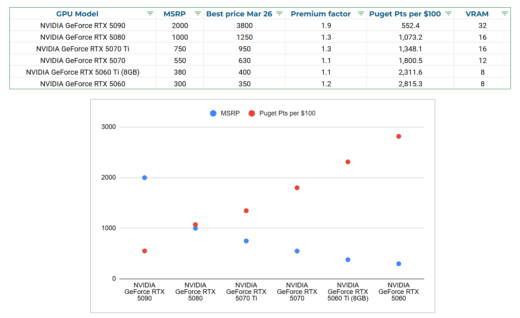
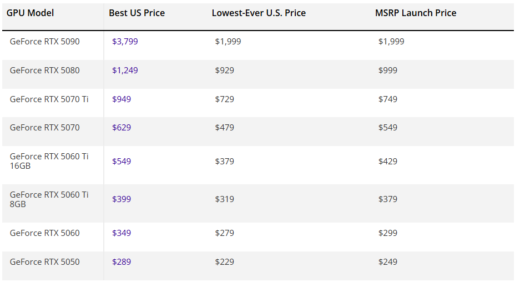
First: the GPU shortage that dominated the original article is over, but prices have been affected by RAM demand (see the Tom’s Hardware tracker). Notably the 5090 is going for about double what it should at the moment. The rest are at roughly 20-30% over MSRP. A scatter graph shows the same story as CPUs – the performance per dollar goes down as you pay more. For simple 1080p with proxies in Premiere for example, it is a waste to go much above a 5060. But then remember the VRAM rule of thumb – “double the res” (4K timeline = 8GB VRAM etc). And then will you be doing any VRAM hungry things, like:
- noise reduction (or anything) in Davinci Resolve
- working at higher res
- local AI video generation for free with the Desktop Comfy UI and WAN2.2
- high end gaming
- any CAD or ray tracing etc
- Topaz
If that is you, the big question currently is whether you want to pay $2500 extra for a 5090 over a 5080.


Nvidia remains the clear choice. Puget’s research consistently shows higher performance with Nvidia GeForce cards than comparably priced AMD Radeon cards – a combination of superior CUDA performance, better GPU-accelerated effects support and Nvidia’s hardware media engine. There is probably some Chicken & Egg going on here with Adobe and Intel/Nvidia – it’s more worth their while to support the hardware that most people have and then that hardware gets even better performance with the better software integration and then more people buy it. So I do feel a bit for AMD and hope that they can catch up as competition is always good.
The RTX 5000 series (Blackwell) is the current gen Nvidia card, released early 2025 and it’s worth a quick update on what’s changed – particularly for editors. I have reviewed Nvidia cards before and one thing that is clear is that for basic work, you don’t need one of the higher models. They are way more powerful than most editing needs.

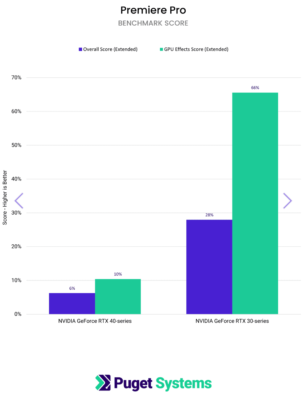
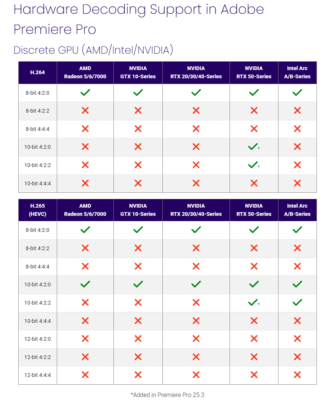
The 5000 series did bring additional native hardware support for 10 bit 4:2:2 chroma subsampling in H.264 and H.265 – something the 3080 and 4080 couldn’t do. But based on Puget’s current testing, the gap over the 4000 series in Premiere is still modest in overall score, with the bigger gains showing in LongGOP-specific tests.
The 5080 also launched at $999 – $200 less than the 4080 launched at, which is a welcome change of direction after the pricing controversy I covered at the time. For editors sitting on a 4080, the upgrade case isn’t that compelling yet. For anyone building a new machine from scratch, the 5000 series is the obvious current-generation choice at that price point.

From Puget’s current testing:
- The RTX 5080 is the recommended all-round option – roughly on par with the previous-generation 4090 in Premiere performance, with the new media engine and 4:2:2 support
- The RTX 5090 is the fastest available, though its overall Premiere score advantage over the 4090 is around 9%, rising to around 15% for heavily GPU-accelerated effects work. Only really worth the price tag if you regularly push GPU-intensive timelines or use it for other things, especially with the current price premium
- The RTX 5070 Ti offers strong value & still has 16GB VRAM – this is where I’d point most editors who want current-gen performance without the top-end price
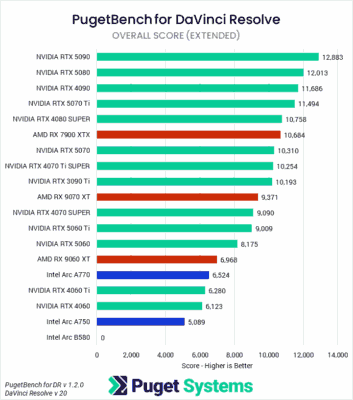
- AMD cards like the $600 Radeon RX 9070 XT will still work fine if you favour one for gaming, just that you’ll be paying a premium for content creation. Testing in Davinci Resolve shows the 9070 XT is about the same as the 5060Ti ($380)

The rest (Motherboards, SSDs, RAM, cases etc)
Things get a little simpler here, partly as your choices narrow once you’ve decided on your CPU.
- Motherboard: PC Part Picker will show you which motherboards fit your chip and show you availability and rating. You can draw somewhat on the wisdom of the PC building community, though there’s a lot of gamers with different benchmarks to editors. Decide what extra features you need (eg wifi, bluetooth) and what your budget is and shortlist three and then read some reviews on the main hardware sites (listed below). You won’t go wrong with the main players like MSI, Gigabyte, ASRock, Asus etc. I will add that with say a workstation CPU, like the Threadripper or Xeon, the whole system (chipset and compatible motherboards) goes up in quality – more PCI lanes and the like. This makes a real difference to the feel of your machine and how many lovely fast NVMe SSDs you can add, but you do pay a premium for that.
- Memory: As I’ve discussed, prices are none too pretty, and availability is scarce so you need to decide how much you need and then shop around. It seems the speed and CAS latency haven’t shown to have a massive effect on editing, which makes it easier.
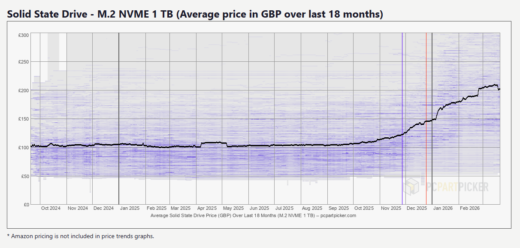
- Storage: Prices have also gone up signficantly – because each SSD has a little NAND memory chip on it, which are caught in the same squeeze. Personally I like 1TB for my C: drive and 2TB for my cache drive and then I have a bunch of other drives in my case as I just love to work off local NVMe SSDs, but it’s budget dependant.
- Accessories (power supply, case, cooler, etc) are fairly well covered in my earlier article – I would look at reviews on the sites listed below like Gamers Nexus and also make sure everything is compatible.
Jumping in the deep end
So assuming you have done your research and decided to build, here’s where to start.

Go to PCPartPicker.com & check your country is correct. Register a free account, go to System Builder and start logging your planned components.
It walks you through all the key components:
- CPU (plus cooler)
- Motherboard
- Memory
- Storage
- GPU
- Case
- Power supply
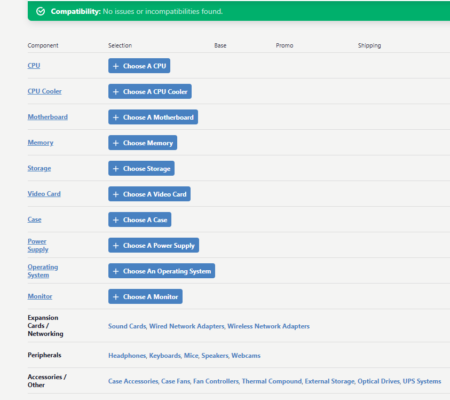

But the real value is in its compatibility checker, which cuts out the vast majority of your potential mistakes before you spend a penny. Does your power supply have enough wattage? Do you have the right chipset and socket for your CPU? Will the cooler physically fit in the case? It has a massive database under the hood that catches all of this automatically. It also shops around for the best price across around 40 countries – and if yours isn’t listed, you can add prices manually.
As I said, it doesn’t seem to have the latest Threadrippers, which is a pity. If you go for one, you’ll need a motherboard with a TRX50 chipset and sTR5 socket like the ASUS Pro WS TRX50-SAGE WiFi.
Motherboard & Cooler
Once you’ve settled on a CPU, the motherboard decision gets much easier. The socket and chipset have to match, and the consensus from reviewers narrows the field quickly. Gamers Nexus remains my main reference here. Work out how many USB ports, ethernet ports and M.2 slots you need, whether you want built-in WiFi, and go from there.
For the cooler, the Noctua range is still the go-to recommendation – find the model that fits your socket and you won’t go wrong. Near silent at idle, which is exactly what you want. But there are cheaper options out there.
Memory
The system requirements for Premiere recommend 32GB, but as I said in the original article, I’d seen 32GB max out regularly enough – especially with a big Production – that I went with 128GB. My advice now would be 64GB as a sensible minimum for serious professional use, with 128GB if you’re regularly working in 6K or 8K or big projects and Productions. But with prices as they are, you may have to compromise somewhat.
Storage
The advice here is largely the same as before: one drive for Windows and programs, a second dedicated to cache. After that you can fill your remaining M.2 slots with NVMe SSDs for proxies and perhaps use a RAID for main media OCFs. NVMe is fully mainstream now – Gen 4 is the current sweet spot, prices have come down considerably and there’s no good reason to be buying SATA SSDs for primary storage on a new build. Gen 5 exists but the real-world benefit for editing workloads over Gen 4 is marginal for the price premium.
Opening and working with larger Premiere projects on NVMe rather than spinning disk or even SATA SSD is a genuine quality-of-life improvement – I noticed it immediately on my own machine.
AI-accelerated workflows – what you actually need to know
Basically mostly you can ignore the marketing. So having an “AI” CPU is not that big a deal, with a fancy NPU (Neural Processing Unit). But you’ll probably get one anyway on a new CPU.
The AI features that are genuinely already useful in a Premiere workflow – Enhance Speech, auto-captioning, scene editing detection, text-based editing, and the various generative AI tools Adobe are folding into the suite – are largely running either in the cloud or on the GPU. For any GPU-based AI, a good Nvidia card is your best investment and you’ll have that covered already.
What about ARM / Snapdragon X?
Apple Silicon’s success made it inevitable that someone would make a serious attempt at bringing ARM architecture to Windows. Qualcomm’s Snapdragon X Elite is the most credible contender – the battery life and efficiency figures are genuinely impressive, and the CPU performance benchmarks are respectable. This is probably a question more for your next laptop, but I’ll cover it briefly.
With NLEs specifically, there is support, but this is still a work in progress. Premiere & Resolve both support ARM natively, but there are still features awaiting full support like ProRes RAW or plug-ins. I don’t know that many editors brave enough to try this, but if you have, let us know in the comments.
Budget vs Performance
As I mentioned above, the more you spend, the worse your performance for the price. But there are many compelling reasons to spend more if you value the performance of a better machine. I certainly have never regretted what I spent on mine. A machine you use all day, five days a week, for 4-8 years is being used for around 1,000-2000 working days. Spreading the cost out like that makes it a lot easier to justify spending a bit more to get something genuinely capable.
A useful check once you have a parts list together: run PugetBench on your current machine, then look at Puget’s results database to see what score you’d expect from what you’re planning to build.
Setting it up
There are plenty of set up guides for you to follow, which I definitely suggest you do. Some points are:
- Setting up your OS
- Setting XMP/EXPO
- Checking chipset and GPU drivers are up to date
- Enabling Resizable BAR / Smart Access Memory in BIOS if relevant
- Checking thermals under load before you start

Conclusion
When I built my machine back in 2021, my day to day editing completely changed. It made such a big difference and I absolutely loved researching and building it. That machine is still running incredibly well today, which says something.
There are still risks. If you’re on mission-critical work with no tolerance for downtime, perhaps better to go with a specialist like Puget or Scan. But if you have the time and the inclination to put in the research, I’d recommend it.
And do I need to mention that the price increases have tipped the balance just that little bit more in the Apple direction – oh, I suppose I must. Though even Apple haven’t been immune to putting their RAM upgrade prices up.
—
Additional links
Beginner channels
Regular updates channels
Hardware review channels
Hardware review sites
Forums
Alternative parts lists
Puget Systems resources