

There’s a noteworthy DaVinci Resolve 21 event that has happened recently. No, I’m not talking about the full Resolve 21 release, the new Resolve 21 Photo page or any of the minor updates that have come along since then.
I’m talking abou the mammoth, 4443 page DaVinci Resolve 21 Manual.


I find this printed manual release noteworthy for a couple of reasons.
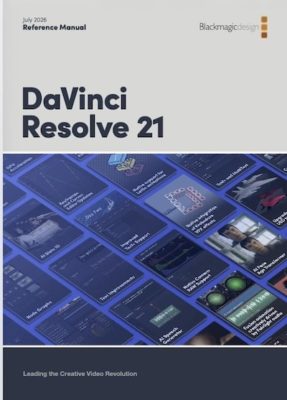

First, it’s noteworthy because it even exists and Blackmagic should be 🫡 and commended for holding steadfast in providing such a comprehensive document in the age of video everywhere and folks who don’t read.
Second, it’s so well done and so well organized for an application as diverse as Resolve it’s worth a browse even if you can’t read and/or have no intention of ever reading a word of text again in your life.
Third, you can kinda have AI read it for you, or at least help you find that you might need within the cover.
We all know AI and LLMs are great at parsing large amounts of data and the new Resolve 21 manual is a large amount of data in PDF form. You can add the manual to something like Gemini Notebook (formerly Notebook LM), which provides a single place to search the 4443-page document to quickly target a specific question you might have or an issue you’re trying to troubleshoot.
That said, I don’t think an AI like this is a substitute for the table of contents. Looking over the table of contents to take you to a section that can address a question is a great way to discover other things about Resolve you might not otherwise discover. Yes, I know that might require some time and actual reading comprehension, but you can learn things from searching and reading in a way that prompting an AI won’t necessarily allow.
To grab your copy, head over to the Blackmagic Support Center and look under the Latest Support Notes column to download a copy.

You can also get the document from the menu via the Resolve Help > DaVinci Resolve Reference Manual. When a new version ships, this menu item is usually the What’s New guide, but since Resolve 21 beta dropped, it’s been updated to the full manual.
If you scroll through the Latest Support Notes on the Blackmagic support page, you can find the DaVinci Resolve 21 New Features Guide (or hit this direct PDF link). That thing is a beast in and of itself at 150 pages.
All that said, I recently searched through that new manual to research the details for a tiny little button and was left empty-handed.
Resolve doesn’t have timeline view presets like its competitors, in a way to save custom track heights, waveform, thumbnail views and things like that. But the Resolve timeline menu does have a button called “Set as Default View.”

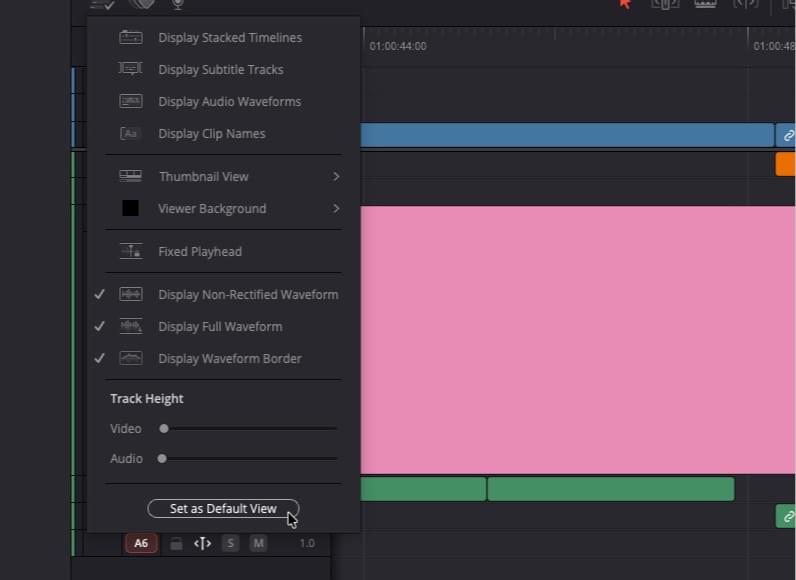
I wondered if this was a way to maybe set up my timeline in one specific way and then quickly recall that setup if needed. In lieu of custom presets, that could work.
But searching this new beast of a manual for “set as default view” returned no results. I also asked Gemini Notebook.

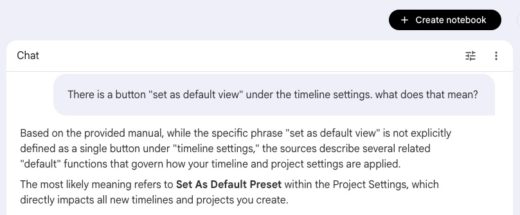
I think what this goes to show is that no matter how big and how detailed your user or manual is, when you have a piece of software as big, as powerful, and as deep as Resolve, not everything can get covered in that manual. Even a targeted Google search didn’t return many options except one dude on Instagram.
Alrighty then, “fusionproacademy,”
Anyhoo … If you are a DaVinci Resolve user and you didn’t know about this wonderful user manual document, now you do. Use it well, and you can learn something from it.